- Version
- 6.2.1
- Studio or maker
- Cosmic Apps Pty
- Languages
- English
- Activation
- K'ed by aqzs
- Runs on macOS
- macOS 10.13 or later
- Chip type
- Apple Silicon, Intel 64-bit
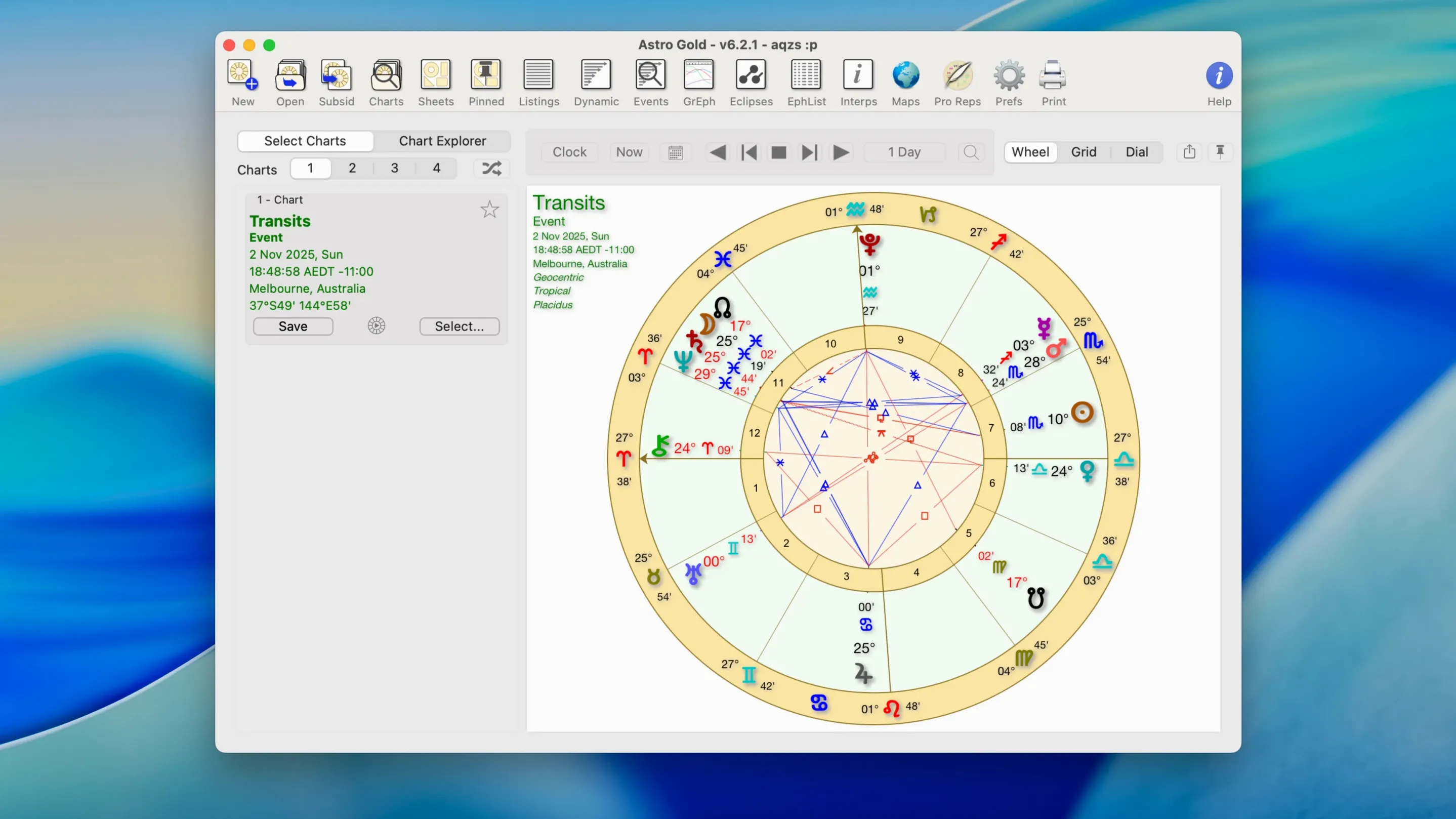
Astrology software often feels like it was designed for a different era. You open a chart, squint at the glyphs, and wonder where the actual insights are hiding. Astro Gold 6.2.1 for Mac solves that by putting the full toolkit on your screen without making you hunt through menus.
Covers natal charts, synastry, and transits
| Item | Detail |
|---|---|
| Developer | Cosmic Apps Pty Ltd |
| Version | 6.2.1 |
| macOS | 10.13 and later, Intel and Apple Silicon |
| Language | English |
Before installing, most people ask: does it cover the basics and the deeper techniques? Yes. You get natal chart creation, synastry for two charts, transits, and progressions. The fixed star catalog adds a layer some astrologers rely on. For relationship work, composite and Davison charts are there. Relocation charts help if you are moving or just curious about a new place. Returns include solar, lunar, and Saturn returns, so you can track those cycles without extra software.
The 6.0 update mentioned on the macOS page points to a significant refresh, and 6.2.1 continues from there. It runs on older Macs too, which is a relief for anyone not on the latest hardware. If you are weighing astro torrent options, this version covers the ground without feeling lightweight.
First days with Astro Gold: what to check
After you install and launch Astro Gold, the default screen shows a blank chart wheel. You will want to set up your data file first. The program stores your chart library in a single database, so take a moment to create a few test entries before you add your full roster. Enter a birth date, time, and location for yourself or a known chart. Then try switching between the round and square chart styles under the display options. The square style is easier to read on smaller screens, while the round style preserves the traditional zodiac wheel layout many astrologers prefer.
Next, open the orb, aspect, and planet filter settings. By default, Astro Gold uses standard orbs for major aspects. If you work with a narrower orb for conjunctions or a wider one for minor aspects, adjust those numbers right away. That saves you from reinterpreting charts later. The planet filter lets you hide outer planets or asteroids when you want to focus on personal points. This is especially useful when you start comparing charts with synastry.
Spend a few minutes with the ephemeris feature. It displays planetary positions for any date range, and you can cross-check transits against your saved charts. I find that running a transit for today against a sample natal chart helps you see how the software handles time-based calculations before you rely on it for client work.
Multiple windows no longer lag
The 6.0 update rebuilt the core architecture, and 6.2.1 refines that foundation. The most noticeable change is how the program handles multiple open windows. Earlier versions sometimes lagged when you had a transit window and a synastry window open at the same time. That is resolved now. You can keep a progressed chart in one window and a return chart in another without the interface slowing down.
The fixed star catalog was expanded in the 6.2 updates. Stars like Algol and Sirius now appear with more precise positions, which matters if you use fixed stars in your readings. The asteroid list also gained Proserpina, a body some astrologers incorporate in generational analysis. These additions mean you no longer need a separate star atlas or asteroid database.
Another change: the relocation chart module now calculates planetary lines for astrocartography in a single step. Earlier versions required you to generate the chart first and then overlay the lines. Now the lines appear alongside the relocation chart, which cuts down on clicking back and forth.
Professional astrologers with client lists benefit most
Professional astrologers who maintain a client list benefit most. The database structure keeps hundreds of charts organized, and the synastry module lets you compare any two charts in seconds. If you do relationship readings, the composite and Davison charts are right there alongside the standard synastry view.
Students of astrology also find it useful. The ability to switch between tropical and sidereal zodiac systems without re-entering data helps you understand how different house systems and zodiac calculations change a chart. The medieval and modern technique options let you explore older methods like symbolic directions alongside the more common solar arc directions.
For casual users who want to check their own birth chart or track transits, the learning curve is gentle. The chart filters and display styles mean you can hide anything you do not need yet. And if you are looking for astro gold for mac that runs on both Intel and Apple Silicon, this version covers both without extra configuration.
Set your default zodiac and house system first
Open the preferences panel and set your default zodiac system. If you use sidereal, change it now so every new chart starts with that system. The same goes for house system. Placidus is the default, but you can pick Equal, Whole Sign, or Koch depending on your tradition.
Enable the aspect grid in the display options. That grid shows all planet pairs in a table, which makes it faster to see exact aspects than reading the glyphs around the wheel. If you prefer a cleaner chart for printing, you can disable the grid later.
Adjust the font size for chart labels. On a 13-inch MacBook, the small default glyphs can be hard to read. Increasing the label size by one step makes a difference without crowding the wheel. The setting is in the chart styles section.
Finally, set your preferred ephemeris type. The software includes both tropical and sidereal ephemerides. If you work with astro gold free download sources, you might want to double-check which ephemeris you used previously and match it here for consistency. This is especially important if you are migrating from another program.
- macOS 10.13 or later
- Intel or Apple Silicon
How to install
- Open the downloaded disk image to mount it.
- Drag the app into the Applications folder alias so it lands in your main apps list.
- Launch it from Launchpad after the copy finishes.
Similar apps
Sign in or join the club to leave a comment.
Nobody has commented yet.