
- Version
- 29.2.1
- Studio or maker
- GRAPHISOFT
- Languages
- Russian, English
- Activation
- Included
- Runs on macOS
- macOS 14 or later
- Chip type
- Apple Silicon, Intel 64-bit
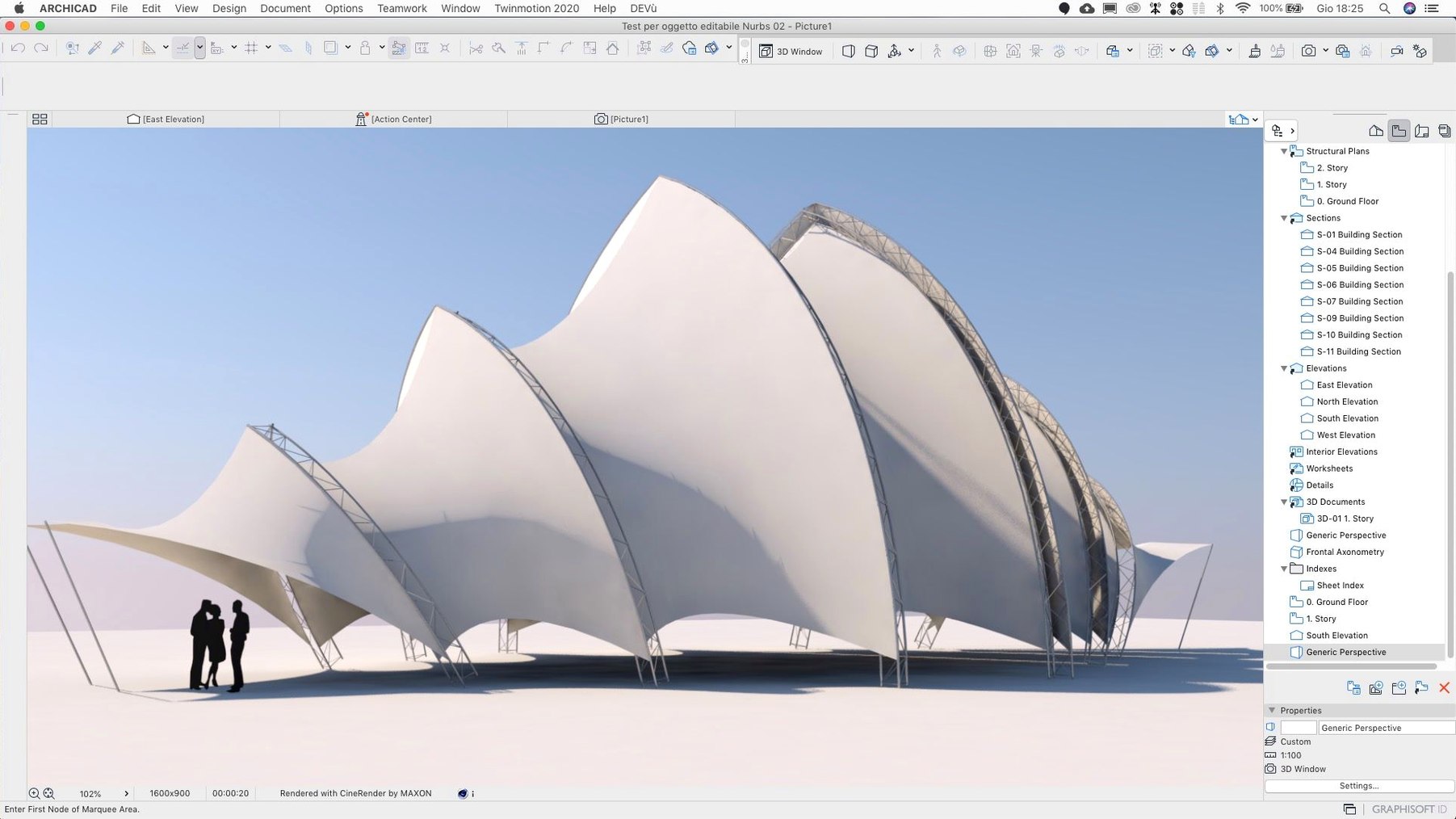
Architects and designers often juggle complex models, team coordination, and constant revisions. ArchiCAD on Mac tackles that by letting you build with Virtual Building technology, so the model stays the central source of truth. You can work alone or with a team, and exchange data with consultants in other fields. The current version, 29.2.1, is a hotfix update that smooths out several rough edges while keeping the core workflow intact.
The modeling environment and BIM component support
| Item | Detail |
|---|---|
| Version | 29.2.1 |
| Developer | GRAPHISOFT |
| macOS requirement | macOS 14 |
| Architecture | Intel and Apple Silicon |
| Interface languages | Russian, English |
What stays the same is the familiar modeling environment, the support for third-party BIM components, and the ability to create, search, upload, and download components directly from the object dialog. The hotfix addresses specific issues in modeling, Teamwork and BIMcloud, and project data. For example, it fixes a remaining input problem in the Rotate command and a crash when scrolling through Attributes, and it improves Teamwork Send and Receive on BIMcloud SaaS so those operations no longer take inconsistently long. If you rely on ArchiCAD daily, this update is a small but welcome polish.
The Rotate command now behaves as expected
Version 29.2.1 is a hotfix, so the changes are targeted rather than dramatic. The first thing you might notice is the Rotate command behaving as expected every time. Earlier, a value entered in that command could be interpreted incorrectly, leading to a rotated element landing a few degrees off. Now you type the angle you want, and it sticks.
If you work on a team using BIMcloud SaaS, the Send and Receive operations should feel more predictable. The update fixes a situation where those steps could take an inconsistently long time to complete. No more staring at a progress bar that seems to have paused for no reason.
The Share dialog also gets a practical fix. It could select the wrong host server for the current folder, so you might have been uploading to a server you did not intend. That is now corrected, which saves time and confusion when you are coordinating across multiple projects.
For anyone dealing with zone geometry changes, the zone wall surface area values in Zone Stamps and schedules now update correctly. Before this fix, changing zone geometry could leave those numbers out of date, and you would have to double-check them manually. The same applies to migrated projects that could contain shifted dimensions with incorrect values. Those dimensions are now reliable.
And the crash that could happen while scrolling through Attributes is gone. That alone makes navigating the Attribute dialog less stressful.
Native Apple Silicon performance vs. Vectorworks and Revit
When choosing BIM software for Mac, three names come up often: ArchiCAD, Vectorworks, and Revit (via Parallels or Boot Camp). Each has a different approach.
ArchiCAD vs. Vectorworks Architect. Both run natively on Apple Silicon, so Mac users get full performance. Vectorworks is more general-purpose — it handles landscape, entertainment, and interior design alongside architecture. ArchiCAD keeps its focus squarely on building design with Virtual Building technology. If your daily work is strictly architectural modeling, ArchiCAD feels more purpose-built. Vectorworks offers a broader toolset but sometimes requires extra steps for standard BIM workflows.
ArchiCAD vs. Revit. Revit dominates in large firms, but it does not run natively on macOS. You need virtualization software, which adds complexity and a performance tax. ArchiCAD runs directly on the Mac, and the Intel and Apple Silicon versions both work without a translation layer. For a team that works entirely on Macs, ArchiCAD keeps things simpler. Revit has a steeper learning curve for new users, while ArchiCAD tends to feel more intuitive for someone coming from a drafting or modeling background.
ArchiCAD vs. SketchUp Pro. SketchUp is not a full BIM tool — it is a 3D modeling application that can be extended with plugins. ArchiCAD treats the model as a database with smart objects, schedules, and automated documentation. If you need detailed BIM data and coordination across disciplines, ArchiCAD is the stronger choice. SketchUp works well for early concept modeling but lacks the built-in BIM tools for construction documentation.
IFC, DWG, and PDF exchange plus macOS integration
ArchiCAD does not work in isolation. It supports data exchange with consultants using other software, so you can import and export IFC files, DWG drawings, and PDFs. That covers most workflows between architects, structural engineers, and MEP specialists.
On macOS, ArchiCAD takes advantage of the operating system's native features. You can use Spaces to keep your ArchiCAD windows on one desktop while referencing notes or a browser on another. The Touch Bar on older MacBook Pros shows relevant modeling tools, though it is not essential. The app also supports High DPI displays, so Retina screens show crisp lines and text.
For file management, you can store project files on a network drive or in a cloud folder like iCloud Drive or Dropbox. Just be careful with Teamwork projects — they work best when all team members access the same BIMcloud server, not a synced folder that could cause conflicts.
If you do development work, the ArchiCAD API site lets you create custom tools and scripts. That means you can automate repetitive tasks or integrate ArchiCAD with other parts of your workflow, such as generating reports or connecting to a project management tool.
Installing the update without the main version
Starting with ArchiCAD is straightforward, but a few common missteps can slow you down. Here are the ones I see most often.
Installing the update without the main version. The 29.2.1 update cannot be installed unless you have the main version 29 already on your Mac. Beginners sometimes download only the hotfix and wonder why it will not open. Install the main version first, then apply the update.
Forgetting to set the language during installation. ArchiCAD comes in English and Russian. If you need a different language, you have to download it separately from Graphisoft Downloads. Skipping that step means working in a language you might not prefer.
Not using the object dialog for BIM components. New users often search online for BIM objects and download them manually. ArchiCAD has a web portal integrated into the object dialog, where you can create, search, upload, and download components directly. It saves time and keeps everything organized.
Ignoring the Rotate command fix. The input issue in the Rotate command is subtle. Beginners might think they misclicked or that the software is inaccurate. Now that 29.2.1 addresses it, the command works as expected — but you have to know about the fix to trust it.
Skipping Teamwork setup. If you work on a team, the Send and Receive operations need a stable connection to BIMcloud. Beginners sometimes start a team project without configuring the server correctly, leading to long wait times or wrong server selection. The 29.2.1 update improves consistency, but you still need to set up the Share dialog properly.
- Fixes a remaining input issue in the Rotate command.
- Improves Teamwork Send and Receive on BIMcloud SaaS.
- Fixes a crash when scrolling through Attributes.
- macOS 14
- Intel or Apple Silicon
How to install
- Install the main version of ArchiCAD first. The update requires it.
- Open the package and follow the included instructions. They guide you through the process.
- For other languages, go to Graphisoft Downloads, choose the product version, architecture, and language, then download after signing in or registering if needed. Updates do not require registration.
- Install the update after the main version is in place.
Similar apps




Sign in or join the club to leave a comment.
Nobody has commented yet.