- Version
- 2.2.8
- Studio or maker
- Color Grading
- Languages
- English, Chinese (Simplified)
- Activation
- K'ed by TNT team
- Runs on macOS
- macOS 10.12 or later
- Chip type
- Intel 64-bit
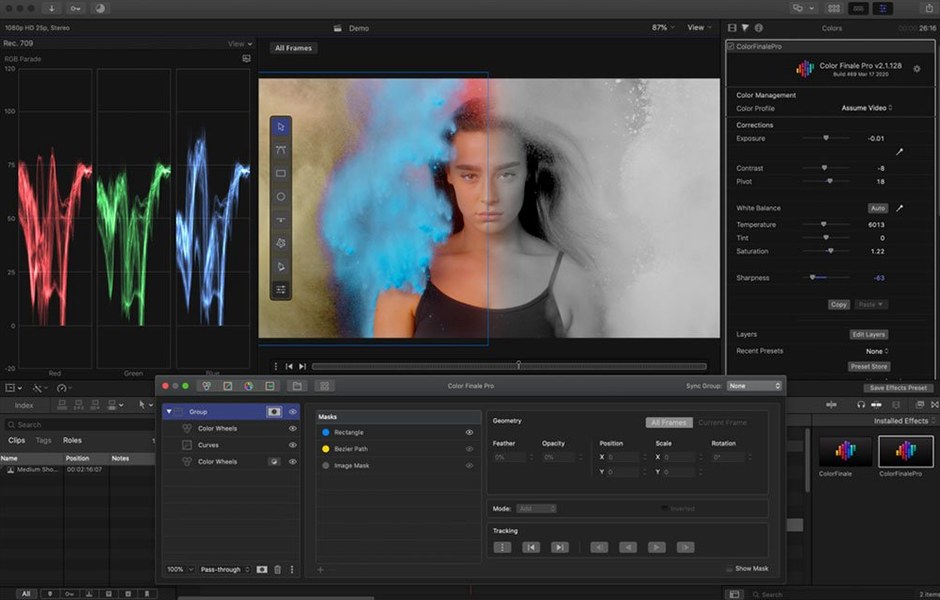
Color Finale 2 is a color-correction plugin for Final Cut Pro that brings professional grading tools into your editing timeline.
Track-based grading — Apply adjustments to individual clips or whole timelines, using layered corrections that stack like tracks in a mixer.
Bus-style workflow — Think of the plugin’s layers as buses: you can route multiple clips to a shared correction, then fine-tune the overall look without touching each clip.
Primary color vectors — Adjust hue, saturation, and luminance across the whole image, the way you would on a broadcast scopes.
Curves — Fine control over contrast and color channels, for matching shots or creating a specific mood.
LUT and preset store — Save your own looks as LUTs or presets, or pull from the built-in Color Preset Store to speed up repeatable jobs.
Typical jobs — Correcting white balance, balancing exposure between shots, matching footage from different cameras, and applying a consistent grade across a project.
A working session with color finale 2
You have a multicam interview project open in Final Cut Pro. Two cameras, one a mirrorless model, the other a smartphone. Skin tones don’t match. Here is how a session with Color Finale 2 might go.
First, you locate the plugin in the effects browser under the Color category. Drag it onto a clip from the mirrorless camera. The interface appears as an overlay in the viewer. You see the primary color vectors first — three sliders for hue, saturation, and luminance. Adjusting saturation pulls the whole image toward richer or flatter color. Luminance lifts or darkens the shot without shifting the tint. This gets you in the ballpark.
Next, the curves. You click the Curves tab and see a diagonal line across a graph. Click to add a point, then drag it down to deepen shadows. Another point pulled up lifts the midtones. You toggle the red, green, and blue channels individually to match the smartphone camera’s cooler look. The curves respond in real time as you scrub through the clip.
For the skin tone difference, you open the HSL Curves section. You sample a patch of skin from the mirrorless shot, and the plugin isolates that hue range. You nudge the saturation up slightly to match the smartphone’s warmer rendering. Because HSL Curves target a specific color range, the background stays untouched.
When both clips look alike, you save the correction as a preset. Click the preset icon, name it “Interview match,” and it appears in the Color Preset Store. On the next project with the same cameras, you apply it in one click from the store panel.
You stack a second instance of Color Finale 2 on the same clip for a creative grade — a subtle teal lift in the shadows, pulled from the LUT Utility. The layered adjustments work independently, so the technical match stays below and the look sits on top.
Runs on Intel Macs and Apple Silicon via Rosetta 2
Color Finale 2.2.8 is a 64-bit x86 build, so it runs on Intel Macs with macOS 10.12 or later. On Apple Silicon Macs, it works through Rosetta 2, like many Final Cut Pro plugins. The interface languages are English and Simplified Chinese.
The plugin installs as a video effect inside Final Cut Pro and Motion. It also needs a separate Color Finale application that runs in the macOS framework — that is the application you dragged to your Applications folder during installation. The application itself is activated by the TNT team, meaning you do not need to sign in to a store or enter a license key.
Because it is a plugin, it does not replace Final Cut Pro’s own color tools. It adds a second panel of controls in the viewer. You can use it alongside the built-in color board if you want, though most people pick one or the other per clip to avoid conflicting corrections.
The plugin includes 30 ASCEND Color Finale Colorist Presets as a starting point. These are named looks — like “Cinematic Warm” or “Moody Cool” — that you can apply and then tweak with the wheels and curves. The bonus workflow for recreating looks is a separate guide inside the plugin’s documentation that walks you through matching a reference image.
Turn on the scope overlay in the settings panel before you start grading
After the plugin is installed and you have applied it to a clip, open the settings panel in the corner of the Color Finale interface. Three things are worth adjusting before you start grading.
- Scope overlay — Turn on the built-in waveform or vectorscope inside the viewer. This gives you a numeric readout of luminance and color information, so you are not relying only on your monitor’s brightness.
- LUT preview — If you plan to use the LUT Utility, set the preview mode to “Side by side” or “Split.” You see the original clip on one side and the LUT-applied version on the other, which makes it easier to compare before committing.
- Preset browser layout — The Color Preset Store can show presets as a grid or a list. Grid is faster for browsing looks; list is better when you have many custom presets and want to read their names.
These options are in the plugin’s own settings, not in Final Cut Pro’s preferences. They persist per project, so set them once and they stay for the duration of your edit.
A real-world scenario: event videographer
You shoot a wedding with two Sony cameras and a GoPro for the ceremony. The Sony files are S-Log, flat and desaturated. The GoPro footage is contrasty and warm. You bring everything into Final Cut Pro on a single timeline.
Drag Color Finale 2 onto a Sony clip. Use the LUT Utility to apply a Rec 709 conversion LUT — this brings the log footage into a normal contrast range. Then use the primary color vectors to match the GoPro’s warmth. Save that combination as a preset called “Ceremony match.”
Select all Sony clips in the browser, then drag the preset onto them. Each clip gets the LUT and the color shift in one step. For the GoPro clips, you apply a second preset that cools down the highlights using the Curves tab. The whole ceremony cuts together in about ten minutes of grading, without touching each clip individually.
The layered adjustments mean you can go back later and raise the overall saturation on all clips by adding a single layer at the top of the stack, without redoing each preset.
- macOS 10.12 or later
- Intel or Apple silicon Mac
- Final Cut Pro X or Motion
Questions I keep getting
Does Color Finale 2 work on Apple silicon Macs?
Yes, Color Finale 2 runs on both Intel and Apple silicon Macs, though it is a 64-bit x86 build.
Where does Color Finale 2 install?
It installs as a video effect plug-in into Final Cut Pro and Motion, and requires a separate Color Finale application to operate within macOS.
Can I save my own looks?
Yes, you can author and save LUTs and presets, making it easy to reuse grading styles across projects.
How to install
- Mount the disk image and run Open Gatekeeper friendly — this opens the installer without extra clicks.
- Press Enter to bypass Gatekeeper in the Terminal window — this step is needed because the plugin is not notarized.
- Drag the application to the Applications folder — this places it where macOS expects it.
- The application is ready to use — no additional setup required.
Similar apps






Sign in or join the club to leave a comment.
Nobody has commented yet.