
- Version
- 27.2.0.135
- Studio or maker
- Corel Corporation
- Languages
- Russian, English, German, Spanish, Italian, Chinese (Traditional), Chinese (Simplified), Dutch, Polish, Portuguese, Turkish, French, Czech, Swedish, Japanese
- Activation
- Included
- Runs on macOS
- macOS 13 or later
- Chip type
- Apple Silicon, Intel 64-bit
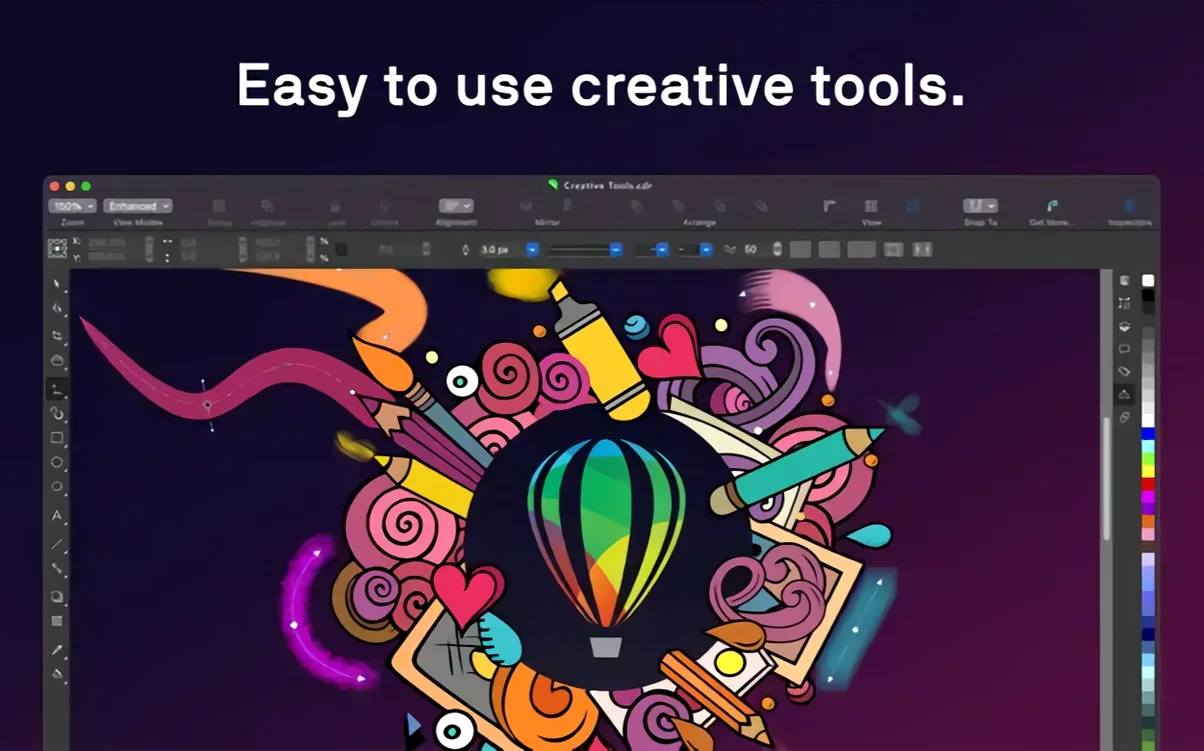
The variable fonts feature is one I keep coming back to. It lets you fine-tune weight, width, and other axes interactively, so you can adjust a headline without switching between separate font files. That kind of control matters when you're laying out a brochure or a multi-page document and want the typography to feel intentional.
CorelDRAW Graphics Suite 27.2.0.135 keeps the same core tools: vector illustration, page layout, and photo editing, all in a native macOS interface. It supports Apple Silicon and Intel Macs with AVX2, and the GPU requirements are an OpenCL 1.2-compatible card with 3 GB or more of VRAM. If you use an iPad with Sidecar, you can work with the Apple Pencil while seeing changes on your Mac screen. The Touch Bar still offers controls for layers and text tools, which is handy for quick adjustments.
File support stays broad — CDR, AI, PSD, PDF, SVG, DWG, DXF, EPS, TIFF, HEIF, and more. Styles and style sets help keep formatting consistent across objects and whole documents. Transparency, pattern fills, gradients, and color controls are all there. The current version doesn't introduce new features; it refines what already works, making it a stable choice for design work on a Mac.
Why a small marketing team benefits from CorelDRAW
A small marketing team in a mid-sized company, responsible for product catalogs and social media graphics, finds CorelDRAW useful because they can handle vector logos, photo corrections, and page layouts in one application. One team member might trace a scanned sketch into vector artwork, another adjusts product photos in Corel PHOTO-PHOTO-PAINT, and a third lays out the final catalog pages. The shared file format support means they can exchange work without conversion headaches. The AI upscaling and JPEG artifact removal also help when they receive low-resolution images from clients and need to use them in print.
They can design a logo, create a business card layout, edit a product photo, and export everything in the required formats without switching applications. The Sidecar support for Apple Pencil is a practical advantage when they prefer to sketch concepts on an iPad and then refine them on the Mac.
How CorelDRAW compares with similar Mac apps
Affinity Designer 2
CorelDRAW keeps vector, raster, and page layout tools in one workspace, which reduces context switching when you're working on a multi-page document that also includes photo edits. Affinity Designer handles SVG export well, but CorelDRAW's broader format support — especially for DWG and DXF — makes it a stronger choice if you exchange files with engineering or architectural teams.
Adobe Illustrator
CorelDRAW provides comparable vector tools, variable font support, and file compatibility, while running more predictably on Mac hardware with 8 GB of RAM. The included PHOTO-PAINT application also means you don't need a separate photo editor for basic retouching and compositing. Artists who work with print layout often find CorelDRAW's page layout tools more intuitive for multi-page documents than Illustrator's artboard system.
Inkscape
Inkscape is free and open-source, which appeals to hobbyists and students. Its SVG-native workflow is solid for simple vector work, but it lacks the typography controls, raster effects, and file format support that a print or marketing professional needs. CorelDRAW's variable font support, multi-page layout, and AI enhancement features target a more demanding production environment.
Which workspace settings to adjust first in CorelDRAW
When you first open CorelDRAW, a few settings can make the interface behave more predictably for your workflow. These are worth checking before you start on an important project.
- Workspace customization. The software lets you choose or create a workspace that matches your preferred tool arrangement. If you come from Illustrator, the default workspace might feel unfamiliar. Spend a few minutes moving the most used tools — like the Pick tool, Shape tool, and Text tool — to a dock that feels natural.
- Document defaults. Set your default page size, resolution, and color mode (CMYK for print, RGB for screen) so new documents start with the correct settings. This saves time when you're creating multiple files for the same project.
- Undo levels. The default undo limit might be too low for complex work. Increasing it to 50 or 100 gives you room to experiment without worrying about losing progress.
- Auto-backup interval. Set the automatic backup frequency to every five or ten minutes. The feature runs in the background and can recover your work if the application closes unexpectedly.
- GPU acceleration. CorelDRAW uses the GPU for rendering effects and previews. Ensure that GPU acceleration is enabled in the preferences, especially if you work with gradients, transparency, or complex vector objects. If you notice display glitches, you can toggle it off to troubleshoot.
How Sarah updates a 16-page booklet in CorelDRAW
Sarah, a graphic designer at a publishing house, starts her Tuesday morning with CorelDRAW. She needs to update a 16-page booklet for a client who sells garden tools. She opens the existing CDR file from last week.
First, she reviews the client's email for changes: two product photos need replacing, the headline font weight is too light, and the back cover layout needs a redesign. She opens Corel PHOTO-PAINT from within the suite, crops and adjusts the white balance on both new images, then uses the AI artifact removal to clean up a JPEG that the client sent from an older camera. She saves the edited images and returns to CorelDRAW.
She selects the headline text on page 3, opens the variable font controls, and increases the weight axis from 400 to 600. The letters gain presence without changing the font family. She adjusts the tracking to 20 for better readability. The change applies instantly across all text objects that use the same style set, so she doesn't have to update each page manually.
For the back cover, she deletes the old layout and starts a new composition. She creates a rectangle that spans the full page, fills it with a linear gradient from dark green to charcoal, and adds a semi-transparent white rectangle for the client's tagline. The gradient and transparency tools respond quickly, and the live preview helps her adjust the color stops until she's satisfied.
She imports the client's logo in AI format, places it in the upper left corner, and traces a raster sketch of a new product into vector paths using the tracing tool. The traced result needs some cleanup — a few stray nodes appear around the edges — but the Shape tool lets her adjust them in a minute. She saves the file, exports a PDF for print, and also exports a compressed JPG for the client's preview.
Why beginners should set CMYK instead of RGB in CorelDRAW
- Working in RGB when the output is print. Many new users start a document with the default color mode and later discover that their vibrant screen colors look dull on paper. Setting the document to CMYK at the start avoids this. If you already created the artwork, you can convert it through the color management tools, but results vary depending on the colors used.
- Forgetting to group objects before moving them. A logo or illustration often consists of multiple overlapping shapes. When you click and drag, you might move only one element and break the design. Grouping related objects with the Group command prevents accidental edits. Beginners also forget to ungroup when they need to adjust a single part, so remember to do that as well.
- Copying objects without using the duplicate shortcut. The Ctrl+D (or Command+D) shortcut duplicates an object at a specified offset. Beginners sometimes copy and paste, which places the copy directly on top of the original, making it hard to tell if anything happened. The offset from the duplicate function makes it immediately visible.
- Ignoring the Object Manager docker. When a complex document has dozens of overlapping objects, clicking to select the right one becomes frustrating. The Object Manager shows every object in a list, and you can click to select, hide, or lock layers. Beginners who skip this docker often struggle with selection.
- Applying effects directly to bitmaps without editing in PHOTO-PAINT. CorelDRAW includes filters for bitmaps, but heavy effects can slow down the layout. It's better to edit photos in Corel PHOTO-PAINT first, where the tools are designed for raster work, and then place the processed image into the drawing. This keeps the layout file lighter.
- Not using style sets for consistent formatting. Beginners format each text box individually. When the client asks to change the headline color on all 16 pages, they have to update each one by hand. Creating a style set for headlines, subheadings, and body text means one change propagates everywhere.
- Overlooking the export options for print. Exporting a PDF without checking the settings can result in missing fonts, low-resolution images, or incorrect color profiles. The PDF presets in CorelDRAW cover common print standards, but it's worth reviewing the output preview before sending the file to a printer.
- macOS 13 or later
- Apple Silicon or multicore Intel processor with AVX2 support
- OpenCL 1.2-compatible video card with 3 GB or more of VRAM
How to install
- Open the included installation and activation instructions.
- Follow the instructions provided inside the package.
Similar apps





Sign in or join the club to leave a comment.
Nobody has commented yet.