
- Version
- 2022.5 Build 22.3.1.4090
- Studio or maker
- Corel Corporation
- Languages
- Russian, English, German, Spanish, Italian, Chinese (Traditional), Chinese (Simplified), Korean, Polish, Portuguese, Turkish, French, Czech, Japanese
- Activation
- K'ed by TEAM HCiSO
- Runs on macOS
- macOS 10.14 or later
- Chip type
- Apple Silicon, Intel 64-bit
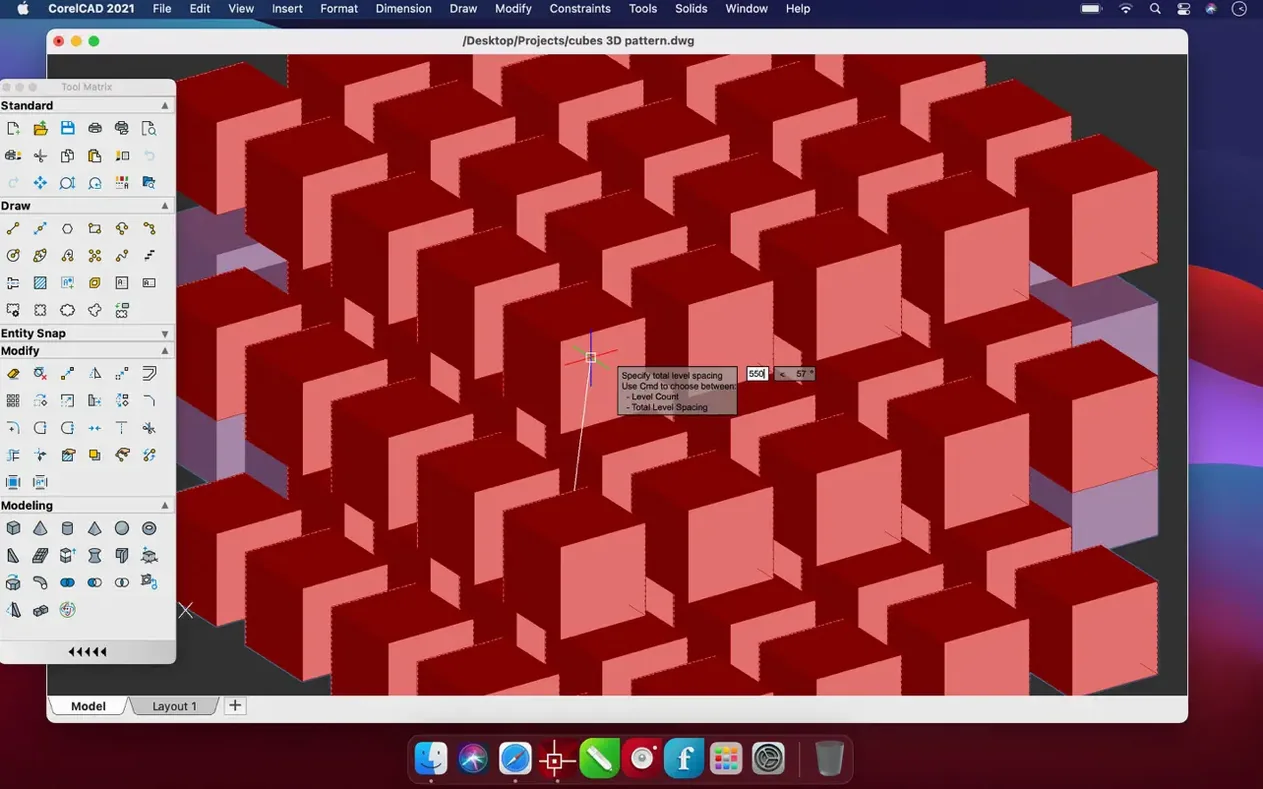
CorelCAD on Mac is built for people who spend their days turning ideas into precise drawings: planners, engineers, architects, and product designers. It handles everything from early concept sketches to detailed layouts, and it does so without forcing you to change the way you work. The interface feels familiar if you have used other CAD tools, so you can get straight to the task at hand.
What sets CorelCAD apart for experienced users is the depth tucked into its tools. You get solid 2D drafting features and a full 3D modeling environment, plus options for automation, customization, and collaboration. When a project calls for a physical prototype, you can export your model as an STL file and send it to a 3D printer. The file support is broad—PDF, SVG, EPS, DWF, STL, SAT, SHP, and DWS—so exchanging drawings with colleagues or clients rarely becomes a hurdle.
The current Mac version runs on both Apple Silicon and Intel machines, and it is available in fourteen languages. That makes it a practical choice for teams spread across regions. If you are upgrading from an older release, the 2022.5 build (22.3.1.4090) brings performance and stability improvements, which matter when you are deep into a complicated model.
Opens native DWG files for easy file sharing
CorelCAD integrates well with the broader workflow around it. Because it reads and writes native AutoCAD DWG files, you can hand drawings back and forth with colleagues using standard engineering software without conversion headaches. That same openness applies to output: you can export finished plans as PDFs for client review, SVGs or EPS files for publication, or DWF files for web-based collaboration platforms.
On macOS specifically, the app respects system-level features without fuss. You can use the standard macOS file dialogs to navigate folders, and the application appears in Launchpad like any other properly installed program. The disk image installer means you are not dealing with a third-party package manager—just drag, copy, and launch. If you keep your drawings in iCloud Drive or a shared network folder, CorelCAD opens and saves to those locations directly, which helps when you move between a desktop and a laptop during a project.
For teams using version control or cloud storage, the native file formats are compact enough to sync without excessive delays. And because the app supports both ARM and x86 architectures, the same installer works on an M1 MacBook Air and an older Intel iMac, so you do not need to track separate downloads.
Set autosave intervals before your first drawing
Before you start your first real drawing, it is worth checking a few defaults. Open the preferences panel and look at the file-saving behavior: CorelCAD can be set to autosave at intervals you choose. If you are working on a multi-hour drafting session, setting it to every ten minutes gives you a safety net without interrupting your flow too often.
The interface language is another early stop. With fourteen languages available, you can switch to your preferred one immediately. The setting sticks across sessions, so you only need to do it once.
If you collaborate with others who use different CAD software, confirm that your default file format is set to the standard AutoCAD DWG version they expect. CorelCAD gives you control over the DWG version it saves to, which eliminates compatibility surprises when you email a file to a colleague who has not updated their own tools yet.
A walkthrough for drafting a small renovation plan
I will walk through a session that would be familiar to anyone drafting a small renovation plan. You open CorelCAD from Launchpad, and the startup screen shows a clean workspace with your recent files listed. You click an existing floor plan you started yesterday—a DWG file sitting in a project folder inside your Documents directory.
The drawing loads in a few seconds. You switch to a 2D drafting view, zoom into a corner of the existing layout, and adjust a wall line using the basic editing tools. The snap and grid guides keep your new line aligned with the existing structure. Next, you toggle to a 3D view to see how that change looks as a volume. With a couple of clicks, the 2D adjustment becomes a 3D extrusion, and you can orbit around the model to check clearances.
Satisfied with the geometry, you add a few dimensions and annotations using the text and measurement tools. You export a PDF of the revised plan to share with the client. Then, because you also need a physical study model, you export the relevant geometry as an STL file. That file goes into your slicer software later, but for now you close CorelCAD. The autosave has been running in the background, so you do not worry about losing the last half-hour of edits.
That is the rhythm of CorelCAD: open, adjust, switch views, output, close. No ceremony, just the tools you need, arranged for how Mac users expect software to behave.
CorelCAD is not a toy. It is a working tool for professionals who expect their software to keep up with them.
- Build 22.3.1.4090 is the current release of CorelCAD 2022.5.
- The update includes several enhancements and performance and stability improvements.
- macOS 10.14 or later
- Apple Silicon or Intel (64-bit) processor
Questions I keep getting
Which file formats can CorelCAD open and save?
CorelCAD supports PDF, SVG, EPS, DWF, STL, SAT, SHP, and DWS files, so you can exchange drawings with other CAD applications and prepare models for 3D printing.
Does CorelCAD run on Apple Silicon Macs?
Yes, CorelCAD is available for both ARM (Apple Silicon) and 64-bit x86 architectures, so it runs natively on M-series Macs and Intel models.
How to install
- Open the downloaded disk image to mount it.
- Drag the CorelCAD app into the Applications folder.
- Once copying finishes, launch the app from Launchpad.
Similar apps





Sign in or join the club to leave a comment.
Nobody has commented yet.