- Version
- 1.6
- Studio or maker
- Plugin Everything
- Languages
- English
- Activation
- K'ed by Monter Group
- Chip type
- Apple Silicon, Intel 64-bit
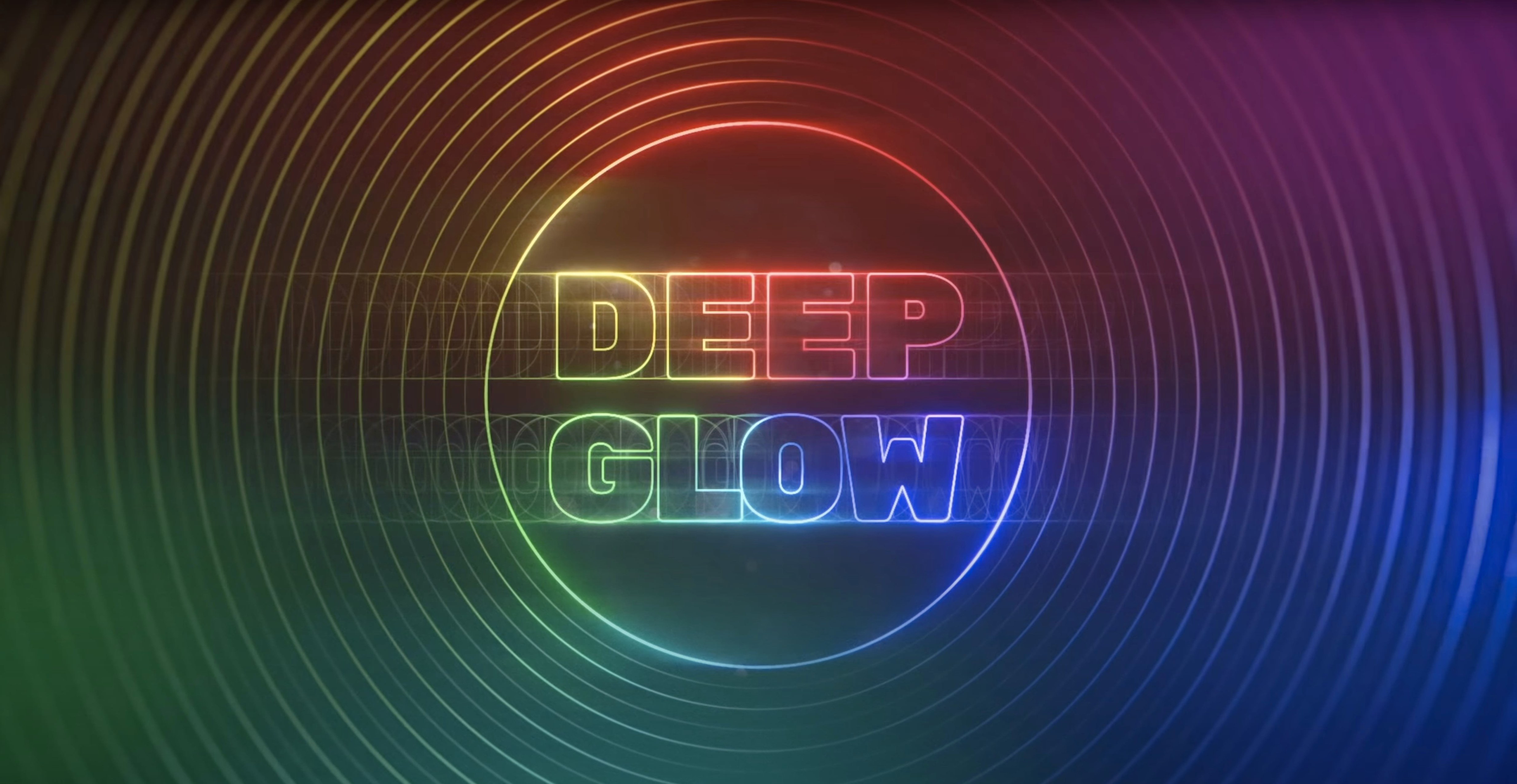
Deep Glow’s inverse-square falloff is the feature that sets it apart. Instead of a uniform halo that fades at a fixed rate, the light drops off the way it would in the real world, so a bright highlight bleeds further than a dim one. The effect feels physical, which makes it useful for neon signs, lens flares, or any light source that should read as genuinely luminous.
The plugin works directly inside After Effects, so there is no round-trip to another application. You adjust the glow in the same comp where you build the shot, with downsampling and quality controls to keep the preview responsive while you work. GPU acceleration handles the heavy lifting, and the plugin is designed for non-linear color spaces, so your glows stay consistent through your pipeline.
Deep Glow 1.6 runs on both ARM and x86 64-bit Macs, which covers the current Apple Silicon machines and older Intel models alike. The interface is English, and the developer, Plugin Everything, keeps previous versions of Deep Glow 1.6.x available in the archive for those who need to match a specific host setup.
Treating Deep Glow like a basic blur makes results muddy
The first thing I notice when students bring me their glow comps is that they treat Deep Glow like a basic blur-based effect. They slap it on a layer, turn up the intensity, and wonder why the result looks muddy or blown out. The key is understanding that inverse-square falloff changes the relationship between brightness and spread. If you push the glow radius too high on a layer that already has bright values, the falloff shifts and the whole image washes out. Lower the layer's brightness first, then let the glow do the work.
Another frequent error is forgetting about the compositing controls. Deep Glow includes blending and masking options inside the plugin, but beginners often bypass them and try to fix the result with After Effects' own blending modes afterward. That approach works, but it is less direct. Using the plugin's built-in controls keeps the glow integrated with the source layer, so later adjustments stay predictable.
Beginners also overlook the downsampling and quality controls. When the preview is slow, the temptation is to disable GPU acceleration or reduce the comp resolution. Instead, use the plugin's downsampling setting to drop the internal render resolution while you position and color the glow. Only switch to full quality for the final render. This keeps the feedback loop fast without losing the falloff behavior you have dialed in.
Grainy or stylized glows are another area where new users get tripped up. They want a noisy, textured light, but they set the grain amount so high that the glow breaks apart and loses its shape. Start with a moderate grain value and build up slowly. The falloff still works underneath the noise, so you get the texture without sacrificing the physical feel of the light.
Finally, people sometimes apply Deep Glow to adjustment layers or precomps that are not set to the correct color space. Because the plugin is designed for non-linear color spaces, feeding it linear footage can produce unexpected color shifts. Check your comp's color settings before you add the effect, and if you are working in a linear workflow, convert the footage to the expected space first.
What changed in Deep Glow 1.6
Deep Glow 1.6 is not a rewrite, but it represents a point where the plugin's compatibility and reliability were refined. The version sits in the developer's archive of previous releases, which tells me it is a tested build that many studios have used in production.
For everyday use, the most noticeable difference in the 1.6 line is the continued support for both ARM and x86 64-bit architectures. This means the same installer covers your Mac whether it runs an M-series chip or an older Intel processor. If you are on a mixed-hardware setup, you do not need separate builds or workarounds. The plugin picks the right architecture during installation.
Users who update from earlier 1.x versions, like 1.4, will find that the GPU acceleration remains consistent. There is no drop in performance or change in how the plugin interacts with After Effects. The interface stays in English, and the parameter layout has not been rearranged, so muscle memory from previous versions still works.
The availability of multiple 1.6 sub-versions—1.6.0 through 1.6.9—suggests that Plugin Everything addressed edge cases over time. If you encounter a specific host version or operating system that behaves oddly, you can try an adjacent release from the archive. For most users, the latest 1.6.x build is the right choice, but having the older ones available is a safety net for pipeline consistency.
Works on both ARM and x86 64-bit macOS
Deep Glow 1.6 runs on macOS with no specific version requirement in the specs. That means it should work on current Mac operating systems as well as several past releases. The plugin supports both ARM and x86 64-bit architectures, so it is native on Apple Silicon and also runs on Intel Macs without emulation overhead.
Because it uses GPU acceleration, your graphics hardware will affect how quickly the glow preview updates. The plugin does not rely on any specific GPU brand, so it works with the built-in graphics on both Apple Silicon and Intel machines. On an Intel Mac with a discrete GPU, you may see faster previews at higher quality settings, but the plugin is designed to operate within the capabilities of whatever GPU is available.
The installer comes as a standard disk image. You mount it, run the installer, and the plugin is placed into the appropriate After Effects plug-in folder. There are no extra dependencies or background services. If you move the plugin to a different location later, you can re-run the installer to restore the default path.
For those who work in mixed architecture environments, the universal binary means you can share projects between an Intel Mac and an Apple Silicon Mac without worrying about plugin compatibility. The same project file opens on both machines, and Deep Glow renders the same way.
Hidden compositing controls blend glow beyond simple opacity
Deep Glow includes compositing controls that are not always visible at first glance. These let you blend the glow back with the original layer in ways that go beyond simple opacity. You can use them to restrict the glow to certain luminance ranges or to mask it with the alpha channel of the source layer. This is especially useful for text or logos where you want the glow to follow the edges without spilling into transparent areas.
The downsampling control is another feature that rewards careful use. Instead of dropping the entire comp resolution, you reduce the glow's internal resolution, which keeps the source layer sharp while the glow previews faster. For rough positioning, a downsampling value of half or quarter is usually enough, and you only need full resolution for the final render or when you are fine-tuning the falloff curve.
Grainy and stylized glow settings are built into the plugin, so you do not need to stack separate noise or texture effects. If you want a neon tube that has a slight flicker or dust on the surface, the grain controls let you add that texture without leaving the plugin interface. The inverse-square falloff still applies to the underlying light, so the grain sits on top of a physically plausible glow.
Finally, the plugin's support for non-linear color spaces means that your glow colors remain accurate when you move between different comps or render passes. If you have ever had a glow shift from warm white to yellowish green after changing the comp's color profile, you will appreciate that Deep Glow maintains its intended color through the pipeline.
- Deep Glow 1.6 is listed as a version in the previous versions archive.
- macOS (version not specified by the developer)
- Apple Silicon or Intel (x86 64-bit)
- Adobe After Effects
Questions I keep getting
Does Deep Glow work on Apple Silicon Macs?
Yes, Deep Glow 1.6 supports both ARM and x86 64-bit architectures, so it runs on Apple Silicon and Intel Macs.
How to install
- Mount the downloaded disk image.
- Run the standard installer.
Similar apps




Sign in or join the club to leave a comment.
Nobody has commented yet.