
- Version
- 9.10.0
- Studio or maker
- DxO Labs
- Languages
- English, German, Chinese (Simplified), French, Japanese
- Activation
- K'ed by Antibiotics
- Runs on macOS
- macOS 14.7 or later
- Chip type
- Apple Silicon, Intel 64-bit
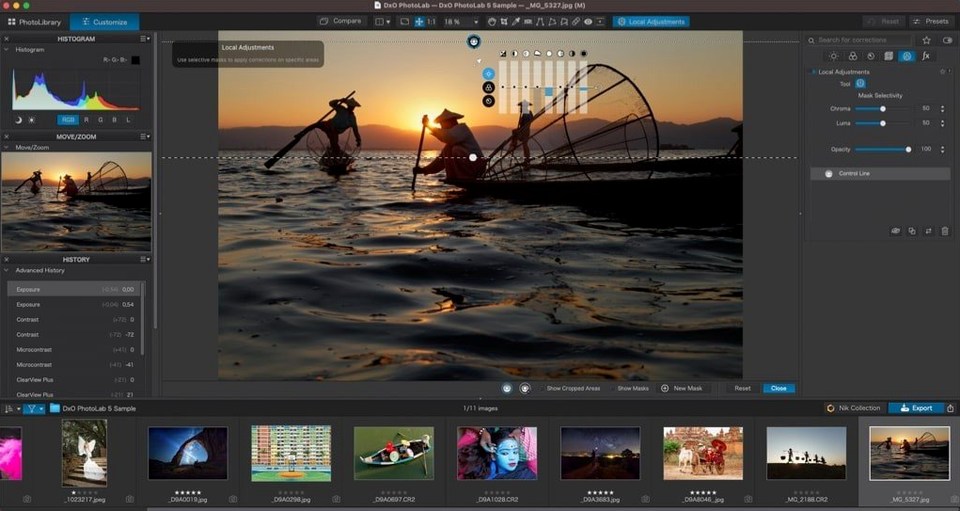
A photographer returns from a shoot with hundreds of RAW files. Opening them in DxO PhotoLab 9, the software reads the camera's raw data, applies optical corrections for the specific lens used, and lets her adjust exposure and color without leaving the RAW workflow. It is DxO's flagship RAW editor, formerly called DxO Optics Pro.
Runs on macOS 14.7 or later
- macOS 14.7 or later
- Intel or Apple Silicon (both supported)
- Interface languages: English, German, Simplified Chinese, French, Japanese
If your Mac meets these requirements, DxO PhotoLab 9 will install and run. The software processes RAW files from more than 600 digital cameras, including Apple’s HEIC, HEIF, and ProRAW formats.
DeepPRIME XD3, U Point, and full optical corrections
The editor includes DeepPRIME XD3 noise reduction for Bayer and X-Trans sensors, U Point for local adjustments that you can copy and paste between images, and a full set of optical corrections. It is a complete tool for developing RAW photos from start to finish.
Uses your Mac's GPU, Intel or Apple Silicon
DxO PhotoLab 9 runs on both Intel and Apple Silicon Macs, as long as you are on macOS 14.7 or later. You do not need a brand-new machine to use it, but the software does rely on your system's GPU for some of its processing. The AI-based features, like DeepPRIME XD3 noise reduction and AI Masks, will use whatever graphics power your Mac has available. On a typical workday setup, you can expect the interface to respond normally as you browse through thumbnails and make adjustments. The install package is a standard drag-and-drop affair, so you place the app in your Applications folder and launch it from there.
One way to develop a RAW photo from start to finish
Here is one way to work through a photo from start to finish, using the tools DxO PhotoLab 9 provides.
- Open the RAW file. The software reads the raw data from your camera and applies a default set of optical corrections based on the lens you used. You see the image with lens distortion, chromatic aberration, and vignetting already addressed, provided DxO has a module for your camera and lens combination.
- Adjust exposure and color. Use the sliders in the main palette to set white balance, exposure compensation, contrast, and saturation. The histogram updates in real time so you can see how the changes affect the tonal range.
- Apply DxO Smart Lighting. If the scene has a wide brightness range, Smart Lighting lifts shadows and controls highlights without creating halos. You can dial it in manually or let the software decide.
- Add DxO ClearView for haze or fog. This tool cuts through atmospheric haze, making distant elements sharper and colors more natural. It works well on landscape shots taken in misty conditions.
- Use DeepPRIME XD3 noise reduction. For high-ISO images, especially from Bayer or X-Trans sensors, this step removes noise while preserving detail. You can set the strength and see the result on your image before committing.
- Apply local adjustments with U Point. Select a specific area in the image, like a face or a patch of sky, and adjust exposure or color only there. You can copy that adjustment and paste it onto similar areas in other images.
- Export as a TIFF, JPEG, or HEIC. Choose your output format and resolution. The software processes the image with all corrections applied and saves it to your selected folder.
This workflow works for a single image, but you can also synchronize edits across multiple photos by selecting a group and applying the same subject type or local adjustment.
More noise reduction and optical corrections than Lightroom Classic
DxO PhotoLab 9 sits alongside Adobe Lightroom Classic and Capture One Pro as a serious RAW editor for Mac users. Lightroom Classic has a strong catalog system and cloud sync, but its noise reduction and optical corrections rely on Adobe's own profiles. DxO builds its corrections from lab measurements of real camera and lens combinations, which means the lens corrections are often more precise out of the gate. Capture One Pro offers excellent color grading and tethering for studio work, but its interface is more complex for someone who just wants to open a RAW file and make quick adjustments. If you shoot with a supported camera and want a one-time install rather than a monthly bill, DxO PhotoLab 9 is worth a look.
Supports RAW from over 600 cameras
Does it work with my camera
DxO PhotoLab 9 supports RAW files from more than 600 digital cameras. The developer tests each camera and lens combination to create DxO Modules for optical corrections. If your camera is a common model from the last decade, it is likely covered. You can check the module list on the DxO Labs site before installing.
Can I use it alongside Lightroom
Yes. Many photographers process RAW files in DxO PhotoLab 9 first for noise reduction and lens corrections, then export a TIFF or DNG to Lightroom for cataloging and additional edits. The two programs do not conflict, and DxO PhotoLab 9 does not require you to import files into a catalog.
Is it hard to learn
The interface is straightforward if you have used any RAW editor before. The main tools are grouped in a single panel, and the histogram and preview update as you make changes. You can start with auto settings for Smart Lighting and ClearView, then adjust manually as you get comfortable.
What about Apple Silicon and Intel Macs
The software runs natively on both ARM and x86 architectures. Whether you have an M-series Mac or an older Intel model, the installation steps are the same, and the features work identically. You do not need to look for a separate version.
- macOS 14.7 or later
- Intel or Apple Silicon (both supported)
- Interface languages: English, German, Simplified Chinese, French, Japanese
How to install
- Open the included installation package.
- Start the installer from inside the package.
- Click Next in the welcome dialog.
- Drag the app icon to the Applications folder.
- Launch the app from the Applications folder.
- Read and accept the license agreement to continue.
Similar apps


Sign in or join the club to leave a comment.
Nobody has commented yet.