
- Version
- 21.0.1
- Studio or maker
- Claris International Inc.
- Languages
- English
- Activation
- K'ed by Antibiotics
- Runs on macOS
- macOS 10.14 or later
- Chip type
- Apple Silicon, Intel 64-bit
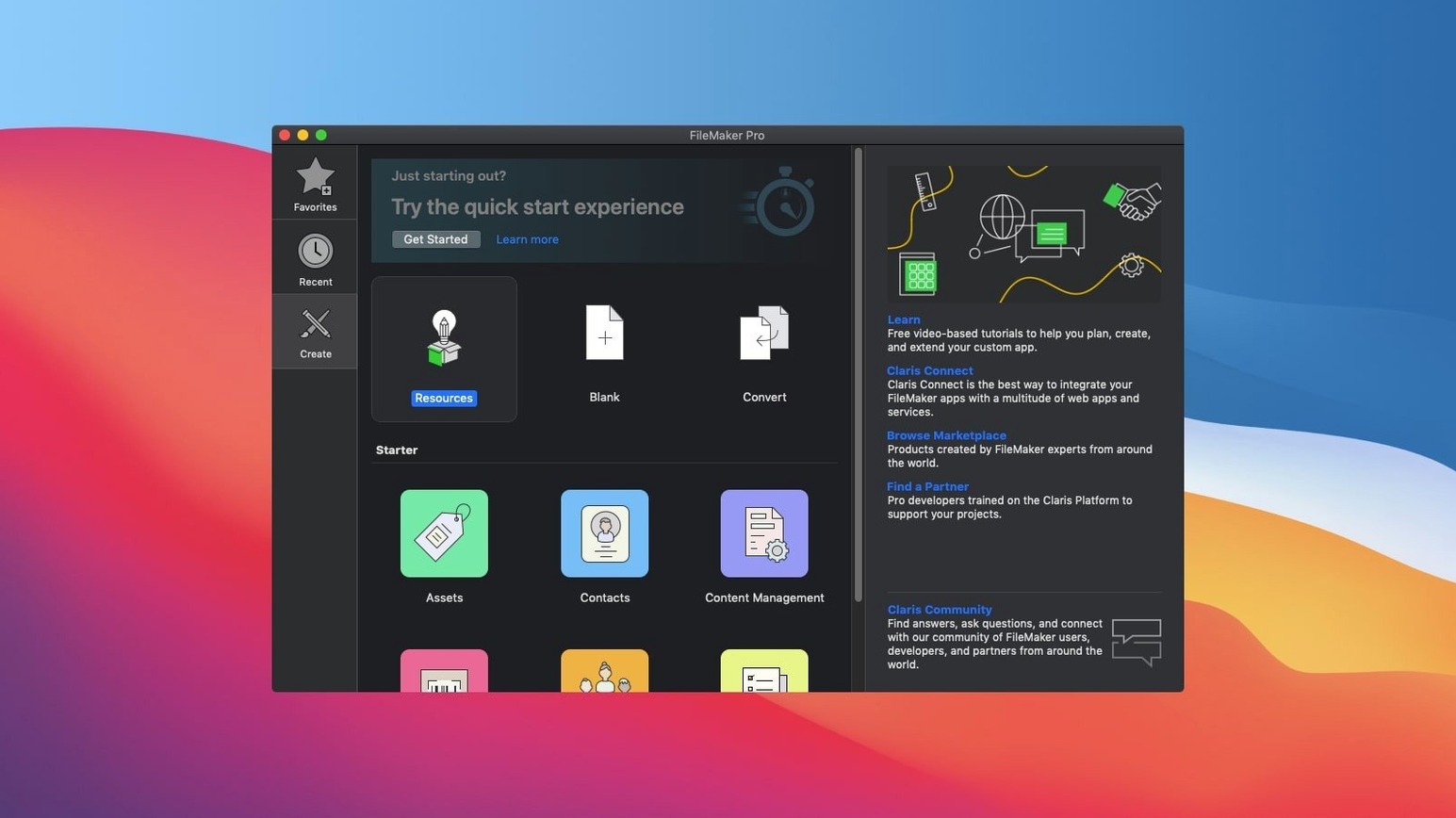
You need a tool that lets you build a custom app without writing code from scratch. FileMaker Pro is a low-code environment for creating databases for CRM, project management, content libraries, and asset tracking. Here is a workflow a newcomer can try in the first hour.
- Open a sample app. FileMaker Pro includes starter solutions. On the welcome screen, choose a template like “Inventory” or “Task Manager.” Browse the layout to see how fields, buttons, and scripts work together.
- Edit a field. Switch to Layout mode (View menu). Click a text field and change its label. Add a new field by dragging from the Field Picker. This shows you how data entry works.
- Create a relationship. Go to File > Manage > Database. Add a second table, then define a relationship between them. For example, link “Customers” to “Orders” by a customer ID.
- Share your app. Use File > Sharing > Share with FileMaker Clients. Other users on your network can open the same database in real time on their Macs, iPads, or iPhones.
FileMaker Pro 2024 (version 21.0.1) adds AI features like Configure AI Account and Perform Semantic Find, plus Insert Embedding in Found Set. The app works on macOS 10.14 or later, on both Intel and Apple Silicon Macs.
Building a content library from scratch
One task that shows FileMaker Pro's strengths is setting up a small content library. Suppose you manage training materials, reference documents, or client case studies. Here is a start-to-finish workflow that uses the tools in version 21.0.1.
- Create a new file. Launch FileMaker Pro and select "Create a new database from the current file." In the dialog, name your table "Resources." Add fields: Title, Author, Category, Keywords, File Path, and a text field for Summary. Set Category as a value list so users pick from a controlled set.
- Build a browse layout. Switch to Layout mode. Arrange the fields in a clean card view. Add a button labeled "Open File" and attach a script step that uses "Open URL" to reach the stored file path. Test it in Browse mode to confirm it works.
- Add semantic search. With version 21.0.1, you can use Perform Semantic Find to let users search by meaning rather than exact words. Place a button on the layout that triggers a script with this step. For example, searching "onboarding guides" returns entries tagged with "training" and "orientation" even if those words are not in the search text.
- Set up a filtered portal. Go to Manage Database and create a second table called "Tags." Link it to Resources by a resource ID. On the Resource layout, add a portal that shows related tags. Filter the portal to show only tags from a certain category.
- Generate embeddings. Use the new Insert Embedding in Found Set step to create vector representations of your summaries. This powers the semantic find and helps group similar documents. Configure your AI account first via Configure AI Account in the script workspace.
- Share with the team. Enable sharing so colleagues on the network can access the library. Each user sees the same data in real time.
This workflow takes about twenty minutes the first time. The AI steps require a configured account, but the rest works offline.
How FileMaker Pro compares with similar tools
I keep a few database and low-code apps on my own shelf for the game club's records. Here is how FileMaker Pro stacks up against alternatives a teacher or small team might consider.
FileMaker Pro versus Airtable
Airtable is a web-based platform that feels like a spreadsheet with database powers. It is easy to start with and has good collaboration. FileMaker Pro runs locally on your Mac and is shareable across your network without ongoing fees. You also have more control over layout design and script logic. Airtable is better for quick, lightweight projects; FileMaker Pro suits custom apps with complex relationships and offline access.
FileMaker Pro versus Microsoft Access
Access is the desktop database many people know. It includes form and report builders, plus SQL queries. However, Access is Windows-only. FileMaker Pro runs on Mac (Intel and Apple Silicon) and shares databases with iOS devices. Access has a steeper learning curve for building interfaces. FileMaker Pro's drag-and-drop layouts and starter templates get you further faster, especially if you want mobile access without rewriting the app.
FileMaker Pro versus Ninox
Ninox is another low-code database tool for Mac. It has a clean interface and cloud sync. Its scripting language is simpler but less powerful than FileMaker's. FileMaker Pro offers deeper relationship management, more layout options, and the new AI steps in version 21.0.1. Ninox is a good choice for personal databases. FileMaker Pro handles team-sized projects with custom logic.
Records that vanish after sharing
After watching a few colleagues try FileMaker Pro for the first time, I have seen the same problems come up. Here are the ones worth knowing about.
- Records disappear after sharing. You share a file but other users see nothing. The likely cause is that you shared while in Layout mode. Switch to Browse mode before sharing. If the issue persists, check the sharing settings under File > Sharing > Share with FileMaker Clients and verify that the correct file is selected.
- Semantic find returns no results. This happens when no AI account is configured. Go to File > Manage > Scripts, create a new script, add the Configure AI Account step, and enter your credentials. After that, Perform Semantic Find works as expected.
- Fields do not appear on the layout. You added a field in Manage Database but it is not visible. Switch to Layout mode and use the Field Picker to place it on the layout. Fields are not automatically displayed after creation.
- Sort order resets after closing. FileMaker Pro does not remember browse-level sorting unless you set it in a script or in the layout's sort settings. Add a script trigger that sorts records on layout open.
- Embedding step fails silently. Insert Embedding in Found Set requires that the AI account is active and that the field is a container or text field. Double-check the field type in Manage Database. If you are on a network, ensure the host Mac has internet access for the AI call.
Skipping the starter templates
I see these patterns at the game club when people first try FileMaker Pro for tracking scores and schedules. They apply to any custom app project.
- Skipping the starter templates. Many users open a blank file and try to design everything from scratch. The built-in templates are not just examples. They show working relationships, scripts, and layouts. Start with one, then modify it. It saves time and teaches structure.
- Ignoring layout modes. New users stay in Browse mode and wonder why they cannot edit field labels or add buttons. Layout mode is where the design happens. Learn the difference between Browse, Layout, and Find modes early.
- Creating too many tables at once. A new database with twenty tables becomes confusing fast. Begin with two or three tables and add more as the need emerges. FileMaker Pro lets you create tables later and link them without breaking existing data.
- Not testing on a small data set. Some people import hundreds of records before checking if the fields and relationships work. Enter five test records first. Verify that portals display, scripts run, and searches return correct results. Then import the rest.
- Overlooking the script workspace. The script workspace lists all scripts in one view. Beginners sometimes put script steps directly on buttons without naming them. Name every script and add comments. When something breaks, you can find and fix it quickly.
- Assuming sharing works on any Mac version. FileMaker Pro 21.0.1 requires macOS 10.14 or later. Older Macs on the network need to meet this too. Check the macOS version on each client machine before relying on real-time sharing.
- Insert Embedding was added.
- Insert Embedding in Found Set was added.
- Perform Semantic Find was added.
- Set AI Call Logging was added.
- macOS 10.14 or later
- Intel or Apple Silicon processor
- Interface language: English
Questions I keep getting
Can I open custom apps created by other people?
Yes, FileMaker Pro can open and use custom apps built with any recent version of FileMaker Pro, including those from colleagues or online templates.
How to install
- Download the package from the link on the page.
- Open the .dmg file and drag FileMaker Pro into your Applications folder.
- Launch the app. Installation and activation instructions are included inside the package.
Similar apps




Sign in or join the club to leave a comment.
Nobody has commented yet.