
- Version
- 2.1.6
- Studio or maker
- Digitalanarchy
- Languages
- English
- Activation
- K'ed by Monter Group
- Chip type
- Apple Silicon, Intel 64-bit
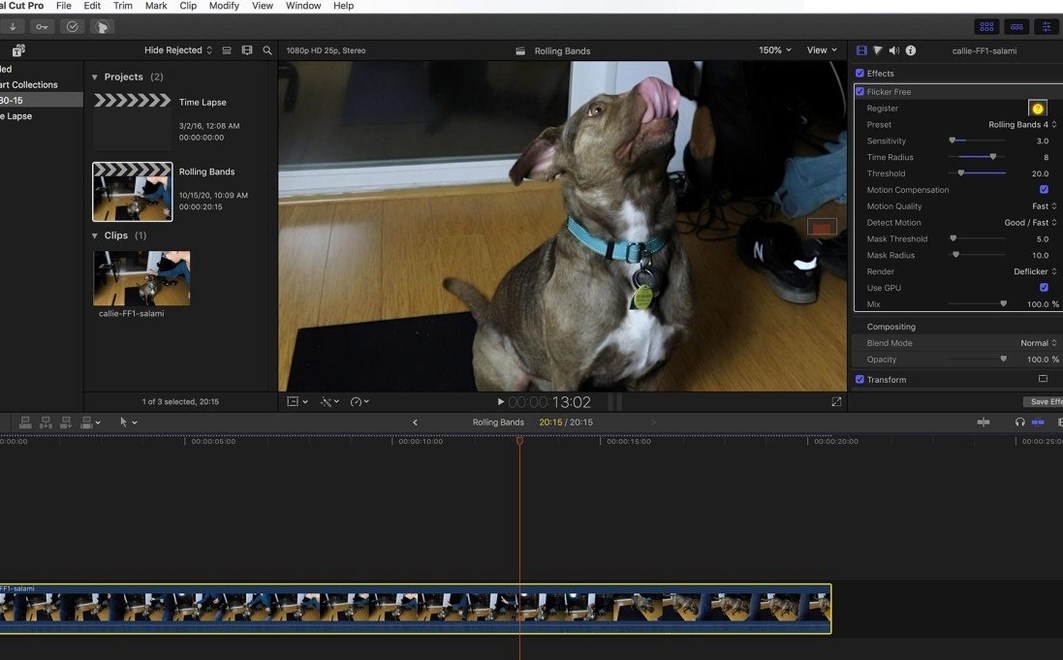
If you have ever edited time-lapse footage in Final Cut Pro or After Effects, you know how a steady flicker can ruin an otherwise smooth sequence. Flicker Free is a third-party plugin that steps in where the built-in tools fall short. It targets the rolling flicker caused by fluorescent lamps and computer monitors, which often shows up in footage from cameras like the Phantom Flex, Sony FS700U, or GoPro HERO3 Black.
Workflow with Flicker Free
- Apply the plugin to your clip in your host application — Final Cut Pro, After Effects, Premiere Pro, Avid, DaVinci Resolve, or any OpenFX-compatible app.
- Choose a preset that matches your lighting situation. Presets keep the workflow simple; you do not need to dial in every parameter from scratch.
- Adjust the amount if needed. The plugin analyzes the flicker frequency and smooths it out, leaving the rest of the image intact.
The interface is in English, and version 2.1.6 works on both Intel and Apple Silicon Macs. Installation instructions come with the package. For time-lapse shooters and event videographers, this is a practical fix for a nagging problem.
Sitting between your editor and the footage
Flicker Free is a plugin, not a standalone application, so it lives inside whatever host you already use. That means it gets along with the rest of your pipeline the same way any native effect would. You apply it on a clip, adjust it in the effect controls panel, and it renders alongside your other filters and transitions. There is no separate export step or external tool to open — it stays inside your timeline.
On macOS, the plugin shows up in the same effects browser as your host's built-in effects. You find it under the Digital Anarchy category, drag it onto a clip, and the controls appear where you expect them. Because it is a 64-bit plugin that runs on both Intel and Apple Silicon, it does not require Rosetta to work on an M-series Mac.
Start with the preset that matches your lighting type
When I open the plugin controls for the first time on a clip, there are a few adjustments I make before anything else. The preset menu is the quickest starting point. I pick the one that matches the lighting type I see in the footage — for fluorescent-lit rooms, the "Fluorescent" preset usually gets the flicker frequency close enough that I can see the result right away.
From there, I adjust the amount slider. The default setting works for moderate flicker, but if the footage has strong rolling bands, I turn it up in small steps. I also check the preview mode. Some hosts let you see the effect in real time on a low-resolution proxy, which saves time before committing to a full render.
For time-lapse sequences, I often set a higher analysis range. The plugin processes multiple frames to detect the flicker pattern, and a wider lookback helps when the flicker changes gradually during a long sunset shot.
Applying it to the whole timeline without checking clips first
The most common mistake I see is applying Flicker Free to an entire timeline without checking individual clips first. Flicker can vary from shot to shot, especially when you cut between different light sources. One clip might need a heavy correction, while the next hardly needs any. Applying a blanket setting often softens details unnecessarily on the clips that are fine.
Another mistake is leaving the effect on clips that do not flicker at all. The plugin works by analyzing frame-to-frame differences, and on clean footage it can introduce a slight smoothness that was not there before. I always toggle the effect on and off to compare before and after.
A third one is skipping the short render test. Some editors apply Flicker Free and immediately export the whole project, only to find that the flicker is still visible in parts. The plugin suggests doing a short test render first — just a few seconds — so you can check the result before processing the full sequence.
Last week I used it on a fluorescent-lit time-lapse for a school event
Let me walk through how I used Flicker Free last week on a time-lapse project for a school event. The footage came from a Sony FS700U shooting a gymnasium lit by fluorescent tubes. The clip was forty seconds long, and the flicker was strongest in the first ten seconds, where the lights were warming up.
First, I opened the project in DaVinci Resolve and located the clip in the timeline. I created a new adjustment clip above it and applied Flicker Free from the OpenFX panel. I did this rather than applying it directly to the clip so I could mask the effect later if parts of the image needed to stay untouched.
Next, I selected the "Fluorescent" preset. The preview showed the flicker reduce noticeably, but the first few seconds still pulsed slightly. I increased the amount by about fifteen percent and scrubbed through the timeline to see if the fix held. It did, so I left it there.
I then rendered a short test — just the first five seconds at full resolution — and played it back. The flicker was gone, but the image looked slightly softer than the original. I backed the amount down a little and tested again. That second test looked good, so I proceeded with a full render of the clip.
After rendering, I dropped it back into the timeline and checked the rest of the project. The other clips had no flicker, so I did not apply the plugin to them. The whole process, from applying the plugin to finishing the render, took under ten minutes. It saved me from re-shooting or accepting a wavy image.
- macOS (version not specified)
- Intel or Apple Silicon
- English interface
Questions I keep getting
Which editing programs does Flicker Free work with?
Flicker Free works as a plugin in Final Cut Pro, After Effects, Premiere Pro, Avid, DaVinci Resolve, and other OpenFX-compatible applications.
How to install
- Open the included installation guide. It walks you through the placement of the plugin files in the correct host folders.
- Follow the activation instructions in the package to license the plugin in your host application.
Similar apps






Sign in or join the club to leave a comment.
Nobody has commented yet.