
- Version
- 4.7.7
- Studio or maker
- BinaryNights LLC
- Languages
- English, German, Hungarian
- Activation
- K'ed by TNT team
- Runs on macOS
- macOS 12 or later
- Chip type
- Intel 64-bit
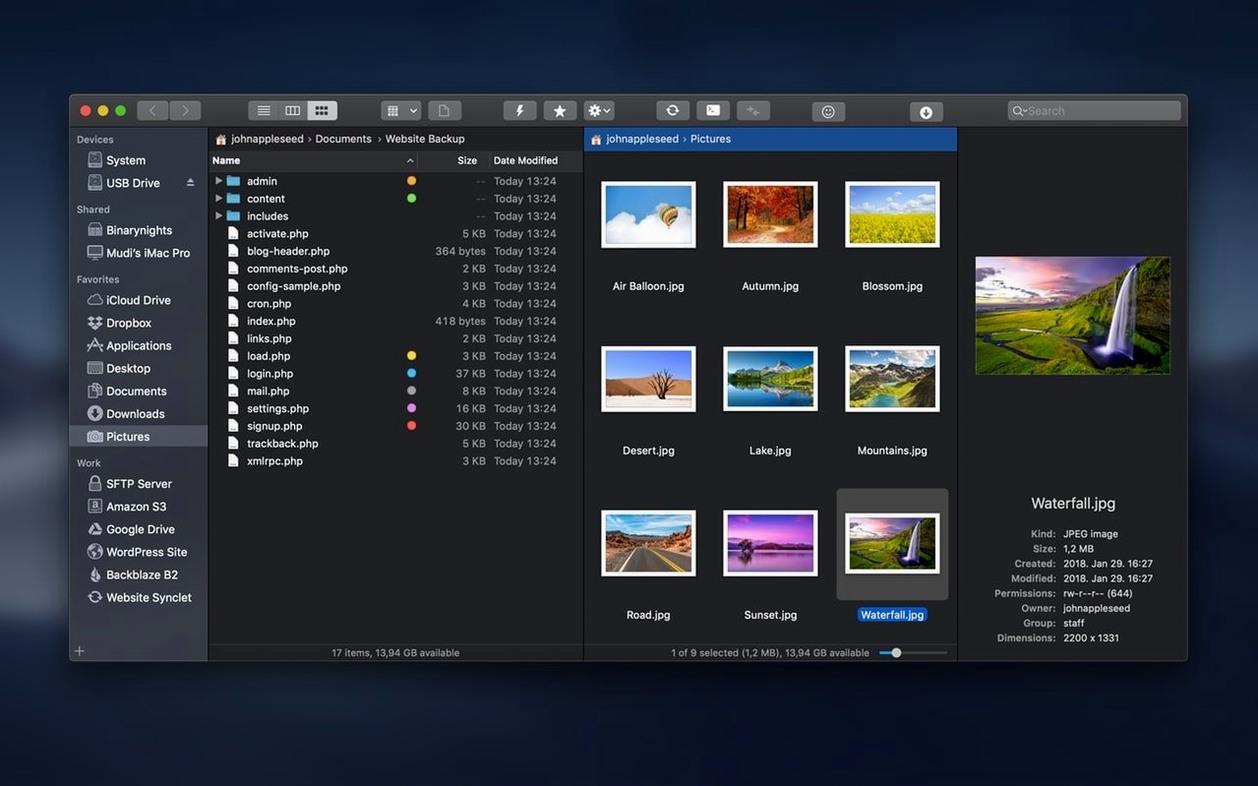
Juggling files between folders and servers usually means several windows and a lot of dragging. ForkLift settles that with two panels side by side, so you can see exactly where a file is going before you move it.
Organize local files
The preview pane shows photos, PDFs, and other types without opening another app. Version 4.7.6 focuses on user experience improvements when interacting with files, which makes selecting and arranging feel more direct.
Connect to remote servers
ForkLift supports FTP, SFTP, Amazon S3, AFP, WebDAV, SMB, and NFS. You can connect to several servers at once and compare local and remote sources side by side.
Sync folders
One-way or two-way synchronization keeps two locations in step, whether that is a backup drive and your Mac or a local folder and a server. Panels can be arranged horizontally or vertically, or you can work with a single pane.
Adjust default settings for daily use
The default settings work for browsing, but a few adjustments make ForkLift behave more like a daily driver. Open the preferences and look for these:
- General > Show hidden files – On by default in many file managers, but ForkLift hides them initially. If you work with dotfiles on servers, turn this on.
- General > Confirm before quitting – Helpful if you have transfers running or multiple tabs open. It stops you from closing the app by accident.
- Panels > Default layout – The app starts with two vertical panes. If you mostly move files between local folders, a horizontal split gives you more room for long file names.
- Advanced > Use native file dialogs – Swapping this on means ForkLift uses the standard macOS open and save windows, which feels more natural if you keep the app open alongside Finder.
None of these are critical, but they save small frustrations over time. Take a moment on the first day.
A typical Tuesday morning for a teacher
I teach maths and run the after-school game club, so my file life splits between lesson materials and game assets. On a typical morning I have the school server (SFTP) in the right pane and a local folder of worksheets in the left pane. ForkLift shows both at once. No extra windows, no Finder tabs. I also use the archive browsing to peek inside a zip of club resources without extracting it first.
For a server admin, the same two-pane idea works for checking config files across multiple machines. For a designer, it is about moving assets between a local project folder and a WebDAV staging site. The layout adapts to what you do most.
Set up bookmarks for quick access
Here is what helps most when you start using ForkLift regularly:
- Set up a few bookmarks early. Add your most-used local folders and remote servers to the bookmarks bar. That saves typing paths every time you switch tasks.
- Get used to the preview pane. Select a file and press Space (the same shortcut as in Finder). For PDFs, images, and text files, the preview appears without a full app launch. It is quicker than you expect.
- Try the archive browsing. Double-click a zip or tar file in ForkLift. It opens like a folder. You can copy files out of it without unpacking the whole archive. Handy for game club resource packs.
- Keep an eye on the transfer queue. When you copy large files or many small ones, the queue panel at the bottom shows progress and any errors. Pause or cancel individual transfers if needed.
- Use compare mode once, just to see it. Select two folders (one local, one remote) and click the compare button. ForkLift highlights differences. It is not something you use every day, but when you need it, it saves time.
ForkLift does not replace Finder for quick single-file moves. It shines when you work between two places at once. Give those settings and tips a try during the first week, and it will feel natural soon enough.
- User experience improvements when interacting with files.
- Fixes for two issues on macOS 27 Golden Gate.
- macOS 12 or later
- Intel processor
How to install
- Mount the disk image.
- Run Open Gatekeeper friendly.
- Press Enter in Terminal to bypass Gatekeeper.
- Drag the app to the Applications folder.
- Disable SIP if required.
Similar apps





Sign in or join the club to leave a comment.
Nobody has commented yet.