
- Version
- 26.1.6.5406
- Studio or maker
- Image Line
- Languages
- English
- Activation
- k'ed by GUISEPPE
- Runs on macOS
- macOS 10.15 or later
- Chip type
- Apple Silicon, Intel 64-bit
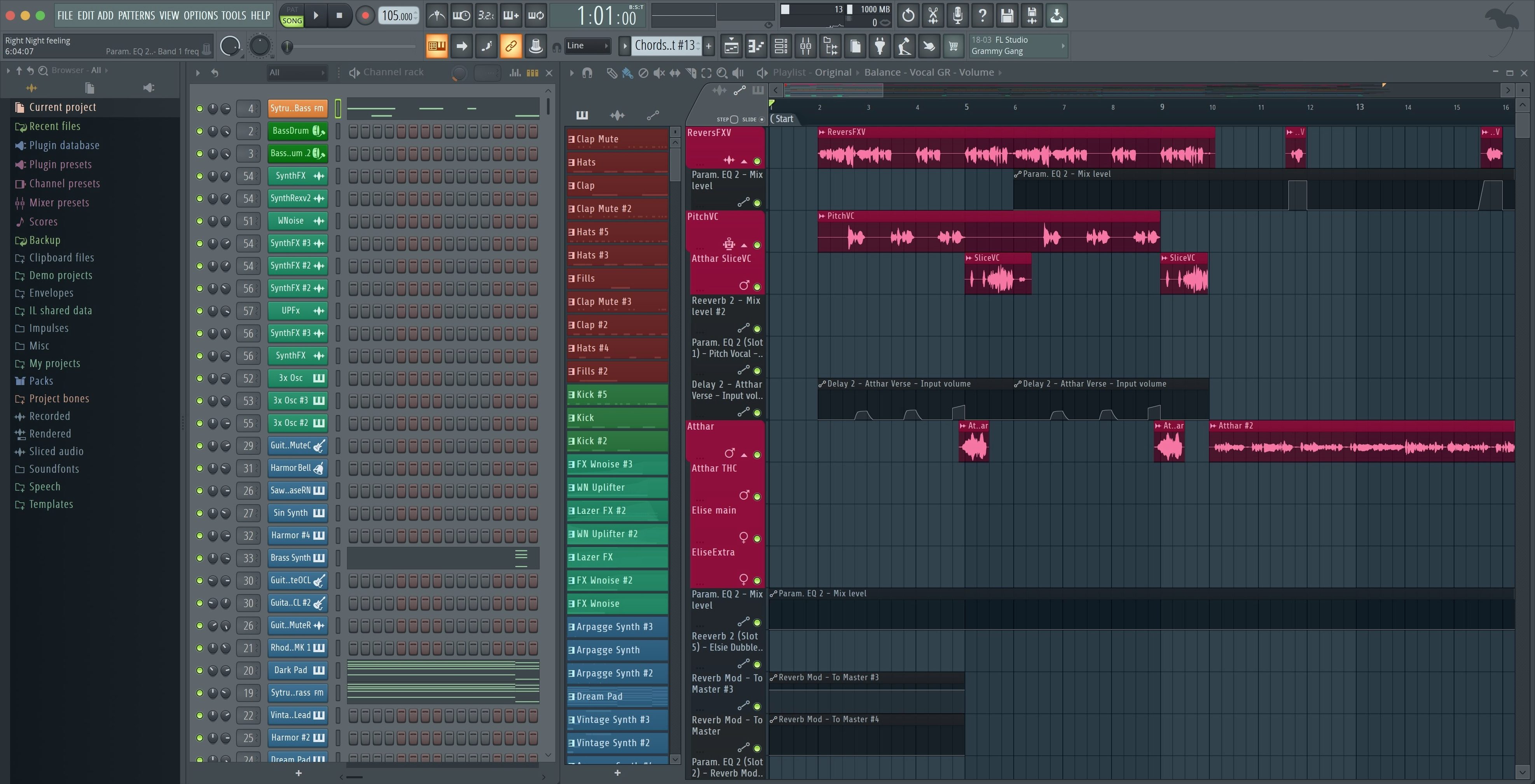
FL Studio 25 for Mac torrent brings the full desktop version of Image Line's digital audio workstation to macOS, and the current build, FL Studio 2026 v26.1.6.5406 by GUISEPPE, is the Producer Edition. It handles recording, arranging, editing, and mixing in one environment, so you can move from a drum pattern to a finished song without switching tools.
Build beats, layers, and arrangements with built-in instruments and automation
Start with beat and pattern creation, then layer in built-in synthesizers, samplers, and instruments. Automation lets you shape volume, filters, and effects over time, while the arrangement view gives you space to organize sections. The 2026.1.6 maintenance update added checkboxes for rendering Master and Current when splitting mixer tracks, which is handy when you want separate stems for vocals or drums. The Plugin Performance Monitor now shows fractional percentages, so you can see exactly how much CPU each plugin uses.
Supports ARM and Intel Macs on macOS 10.15 or later
This version supports both ARM and 64-bit x86 Macs, and Apple Silicon machines don't need Rosetta. The interface is in English, and the minimum system is macOS 10.15 Catalina. The package includes instructions for installation and activation, so follow those steps and you'll be producing in no time.
Set your tempo, let the metronome guide you, and build your track
Here is how a session often unfolds once you have FL Studio open and a new project loaded. I start by choosing a tempo — maybe 90 BPM for a chill beat, or 140 for something faster. The metronome clicks while I lay down a basic kick-snare pattern in the step sequencer, clicking in the grid. Then I add a hi-hat pattern on every eighth note, using the built-in sampler that comes pre-loaded with a closed hi-hat sound.
Next I select a synthesizer from the channel rack — something like the 3x Osc or a preset from the included instruments. I draw a simple chord progression into the piano roll, adjusting note velocities so the synth sounds more human. The piano roll snap grid keeps everything locked to the beat, which saves time when you are new to it.
Once the loop sounds okay, I switch to the playlist view and copy the pattern across several bars to build a section. I duplicate the pattern and add a second synth for a counter-melody, then automate a low-pass filter to open up during the chorus. Automation is done by right-clicking a parameter and selecting "Create automation clip," then drawing a curve in the playlist. The automation lane sits right under the pattern clips, so you see everything at once.
After I have a few sections arranged — intro, verse, chorus, bridge — I route each instrument to a separate mixer track. The mixer shows up at the bottom of the screen, with each track labelled. I add reverb on the vocal bus, compression on the drum group, and a limiter on the master. The 2026.1.6 update's checkboxes for rendering Master and Current come in handy when I export just the drum stem without the master effects, saving me from having to solo and bounce each track manually.
Finally, I listen through the whole arrangement once, tweak a few volume faders in the mixer, and export the finished mix as a 24-bit WAV file. The export dialog lets me choose the sample rate and bit depth, and the new fractional percentages in the Plugin Performance Monitor help me check that no plugin is pushing the CPU too hard before the final render.
How FL Studio's workflow differs from Logic Pro on a Mac
If you have tried other digital audio workstations on macOS, you might wonder how FL Studio fits alongside them. I use a few myself, and here is how they differ in practice.
FL Studio versus Logic Pro. Logic Pro is Apple's own DAW, and it comes with a huge library of loops and instruments right out of the box. Its workflow is linear and track-based, which suits traditional recording and mixing. FL Studio's pattern-based approach is different — you build patterns in the step sequencer and piano roll, then arrange them in the playlist. For beatmaking, loop creation, and electronic music, FL Studio tends to feel faster because you do not have to create new tracks for every sound. Logic Pro excels at recording live audio and editing vocals, while FL Studio is more at home with MIDI sequencing and automation.
FL Studio versus Ableton Live. Ableton Live also uses a session view for looping and triggering clips, and it is popular among electronic musicians and live performers. Both programs handle MIDI well, but Ableton's warping and time-stretching are more advanced for working with audio samples. FL Studio's playlist gives you a horizontal timeline where you can overlap and layer patterns freely, whereas Ableton clips are arranged in scenes. For someone who prefers a classic left-to-right arrangement, FL Studio feels more straightforward. Ableton's built-in instruments and effects are polished, but FL Studio offers a wide range of included synths and samplers as well. The choice often comes down to whether you prefer pattern-based or clip-based creation.
FL Studio versus GarageBand. GarageBand is a great entry point, and it is free on every Mac. It has a simple interface with virtual session drummers and a library of Apple Loops. FL Studio is a significant step up in depth — you get full control over automation, routing, and plugin hosting. GarageBand limits you to one audio track per take and does not support VST plugins, while FL Studio handles VSTs and a large number of tracks simultaneously. If you have outgrown GarageBand and want more control without switching to a completely different paradigm, FL Studio's pattern-based workflow can be a natural next step.
Start with the step sequencer to get comfortable fast
The first few hours with FL Studio can feel like a lot, especially if you are coming from a linear DAW. These tips should help you find your footing.
- Use the step sequencer first. Start with a basic drum pattern. The step sequencer is the grid at the top, and you click to add or remove hits. This is the fastest way to hear results and understand the pattern-based workflow.
- Learn the piano roll shortcuts. The piano roll is where you will spend most of your time. The two most helpful things early on are the snap grid (to keep notes in time) and the pencil tool for drawing notes. Right-clicking a note lets you adjust its velocity, which adds dynamics.
- Check your audio settings. Go to the Options menu and open Audio settings. Choose your audio device and adjust the buffer length. A lower buffer reduces latency for live playing, but it uses more CPU. Start with a middle setting and adjust if you hear pops or clicks.
- Organize your mixer tracks. As soon as you have more than a few instruments, label each mixer track by double-clicking the track name. This makes mixing much easier later, and it helps when you split mixer tracks for export.
- Save often and use versions. FL Studio saves project files in its own .flp format. I name my saves with version numbers, like "Song_v1.flp" and "Song_v2.flp," so I can go back if I make a change I do not like.
Fix silent instruments by checking the mixer track routing
A few problems crop up regularly, and they usually have simple fixes.
No sound from some instruments. If a channel in the step sequencer or a sampler is silent, check that it is routed to a mixer track that is not muted. Also make sure the mixer track's volume fader is up. Sometimes a new instrument defaults to a mixer track with a lowered volume. The mixer track number is shown on the channel itself.
Audio crackling or pops. This typically means the buffer size is too small for your current project. Increase the buffer in the Audio settings. If you are using many CPU-heavy plugins, the Plugin Performance Monitor (available in the View menu) shows fractional percentages so you can identify the plugin that is using the most resources.
The piano roll grid seems wrong. If notes do not snap where you expect, check the snap setting at the top of the piano roll. It can be set to bar, beat, step, or off. For most work, "step" or "beat" snapping keeps things clean. If you want to place notes freely, set snap to "none."
Exporting only part of the song. When you open the Export dialog, make sure the time markers in the playlist cover the entire arrangement. You can drag the loop region bar to define the start and end of the export. The new checkboxes for rendering Master and Current when splitting mixer tracks let you choose exactly which stems to export, so read those checkboxes before clicking "Start."
MIDI controller not responding. FL Studio 2026.1.6 includes a notification when a new MIDI controller is connected, with an option to enable it. If your controller does not show up, go to the Options menu, select MIDI settings, and check that your device is listed and enabled. The Akai Fire controller now uses its dedicated script by default, which simplifies setup for that model.
A workflow for creating a beat from scratch
Here is a complete process for building a short beat, from the first click to a finished export. This is the kind of task you might start with after installing.
- Open FL Studio and create a new project. Set the tempo to 100 BPM in the transport panel at the top.
- Build a drum pattern in the step sequencer. Load the "Kick" sample onto channel 1 and click steps 1, 5, 9, and 13. Load "Clap" onto channel 2 and click steps 5 and 13. Load "Hi-hat Closed" onto channel 3 and click every second step to create an eighth-note pattern.
- Double-click the hi-hat channel to open its piano roll. Adjust the velocity of every other note to create a swing feel — lower the velocity on the off-beat hits. Close the piano roll when done.
- Add a synth by clicking the plus sign in the channel rack and selecting "3x Osc." Open its piano roll and draw a simple bass line using C2, G2, and A2 notes, each lasting two beats. Snap to step for tight timing.
- Copy the pattern in the playlist to build a four-bar loop. Click the pattern clip in the playlist and hold Option while dragging to duplicate it. Arrange three copies of the pattern to fill four bars.
- Route each channel to a separate mixer track. In the step sequencer, click the channel name, then click the mixer track number in the routing panel. For example, send kick to mixer track 1, clap to track 2, hi-hat to track 3, bass to track 4.
- Add effects. On mixer track 1, insert a compressor from the effects slot to tighten the kick. On mixer track 4, add a reverb to give the bass some space. Adjust the wet/dry mix to taste.
- Automate a filter on the bass. Right-click the cutoff knob on the 3x Osc and select "Create automation clip." A new automation track appears in the playlist
- Export dialog: added checkboxes to render Master and Current when splitting mixer tracks.
- Plugin Performance Monitor: percentage values now show fractional precision.
- MIDI controllers: shows a notification when a new controller is connected, with an option to enable it.
- Akai Fire controller now uses its dedicated script by default.
- macOS 10.15 Catalina or later
- Apple Silicon or Intel x86 64-bit processor
- Apple Silicon Macs do not require Rosetta
- Interface language: English
How to install
- Open the downloaded package and read the included instructions carefully; they explain the installation and activation process.
- Follow the bundled installation steps to copy FL Studio to your Applications folder, then run the activation steps as described in the package.
Similar apps





Sign in or join the club to leave a comment.
Nobody has commented yet.