- Version
- 4.2 (4205)
- Studio or maker
- Georg Seifert
- Languages
- Russian, English, German, Spanish, Italian, Chinese (Traditional), Chinese (Simplified), Korean, Portuguese, Turkish, French, Czech, Japanese
- Activation
- Not required
- Runs on macOS
- macOS 12 or later
- Chip type
- Apple Silicon, Intel 64-bit
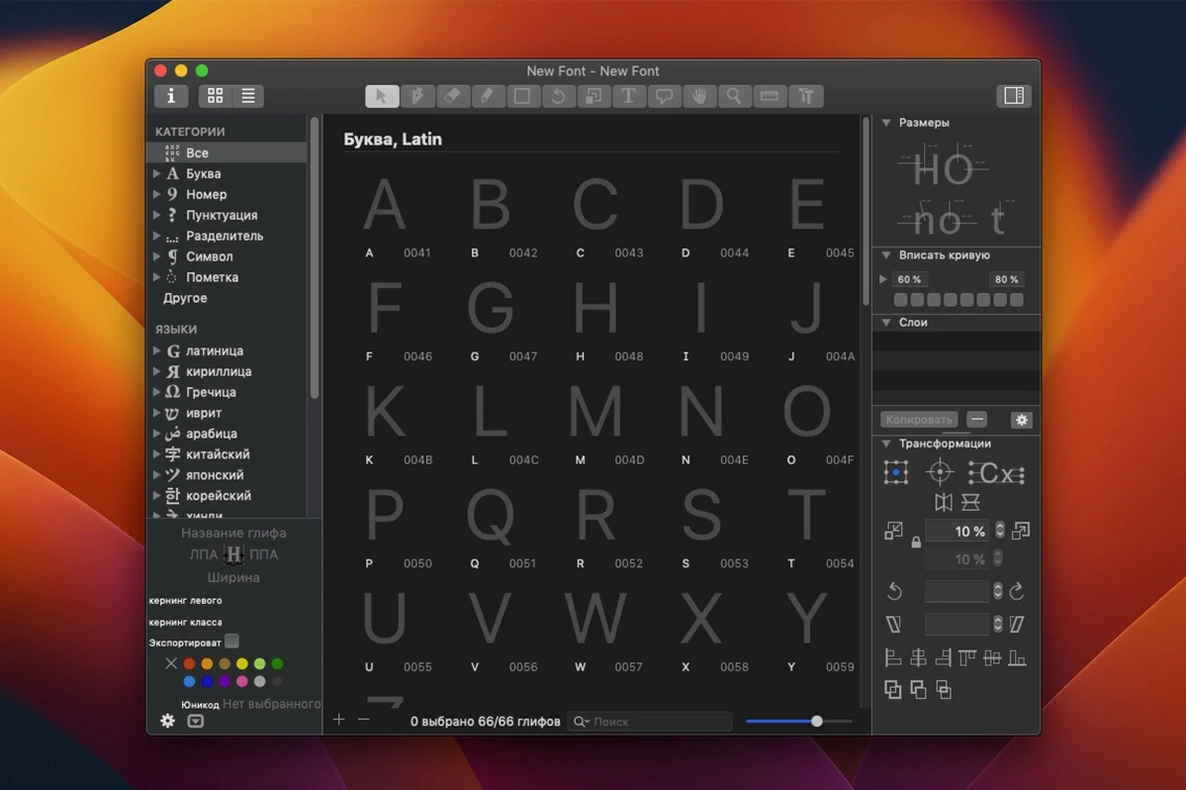
If you have worked with vector drawing tools, Glyphs feels familiar from the first launch. The interface keeps only the panels you need for the task at hand, so you spend time on letterforms rather than hunting through menus.
From sketch to export
- Draw or refine your glyphs in the main editing window, using the tools that appear contextually.
- Set up your font's metrics and spacing, then use the built-in script support for repetitive tasks.
- Preview your work in the text window to check kerning and readability.
- Export your font as OpenType, or use PNG, SVG, PDF, and SFSymbols formats for other purposes.
The current build, 4.1.1 (4108), keeps the same workflow while running natively on both Apple Silicon and Intel Macs. It requires macOS 12 or later. The interface is available in thirteen languages, including English, German, Spanish, and Japanese, which makes it approachable for international teams.
Start with a pencil sketch as a background image
Let me walk through a typical morning with Glyphs. I have a rough pencil drawing of a new display typeface on my desk, scanned and imported as a background image. I open Glyphs 4.1.1 (4108) and create a new project, choosing the OpenType format. The interface appears as a clean grid of glyph slots. I double-click the empty slot for the capital A, and the main editing window opens.
I trace the outline of my sketch using the pen tool that shows up in the toolbar. The vector handles respond to adjustments right away. I set the stroke width and cap height according to my design brief. After the first few glyphs, I use the contextual menu to copy some basic shapes — the bar of the A becomes the crossbar of the H, saving time. I keep the spacing panel open on the right to adjust sidebearings as I go, so the rhythm of the typeface stays consistent.
Once I have a dozen uppercase letters, I switch to the preview text window. I type a sentence and watch how the letters sit next to each other. The kerning feels off between the A and the V, so I adjust the pair in the kerning panel. I repeat this for a few more problematic pairs. After an hour, I export a PNG sample and send it to a colleague for feedback. The whole session feels direct: no hidden windows, no extra tabs to manage.
Check macOS and Silicon support before installing
People ask whether Glyphs works on an older Mac. The requirement is macOS 12 or later, and the app runs on both Apple Silicon and Intel machines. If your Mac is from 2017 or later and still receives macOS updates, you are likely fine. There is no separate version for ARM — the same download works on M-series and Intel Macs.
Another common question is about importing work from other font editors. Glyphs opens standard OpenType font files, so you can load a font made elsewhere and continue editing. The script support also lets you automate data migration for large families. The interface language can be set to any of the thirteen available, including English, Russian, and Japanese, which helps teams that do not work in their native language.
Some ask if the companion Glyphs Viewer is included. It is a separate app for previewing fonts while you work, and it pairs naturally with the editor. Both tools stay focused on the task without clutter.
Avoid leaving sidebearings at their default values
The most common error I see in the school game club, and it applies here too, is skipping the spacing step. Beginners draw beautiful letters but leave the sidebearings at their default values. The result looks uneven in a sentence. Always adjust the left and right bearing of each glyph after you finish its shape. The spacing panel makes this straightforward.
Another mistake is not using the contextual menu. People right-click expecting standard actions, but Glyphs places the most relevant tools right where you need them. If you do not open the contextual menu, you might miss quick copy operations, curve smoothing, and export options for individual glyphs.
Beginners also tend to work on too many glyphs at once. It is better to finish a small set — say, uppercase A through G — and test them in the preview window before proceeding. That way, you catch design inconsistencies early instead of reworking a whole alphabet later.
Set default font family and grid units in Preferences first
Before you draw anything, open the preferences and set your default font family name, style name, and version numbering. This metadata carries through every export and saves you from editing it later.
Adjust the grid and units to match your design. A typical display font uses a 1000-unit em square, but if you work on a text face, a 2048-unit square gives more precision. Set this in the font information panel before you start.
Enable the auto-save feature and set the interval to five minutes if you are like me and forget to save during deep work. Glyphs does not impose a specific interval by default, so choosing one early prevents losing progress.
The interface language can be changed in preferences too. If you prefer working in a language other than the system default, switch it before you start a project. The change applies immediately and does not require a restart.
Version 4.2 (build 4205) is now available. The developer's release notes detail the full list of changes.
- macOS 12 or later
- Works on Apple Silicon and Intel 64-bit Macs
How to install
- Open the downloaded disk image to mount it.
- Drag the Glyphs app into the Applications folder alias — this keeps the copy in the right place for Launchpad and Spotlight.
- After the copy finishes, launch Glyphs from Launchpad.
Similar apps



Sign in or join the club to leave a comment.
Nobody has commented yet.