- Version
- 4.7.0
- Studio or maker
- HitPaw
- Languages
- Russian, English, German, Arabic, Indonesian, Spanish, Italian, Chinese (Traditional), Chinese (Simplified), Korean, Dutch, Portuguese, Turkish, French, Hindi, Japanese
- Activation
- K'ed by TNT team
- Runs on macOS
- macOS 10.15 or later
- Chip type
- Intel 64-bit
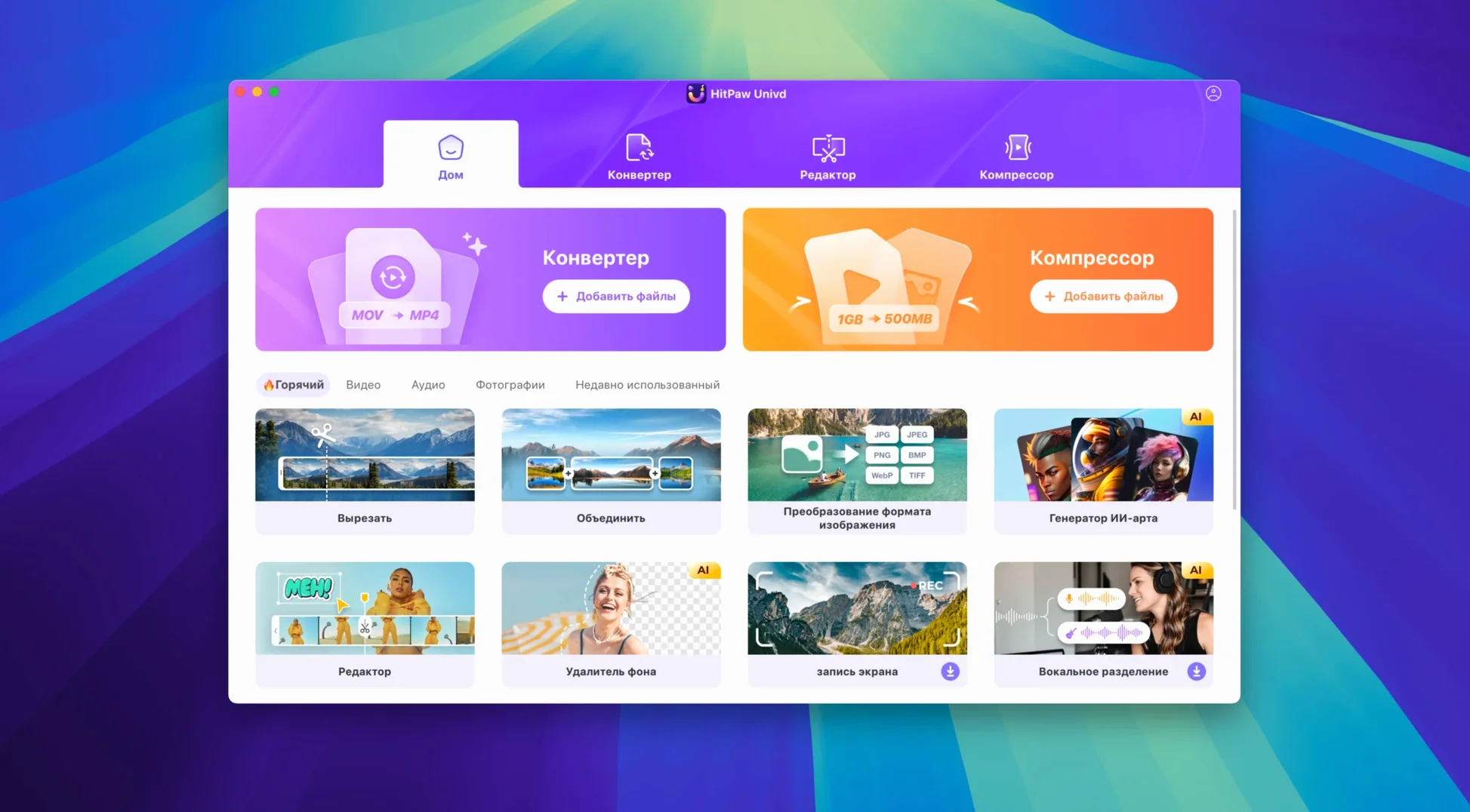
Before you install HitPaw Univd on your Mac, it helps to know what you are getting into. The app runs on macOS 10.15 or later with an Intel 64-bit processor. If your Mac is older than that, it will not launch. The current version, 4.7.0, released on January 8, 2025, brings a new interface and a fresh product model.
Convert, compress, and enhance video in one app
HitPaw Univd works as a video converter, compressor, and enhancer. You can change video formats, shrink file sizes, and polish the quality. There is also a built-in editor, so you can trim or tweak clips before or after converting. For music, it can convert files without loss for Apple Music, Spotify, Deezer, and TIDAL. It also supports downloading from YouTube, Bilibili, Facebook, and Instagram.
Requires macOS 10.15 or newer, Intel or Apple Silicon
Check your macOS version first. If you are on Catalina (10.15) or newer, you are fine. The app is Intel 64-bit, so it should run on most Macs from the last several years. For Apple Silicon models, you may need Rosetta, but that is built into macOS. The install process requires a quick Terminal command to bypass Gatekeeper, which is explained below.
First days with HitPaw Univd
Once you have the app in your Applications folder and Gatekeeper is squared away, take a few minutes to get familiar with the new interface from version 4.7.0. The layout is straightforward, but here are a few things I tell my students when they start using a converter for the first time.
Open the app and look at the main window. You will see sections for conversion, download, and editing. Drag a single video file onto the conversion area just to see what happens. The app reads the format and codec information quickly. Try converting a short clip to a different format, say an MP4 to MOV, so you understand how the output settings work. This first test should take less than a minute and gives you confidence before handling larger files.
For music, grab a song you already have on your Mac and convert it to an Apple Music-friendly format. HitPaw Univd handles lossless conversion for Apple Music, Spotify, Deezer, and TIDAL, so this is a good way to check that the output quality matches what you expect. Listen to the result before you convert a whole playlist.
Dealing with downloads
The download feature supports more than 10,000 sites, but start with something simple like a YouTube video. Copy the URL, paste it into the download area, and choose your preferred resolution and format. The app handles YouTube, Bilibili, Facebook, and Instagram well, but for less common sites, the success rate varies. If a download fails, try a different format or resolution. I have found that sticking with MP4 for video and MP3 for audio gives the most reliable results.
A workflow for batch converting a video collection
Say you have a folder of family videos in various formats, some from old cameras and some from newer phones. You want them all in MP4 so they play on any device. Here is a start-to-finish workflow.
- Gather your files — Move all the videos into one folder on your Mac. Make sure the folder contains only what you want to convert. The app reads MP4, MOV, AVI, VOB, and MKV, so check that your files are in those formats.
- Open HitPaw Univd — Click the conversion section. Drag the entire folder onto the app window. The app lists each file with its current format and size.
- Set the output format — Choose MP4 from the format list. If you want to keep the original quality, select a preset that matches your source resolution. The app lets you adjust codecs like VP9 or ProRes, but for most people, the default H.264 in MP4 is fine.
- Apply basic edits — Before converting, you can trim the start or end of any clip. Click the edit button next to a file and drag the sliders to remove unwanted footage. This is useful if you have a long video that only needs a short section.
- Start the batch — Click convert. The app processes each file one after the other. You can leave it running and come back later. When it finishes, the converted files appear in a folder you choose.
- Check a sample — Play one of the converted videos to make sure the quality and length are what you expected. If something looks off, adjust the settings and convert that file again.
Julia converts FLAC files for students on Apple Music and Spotify
Julia teaches piano at a music school in Berlin. She has a collection of classical pieces in FLAC format, but her students use different streaming services. Some use Apple Music, others prefer Spotify. Julia wants each student to get a version that works on their preferred platform without losing audio quality.
She opens HitPaw Univd and drags a folder of FLAC files into the conversion area. For each file, she selects the lossless preset for Apple Music and converts those first. Then she resets the output to the Spotify-friendly format and runs the same files again. The app remembers her previous settings, so the second batch goes faster. She ends up with two organized folders, one per service, and sends the links to her students. The whole process takes about fifteen minutes for thirty tracks.
- New UI.
- New product model and user experience.
- macOS 10.15 or later
- Intel 64-bit architecture
How to install
- Mount the disk image, then run Open Gatekeeper friendly.
- Press Enter in Terminal to bypass Gatekeeper.
- Drag the app into the Applications folder.
Similar apps





Sign in or join the club to leave a comment.
Nobody has commented yet.