- Version
- 10.15.46 [MAS]
- Studio or maker
- Phase Five Systems
- Languages
- English
- Activation
- K'ed by TNT team
- Runs on macOS
- macOS 11 or later
- Chip type
- Apple Silicon, Intel 64-bit
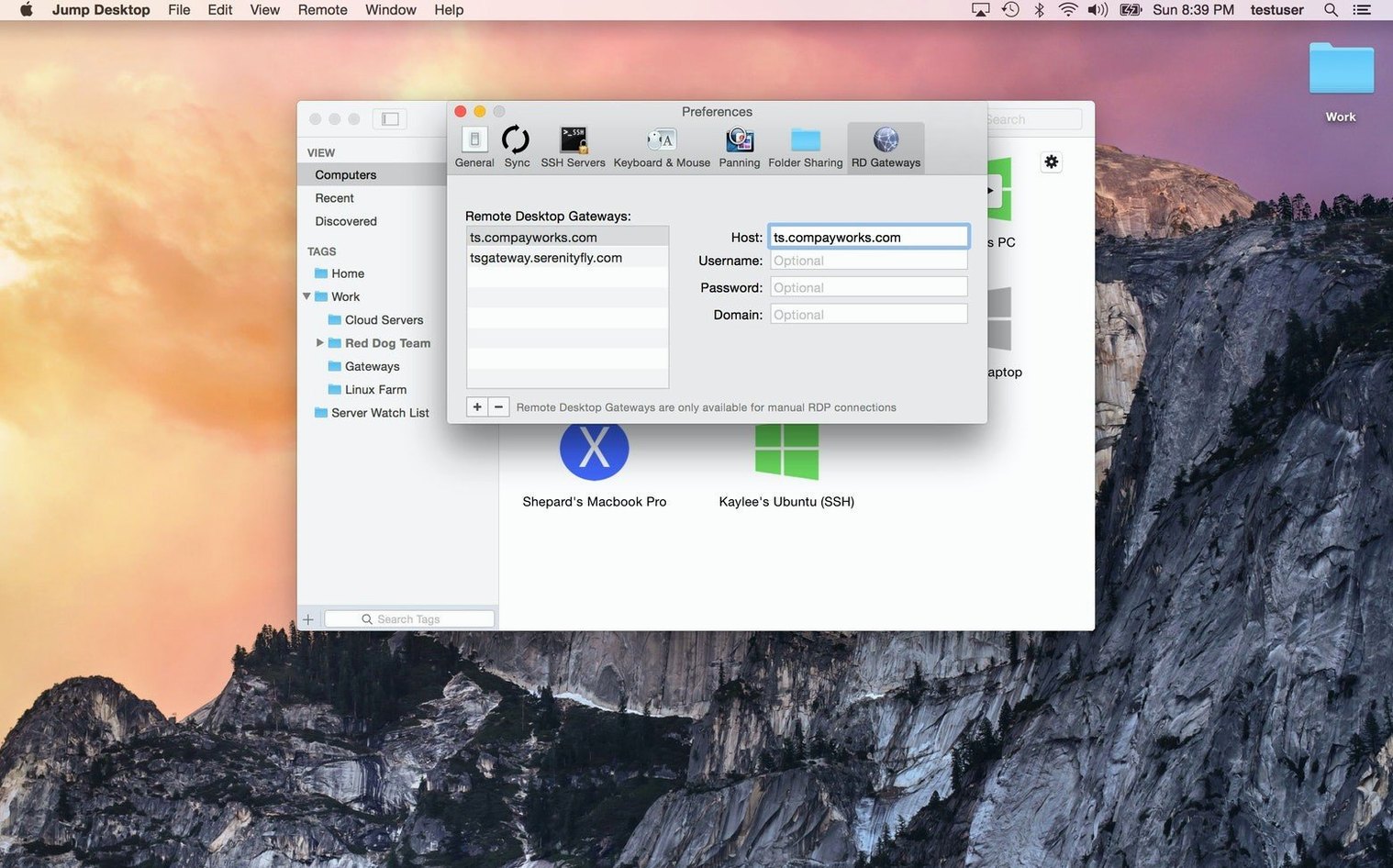
If you already use the built-in Screen Sharing app on your Mac, Jump Desktop feels like a more flexible cousin. It speaks the same VNC language, so it can connect to Macs and other VNC hosts, but it also handles RDP for Windows PCs. That means one tool covers both sides of the classroom or office.
- Works on both Apple Silicon and Intel Macs.
- Connects to Mac, PC, and VNC servers.
- View and control remote desktops in real time.
- Use files stored on the remote computer without copying them first.
- Acts as a VNC client when you need a straightforward connection.
- Supports RDP and VNC protocols, so you can reach Windows and Unix-like systems.
For a teacher who juggles a school iMac and a home machine, Jump Desktop is a practical addition to the app shelf. It fills the gap between Apple's built-in tools and a full remote management suite.
Adjust these settings before your first session
Jump Desktop gets you connected quickly out of the box, but a few adjustments make the day-to-day experience noticeably smoother. Here are the settings I recommend looking at before your first real session.
Keyboard mapping for your setup
If you move between a Mac and a Windows computer, the keyboard shortcuts can trip you up. Jump Desktop supports keyboard remapping between Mac and Windows layouts. Switch this on early so Ctrl+C and Cmd+C behave the way you expect on each machine. It saves the frustration of pasting the wrong thing in a hurry.
Display and scaling
When you connect to a remote desktop, the display might appear too small or too large on your screen. Look for the scaling options in the connection settings. Adjusting the resolution to match your local display makes text readable and keeps window sizes sensible. This is especially helpful when you are working on a laptop screen.
Sound and clipboard sharing
By default, Jump Desktop may not forward sound from the remote machine or share your clipboard. If you need to hear notifications or copy text between computers, enable these options in the connection profile. Clipboard sharing alone saves a lot of back-and-forth.
Set up your Mac for seamless remote work
Set up Jump Desktop Connect early
The companion app Jump Desktop Connect needs to be installed on the computer you want to reach. Do this before you leave that machine. Without it, the client app on your local Mac cannot find the remote host. Install the Connect helper, sign in with the same account on both sides, and you are ready to connect from anywhere.
Test with a local connection first
If you are new to remote desktop software, start by connecting to another computer on the same network. That way, any issues are about settings, not about internet or firewall rules. Once the local connection works, you can trust that the remote setup is sound before you try it from a coffee shop or school.
Use a Google account or email for sign-in
Jump Desktop lets you sign in with a Google account or any email address. Pick one method and stick with it across all your devices. It keeps the connection list consistent and avoids confusion when you add new machines later.
Fix connection drops and audio glitches
The remote computer does not appear in the list
This usually means Jump Desktop Connect is not running on the remote machine, or the firewall is blocking the connection. Check that Connect is open and the remote computer is online. If it is a work or school Mac, the network administrator may have restricted inbound connections. In that case, ask them to open the needed ports or use a VPN.
Keyboard shortcuts behave strangely
If your Mac shortcuts do not work on a Windows remote desktop, or vice versa, the keyboard remapping may be off. Go into the connection settings and enable the remapping option. If it is already on, try toggling it off and on again. Some users find that switching between Mac and PC layouts mid-session helps the app catch up.
The screen is too dark or too bright
Jump Desktop does not have its own brightness control, but the remote computer's display settings affect what you see. Adjust the brightness on the remote machine directly if you can. If the remote screen is a headless Mac or PC, the display profile may be stuck at a low default. Connecting a dummy display plug or using a software virtual monitor can fix this.
Copy and paste stops working
Clipboard sharing sometimes drops out after a long session. Quit Jump Desktop on both machines, reopen it, and reconnect. That usually restores the clipboard link. If it keeps happening, check that clipboard sharing is enabled in the connection profile.
- macOS 11 or later
- Apple Silicon or Intel processor
- English interface
Questions I keep getting
Does Jump Desktop work on Apple Silicon Macs?
Yes, Jump Desktop is available for both Apple Silicon and Intel Macs.
What protocols does Jump Desktop support?
Jump Desktop can connect to RDP and VNC servers, so it works with Mac, PC, and other VNC hosts.
How to install
- Mount the disk image, then launch the installer. You'll see a Gatekeeper prompt because the app isn't from the App Store.
- Open Terminal and press Enter to bypass Gatekeeper. This allows the app to run on your Mac.
- Drag Jump Desktop to your Applications folder. This keeps it with your other apps.
- Open the app once the copy finishes. You're ready to connect.
Similar apps





Sign in or join the club to leave a comment.
Nobody has commented yet.