
- Version
- 2025.1.8239
- Studio or maker
- Camera Bits
- Languages
- English
- Activation
- Not required
- Runs on macOS
- macOS 13 or later
- Chip type
- Apple Silicon
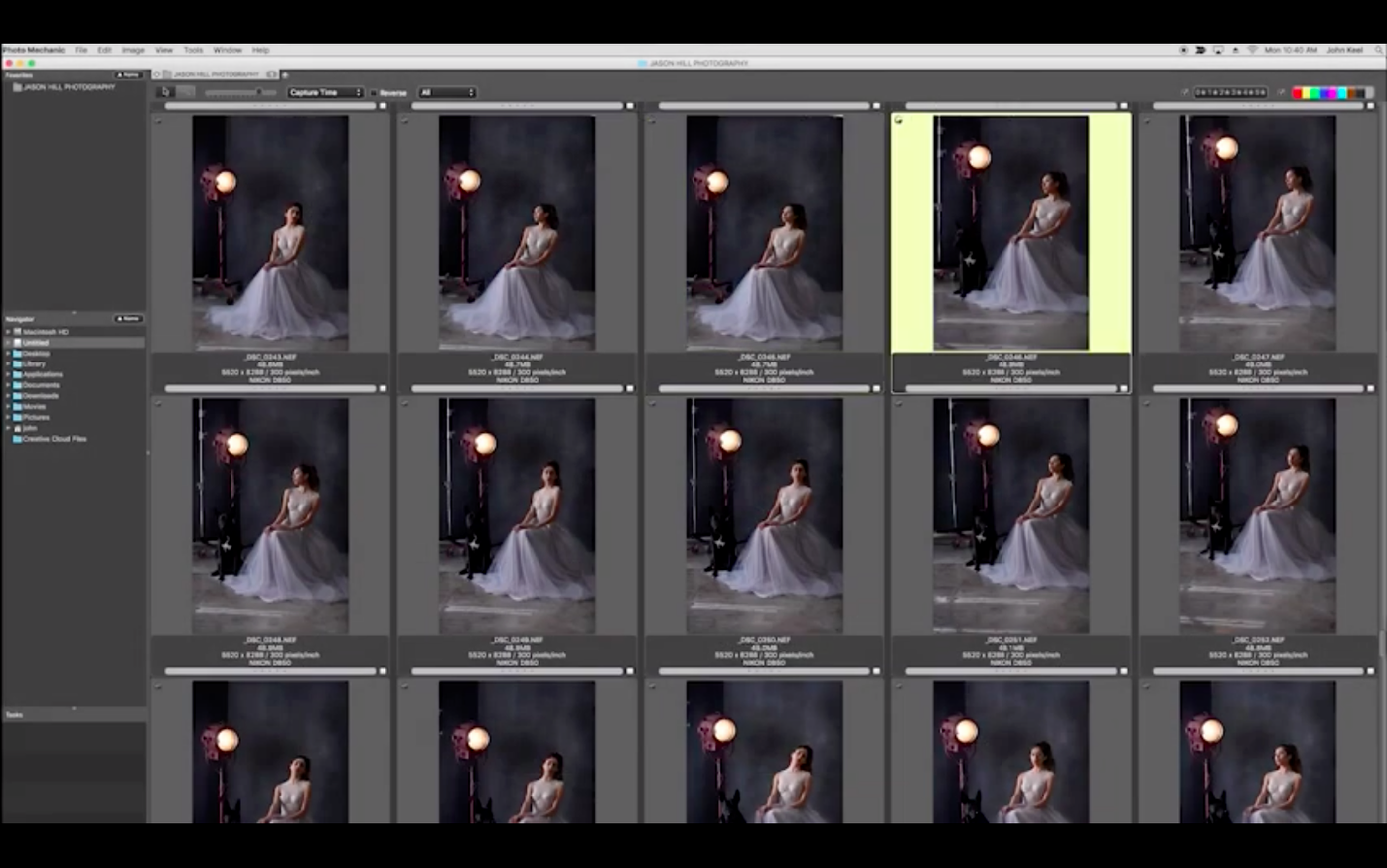
Photo Mechanic 6 runs on Macs with Apple Silicon and macOS 13 or later. It is a photo browser and management tool built for speed, not for pixel-level editing. If you handle large shoots or simply want a quicker way to sort through your library, this app focuses on the parts of photo work that slow you down.
Who is Photo Mechanic for?
It suits photographers who take many pictures and need to organize them fast. Journalists, event shooters, and anyone managing big folders will find the batch tools useful.
What can it do with metadata?
You can view and edit descriptions, titles, keywords, event names, locations, and contact details. It also reads technical camera data like lens, model, and white balance, and it can import GPS coordinates.
Renames, resizes, and sorts many photos at once
It renames and resizes many photos at once, changes the date and time created, and lets you compare shots side by side. Sorting, searching, emailing, printing, or burning to disc are all built in.
Familiar file browser interface with no steep learning curve
The interface stays close to a file browser, so you can begin without a steep learning curve. It is a practical tool for a specific job, and it does that job well.
Native Apple Silicon builds for fast launches and scrolling
Since version 2025.1.8239 is built natively for Apple Silicon, it uses the processor efficiently without needing translation layers. The app launches quickly and responds immediately when you scroll through thumbnails or switch folders. You need macOS 13 or later, which covers Ventura and all newer releases. Because it is a native ARM application, it does not load Rosetta 2 in the background, which leaves more system resources free for other tasks while you work with photos.
The interface is straightforward and does not rely on heavy graphics or animations. Menus, panels, and dialogs appear without delay, and even when you load a folder containing hundreds of high-resolution files, the thumbnail view builds up fast. The full-screen mode lets you inspect images without distractions, and side-by-side comparison works smoothly on any screen size.
Incremental metadata and batch processing updates since 2025.1.8239
The current build, 2025.1.8239, includes incremental updates that refine how the app handles metadata and batch processing. Camera Bits posts detailed release notes in the Readme file and in their forum announcements, so you can see exactly what changed between builds. In practice, these updates mean the app stays reliable with modern camera file formats and maintains its speed when you work with large collections.
One improvement that matters in daily use is how the app manages color marking and ratings across folders. The latest version keeps these tags stable even when you rename or move files in bulk. You can assign ratings and color labels during a first pass through your shoot, then later search or sort by those marks without the app needing to re-read every file. The metadata editing panel also responds faster when you update multiple fields at once, which saves time during events or deadlines.
Adjust thumbnail size and quality for your screen resolution
When you open Photo Mechanic 6 for the first time, a few settings can make your workflow smoother right away. Under the preferences for thumbnails, you can choose the size and quality that matches your typical screen resolution. For most work, a medium thumbnail size with standard quality gives a good balance between speed and clarity, especially if you browse folders with thousands of files.
You can also set the default behavior for metadata. Decide whether the app should automatically fill in your name and copyright information when you import new photos. This saves a step later, and you can always adjust individual files if needed. The color class presets let you assign meaning to each color label. Many photographers use a simple system, for instance green for selects, yellow for maybes, and red for rejects. Setting these up once at the start means you can move through a shoot quickly by pressing the assigned keys.
Another setting worth adjusting is the file naming template. The batch rename tool uses variables like date, sequence number, and original filename. Creating a template that matches your usual naming convention, like YYYYMMDD_Event_Sequence, avoids having to type it each time you rename a folder.
Opens selected files directly in Photoshop or Capture One
Photo Mechanic 6 does not replace a full photo editor like Photoshop or Capture One. Instead, it works well alongside them. You can set the app to open selected files directly in your preferred editor. After you finish adjustments, the changes appear in the thumbnail view automatically, so you do not lose your place in the contact sheet.
On macOS, the app integrates with the standard file system. You can drag folders from Finder into the browser, and the app reads the folder structure without importing files into a separate library. This means your existing folder organization stays intact, and you do not end up with duplicate storage. The app also supports macOS services, so you can right-click a photo in Finder and send it directly to Photo Mechanic if you prefer that workflow.
For sharing, the built-in email tool works with your default macOS mail client. The FTP upload feature is useful if you deliver photos to editors or clients directly from the app. Both the burn-to-disc and print functions rely on standard macOS subsystems, so they work with whatever drive or printer you have connected.
If you use a GPS logger or track your shooting locations, you can import coordinates into the metadata. The app reads common GPS file formats, and once imported, the location data becomes part of the photo information you can search or export. This is helpful for travel or nature photographers who want to keep a geographic record of their images without manual entry.
- macOS 13 or later
- Apple Silicon
Questions I keep getting
Can Photo Mechanic edit my photos?
No, it focuses on browsing, organizing, and editing metadata. For pixel-level changes you would use a separate editor.
Does Photo Mechanic support GPS data?
Yes, it imports GPS coordinates and can include them in the metadata you view or edit.
How to install
- Mount the downloaded disk image by double-clicking it.
- Drag the app to the Applications folder alias inside the window.
- Launch the app once copying finishes.
Similar apps





Sign in or join the club to leave a comment.
Nobody has commented yet.