
- Version
- 3.4.8
- Studio or maker
- Fat Cat Software
- Languages
- English
- Activation
- K'ed by TNT team
- Runs on macOS
- macOS 14 or later
- Chip type
- Apple Silicon, Intel 64-bit
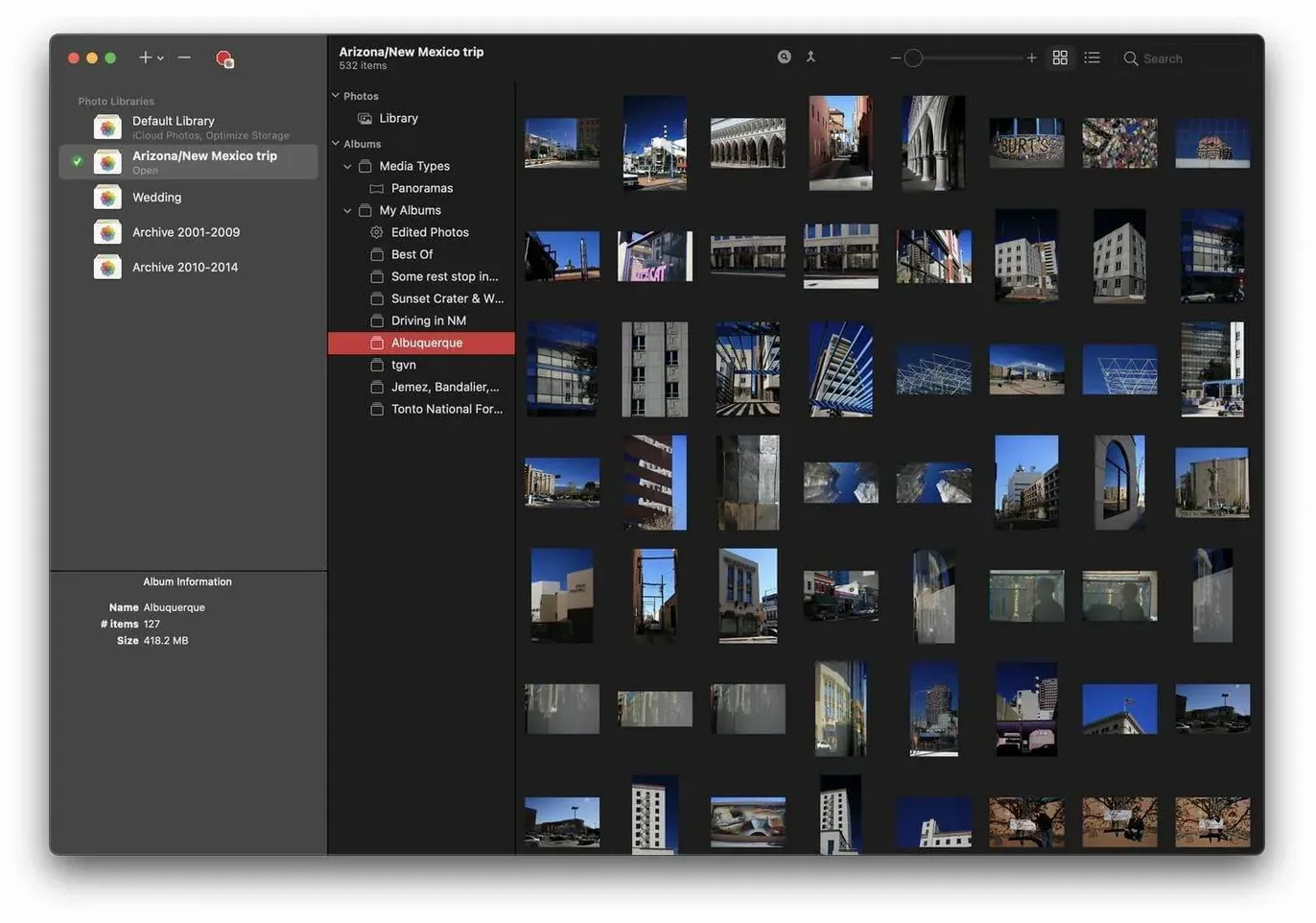
PowerPhotos 2 runs on any Mac with macOS 14 or later, whether it uses Apple Silicon or an Intel 64-bit processor. It is a separate product from iPhoto Library Manager, built specifically for the modern Photos app.
If your photo library has grown unwieldy, PowerPhotos lets you split it into several smaller libraries, each easier to browse and back up. It can also analyze a library for duplicate photos and show them side by side, so you can remove the copies you no longer need without guessing.
| Detail | Info |
|---|---|
| Developer | Fat Cat Software |
| Version | 3.4.8 |
| Compatibility | Apple Silicon, Intel 64-bit |
| Requires | macOS 14 or later |
| Language | English |
Splitting a 20,000-photo library into two
Imagine you have been using Apple Photos for years. Your library holds roughly 20,000 photos, and it takes a noticeable moment every time you open the app. You decide to try splitting it into two libraries: one for the last five years and one for everything older.
You open PowerPhotos and see a list of all the libraries Photos has on your Mac. From one window, you ask it to create a new empty library. Then you set it to move photos with dates before a certain year into the new library. PowerPhotos handles the move through Photos’ own file structure, so nothing gets orphaned. You end up with two libraries in Photos itself, each faster to open than the single giant one was, and your iCloud storage now holds only the recent library if you want it to.
Later in the same session, you run a duplicate scan on the older library. PowerPhotos groups likely duplicates and displays them side by side. You spot a batch of nearly identical shots from a single afternoon. You mark the extra copies and send them to the Photos trash. The whole session, from splitting to cleanup, takes less than an hour, and you do not switch back to Photos once.
Scenario from a school event photographer
A teacher who takes photos for the school yearbook has a different problem. She has 4,000 shots from sports days, plays, and class trips spread across three Photos libraries she made over two years. She does not want to merge them into one huge library, but she does want a single view of every shot for picking the best ones.
With PowerPhotos, she can search all three libraries at once from the same window. She types “spring concert” and sees results from every library instantly. She can also browse each library’s contents without opening Photos separately. When she finds a duplicate photo that got imported into two libraries, she compares them side by side and keeps the version with the better crop. The school’s yearbook folder ends up leaner, and she never has to open three separate Photos windows.
Duplicate detection plus library management
Duplicate Photo Finder. This app focuses entirely on locating duplicate images across folders, and it works well for that single task. PowerPhotos does duplicate detection too, but it adds library management and the ability to split and merge Photos libraries. If you only need a duplicate finder, Duplicate Photo Finder is fine. If you want to reorganize your Photos libraries as well, PowerPhotos does both in one place.
Photo Supreme. This is a full cataloging tool that can import from Photos but works separately from it. You manage your photos inside Photo Supreme’s own database. PowerPhotos stays inside the Photos ecosystem. It relies on the same library structure Photos uses, so you keep using the Photos app as your main viewer. PowerPhotos feels less like a replacement and more like an extension of what you already have.
iPhoto Library Manager. This is the predecessor from the same developer. It handled iPhoto libraries but not the modern Photos format. PowerPhotos is the current app for anyone using Photos under macOS 14, and it is built for the newer library structure.
Seeing photo counts without loading the library
PowerPhotos can show you the number of photos in each library at a glance, without loading the library itself. That helps when you are deciding which library to work with.
It lists all your Photos libraries in one window, even if a library is on an external drive. You can see which libraries are available before you plug anything in.
The duplicate scanning does not require you to wait for a full library index. You select a library, start the scan, and PowerPhotos works through the files. Results appear as it finds matches, so you can start reviewing before the scan finishes.
When you remove duplicates, PowerPhotos sends them to the Photos trash rather than deleting them outright. That gives you a safety net in case you remove something you later want back.
- macOS 14 or later
- Apple Silicon or Intel 64-bit Mac
- Interface in English
Questions I keep getting
Can PowerPhotos work with my existing Photos library?
Yes, PowerPhotos works directly with the built-in Photos app on Mac, so you can manage and split your current library without moving files elsewhere.
How to install
- Mount the disk image and run the installer. The Gatekeeper prompt appears because the app is not from the App Store.
- Press Enter in Terminal to bypass Gatekeeper. This step allows the app to open on newer macOS versions.
- Drag the app to the Applications folder. This keeps it with your other programs and makes updates simpler.
- Open the app when installation is complete. It should launch normally from now on.
Similar apps






Sign in or join the club to leave a comment.
Nobody has commented yet.