
- Version
- 22.0.1
- Studio or maker
- Quark Software Inc.
- Languages
- Russian, English, German, Danish, Spanish, Italian, Chinese (Traditional), Chinese (Simplified), Korean, Dutch, Norwegian, Polish, Portuguese, Finnish, French, Czech, Swedish, Japanese
- Activation
- Not required
- Runs on macOS
- macOS 12 or later
- Chip type
- Apple Silicon, Intel 64-bit
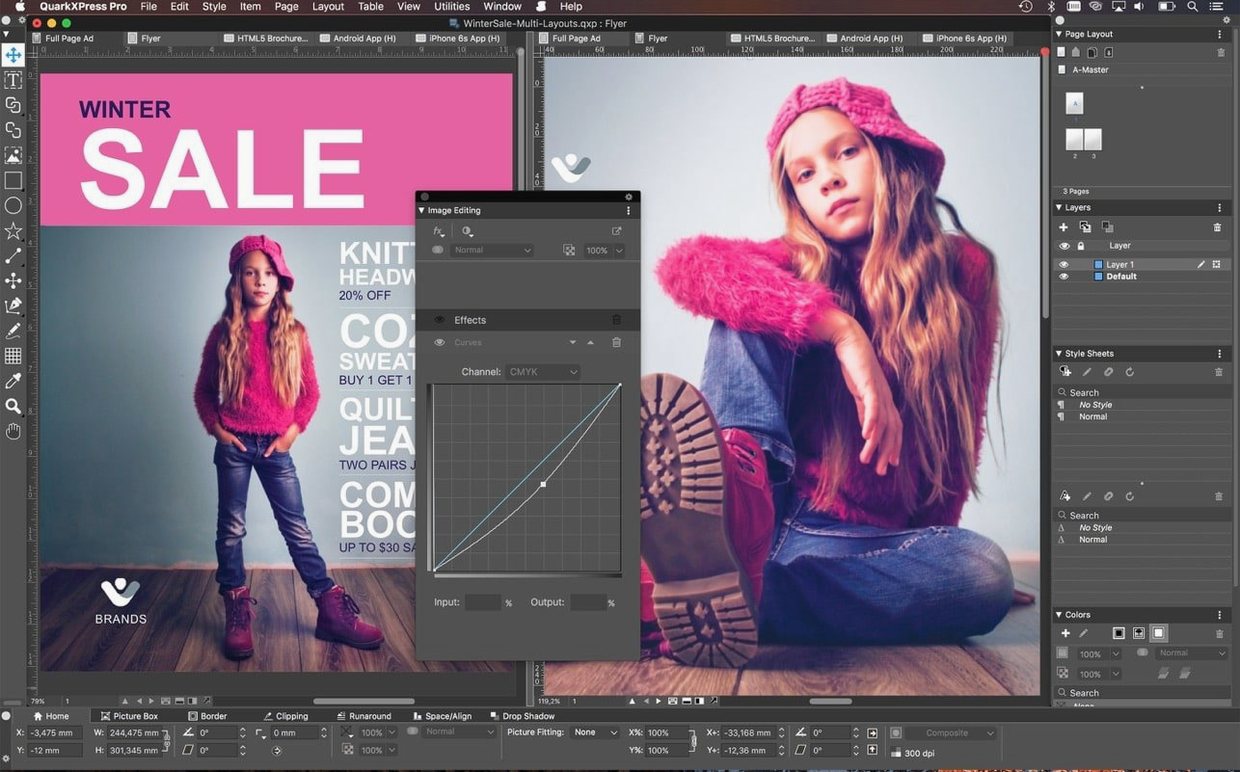
If you have used a word processor to arrange text and images, you know the limits of flow-based pages. QuarkXPress works differently: it gives you precise control over every frame, line, and color on the page, the way a designer expects.
Layout workflow
- Set up the project — the welcome screen offers size presets, custom workspaces, and built-in tutorials, so you start with the right canvas.
- Place content with control — tools for text handling, graphic elements, and color management let you position each piece exactly. OpenType and Unicode support keep typography clean.
- Automate the rules — conditional styles apply layout rules automatically, and the new bullet and numbered list markers handle recurring formatting.
- Reformat for devices — Reflow View preserves the layout display when content is reformatted, which matters when the same project goes to iPad, iBooks, Kindle, or Nook.
The same files can become print pages, interactive iPad apps, or e-books. Version 22.0.1 runs on Apple Silicon and Intel Macs with macOS 12 or later, and the interface is available in 18 languages. For a teacher juggling a school magazine and digital handouts, that range is practical rather than overwhelming.
Working with mathematical equations from start to finish
Version 22.0 introduced native support for mathematical equations, which changes how you handle academic, scientific, or technical layouts. Here is a typical workflow.
- Open a new project — choose a page size from the welcome screen presets. For a worksheet or textbook page, A4 or Letter works well.
- Create a text frame — draw a text box where the equation should appear. Type the surrounding text as usual.
- Insert the equation — use the equation tool (available in version 22.0 and later) to build expressions with fractions, integrals, square roots, and Greek characters. The editor works within the layout, so you see the result immediately.
- Adjust spacing — treat the equation as part of the text flow. You can resize the frame or adjust the leading to match the surrounding lines.
- Export for print or digital — the equation stays editable in the project file. When you export to ePub or PDF, the rendering remains correct for iBooks, Kindle, or Nook.
For a math teacher like me, this means I can prepare worksheets with proper notation without switching to a separate equation editor or pasting images. The equations are part of the layout, not pictures pasted on top.
Native mathematical equations are now built in
Three updates in version 22.0 and 22.0.1 affect how I work day to day.
- Native mathematical equations — before version 22.0, you needed external tools or workarounds. Now the equation editor is built in, and it supports the notation I use for algebra and geometry handouts.
- Improved ImageGrid for master pages — master page elements now stay consistent when ImageGrid generates automatic pages. If you produce a series of worksheets with repeating headers and image placeholders, the alignment does not shift between pages.
- Redesigned welcome screen — introduced in QuarkXPress 2026 v22.0.1, the welcome screen now includes project size presets, customized workspaces, built-in tutorials, and direct access to resources. Starting a new project takes fewer steps than before.
None of these changes are flashy. They save time on repetitive setup and reduce the need to correct layout shifts later.
Cloning elements with formatting saves time on repeat designs
Some features are not prominent in menus or tutorials but solve specific problems.
- Cloning elements — you can duplicate a frame or group of objects with its formatting and content. Useful when building a set of similar cards, labels, or flash cards.
- Conditional styles — these apply page layout rules automatically based on conditions you define. For example, you can make headings in a certain style always start a new page or always use a specific color. The software handles the formatting, not you.
- Callouts — these move frames and object groups along with the text they reference. If you rearrange paragraphs, the callout follows. Good for annotated diagrams in science handouts.
- Linkster — a tool for linking or unlinking text boxes and notes across a document. When you chain story text through multiple frames, Linkster keeps the connection clear.
- Story Editor — a full text editor that opens the content of a text frame in a separate window. You can write or edit articles here without the page layout getting in the way. Changes appear in the layout once you close the editor.
These are not headline features. They are small tools that prevent common frustrations, like losing a callout position or editing text inside a crowded page.
Publishers and prepress teams benefit from single-file cross-region printing
Publishers and prepress teams — the single file format opens and prints projects created in different regions without conversion issues. Color control and support for Illustrator and Photoshop files keep the production chain simple.
Designers who produce print and digital versions — the same project can become a printed brochure, an interactive iPad app, an ePub for iBooks, Kindle, or Nook, or a Blio eReader file. Reflow View preserves the layout when content reformats for a smaller screen.
Marketing teams in large organizations — the 18 interface languages and support for more than 30 dictionary and hyphenation modules mean global teams can work in their own language on the same file. Conditional styles and master page consistency help maintain brand rules.
Teachers and educators — with native equations, ImageGrid for consistent page layouts, and Story Editor for editing content separately, QuarkXPress handles school magazines, worksheets, and digital handouts without requiring extra tools. The learning curve is moderate, and the welcome screen tutorials help new users start.
For Mac users running macOS 12 or later, on Apple Silicon or Intel, QuarkXPress 2026 v22.0.1 works without activation and covers the range from one-page flyers to multi-chapter e-books.
- Native support for mathematical equations arrived in version 22.0.
- ImageGrid keeps master page elements consistent across auto-generated pages.
- The welcome screen was redesigned in QuarkXPress 2026 v22.0.1.
- macOS 12 or later
- Apple Silicon or Intel 64-bit Mac
How to install
- Open the downloaded package.
- Follow the install instructions included with the package.
- Complete activation as described in the included instructions.
Similar apps





Sign in or join the club to leave a comment.
Nobody has commented yet.