
- Version
- 5.6.3
- Studio or maker
- Figure 53 LLC
- Languages
- English
- Activation
- K'ed by TNT team
- Runs on macOS
- macOS 11 or later
- Chip type
- Apple Silicon, Intel 64-bit
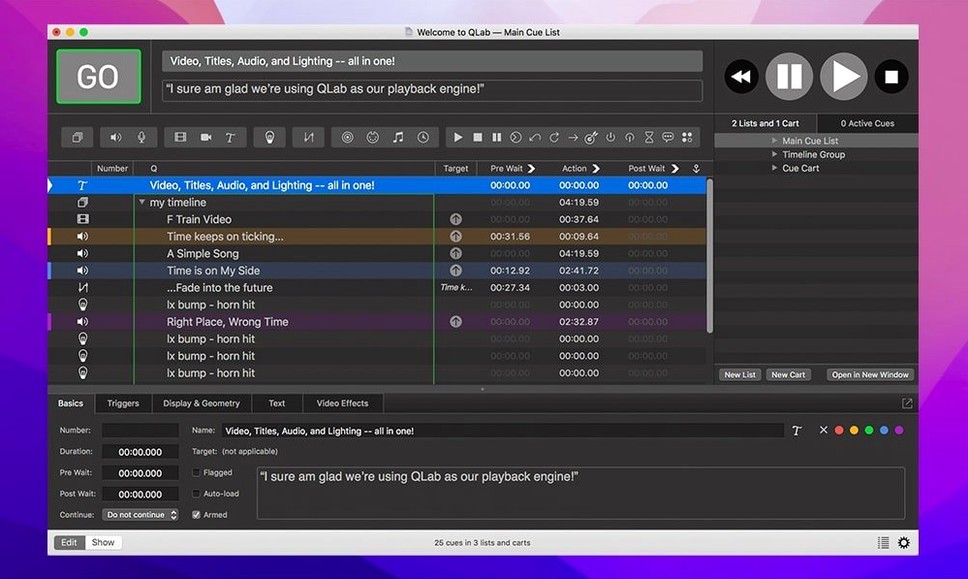
QLab 5 runs on macOS and enables the creation and execution of sound, video, lighting, and show control cues for live events and installations. Before anything else, you want to know if it runs on your Mac. The good news: QLab 5.6.3 works on both Intel and Apple Silicon machines, and it only needs macOS 11 or later. That covers most Macs from the last several years, so you can likely run it without hunting for an older system.
What you get is a workspace where you build a timeline of cues — fade in a song, trigger a video, switch a light — and then play it all back during a show. The built-in audio editor lets you trim the start and end of a track without leaving the app. You also get audio and video effects, adjustable playback speed with pitch control, and keystone correction for projecting onto odd surfaces.
For video, corner pinning helps you map a projection onto a non-rectangular screen. Undo covers most changes, which is a relief when you experiment with cue orders. The interface is English only, but it is straightforward to learn if you have done any theater tech.
A few adjustments early on save you trouble during a live show
When you open QLab for the first time, the defaults work fine for basic playback. But a few adjustments early on save you trouble during a live show. I tell my game club students the same thing about new software: change the settings before you need them, not during a cue.
Open Preferences and set your audio output device first. QLab defaults to the system output, which is fine for testing on a laptop speaker, but for a performance you want an external interface. Select the correct device under the Audio tab so every cue goes where you expect.
The Preferences window also has a section for video output. If you are projecting onto a second screen, assign it here. Otherwise, QLab might play video on your main display instead of the projector. That mistake is easy to fix ahead of time.
Under the General tab, turn on Auto-Continue for cues you want to trigger in sequence without manual prompting. This is not right for every show, but if you have a string of sound effects that must follow each other, it saves a lot of clicking. You can always override it per cue later.
One setting I recommend adjusting early: undo history depth. The default is fine for short sessions, but during a long rehearsal build-up, you might want more steps available. Set it to 50 or 100 in Preferences if your Mac has enough memory. You will thank yourself after accidentally dragging a cue out of order.
QLab is used in schools and universities more than you might expect
QLab is built for live production, so the obvious audience is theater technicians and sound designers working on plays, concerts, or dance performances. But I have seen it used in places you might not expect.
Schools and universities get a lot of value from QLab, especially drama and music departments that run their own shows on a limited budget. One Mac in the booth can handle all the audio and video cues, replacing several separate players and mixers. A teacher can set up a simple show in an afternoon and let students run it during the performance.
Installation artists and museum curators also benefit. If you need a video loop that runs for hours with occasional triggered sound cues, QLab can handle timed playback without human intervention. The Syphon integration lets you send video to other software or between two QLab workspaces, which helps in larger installations with multiple projectors.
For the solo performer or small touring company, QLab is a reliable hub. You build your show on a laptop, then plug into whatever sound and video gear the venue provides. No need to bring a mixing board or video switcher. The 48 audio outputs and 24 audio inputs give you room to grow without changing software.
I would not recommend QLab to someone who only needs to play music files or a single video loop every now and then. For that, simpler tools work fine. QLab shines when you have multiple cue types — sound, video, light, MIDI — that need to fire in a precise order, with timing you can control down to the frame.
The most common error: forgetting to set your cues before tech rehearsal
I have watched several students and colleagues learn QLab, and the same mistakes come up again and again. Knowing them ahead of time saves you a frustrated search through menus during tech rehearsal.
The most common error: forgetting to set the correct audio output device before adding cues. If you build a whole show listening through headphones on output A, then switch to the house speakers on output B at show time, all your levels and pan settings might be wrong. Set the device first, then build your show.
Another frequent slip is not assigning video to the proper screen. QLab can output to any connected display, but the default might show video on your main monitor instead of the projector. Check the Video Output tab in Preferences and assign the right screen before you start placing video cues. Test it with a short clip before you build a long sequence.
New users often forget about the fade cue type. They try to adjust audio levels manually during playback or edit the volume of each individual audio file. Instead, add a fade cue that changes the level over time. It works the same way for video fades. This keeps your workspace organized and lets you adjust levels without touching every source cue.
Overusing the Stop cue is another beginner habit. A Stop cue ends all playback immediately. That is useful for emergencies, but if you use it at the end of every scene, you lose the ability to have sound or video continue into the next scene naturally. Use Pause or Reset cues instead, and only use Stop when you really mean to end everything.
Finally, many people skip the undo feature because they think it only covers simple edits. In QLab, undo works for most changes, including adding cues, moving them, and adjusting parameters. If you accidentally delete a cue, do not reach for the backup file. Just press undo. It saves time and keeps your workspace consistent.
Lighting designers get three small but practical improvements
QLab 5.6.3 is a maintenance release, so the changes are small but practical for lighting designers and patch editors. If you work with light cues, you will notice three improvements.
First, rows in the Light Library or Light Definition editor now change color when an instrument definition in the row is misconfigured. That sounds like a small detail, but if you have a long list of lighting instruments, color coding helps you spot a problem at a glance without reading every row. Instead of hunting through menus for the broken definition, you see it highlighted and can fix it directly.
The Light Patch editor adds a Broken status for misconfigured instrument definitions. Before 5.6.3, a misconfigured instrument might just not work during playback, and you would only notice when the cue failed. Now the editor tells you something is wrong before you run the show. That saves time during setup and prevents onstage surprises.
Third, for Right On Cue Services Stage|Tracks, workspaces that were made in QLab 5.6.2 and earlier now transfer over to the integrated network device definition. If you use Stage|Tracks for wireless show control, the migration happens automatically when you open an older workspace in 5.6.3. You do not need to reconfigure anything manually.
The infrequent crash that might occur while halting video playback has also been resolved. It was not a common problem, but if you ever had QLab quit unexpectedly at the end of a video cue, this update resolves that. For everyday use, you can stop and restart video playback more reliably.
In short, QLab 5 is a solid choice for schools, community theaters, and solo designers who need reliable cue playback on a Mac.
- Rows in the Light Library or Light Definition editor now change color when an instrument definition in the row is misconfigured.
- Workspaces from 5.6.2 and earlier now migrate to the built-in network device definition for Right On Cue Services Stage|Tracks.
- macOS 11 or later
- Intel or Apple Silicon
Questions I keep getting
What Macs are compatible with QLab 5.6.3?
QLab 5.6.3 runs on macOS 11 or later, and it supports both Intel and Apple Silicon Macs.
How to install
- Mount the disk image and run Open Gatekeeper friendly — this prepares the app for the next step.
- Press Enter in Terminal to bypass Gatekeeper, which lets the app run on your Mac.
- Drag the app into the Applications folder to install it.
- Launch the app and start building your show.
Similar apps





Sign in or join the club to leave a comment.
Nobody has commented yet.