- Version
- 1.10.0
- Studio or maker
- Fat Cat Software
- Languages
- English
- Activation
- K'ed by TNT team
- Runs on macOS
- macOS 14 or later
- Chip type
- Apple Silicon, Intel 64-bit
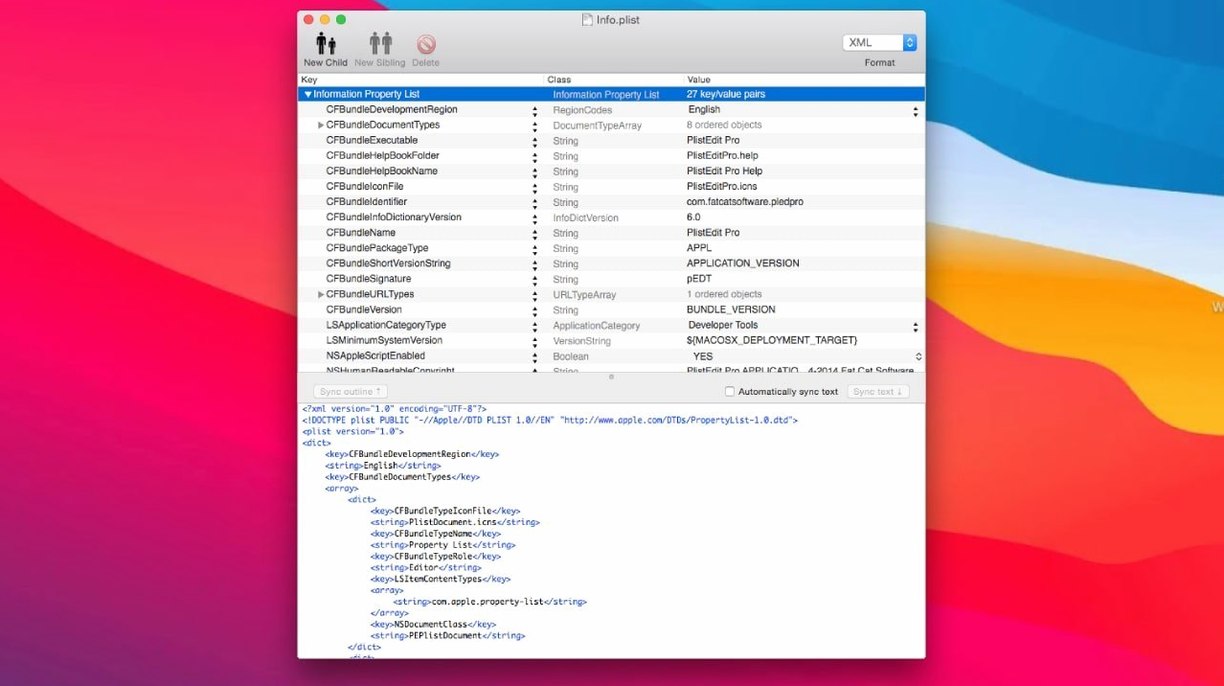
Property lists appear in almost every macOS app, yet most text editors treat them as plain XML. PlistEdit Pro 1.10.0 gives you a dedicated editor with an outline view, drag-and-drop rearrangement, and multi-level undo. It also handles JSON files, so you can work with both formats in one place.
Fits alongside Xcode and text editors
| Feature | Detail |
|---|---|
| Current version | 1.10.0 |
| Developer | Fat Cat Software |
| Requirements | macOS 14 or later |
| Architecture | Intel and Apple Silicon |
| Interface language | English |
If you already use Xcode or a text editor for plists, PlistEdit Pro fits alongside them. You can switch between outline and plain text views, search an entire folder for a key or value, and adjust the font to match your setup. The included pledit command-line tool extends the same editing to the terminal. For Mac and iOS developers who manage many plist files, this app takes the guesswork out of editing them.
Sits between Xcode, BBEdit, and plistutil
For macOS developers, the default options for editing plist files are Xcode, a plain text editor like BBEdit or Sublime Text, and the free plistutil command-line tool. PlistEdit Pro sits in a different space from each of them.
Xcode can open and edit plist files, but its interface is built for code projects, not for browsing the tree structure of a property list. You get a raw text view and little else. PlistEdit Pro gives you an outline view that shows the hierarchy without the angle brackets, plus drag-and-drop to move keys, values, or whole subtrees. That direct manipulation makes a difference when you are restructuring a large preferences file or a localization plist.
BBEdit and Sublime Text offer syntax highlighting and search, but they treat the file as text. You see XML tags or JSON brackets. PlistEdit Pro shows you the data as data: keys, values, types. It also includes structure definitions for standard plist files, so the editor knows what belongs where. For JSON files, the same outline view applies, which means you can work in either format with the same muscle memory.
The plistutil command converts plist files to and from XML, but it does not offer an interactive editor. PlistEdit Pro includes its own pledit command for terminal use, which can be scripted with AppleScript automation. That gives you both a graphical and a command-line tool from the same developer, so they share the same understanding of the plist format.
A workflow for editing a macOS preferences file
Here is one common task: you need to change a hidden setting in a macOS app's preferences file, and you want to verify the structure is still valid afterward.
- Open the plist file from PlistEdit Pro. Use the File menu or drag the file onto the app window. The file opens in outline view by default, showing the top-level keys.
- Navigate the tree using the keyboard or mouse. Expand the sections until you find the key you need. PlistEdit Pro highlights the key name and its value type so you can see at a glance what kind of data it holds.
- Edit the value directly in the outline. Double-click the value field and type the new content. The editor keeps the file valid as you go.
- Use find and replace if the key appears in several places. The find function searches the whole tree, not just the visible text.
- Undo if needed. PlistEdit Pro supports multi-level undo, so you can step back through several changes without losing your work.
- Save the file. You can switch to plain text view first if you want to review the raw XML before saving.
If you need to search for a key across many plist files at once, use the folder search feature. It scans every plist in a directory and returns matches with the file path, so you do not have to open each one.
Start with a copy, learn outline view first
- Start with a copy. Before you edit a system plist file, make a backup. A small typo can break an app's settings, and multi-level undo only works within the current session.
- Learn the outline view first. Plain text view shows the raw XML, which can be dense. The outline view gives you the same data in a collapsible tree. Try both to see which one you prefer for different tasks.
- Customize the font. If you spend a lot of time reading plist files, a larger or monospaced font can reduce eye strain. The font setting is in the preferences.
- Use keyboard navigation. PlistEdit Pro supports keyboard shortcuts for moving through the tree. Once you learn them, you can edit faster than with a mouse.
- Test the command-line tool. Open a terminal and run
pleditwith a file to see how it behaves. If you regularly edit plist files in scripts, the command line can save time.
Invalid XML files fall back to plain text
The file does not open in outline view. Some plist files are not valid XML. PlistEdit Pro may fall back to plain text view or show an error. Check the file in a text editor first to see if the structure is broken. If it is, the folder search feature can help you find the problematic key.
I changed a value, but the app still uses the old one. Many macOS apps cache their preferences in memory. Quit the app completely and relaunch it. If the setting still does not appear, the app may store preferences in a different location or use a binary plist format that PlistEdit Pro cannot read. Check the developer's documentation.
The find function did not locate the key I know is there. The search may be case-sensitive by default. Try a partial match or check the search settings. Also, nested keys inside an array or dictionary may not show up in a simple text search. Use the folder search on the directory containing the file to see all keys at once.
Drag and drop does not work as expected. You can drag a key or value to a different position within the same file, but the target must be a compatible container (for example, a dict or array). Dragging a key into a plain text node will not work. The outline view shows the structure, so you can see the container types before you drop.
The pledit command is not recognized. Make sure the command-line tool is in your PATH. After installation, you may need to restart your terminal or add the directory manually. The app's documentation or the included readme file should show the location.
- Requires macOS 14 or later.
- Version 1.1 updates user interface elements for macOS Tahoe.
- Prefs browser options checkboxes now live in a toolbar menu.
- The 'Ask to revert when file changes on disk' option is now a small popover.
- macOS 14 or later
- Intel or Apple Silicon
Questions I keep getting
Can PlistEdit Pro edit JSON files?
Yes, PlistEdit Pro can view and edit JSON files alongside property lists, so you don't need a separate editor.
Does PlistEdit Pro work on Apple Silicon Macs?
Yes, it runs natively on both Intel and Apple Silicon Macs.
How to install
- Mount the disk image and run the Open Gatekeeper friendly command.
- Press Enter in Terminal to bypass Gatekeeper when prompted.
- Drag the app into your Applications folder.
- Launch it and start editing.
Similar apps






Sign in or join the club to leave a comment.
Nobody has commented yet.