
- Version
- 4.3 fix
- Studio or maker
- Mooii Tech
- Languages
- English, German, Spanish, Italian, Chinese (Traditional), Chinese (Simplified), Korean, Dutch, Polish, Portuguese, French, Japanese
- Activation
- K'ed by Dokdo
- Runs on macOS
- macOS 13 or later
- Chip type
- Apple Silicon
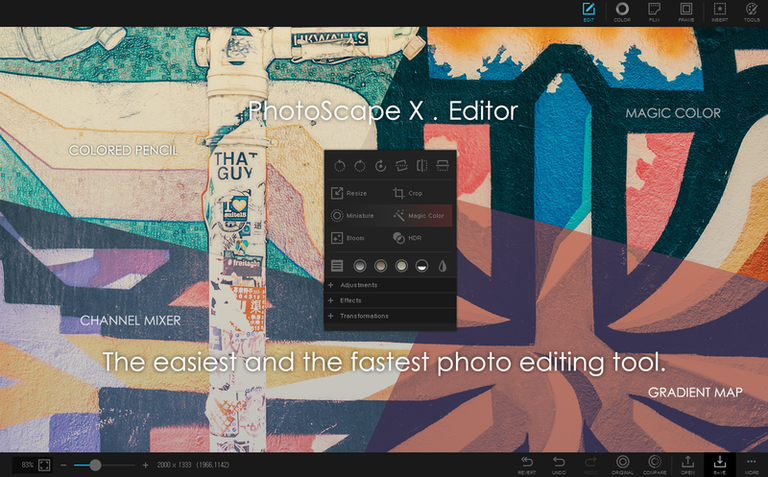
Sometimes you just want to fix a photo without opening a heavy editor. PhotoScape X Pro for Mac covers that ground and more. It is the Mac edition of the well-known PhotoScape X, rebuilt for Apple Silicon, and it brings together viewing, editing, and a few creative extras in one window.
Quick edits for cropping, resizing, and background removal
- Quick edits like cropping, resizing, or removing a background with the magic eraser, lasso, or brush.
- Organizing photos, videos, and audio files with star ratings, flags, and metadata views. You can browse in fullscreen or with a loupe for a closer look.
- Making collages from several photos, or turning a series into an animated GIF.
- Splitting one photo into multiple parts, useful for grids or print layouts.
- Printing photos directly from the app, and capturing screenshots when you need a quick save.
Requires macOS 13 or later and built for Apple Silicon
- It runs on macOS 13 Ventura or later, and it is built for Apple Silicon Macs.
- The app includes a large library of extras: over 290 frames, 240+ shapes, 1000+ stickers, and 240+ figures.
- Interface languages include English, German, Spanish, Italian, and several others, so it suits multilingual classrooms or households.
Runs natively on any M-series Mac without Rosetta
Because PhotoScape X Pro is built specifically for Apple Silicon and requires macOS 13 or later, it runs as a native app on any M-series Mac. You won't need Rosetta or any translation layer. The interface itself is clean and straightforward, with separate modules for browsing, editing, collage, GIF, print, and batch tasks. If you have a large library of photos, the browser handles common image file types well, and you can sort by star rating or flag without first importing everything into a separate library. The editor loads with a single toolset at a time, so you are not overwhelmed by every button at once. Expect the app to ask for access to your photo folders or the desktop the first time you try to open an image from those locations — this is standard macOS behavior. The color picker and screenshot tools are small utilities that sit alongside the main modules, not front and center.
Skipping the browser is the most common beginner mistake
A few patterns come up regularly when someone new opens PhotoScape X Pro. Here are the ones I see most often among teachers who try it in the game club or after school.
- Skipping the browser. Many people double-click an image file, which opens the editor directly, and then they wonder why the frames, collage, and batch tools are not visible. The browser is the home screen; start there to see all modules at the top.
- Applying effects to the original file. The editor saves changes onto the image unless you use "Save As" or work on a copy. It is a good habit to duplicate your photo before applying filters or the liquify tool.
- Overlooking the batch panel. When you have ten photos that need the same resize or format change, it is tempting to edit them one by one. The batch conversion, resizing, and renaming tools sit in the batch module, and they save considerable time once you find them.
- Forgetting about the frames and stickers library. New users sometimes add text or shapes manually when the app already includes over a thousand stickers and nearly three hundred frames. Browse the library first; you might find what you need ready to go.
- Ignoring the GIF module's delay setting. When creating an animated GIF, the default speed between frames may be too fast or too slow. Adjust the delay per frame or apply a uniform speed before exporting.
Set your default save format before editing
Before you dig into the editing tools, a few settings can make the app behave more predictably. These are not hidden, but they are easy to walk past on the first launch.
- Set your default save format. In the preferences, you can choose whether the editor saves back to the original format or always asks. If you work mostly in JPEG, that small change keeps your folder tidy.
- Adjust the loupe zoom level. The browser's loupe view defaults to a certain magnification. If you review many photos for detail, setting a higher zoom level saves you from dragging the slider each time.
- Turn on lossless rotation. When you rotate a JPEG in the browser, the app can do it without re-encoding the image. That keeps the original quality and is worth enabling in the browser settings.
- Check the language setting. With twelve languages available, it is possible the app matches your system language automatically. If you prefer working in English or another language, switch it early so the menus and tooltips are consistent from the start.
- This build is listed as a fix release.
- macOS 13 Ventura or later
- Apple Silicon (ARM)
- In-app purchases included
Questions I keep getting
Can PhotoScape X Pro remove image backgrounds?
Yes, it includes magic eraser, lasso, and brush tools for removing backgrounds.
Does PhotoScape X Pro work on Intel Macs?
No, it is built for Apple Silicon and requires macOS 13 or later.
Can I create animated GIFs with PhotoScape X Pro?
Yes, the app can create animated GIFs from your images.
How to install
- Open the downloaded disk image.
- Drag the app into the Applications folder shortcut.
- After copying finishes, launch the app from Launchpad.
Similar apps



Sign in or join the club to leave a comment.
Nobody has commented yet.