- Version
- 7.5.7 [MAS]
- Studio or maker
- Emmanuel Puybaret
- Languages
- Russian, English, German, Bulgarian, Hungarian, Vietnamese, Greek, Spanish, Italian, Chinese (Traditional), Chinese (Simplified), Dutch, Polish, Portuguese, Turkish, Finnish, French, Czech, Swedish, Japanese
- Activation
- K'ed by TNT team
- Runs on macOS
- OS X 10.9 or later
- Chip type
- Apple Silicon, Intel 64-bit
Before downloading Sweet Home, the first thing most people ask is whether it will run on their Mac. The answer is straightforward: it supports both ARM and 64-bit x86 Macs, and it requires macOS OS X 10.9 or later. That covers everything from older MacBook Pros to the latest Apple Silicon machines. No extra hoops, no surprise incompatibilities.
- It works on both Intel and Apple Silicon Macs, so you do not need to check your processor.
- The only system requirement is macOS 10.9 or newer, which means nearly every Mac from 2013 onward can run it.
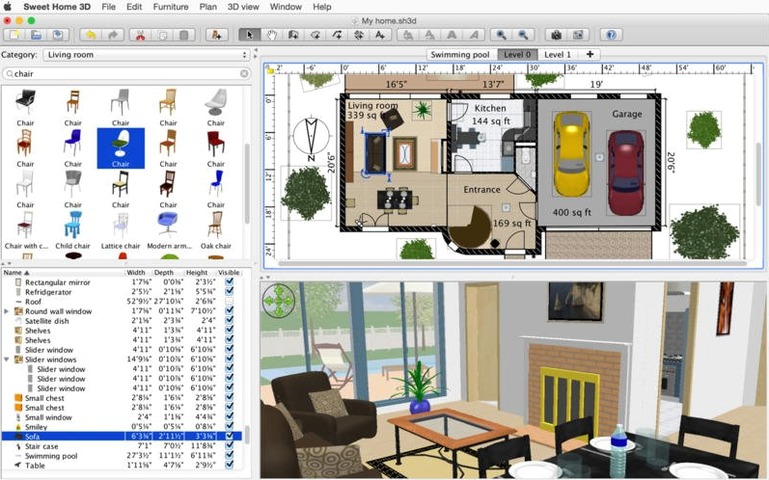
- You can draw walls and rooms on multiple levels, then view the result in 3D on the same screen.
- The furniture catalog includes over 1,400 objects for placing doors, windows, and furnishings.
- You can change wall, floor, and ceiling colors or textures, and create video walkthroughs of your design.
- Export options include PDF, PNG, JPEG, SVG, and OBJ, plus you can print the plan or the 3D view directly.
Those are the practical points most people check before installing. The app itself is in 29 languages, including English, German, and Russian, so the interface should feel natural no matter where you are.
Drop floor plans straight into Keynote or Pages
Sweet Home lives comfortably alongside your usual tools. The export options let you drop a floor plan into a Keynote presentation or a Pages document without converting anything first. SVG exports are especially clean for printed handouts because the vector lines stay sharp at any size. If you work with image editors, the PNG and JPEG exports from the 3D view give you a base you can annotate or overlay with notes.
On the macOS side, the app respects standard file management. You can save your project files wherever you keep your other documents, and the built-in macOS file search indexes them by name. The separate 3D view window, which version 7.5 improved for synchronization, works well with macOS split-screen or virtual desktops. You can keep the 2D plan on one side and the 3D view on the other, adjusting as you go.
For anyone who uses external drives or cloud folders, Sweet Home project files are small enough to sync without fuss. You can store a project in a Dropbox or iCloud Drive folder and open it from any machine you own.
Learn drawing tools with a simple square room
- Start with a simple square room to learn the drawing tools. Draw four walls, then add a door and a window. This test run lets you see how the 2D plan and the 3D view connect before you tackle a real project.
- Use the furniture catalog search rather than scrolling. The catalog has more than 1,400 objects, so typing "kitchen table" or "floor lamp" gets you there faster.
- Save early and often. The app runs reliably, but saving after each major change means you never lose a wall placement or a paint choice.
- Try the visitor viewpoint after you place furniture. The aerial view is good for planning, but the visitor view shows you what the room actually feels like.
- Export a quick PNG of your first design to share with someone else. Seeing a rendered image on a phone or tablet often reveals things you missed on your own screen.
Saturday morning: adding a kitchen layout to a small apartment
I start a Saturday morning session by opening last week's project file. The plan shows the ground floor of a small apartment, with walls drawn and a few windows placed. My first task today is adding the kitchen layout.
I zoom into the kitchen area on the 2D plan. I open the furniture catalog and search for "base cabinet." I pick a white cabinet from the results and drop it against the wall. Using the edit panel, I adjust its width to match the space I have. I copy it twice to fill the wall, then add a sink and a stove from the catalog. Each object appears immediately in the 3D view, so I can see how the counter looks from the room entrance.
I spend a few minutes changing the wall color from plain white to a light gray. I select the wall, open the texture menu, and pick a painted finish. The 3D view updates right away. I rotate the view to check the light coming from the window. It looks good, but the floor tile feels too dark. I select the floor and switch to a warm beige tile from the catalog. Better.
Before lunch, I create a video walkthrough from the kitchen to the living area. I set the camera path on the 2D plan, choose a standard walking speed, and let the app render the video. I export it as a PNG sequence so I can pick the best frame for a progress photo to send to a friend.
Marta remodels her son's bedroom around a slanted ceiling
Marta is remodeling her son's bedroom. She knows the furniture layout from the old room, but the new room has a different window placement and a slanted ceiling on one side. She starts Sweet Home and draws the walls based on her measurements. She marks the window position and the door swing direction.
She imports a simple 3D model of the loft bed she plans to build, which she downloaded from a furniture plans site. The model appears in the catalog. She drags it into the room and rotates it to fit under the slanted ceiling. The 3D view shows her that the bed fits with five inches to spare. She adds a desk and shelves from the main catalog, changes the wall paint to a blue she knows her son likes, and exports the final plan as a PDF. She prints it and takes it to the hardware store to discuss materials. The whole session takes twenty minutes.
- Fixed synchronization issues in the separate 3D view window.
- Fixed 3D view rendering of underground levels at the same elevation.
- Fixed font display in the Thai interface.
- macOS OS X 10.9 or later
- Architecture: Intel or Apple Silicon
How to install
- Mount the disk image and run Open Gatekeeper friendly.
- Press Enter in Terminal to bypass Gatekeeper.
- Drag the app to the Applications folder.
- The app is ready to use.
Similar apps






Sign in or join the club to leave a comment.
Nobody has commented yet.