- Version
- 5.0.0
- Studio or maker
- Serato
- Languages
- English
- Activation
- k'ed by Team V.R
- Runs on macOS
- macOS 12 or later
- Chip type
- Apple Silicon, Intel 64-bit
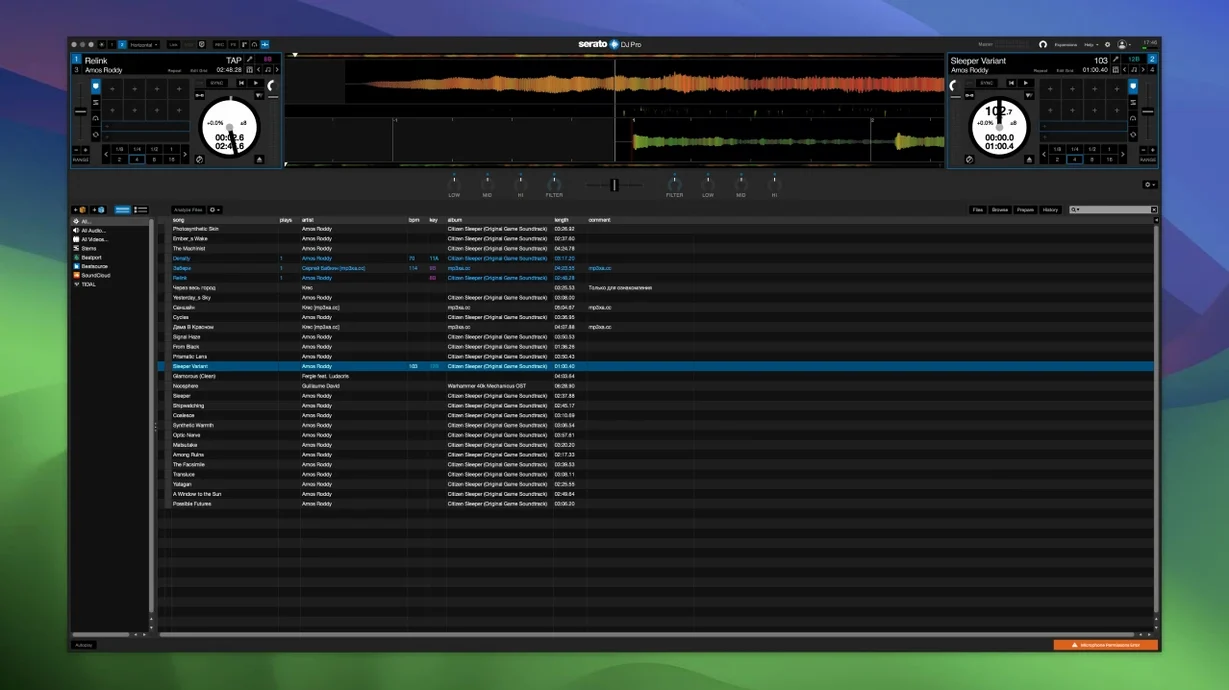
Serato DJ Pro is professional DJ software for mixing and performance on Mac. Here is how you might use it for one realistic task: preparing and performing a live set with stem isolation.
- Download the latest version from the Serato website. The installer is a standard package file.
- Connect one of the more than 90 supported hardware devices to your Mac running macOS 12 or later.
- Load a track into a deck. Use the Serato Stems button to isolate vocals, melody, bass, or drums in real time.
- Create an acapella or instrumental version with one button press for a seamless transition between tracks.
- Adjust levels and apply effects to the isolated stems while mixing in the next song.
The English-language interface is straightforward for anyone familiar with DJ hardware. Serato DJ Pro runs on ARM and 64-bit Intel Macs, so it works on most recent Apple computers.
Stems Pad FX echo and braker response after 4.0.5
The jump to version 4.0.5 brought a few under-the-hood refinements that affect how you work with stems and hardware. The most noticeable change for regular users is how the software handles the Stems Pad FX. Echoes and Brakers now respond more directly to your input timing — if you tap a pad slightly off the beat, the effect follows your cue rather than snapping to a strict grid. That matters during a live set where you might be riding the fader with one hand and triggering effects with the other.
Customizable hardware Slip Release also improved. In earlier versions, assigning a slip mode to a hardware button sometimes required a restart of the software. Version 4.0.5 picks up these assignments immediately after you save them in the controller editor. For anyone who switches between two different controllers during a single session, that saves a few minutes of fiddling.
Stems analysis is another area that saw quiet changes. The real-time separation of vocals, melody, bass, and drums still happens on the fly, but the software now retains the last used stem mix settings when you close and reopen a session. If you had a track set to drums-only at 60 percent volume, it returns to that state instead of resetting to full mix. Small thing, but it keeps your train of thought intact when you are working through a crate of tracks the night before a gig.
Enabling stems or four-deck layout in settings
Out of the box, Serato DJ Pro defaults to a layout that suits most standard two-deck controllers. If you spend most of your time with stems or four decks, a few quick changes make the workspace more comfortable.
- Enable the stem pads view. Under the layout settings, switch the pad view to Stems. This gives you dedicated buttons for vocals, melody, bass, and drums. Without this, the pads default to hot cues, which means you have to hold a modifier to reach stem controls. Changing it upfront saves reaching for the manual during a set.
- Adjust the master volume limiter. The default limiter is fairly conservative. If your hardware has good headroom and you are not pushing the signal into distortion, you can dial the limiter down or turn it off in the audio setup panel. This gives you more dynamic range for quiet passages and soft stem isolations.
- Set your latency buffer. Go to the audio preferences and test the USB buffer size. A lower buffer (256 samples) gives tighter response for scratching and pad hitting but uses more CPU. A higher buffer (512 or 1024) is safer for older Macs or sets where you have many effects active. Start at 512 and lower it until you hear crackling, then go back one step.
- Map a hardware button for Slip Release. If your controller has unused pads or buttons, assign one to Slip Release in the MIDI mapping panel. This lets you scratch or trigger hot cues while the track continues playing silently, then release to snap back to the current position. It is a useful trick for transition builds, and having it on a dedicated button makes it instinctive.
Playing without a Serato-compatible controller
Do I need a Serato-compatible controller to use it?
Strictly speaking, you can load tracks and play them through the software without a controller. The interface responds to mouse and keyboard input. But the whole point of Serato DJ Pro is its hardware integration — the software is built around the idea that you control decks, effects, and stems with physical knobs, faders, and pads. Without a controller, you lose the tactile feedback that makes mixing feel natural. The software officially supports more than 90 devices, from entry-level two-channel mixers to flagship multi-deck controllers, so finding one that fits your setup is straightforward.
Can I use it with a cracked version of macOS?
Serato DJ Pro 4.0.5 runs on macOS 12 Monterey and later, both on Intel and Apple Silicon. The activation method in the release you find here is handled by Team V.R, so you do not need to log into a Serato account or enter a license key. The standard package installer works like any other Mac application — you run the .pkg file, follow the prompts, and launch from Launchpad. No additional patches or workarounds are required after installation.
Does it work with music streaming services?
The core software handles local audio files — MP3, AAC, FLAC, WAV, AIFF — from your own library. If you rely on streaming, check the Serato website for the current list of supported streaming providers. For offline work, local files are the simplest path.
The real space requirement comes from your music library and any Stems analysis files. When you analyze a track for stem separation, Serato creates a small sidecar file (roughly 2–5 MB per track) that stores the stem data. Keep that in mind if you are on a Mac with a small internal SSD.
Can I use it for radio or podcast recording?
Yes. The software includes built-in recording to WAV or AIFF. You can capture your mix in real time, including any effects and stem adjustments. The recording panel lives in the utility section of the interface. It is a single-button operation: press record, mix your set, press stop, and the file lands in your specified output folder. No extra audio routing software is needed.
Real-world scenario: A mobile DJ preparing a wedding reception set
Anna runs a mobile DJ business on the weekends. She owns a Denon DJ MC7000 controller and a MacBook Air with an M1 chip. Her typical wedding reception runs four hours, with a mix of dinner music, a first dance, and a dance floor segment where she needs to transition between generations of pop, soul, and current hits.
On Friday afternoon, she sorts through her crate of 120 pre-selected tracks. For the dinner segment, she wants instrumental versions of familiar songs so guests can talk over the music. She loads a playlist into Serato DJ Pro, hits the Stems button on each track, and isolates the drums and bass at low volume while muting the vocal stem. The one-button acapella/instrumental toggle lets her audition each track quickly — she can flip between full mix and instrumental in under a second without stopping playback.
During the reception, she uses the Stems Pad FX for transitions. When moving from a 70s disco track to a 2000s R&B song, she applies Brakers to the bass stem of the outgoing track, letting the kick drum stutter while she brings in the new track's vocals. The Echoes effect on the melody stem helps her fade out the old track's hook without it clashing with the incoming key.
For the father-daughter dance, she needs a clean acapella of a specific song. She presses the instrumental button, saves the stem settings, and the software retains that configuration when she returns to the song later in the evening. No need to re-analyze or re-adjust mid-set.
Anna also uses the customizable hardware Slip Release. During a build-up to the dance floor opener, she triggers hot cues on the incoming track while the underlying track continues in slip mode. When she releases the button, the song snaps back to its current position, creating a tension-release effect that gets the crowd clapping. She mapped this to a single pad on her controller, so she does not have to think about it during the mix.
Serato DJ Pro versus rekordbox workflow philosophy
Serato DJ Pro vs. rekordbox
Rekordbox from Pioneer DJ is the main competitor for club-focused DJs. Both applications support stem separation and hardware integration, but they differ in workflow philosophy. Rekordbox ties closely to Pioneer's ecosystem — if you play on CDJs in a club, exporting from rekordbox is almost mandatory. Serato DJ Pro is more hardware-agnostic; its 90+ supported devices span multiple brands, so you are not locked into one manufacturer. For stem handling, Serato's one-button acapella/instrumental toggle is simpler than rekordbox's multi-step stem isolation process. On the other hand, rekordbox includes a built-in lighting control engine for DMX-compatible fixtures, which Serato DJ Pro lacks. If you do stage lighting, rekordbox has an edge. If you prioritize quick stem work and controller flexibility, Serato DJ Pro is more direct.
Serato DJ Pro vs. Traktor Pro 3
Native Instruments Traktor Pro 3 is another long-standing option. Traktor's strength is its effects suite and file-based remix decks, which let you trigger loops and samples in a grid layout. Serato DJ Pro's Stems approach is real-time and track-based — you isolate parts of a single song rather than building a remix from multiple clips. Traktor also supports stem separation (introduced in a later update), but its implementation requires more manual setup: you have to analyze each track beforehand and assign stem controls to specific deck slots. Serato's stems work immediately on any loaded track without pre-analysis. For turntablists, Serato's DVS (Digital Vinyl System) support is more mature than Traktor's, with lower latency and wider vinyl control compatibility. If you scratch with timecode vinyl, Serato DJ Pro is the standard. If you build live remixes from loops and samples, Traktor Pro 3 is worth a look.
Serato DJ Pro vs. DJay Pro
Algoriddim's DJay Pro is a macOS-native application that runs natively on Apple Silicon with very low resource usage. It has a cleaner, more minimal interface than Serato DJ Pro and includes Spotify and Tidal integration for streaming. However, DJay Pro's stem separation, while functional, is less detailed than Serato's — you get vocal and instrumental isolation but not the four-part split (vocals, melody, bass, drums) that Serato offers. DJay Pro also supports fewer hardware controllers natively; you can map almost any MIDI device, but the plug-and-play support is narrower. For a beginner or a casual DJ who streams music and uses a simple controller, DJay Pro is a lightweight alternative. For a professional who needs deep stem control, hardware choice, and DVS support, Serato DJ Pro is the more capable tool.
- macOS 12 Monterey or later
- ARM or 64-bit Intel processor
How to install
- Run the standard installation package: Serato DJ Pro 4.0.5.pkg.
- Then run the standard installation package: Serato DJ Pro Suite 4.0.5 patch.
- After installation, launch the app from Launchpad.
Similar apps





Sign in or join the club to leave a comment.
Nobody has commented yet.