
- Version
- 4.5.1
- Studio or maker
- Floor Steeg
- Languages
- English, German, Dutch, French, Czech, Japanese
- Activation
- Not required
- Runs on macOS
- macOS 12 or later
- Chip type
- Apple Silicon, Intel 64-bit
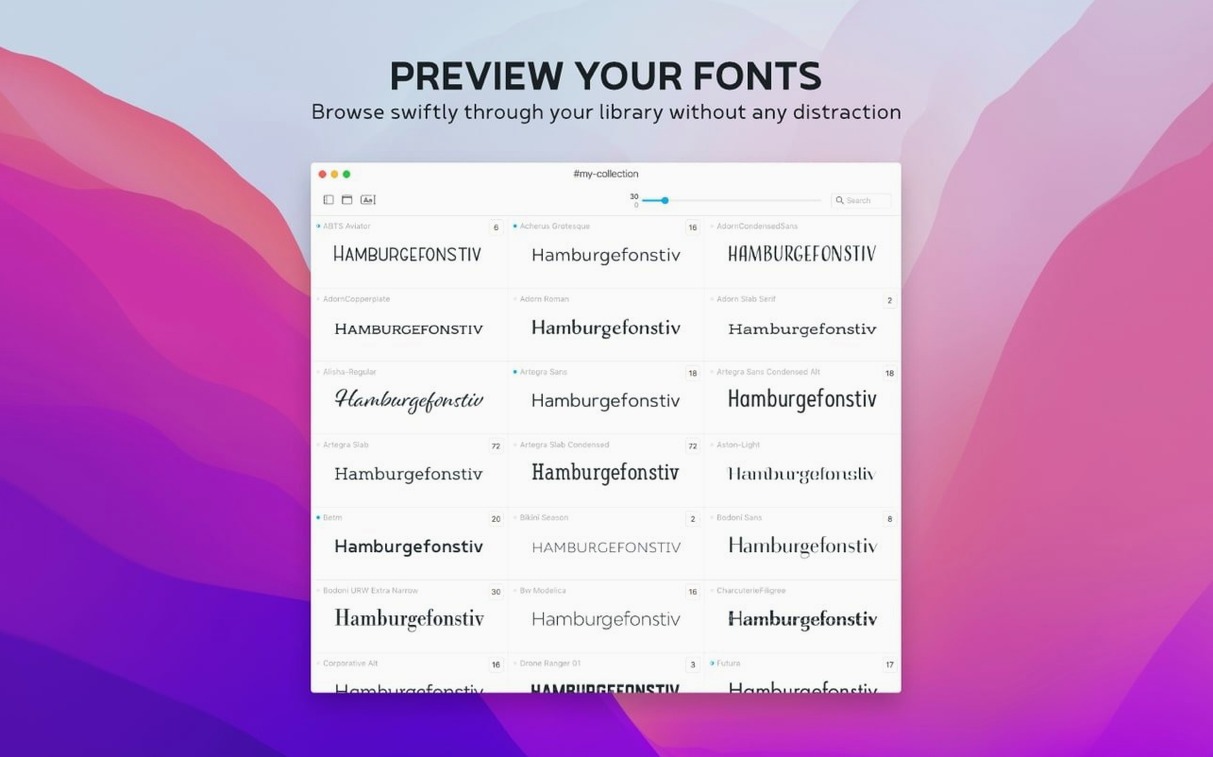
You are choosing a font for a student handout or a club poster. You open the Typeface app, scroll through your installed fonts, and see a clean preview of each one—glyphs, uppercase and lowercase letters, numbers, and special characters all visible at once. The new version 4.5 adds a Notes field right in the Info tab, so you can jot down where you found a typeface or which project it belongs to. You can also search those notes from the main overview. A Last Activated column now helps you spot the fonts you have used most recently, and you can sort by that column to keep your active ones at the top. This version also adds support for .otc font files, which some modern font bundles use. You can group fonts by family, build custom collections, import fonts from other managers or the web, and check metadata, copyright history, tags, and groups in the Info tab. Typeface is a focused tool that does not clutter your workflow—it just shows you fonts and lets you organize them the way you want.
I have been recommending Typeface to colleagues and students for a while now, and a few settings tend to make the biggest difference right from the start. Here is what I suggest adjusting first.
Change the sample text to match your real projects
When you open Typeface for the first time, the preview shows a default sample text and a moderate size. If you mostly work with display fonts or body text, change the sample text to something that matches your real projects. I often set mine to a short pangram like "The quick brown fox jumps over the lazy dog" because it shows every letter. For a club poster I would use a line from a song or a student quote instead.
Next, check the preview size. The default is readable, but for comparing headline fonts I increase it to 48 or 72 points. For body text I drop it to 12 or 14. You can also adjust the weight slider if you want to see how a font behaves at lighter or bolder settings without switching to a different variant. These preview settings stick around between sessions, so once they suit your common tasks you do not have to touch them again.
If you are managing a large collection, turn on the Last Activated column from the view options. Then sort by that column once a week. It quickly shows you which fonts you have actually used recently. I find it useful for pruning: if a font has not been activated in months, I consider moving it out of my active library or tagging it as archived.
The Notes field in the Info tab is another early win. Even if you only type a few words like "used for 2025 yearbook" or "free for personal use," that note becomes searchable from the overview. I tag my most-used fonts with short reminders about licensing or the project where I found them. It saves time when I am on a deadline and cannot remember why I installed a particular typeface.
Does Typeface see fonts I already have?
A few questions come up every time I show Typeface to someone new. Here are the answers I give most often.
Do I have to move my fonts into the app or does it see what I already have?
Typeface shows all fonts that are already installed on your Mac, including custom ones you have added yourself. You do not need to import or copy anything first. When you open the app, your system fonts appear in the list. The app also lets you import additional fonts from the internet or from other font managers, but that is something you do only when you want to expand your collection.
Can I organize fonts without moving files around on my hard drive?
Yes. You create custom collections inside Typeface, and these are just references, not copies. A font can belong to more than one collection and to multiple tags at the same time. The original font file stays wherever it was. This is especially handy when you share a computer with colleagues or keep your fonts in a synced folder.
What about font families that have many weights and styles?
Typeface groups fonts by family automatically. So if you have a typeface with regular, bold, italic, and bold italic versions, they appear under one heading. You can expand the group to see each variant separately. This keeps your list tidy and stops it from becoming a long scroll of similar names.
Does it work with the new .otc font format?
Yes, version 4.5 added support for .otc files. Some typeface bundles, especially from independent foundries, ship in this format. Typeface opens them and shows the contained fonts just like any other font file.
Don't ignore the Info tab when picking fonts
I see a few patterns when someone starts using Typeface for the first time. The most common is ignoring the Info tab entirely. The preview is so clear that people pick a font based on looks alone, without checking the metadata. That metadata often contains the license type, the designer, and copyright details. For a school project that might become public, knowing the license saves you trouble later. I recommend glancing at the Info tab for every font you consider using in a published document.
Another mistake is not using tags. Collections are great for grouping fonts by project, but tags let you assign a font to more than one category without duplicating it. For example, I tag a font as "sans serif" and also as "headline" and "free." Then I can filter by any of those tags later. Beginners sometimes create a collection for each theme and then get annoyed when a font belongs to two or three themes. Tags solve that neatly.
A third habit I notice is leaving the preview at the default size for everything. A font that looks fine at 12 points might be unusable at 72, or the other way around. I have seen students pick a display font for body text because they never changed the preview. It takes a few seconds to adjust the size slider, and it can save you from printing something and regretting the choice.
Finally, some users forget to use the search field. Once you have a few hundred fonts installed, scrolling becomes slow. The overview search works on font names and also on the notes you have written. If you make a habit of adding a short note to each font you import, you can later search for "yearbook" or "poster" and find what you need in an instant.
A teacher with 400 fonts replaced her spreadsheet
One teacher I know runs the graphic design module at a vocational school. She has about 400 fonts installed across her Mac and a shared department drive. Before using Typeface, she kept a spreadsheet of which fonts she used for each term project. That meant switching between two windows and updating a file every time she picked a typeface.
Now she has set up a collection called "Term 2 Typography" and tags for categories like "serif," "sans serif," "display," and "handwritten." When she finds a font she likes, she assigns it to the collection and adds a note like "good for poster headlines" or "student example for contrast exercise." The note becomes searchable, so when a student asks for a recommendation she just searches for "poster" and gets a filtered list. The Last Activated column shows her which fonts she used in the current term, so she can rotate them and avoid repeating the same typeface every year.
She also uses the Google Fonts import to let students try typefaces that are not yet installed on the school computers. Since Typeface can import more than two thousand free Google Fonts, the students can browse and pick something new without waiting for an admin to install it. The teacher keeps a note on each imported font saying "Google Fonts, open source" so everyone remembers the license. It is a small habit, but it has stopped the confusion about which fonts are free to use in student work.
- macOS 12 or later
- Intel or Apple Silicon Mac
Questions I keep getting
Does Typeface work on Apple Silicon Macs?
Yes. Typeface runs on both Apple Silicon and Intel Macs with macOS 12 or later.
How to install
1. Open the downloaded disk image. 2. Drag the app to the Applications folder. 3. Launch the app from Launchpad after copying finishes.Similar apps






Sign in or join the club to leave a comment.
Nobody has commented yet.