
- Version
- Build (8491853)
- Studio or maker
- Valve
- Languages
- Russian, English, German, Bulgarian, Hungarian, Greek, Danish, Spanish, Italian, Chinese (Traditional), Chinese (Simplified), Korean, Latvian, Norwegian, Polish, Portuguese, Romanian, Thai, Turkish, Ukrainian, Finnish, French, Czech, Swedish, Japanese
- Activation
- Not required
- Chip type
- Apple Silicon
- Tried out on
- macOS Sonoma, Mac mini 2020 M1
- First released
- 1.06.2006
- Voice languages
- Russian, English
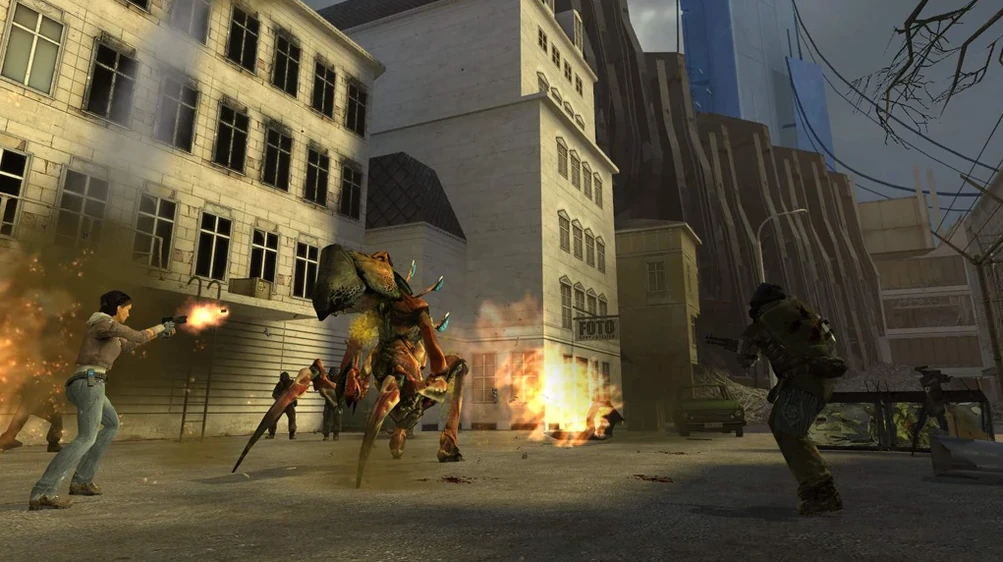
You have just escaped City 17 with Alyx Vance, and the Citadel is collapsing behind you. Half-Life 2 Episode One picks up right there, making it the first game in the series to continue the Half-Life 2 storyline. You and Alyx must fight through the ruins of the city, protect the remaining citizens, and find a way out before the reactor explodes. This expansion focuses on the partnership between Gordon and Alyx, with more scripted moments and tighter combat than the original. For a Mac user, it means a familiar, story-driven shooter that runs natively on Apple Silicon and was tested on macOS Sonoma.
| Detail | Information |
|---|---|
| Developer | Valve |
| Release date | 2006-06-01 |
| Version | Build 8491853 |
| Platforms | Windows, OS X, Linux, Xbox 360, PlayStation 3 |
| Voice languages | Russian, English |
| Interface languages | 23 languages, including English, German, French, Spanish |
Half-Life 2: Episode One continues the story of Gordon Freeman and Alyx Vance, perfect for fans of narrative-driven action. The game is set outside City 17, so expect a different pace from the original: more corridors, more close-quarters fights, and a constant sense of urgency. The package also includes a Fix file for common launch errors, and the save files sit in a clear folder path if you need to back them up. It is a solid pick for teachers who want to show students a classic narrative shooter without modern bloat.
Change the language setting before starting
Before you jump into the ruined streets, there are two things worth adjusting. The language setting is the most common one to want changed, because the default might not match what you prefer. To switch it, open the app package contents and navigate to /Applications/Half-Life 2 Episode One macOS.app/Contents/Resources/GameData/Episodic.command. Open that file in TextEdit, then edit the launch language parameters to your chosen language name from the list of 23 supported. Save the file and close it.
Voice language is a separate setting, and only two are available: Russian and English. If you want English voices with, say, German subtitles, you can set the interface language to German in the .command file and leave the voice parameter at English. The game will respect both.
Another thing worth noting is the save folder location. If you plan to use the game in a classroom or share it with students, you may want to back up saves regularly. The folder is at /Applications/Half-Life 2 Episode One macOS.app/Contents/Resources/GameData/episodic/save. I recommend making a copy of that folder before you start, just in case something goes wrong during the first launch.
Watch the terminal for missing dependencies at launch
When you first run the game, pay attention to the terminal window that may appear. The game launches through a wrapper, and any missing dependencies will show as errors there. If you get an error at launch, run the Fix file from the disk image before trying again. It handles common permission and library issues.
If you are using a torrent client like qBittorrent to download the package, make sure the download finishes completely before mounting the disk image. Partial downloads can cause the Fix file to fail or the game to show missing textures. A download manager such as Free Download Manager or Motrix can help if your connection is unreliable.
For teachers running the game on a school Mac, I suggest testing the first ten minutes before bringing it to the game club. The opening sequence is scripted and should work the same every time, but it gives you a chance to confirm that controls, sound and saves are all working. The save folder is easy to find if you need to reset progress or clear old saves for a new session.
Episode One assumes you finished Half-Life 2
Do I need to have played Half-Life 2 first?
Yes, I would say so. Episode One assumes you know how the original ended. The game starts literally seconds after the Citadel explosion, and the story does not recap the events of Half-Life 2. If you jump in without that context, the relationship between Gordon and Alyx and the urgency of the situation will feel less meaningful. It is a true expansion, not a standalone story.
Will it run on an older Intel Mac?
This build is built for ARM architecture, meaning it is designed for Apple Silicon Macs. It was tested on an M1 Mac mini with macOS Sonoma. There is no mention of Intel compatibility in the package, so if you have an Intel Mac, you may need to look for a different version. The architecture requirement is clearly stated in the system requirements.
How long is the episode?
Episode One is shorter than the original Half-Life 2. Most players finish it in about four to six hours, depending on difficulty and how much they explore. It is a tight, focused experience that does not waste time. That makes it a good choice for a game club session that runs over two or three meetings.
- First game in the series to continue the Half-Life 2 storyline.
- The game is set outside City 17.
- macOS (version not specified)
- Apple Silicon
How to install
- Open the disk image and read the included installation guide — it explains each step clearly.
- If the game shows an error on launch, run the Fix file from the disk image. That usually resolves the issue.
- If brew commands are not recognized, add the Homebrew shell environment line to your terminal profile, then reopen Terminal.
- For download problems, use a download manager such as Free Download Manager or Motrix, or a torrent client like qBittorrent.
- To find save files, go to /Applications/Half-Life 2 Episode One macOS.app/Contents/Resources/GameData/episodic/save.
- To change the language, show the app package contents, open the Episodic.command file in TextEdit, and edit the launch command language parameters.
Similar games






Sign in or join the club to leave a comment.
Nobody has commented yet.