
- Version
- 3.6.5
- Studio or maker
- DigiDNA SARL
- Languages
- Russian, English, German, Arabic, Spanish, Italian, Chinese (Simplified), Korean, Portuguese, French, Japanese
- Activation
- K'ed by QiuChenly Crack Team
- Runs on macOS
- OS X 10.11 or later
- Chip type
- Apple Silicon, Intel 64-bit
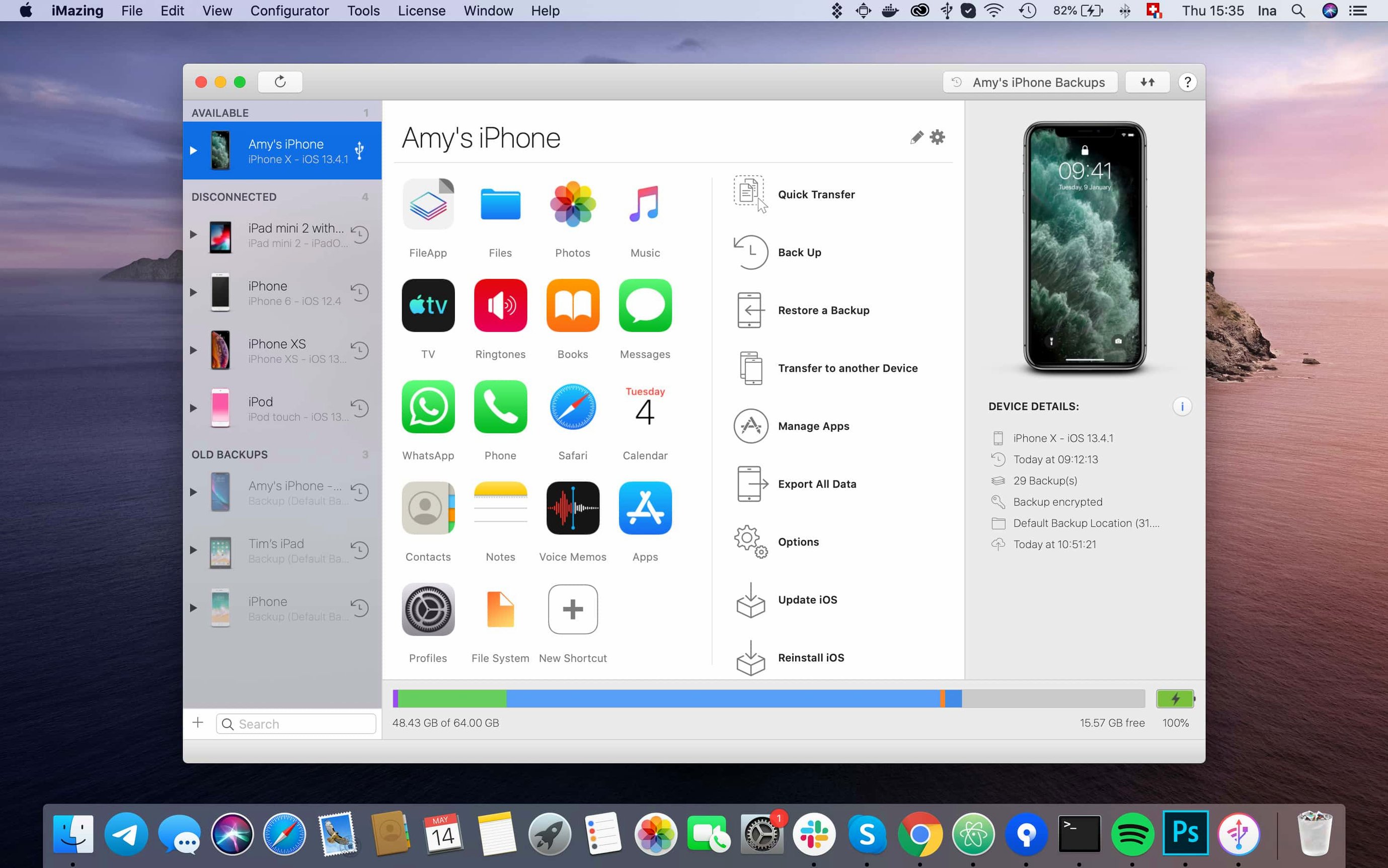
iMazing is a Mac and Windows utility that puts your iPhone, iPad, or iPod touch data within easy reach. Instead of waiting on iCloud, you can copy messages, contacts, calendars, call logs, and even Safari bookmarks directly to your computer or another device. The first thing I show newcomers is how to make a backup and then pull out a single piece of data from it.
Start with a backup
- Connect your iPhone or iPad and open iMazing. The device appears in the sidebar.
- Click Back Up in the toolbar. Choose a location for the backup file. This is your safety net, so let it finish.
- Once the backup is done, browse it like a folder. You can open the file system, read messages, and export attachments — even from encrypted backups.
Move something small
Now try a single transfer. Under Messages, select a conversation and choose Export to PDF or CSV. That gives you a readable record without touching the phone again. Or go to Contacts, mark a few names, and export them as a vCard. Both are quick and show how iMazing handles data without syncing the whole device.
After you have the basics down, a few settings and habits make iMazing feel more natural. These are the adjustments I suggest to teachers and students in the game club — they save clicks and stop small frustrations before they start.
Set a custom backup location to save drive space
Open iMazing Preferences from the app menu. The defaults are safe, but you can make the tool behave the way you actually work.
- Backup location. iMazing stores backups in a default folder. If your Mac drive is tight on space, point backups to an external disk or a larger volume. You set this in the Backups section of Preferences.
- Automatic backup schedule. Turn on wireless automatic backups if your iPhone and Mac share the same Wi-Fi network. The device does not need to be plugged in. Set it to daily or weekly, depending on how often you add new photos or messages.
- Default export format. When you export messages or call logs, choose your preferred format (PDF, CSV, or plain text) in the General section. That way you skip the format picker every time.
- Language. iMazing ships in a dozen languages. If you prefer English but the system language is something else, switch it in Preferences. No need to reboot.
Let a backup finish before disconnecting the device
I see the same handful of missteps when people start out. They are easy to avoid once you know them.
- Disconnecting the device during a backup. A backup that stops halfway can leave the backup file incomplete. Let the progress bar finish before you unplug.
- Confusing device backup with file system browse. The backup is a snapshot of your whole device. The file system view shows what is on the device right now. Changes you make in one do not affect the other. Beginners sometimes edit a file in the backup, then wonder why it did not change on the phone.
- Skipping encrypted backups. iMazing can work with encrypted backups and restore files from them. If your device uses encryption, you need to enter the password in iMazing before it can open the backup data. The prompt is clear, but people click Cancel out of habit.
- Not checking the destination before a transfer. When you export photos or music, iMazing asks where to save them. If you click through quickly, files end up in the last folder you used. Check the path before you confirm.
- Expecting iTunes-style syncing. iMazing does not replace iTunes or Finder sync. It copies data one way or pulls it off the device. That is the strength — you decide what goes where, and nothing gets overwritten unless you tell it to.
Run a full backup on your first day
These small habits make the tool feel less like a utility and more like a regular part of your workflow.
- Run one full backup the first day. Even if you do not need it right away, having a complete backup means you can explore the backup browser later without the device connected. You can export messages, voicemails, or app data from that file at any time.
- Export your call logs as CSV once. Open Phone → Call Logs, select the range you want, and export. Keep the file on your Mac. It is a simple record that proves useful for expense reports or just seeing who called when.
- Save a few voicemails as audio files. Under Phone → Voicemail, pick a message and choose Export. The result is a standard audio file you can play outside the phone. Good for keeping a message from a family member or a client without hunting through the phone later.
- Copy a single album of music. Go to Music, select an album, and click Copy to Mac. You do not need to sync your whole library. This is how I put a few study playlists onto a student’s iPad without touching the rest of their music.
- Test the wireless backup once. Enable it in Preferences and leave the phone on the same network overnight. The next morning, check that a backup appeared. If it did, you can stop plugging in for routine backups.
A workflow for transferring contacts and calendars from an old phone to a new one
This is the task I am asked about most often. It uses iMazing to move contacts and calendars without iCloud or a computer sync. The steps work for iPhone to iPhone, or iPhone to iPad.
- Connect the old device and open iMazing. Click Contacts in the sidebar.
- Select all contacts (Cmd+A on the Mac) and click Export. Choose vCard format and save the file to your Desktop.
- Go to Calendar in the sidebar. Select the calendars you want to move (for example, Personal and Work). Click Export and choose ICS format. Save that file next to the vCard.
- Disconnect the old phone. Connect the new device. iMazing shows it in the sidebar.
- Click Contacts on the new device. Click Import, select the vCard file you saved, and confirm. The contacts appear on the new phone within seconds.
- Click Calendar on the new device. Click Import, choose the ICS file, and confirm. The calendar events show up with their dates and times intact.
- Optional: repeat for voicemails and voice memos if you want those on the new device too. Both are under the Phone section and export as standard audio files that you can copy into the new phone’s voice memo folder using iMazing’s file system view.
That is the whole process. No iCloud account needed, no waiting for a sync to finish. The data is on both devices in about five minutes.
Export unified logs without extra tools
These are built into iMazing 3.6.5 and require no plugins or third-party tools. I found them by poking around, not by reading the manual.
- Export unified logs directly. The release notes for 3.6.5 mention that you can now export complete log archives from the unified logs view. If you troubleshoot a device, this gives you a file you can send to someone else or keep for later.
- Scanned documents from iOS 26 show correctly. Earlier versions clipped multi-page scans. Version 3.6.5 displays all pages. If you store scanned receipts or notes in your phone, they look right in iMazing now.
- Shared app group containers in .imazingapp files. When you export an app from a backup, the file now includes data that the app shares with other apps. This matters if you are moving a game with saved progress that relies on shared storage.
- A link to iMazing Chatbot in the toolbar. The main window toolbar has a new button that opens the chatbot. It answers common questions without leaving the app. Not a replacement for the manual, but handy when you are in the middle of something and need a quick pointer.
- You can treat the device as a flash drive. Under File System, you can drag files from your Mac into any folder on the iPhone or iPad. The device shows up as a drive in iMazing. No iTunes, no cloud sync — just file transfer.
These are the details that make iMazing feel less like a backup tool and more like a bridge between your Mac and your iOS devices. Once you know where they are, they become part of your regular routine.
- Support for iPhone 18 Pro, iPhone 18 Pro Max, iPhone Duo, Apple Watch Series 12, and Apple Watch Ultra 4.
- Export complete log archives directly from the unified logs view.
- A link to iMazing Chatbot appears in the main window toolbar.
- macOS OS X 10.11 or later
- Works on both Intel and Apple Silicon Macs
- Interface languages: Russian, English, German, Arabic, Spanish, Italian, Chinese (Simplified), Korean, Portuguese, French, Japanese
Questions I keep getting
Can I transfer messages from an old iPhone to a new one?
Yes. iMazing copies text messages and their attachments from one iPhone to a new phone, or to your computer.
Does iMazing work with wireless backups?
It supports automatic wireless backups from iPhone and iPad to both Mac and PC.
Can I export calendars without iCloud?
Yes. iMazing transfers calendars from your device and exports them as ICS or CSV files.
How to install
- Open the downloaded disk image. The iMazing icon appears next to a shortcut to your Applications folder.
- Drag the app onto the Applications shortcut. This moves it where macOS expects it, so you can launch it from Launchpad.
- After the copy finishes, open Launchpad and click iMazing to start.
Similar apps




Sign in or join the club to leave a comment.
Nobody has commented yet.