
- Version
- 8.2.17 [MAS]
- Studio or maker
- iwaxx Sarl
- Languages
- English
- Activation
- Not required
- Runs on macOS
- macOS 11 or later
- Chip type
- Apple Silicon, Intel 64-bit
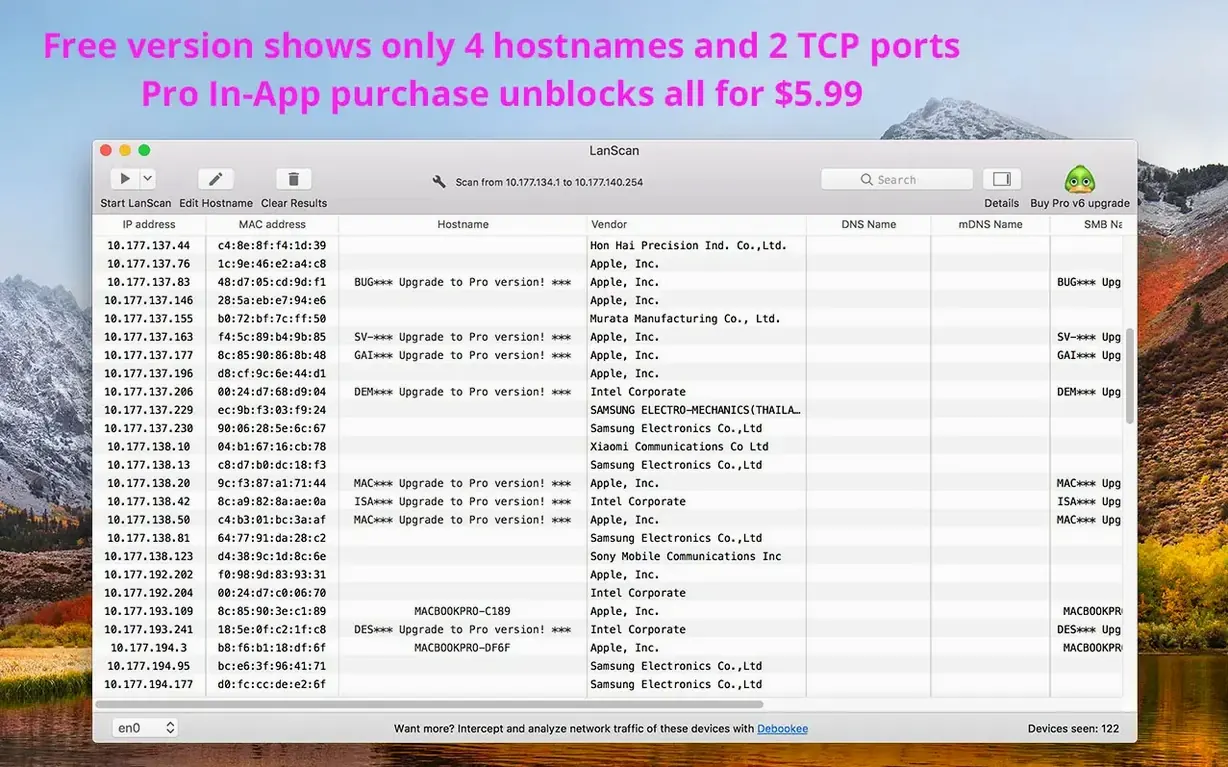
The latest LanScan 8.2.17 keeps things simple for newcomers while staying useful for daily network checks. If you have just moved to a Mac with macOS 11 or later, this is a solid first utility to have around. It works on both Apple Silicon and Intel machines, so no worries there.
When you first open the app, you will see a clean table with columns for IP address, MAC address, host name, and vendor. Right-click any column header to hide or show what you need. For a starting point, scan your local subnet and watch LanScan resolve names through DNS, mDNS, and SMB. That mix usually catches everything from printers to Raspberry Pis.
First steps to try
Begin with a small range, like your home network. Then expand to a public range if you need to check devices beyond your router. LanScan uses Ping, SMB, and mDNS packets for those broader scans. Once results appear, click a device to add a custom comment or edit its host name manually. That comes in handy for tracking which gadget belongs to which room.
Finally, align columns to your taste and export the list as a CSV when you want a record for later. For a lanscan dmg download, the process is straightforward: open the disk image, drag the app into Applications, and launch it from Launchpad.
Beginners often trip on the same few things
When you first run a scan, the table might feel busy. A common mistake is to scan the full IPv4 address space right away, which can take time and list a lot of unknown devices. Start with a smaller range, like your local subnet, and only expand once you are comfortable reading the results. Another beginner snag: expecting every device to show a friendly name. LanScan does its best through DNS, mDNS, and SMB, but some gadgets, especially older ones, only reveal a MAC address and vendor. That is normal. Just add a custom comment later to label it yourself.
People also forget they can hide columns. If the vendor column distracts you, right-click the header row and toggle it off. The table becomes much cleaner. And do not assume one scan is enough. Devices that sleep or use power-saving modes sometimes miss the first ARP sweep. Scanning twice, thirty seconds apart, often catches them.
Scanning finds no devices: check your interface
Sometimes a scan finishes without finding any devices. This usually means you are scanning a range your Mac cannot reach directly. Check that you have selected the right interface — LanScan automatically detects AirPort, Ethernet, and virtual interfaces, so verify in the app that the correct one is active. If you are on a corporate or school network, firewalls can block Ping and SMB packets. In that case, the scan will still get results from ARP on the local subnet, but public range scans will show fewer devices. That is not a fault of the app; it is how the network enforces security.
Another common hiccup: host names that do not resolve despite devices being online. LanScan tries three methods in turn, but if your router does not support mDNS or SMB name sharing, you will only see IP addresses. Edit the name manually using the device row — it takes two clicks. Also, if you export a CSV and the columns look jumbled, check that you aligned them before exporting. The export copies what you see.
For a lanscan mac download on a fresh machine, the install steps remain the same: open the downloaded disk image, drag the app to the Applications folder alias, and launch from Launchpad. If macOS complains about an unidentified developer, go to System Preferences > Privacy & Security and allow the app.
Native on Intel and Apple Silicon macOS
LanScan runs on macOS 11 or later, which covers both Intel Macs and Apple Silicon machines. No Rosetta workaround is needed — the developer builds for both natively. The app is lightweight and does not install background services or kernel extensions. You drag it, you run it, you delete it the same way. The current version 8.2.17 is a stable release with no device count limit, so you can scan a full Class A subnet if your network demands it. Just keep in mind that larger ranges take longer mainly because of network latency, not because of the app itself. The interface stays responsive while a scan runs, so you can resize columns or edit comments mid-scan.
- macOS 11 or later
- Apple Silicon or 64-bit Intel Mac
How to install
- Open the downloaded disk image to mount it.
- Drag the app onto the Applications folder alias inside the window. That copies it to where macOS expects it.
- Wait for the copy to finish, then launch LanScan from Launchpad.
Similar apps






Sign in or join the club to leave a comment.
Nobody has commented yet.