
- Version
- 10.15.0
- Studio or maker
- iTubeGo
- Languages
- Russian, English, German, Vietnamese, Indonesian, Spanish, Italian, Chinese (Traditional), Chinese (Simplified), Korean, Portuguese, French, Japanese
- Activation
- K'ed by TNT team
- Runs on macOS
- OS X 10.10 or later
- Chip type
- Intel 64-bit
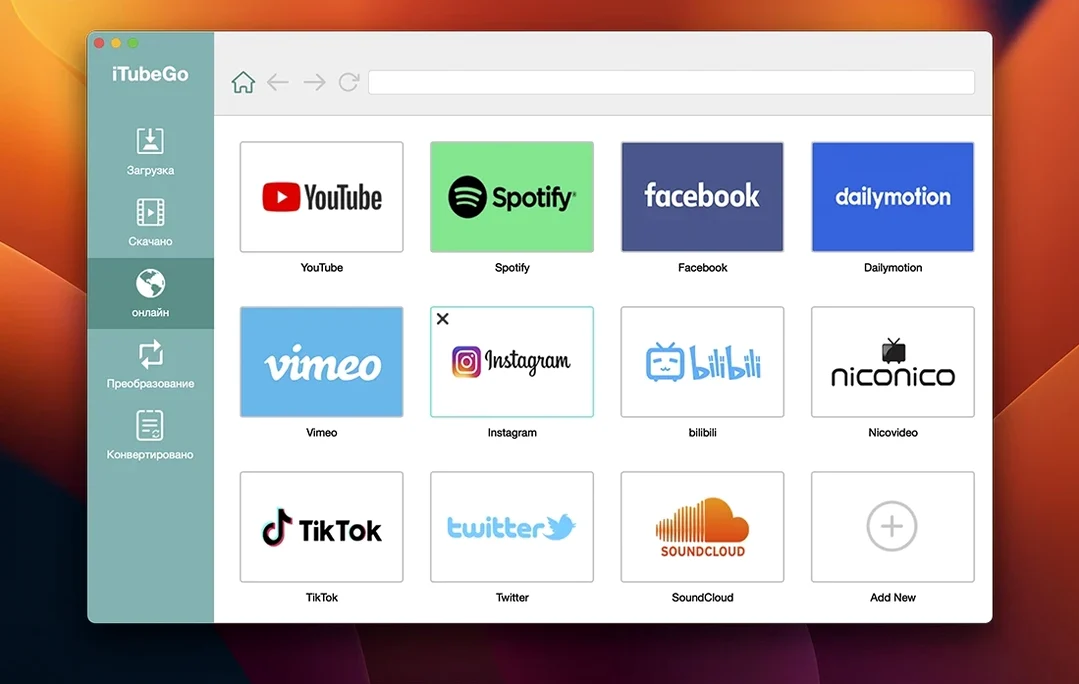
A friend sent a YouTube playlist of concert recordings you want saved as MP3s for offline listening. That is the kind of task iTubeGo handles in a few clicks. This Mac app downloads video and audio from YouTube and more than 10,000 other websites, then converts what you need.
- Download from YouTube and more than 10,000 other websites, so almost any streaming source is covered.
- Choose video quality from 480p all the way up to 8K, depending on what the source offers.
- Extract audio from video and save it as MP3 at 320 kbps, which keeps the sound close to CD quality.
- Download multiple files at once with bulk downloading that runs up to 10 times faster than doing them one by one.
- Use the built-in browser to find and queue videos without leaving the app.
- Convert and edit audio and video inside the same tool, so you do not need a separate converter.
Version 10.15.0 works on any Mac running OS X 10.10 or later. The interface is available in English, German, French, Spanish, Japanese, and several other languages.
A full workflow: download a YouTube playlist as MP3s
Let me walk through a typical task — grabbing a dozen songs from a music playlist and saving them as 320 kbps MP3s. This is the most common job I see at game club, where students want to download tracks for a project or a presentation.
- Open the built-in browser. Inside iTubeGo, you will find a browser panel. Paste the playlist URL from YouTube into its address bar. The page loads inside the app, so you can see the full list of videos.
- Select the playlist. Click the playlist title. iTubeGo detects that it is a playlist and offers to download all videos or just selected ones. Tick the checkbox next to each video you want.
- Choose the output format. In the format menu, pick MP3. The quality defaults to 320 kbps, which is the highest option. You can leave it there unless you need smaller file sizes.
- Start the download. Press the download button. iTubeGo processes each video, extracts the audio, and saves the files to your chosen folder. The bulk downloader works through the list, and because it runs up to 10 times faster than single downloads, a playlist of 12 songs finishes in a few minutes.
After it finishes, you have a folder of MP3 files, each named after the video title. No extra conversion step needed.
Teachers and students save time downloading clips
iTubeGo suits a few specific groups. Teachers and students who collect video clips for classroom use — a documentary snippet, a music example, a language lesson — save time by downloading the material once instead of streaming it every lesson. The 4K and 8K support matters less in a classroom projector, but the MP3 extraction at 320 kbps is a practical feature for music teachers and podcast makers.
People who travel or commute with limited internet access also benefit. Downloading videos and playlists before a trip means you have your content offline, without relying on mobile data. The built-in browser makes it easy to browse and queue content quickly, even on a slower connection.
Anyone running an older Mac, down to OS X 10.10, will find the app works on their machine. That includes many school and library computers that do not get upgraded every year.
And of course, the broader audience of anyone who curates personal media libraries — whether it is music videos, tutorials, or archived streams — will find the bulk download and format conversion keep the process simple.
Works with over 10,000 sites including adult platforms
Does iTubeGo work with sites other than YouTube?
Yes, it supports over 10,000 websites. The official list includes Facebook, Instagram, Dailymotion, Vimeo, TikTok, and adult sites like Pornhub, Xvideos, SpankBang, and xHamster. The built-in browser helps you load any of those sites and see what is available to download.
Can I download just the audio without the video?
Yes. Choose MP3 as the output format, and iTubeGo extracts the audio track at 320 kbps. You do not need a separate audio converter.
How do I know what quality to pick?
The app shows the available resolutions for each video — 480p, 720p, 1080p, 4K, 8K — and you pick the one you want. If the source does not support a higher resolution, the option does not appear. For music, MP3 320 kbps is the highest quality offered.
That covers most Macs made since 2011.
Is there a language option I can switch to?
Yes, the app includes 13 interface languages, including English, German, Spanish, French, Japanese, Korean, and Chinese. You can change it in the settings.
Gatekeeper blocks the app until you run the Terminal fix
Gatekeeper blocks the app from opening.
This is the most common issue. The install steps include running a small tool that asks you to press Enter in Terminal to bypass Gatekeeper. If you skipped that step, go back and mount the disk image, run the Gatekeeper-friendly opener, and press Enter when prompted. After that, drag iTubeGo into the Applications folder and start it.
The download button does nothing for a particular site.
Some websites change their video structure, which can temporarily break support. First, make sure you are using the built-in browser inside iTubeGo — it handles the site better than copying a URL from your regular browser. If it still does not work, check if the site is one of the supported 10,000. If the site is not on the list, the app cannot download from it.
Downloaded audio sounds low quality.
Check that you selected MP3 at 320 kbps in the format menu before downloading. If you chose a lower bit rate, the audio will sound compressed. Redownload with the 320 kbps setting. Also confirm the source video itself has decent audio — a low-bitrate stream will not improve.
Videos download but the file is missing the audio track.
This sometimes happens with very new or very old videos. Try downloading the same video in a different resolution. If the issue persists, the source file may use a codec that iTubeGo can extract video from but cannot extract audio from. In that case, look for the same content on a different site or in a different format.
Bulk downloads stop partway through.
iTubeGo runs downloads up to 10 times faster than single downloads, but if your internet connection drops or a video in the playlist is blocked in your region, the queue may pause. Restart the app and try the download again. If a specific video causes the problem, skip it in the selection step.
- macOS OS X 10.10 or later
- Intel processor
How to install
- Mount the disk image and run the Gatekeeper-friendly opener.
- Press Enter in Terminal to bypass Gatekeeper.
- Drag the app into the Applications folder.
- Start the app.
Similar apps





Sign in or join the club to leave a comment.
Nobody has commented yet.