- Version
- 2.1.0
- Studio or maker
- Remix Design
- Languages
- Russian, English, German, Spanish, Italian, Chinese (Traditional), Chinese (Simplified), Korean, French, Japanese
- Activation
- Not required
- Runs on macOS
- macOS 26 or later
- Chip type
- Apple Silicon, Intel 64-bit
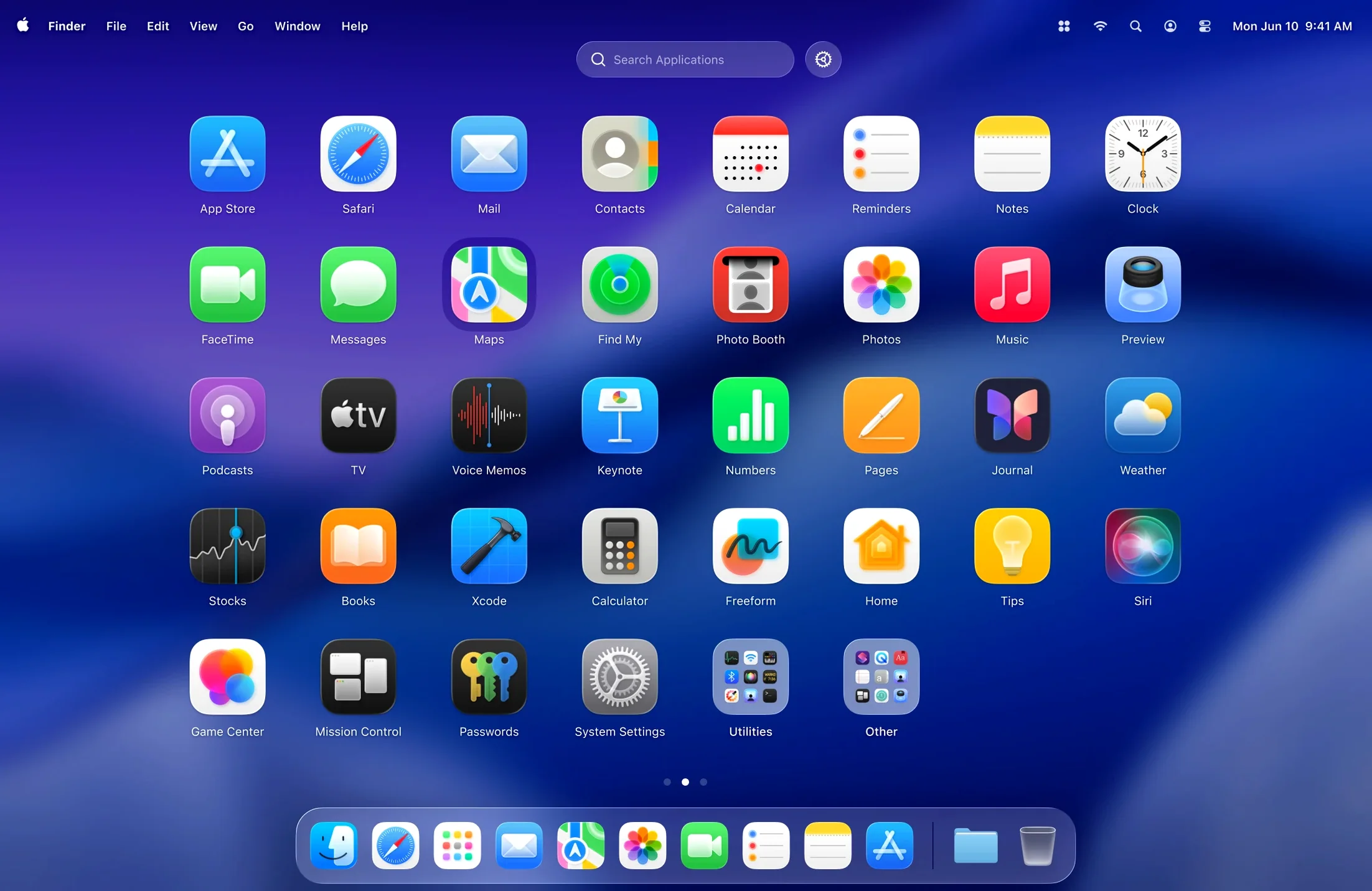
LaunchOS is for the person who misses the old Launchpad but wants more control. It brings back the familiar grid and adds tools that make daily use faster.
Can I launch apps with the keyboard?
Yes. Keyboard shortcuts work for launching any app, so you can skip the mouse when you are in a hurry.
Can I hide apps I do not use?
You can hide selected apps from the grid, which keeps the view clean without uninstalling anything.
Does it support the new macOS look?
It uses macOS 26’s Liquid Glass effect, so it fits the current design language while keeping the original Launchpad behavior.
Adjust the grid size within the first few minutes
When you first open LaunchOS, the default grid size is a safe starting point, but most people want to adjust it within the first few minutes. The built-in macOS Launchpad uses a fixed number of rows and columns, and the icon size is whatever Apple decided. Here, you can change the grid size directly — make icons smaller to fit more apps on one screen, or larger if your eyes prefer fewer, bigger tiles. I usually set mine to show six columns and five rows, which gives me thirty visible apps without needing to scroll to a second page.
The other setting I recommend checking early is the app hiding list. Before you import your existing applications, decide which system utilities or rarely used tools you want off the grid. LaunchOS remembers your choices, so you do not have to keep removing them each time.
A real-world scenario: setting up a classroom Mac
At my school, the shared iMac in the game club room has applications for everyone — GarageBand, iMovie, Scratch, a few puzzle games, and the coding tools for our weekly logic sessions. The previous setup used the standard Launchpad, which showed every app on the system including the admin utilities and a handful of old applications nobody uses anymore. Students would scroll through pages of icons before finding what they needed.
I installed LaunchOS on that machine and changed the grid to show only the club-approved apps. Hiding the admin tools took about two minutes. Then I adjusted the grid size so the visible apps filled one screen without pagination. Now students see exactly the tools they need when they swipe up on the trackpad. The keyboard shortcuts mean they can launch an app by typing a couple of letters, which saves time when we are starting a timed challenge. The same approach works for any shared Mac — whether it is a family computer, a library station, or a school lab.
A standalone app with Liquid Glass styling in ten languages
LaunchOS is a standalone application, not a system modification. It runs independently on top of macOS 26 and uses the Liquid Glass appearance that matches the current operating system style. The app is available in ten languages, so if you prefer using your system in German, French, Japanese, or any of the other supported languages, the interface adapts without extra configuration.
Because it supports both ARM and Intel Macs, you do not need to check processor compatibility beyond the macOS version requirement. The installation is straightforward: mount the disk image, drag the application to your Applications folder, and launch it from Launchpad. No extra frameworks, no system extension prompts, no reboot required. The app itself is compact and does not install background helpers or daemons. When you close the window, it stops using resources entirely — there is no lingering process unless you keep it running in the menu bar.
How LaunchOS works differently from built-in Launchpad
There are a few other ways to organize application launching on macOS, and each takes a different approach.
MacOS’s built-in Launchpad. Apple’s own solution is already on your Mac at no extra effort. It shows all installed applications in a grid and supports folders. What it does not offer is control over which apps appear, keyboard shortcuts for individual applications, or any adjustment of icon size and grid layout. You either accept the default arrangement or spend time dragging icons into folders. LaunchOS gives you the same visual layout but with the hiding and grid customization that Launchpad lacks.
Alfred. Alfred is a productivity tool that includes application launching through a search bar. It is fast and powerful, and many people use it as a Spotlight replacement. However, Alfred gives you a text-driven interface rather than a visual grid. If you prefer seeing icons and arranging them spatially, LaunchOS is closer to what you expect from a traditional app launcher. They serve different workflows: Alfred for keyboard-driven users, LaunchOS for those who want a visual app organizer with the familiar Launchpad feel.
Finder sidebar or Dock. You could keep folders of applications in the Finder sidebar or pin apps to the Dock. These methods work fine for a handful of frequently used programs, but they become cluttered when you have more than ten or fifteen applications. LaunchOS scales better for users with a large collection of apps and offers a full-screen grid view that the Dock cannot replicate.
For someone looking for a direct replacement of the original Launchpad experience with extra control, LaunchOS fills that spot without turning the Mac into a different kind of system.
It works on both ARM and 64-bit Intel Macs, and it requires macOS 26 or later.
- Added app uninstallation with long-press and right-click triggers.
- Added Restart in the status bar menu and the right-click context menu.
- macOS 26 or later
- Architecture: both ARM and 64-bit Intel
Questions I keep getting
Is LaunchOS free?
The brief does not state a price. Check the developer’s site for current pricing or a trial.
Can I uninstall apps from LaunchOS?
Yes, version 2.1.0 adds uninstallation with long-press and right-click triggers.
How to install
- Open the downloaded disk image.
- Drag the app to the Applications folder.
- Launch the app from Launchpad after copying finishes.
Similar apps



Sign in or join the club to leave a comment.
Nobody has commented yet.