
- Version
- 8.3.0
- Studio or maker
- IObit
- Languages
- Russian, English, German, Danish, Spanish, Italian, Chinese (Traditional), Chinese (Simplified), Dutch, Portuguese, Turkish, French, Swedish, Japanese
- Activation
- K'ed by TNT team
- Runs on macOS
- macOS 11.5 or later
- Chip type
- Apple Silicon, Intel 64-bit
Teachers, students, and anyone who shares a Mac with the whole family tend to ask the same questions before installing a maintenance tool: Will it slow things down? Does it actually remove malware? Can it hurt my files? MacBooster 8 answers those with a straightforward approach.
MacBooster 8 at a glance
| Detail | Info |
|---|---|
| Developer | IObit |
| Current version | 8.3.0 |
| macOS support | 11.5 and later |
| Architecture | Apple Silicon and Intel 64-bit |
| Languages | 14, including English, German, French, Spanish, Japanese |
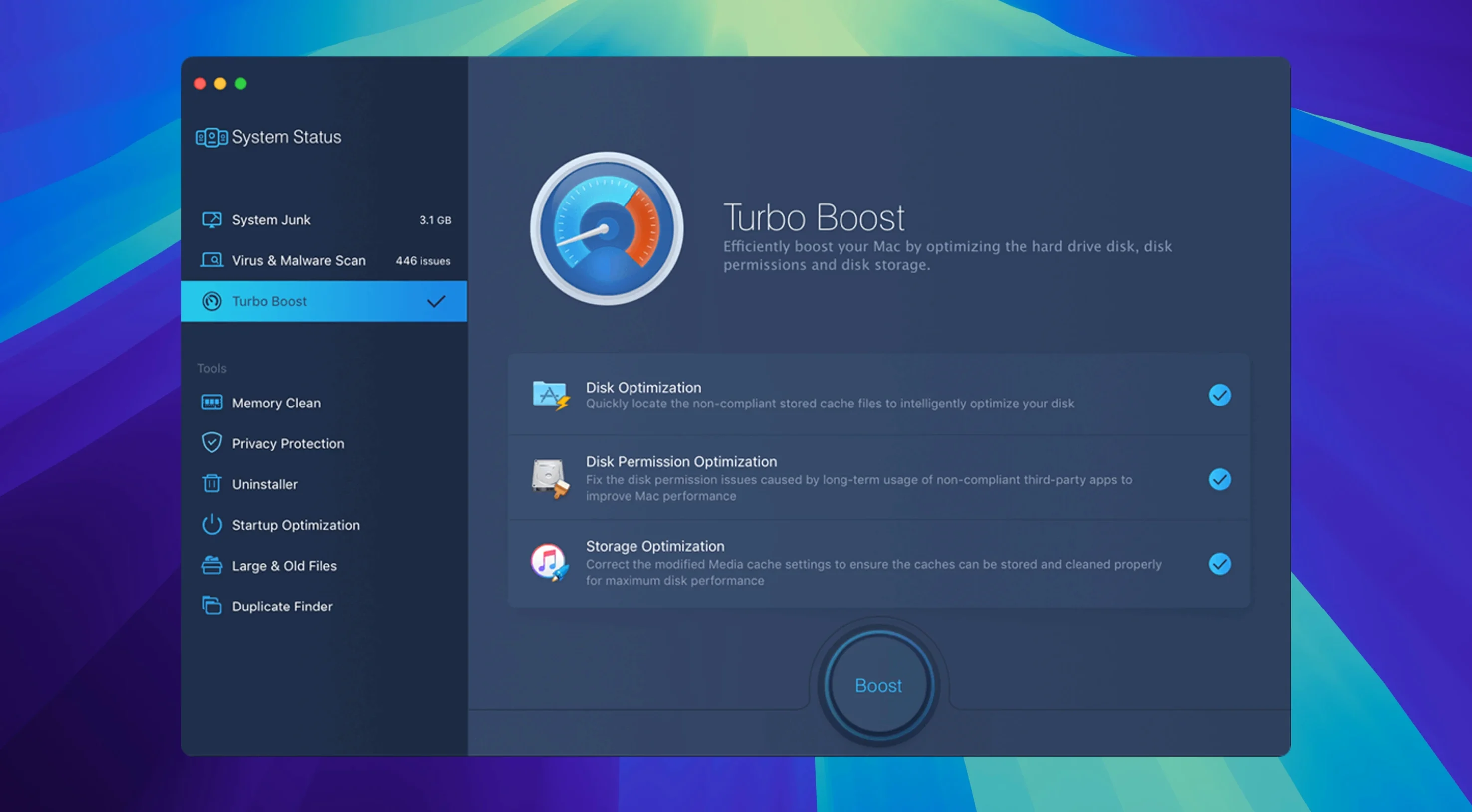
MacBooster 8 scans for junk files, viruses, and memory issues, then offers one-click fixes. It also includes seven tools for cleaning and optimizing: uninstalling unwanted apps, freeing memory, managing startup items, protecting privacy, and removing large or duplicate files and photos. It can optimize the hard disk as well. You stay in control, which matters when the Mac is shared.
How MacBooster fits into your usual Mac workflow
MacBooster works alongside the tools you already use. If you rely on macOS Finder for file management, you can still run a MacBooster scan before a big cleanup, then let it handle the junk that Finder does not show. The same goes for the built-in Disk Utility — MacBooster’s disk optimization complements rather than replaces it, focusing on performance rather than repairing disk errors. The memory cleaning tool can help when you close a heavy app and want to reclaim RAM without restarting, which I find useful before starting the game club’s weekly session on an older school Mac.
The app does not install a background service that stays running, which means it does not add to the system load. You open it when you need it, do the maintenance, and close it. That is a relief for anyone who has watched a Mac slow down after installing a utility that never stops checking for problems.
CleanMyMac is more polished, but MacBooster has its own strengths
All four scan for junk and offer one-click cleaning, but they differ in approach.
CleanMyMac is the most polished and offers real-time monitoring and a large database of app leftovers. It also includes a disk space analyzer and a tool for finding duplicate files, which MacBooster also covers. CleanMyMac costs more and its interface can feel overwhelming for a first-time user. MacBooster keeps things simpler — fewer options, fewer panels, quicker decisions.
CCleaner for Mac has a similar feature set to MacBooster: junk cleaning, privacy protection, startup management. It is known for being lightweight, but it stopped receiving updates for macOS a while ago and some users report compatibility issues on newer Macs. MacBooster explicitly supports macOS 11.5 and later on both architectures, so it is a safer bet if you are on a recent machine.
BleachBit is free and open-source, which appeals to budget-conscious schools. It does a good job cleaning cache files and logs, but it lacks any malware detection or memory optimization, and its interface is more technical. MacBooster offers those extra layers — virus scanning, RAM cleanup, disk optimization — in a tool that uses one scan and one set of decisions, which saves time for someone who is not a power user.
Needs macOS 11.5 or later and runs on Apple Silicon and Intel
MacBooster requires macOS 11.5 or later and works on both Apple Silicon and Intel 64-bit Macs. The installer is about 70 MB, and the app itself does not grow much after that. You mount the disk image, press Enter in Terminal to bypass Apple’s Gatekeeper check, and then drag the app to your Applications folder. Once launched, it scans your system and presents the results in a single window.
The app can clean 20 types of junk files. It can also remove malware and viruses, repair disk permission issues, and optimize the hard disk. None of these operations require you to restart the Mac afterward, though a restart is always a good idea after a major cleanup if you want a fresh system state. The memory cleaning tool frees up RAM without closing your active applications — it targets the memory that apps have reserved but are not using.
The interface is available in 14 languages, which is helpful for school environments where staff or students might prefer a language other than English. The scan times and cleanup results will vary depending on how full your disk is and how many applications you have installed. On a typical school Mac with several user accounts, the first scan usually takes a few minutes.
Deleting everything without checking can remove needed browser cache
The most common mistake is assuming that a full cleanup always improves performance. Beginners sometimes scan and then delete everything MacBooster suggests without checking what each item is. This can remove browser cache files that you still need for quickly loading pages you visit often, or it might delete temporary files that an open application is using. MacBooster shows you what it found and gives you the choice — a quick look before clicking the fix button is worth the extra ten seconds.
Another mistake is running the disk optimization tool on an SSD. MacBooster can optimize hard disk performance, but on a solid-state drive, traditional optimization techniques do not help much and can even reduce the drive’s lifespan over many runs. If your Mac has an SSD, use the tool only for cleanup and malware scanning, and skip the disk optimization step. The same goes for repairing disk permissions — it can solve some issues, but on recent macOS versions it is rarely needed and doing it too often can cause more problems than it fixes.
A third mistake is treating MacBooster as a real-time antivirus. It scans and removes malware when you run it, but it does not provide continuous protection like an active security suite. If you download files often or visit unfamiliar websites, you still want a dedicated antivirus running in the background. MacBooster works well as a secondary scanner you run weekly or after downloading something you are unsure about, but it is not a replacement for a live security tool.
Finally, some users forget that MacBooster is a utility, not a system optimizer that learns over time. It does not have settings that adapt to your usage patterns. You get the same scan each time you run it, which is fine for a regular maintenance schedule — once a month for a lightly used Mac, once a week for a school computer lab machine. The key is to make it part of a routine rather than a one-time fix.
- macOS 11.5 or later
- Apple Silicon or Intel 64-bit Mac
- 70+ MB of free disk space
Questions I keep getting
Does MacBooster 8 work on Apple Silicon Macs?
Yes, MacBooster 8 runs on both Apple Silicon and Intel 64-bit Macs, so it covers the full range of modern hardware.
What languages does MacBooster 8 support?
It supports 14 languages, including English, German, Russian, French, Spanish, Italian, Dutch, Portuguese, Turkish, Swedish, Japanese, and both Chinese variants.
How to install
- Mount the disk image and run the installer — this opens a Terminal window to bypass Gatekeeper.
- Press Enter in the Terminal window to confirm the Gatekeeper bypass.
- Drag the app into your Applications folder to install it.
- Launch the app once the copy finishes — then you can run your first scan.
Similar apps




Sign in or join the club to leave a comment.
Nobody has commented yet.