- Version
- 3.8.4
- Studio or maker
- Wouter Hennen
- Languages
- English
- Activation
- Included
- Runs on macOS
- macOS 13 or later
- Chip type
- Apple Silicon, Intel 64-bit
When you press the volume keys on a Mac, a large square HUD covers the screen. MediaMate shrinks that into a slim bar, and it does the same for brightness and keyboard backlight. It also keeps a small now-playing display on screen so you can see the current track without opening the music app.
For people who find the default volume and brightness HUDs too bulky
- People who find the default volume and brightness HUDs too bulky.
- Users who want keyboard backlight controls in the same place.
- Anyone who likes seeing what's playing at a glance.
Requires macOS 13 or later and the interface is in English
- It runs on macOS 13 or later, on both Intel and Apple Silicon Macs.
- The interface is in English.
- Version 3.8.4 is the current release, with no new features in this update.
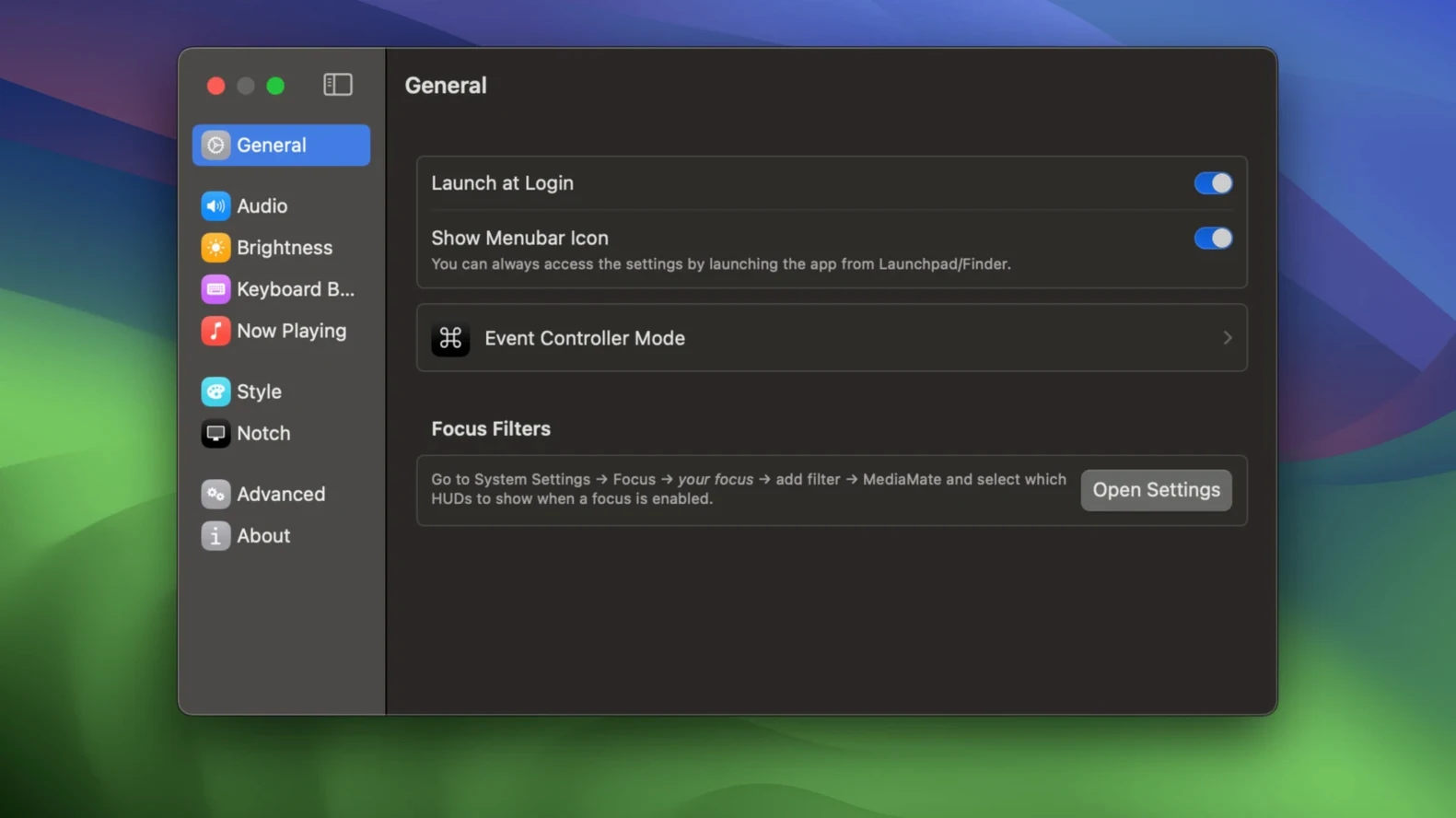
MediaMate sits in the menu bar after launch, and that is where most of the interaction starts. The first time I opened it, it asked for accessibility permissions. This is normal for an app that intercepts media keys and displays overlays. I went to System Settings, granted it access, and the HUDs appeared the next time I pressed a volume or brightness key. The volume HUD shows a thin horizontal bar near the top of the screen, and it fades quickly. The brightness HUD looks similar. Both replace the chunky macOS versions.
Connecting an external monitor and lowering brightness with a small slider
I start my school day with a quiet classroom. I connect an external monitor to my MacBook and lower the brightness to match the room. With MediaMate, the brightness slider appears as a small bar near the top right, not a giant square in the middle of the screen. I adjust it in one quick motion and the HUD disappears. I open a presentation, and the now-playing display shows the previous day's audio file still queued. I switch to a music player, start a track, and the now-playing panel updates with the title and artist. It stays visible until I click away or the track ends.
During a lesson, I often mute the system volume quickly. MediaMate shows the mute icon and the bar drops to zero. Students do not see a large HUD on the projector screen. Later, at the after-class game club, I adjust the keyboard backlight because the room gets dim. MediaMate shows a dedicated backlight bar, separate from the screen brightness controls. I keep the display on for a few seconds and it fades automatically. At the end of the day, I close the laptop lid. MediaMate remembers the last volume level.
Version 3.8.4 focuses on compatibility and responsive overlays
Version 3.8.4 is a maintenance update. It does not add new HUD types or change the now-playing panel. The developer focused on compatibility with macOS Ventura and later, and on keeping the overlays responsive. Users who updated from earlier versions noticed that the HUDs no longer flicker when switching between apps. The now-playing display also updates faster when skipping tracks, without a noticeable delay. There is no support for additional media apps beyond what the macOS system now-playing API provides, so it works with the same players as before.
If the HUD doesn't appear after pressing keys, check accessibility permissions
MediaMate needs accessibility permission to read media keys. If the HUD does not appear after pressing volume or brightness keys, the app likely lacks permission. Check System Settings > Privacy & Security > Accessibility. The toggle for MediaMate should be on. Occasionally the app shows up in the list but the toggle resets after a macOS update. Turning it off and on again usually fixes it.
Another snag: the now-playing display does not show anything for some apps. MediaMate relies on the system's now-playing framework, so apps that do not report to that framework will not appear. Web players in a browser, for example, often do not work unless the browser supports the media control API. Closing and reopening the media app can sometimes trigger the display to update.
Some users see the HUD for a split second and then it vanishes. This is often because the fade duration is set too short in the MediaMate preferences. The app does not let you adjust timing directly, but relaunching it from the menu bar sometimes resets the overlay behavior. If the HUD appears behind other windows, check that MediaMate is allowed to draw on screen without obstruction.
A music teacher who plays audio clips without showing the large macOS HUD
Mr. Davies teaches music in a high school with a classroom full of iMacs. He often plays short audio clips during lessons and switches between tracks quickly. Before MediaMate, his students saw the large macOS volume HUD every time he adjusted the sound. It blocked parts of the music software interface. With MediaMate, the now-playing display shows the current track title and artist in a compact bar. Mr. Davies can adjust volume without covering the sheet music or the DAW. When he needs to dim the screen for a video, the brightness HUD is just as small. He says the app keeps the focus on the lesson content, not the system pop-ups.
If you want to try MediaMate, you can find the mediamate mac app easily. MediaMate adds handy Mac window controls, but the "mediamate crack" version lacks developer support. The current build is 3.8.4 and it runs on both Intel and Apple Silicon Macs with macOS 13 or later. The app is in English and the activation is included in the package.
- macOS 13 Ventura or later
- Intel or Apple Silicon
- Interface in English
Questions I keep getting
Does MediaMate work on all Macs?
Yes, it supports all Macs running macOS 13 or later, on both Intel and Apple Silicon.
What does MediaMate show besides volume and brightness?
It includes keyboard backlight controls and a now-playing display for the current media item.
How to install
- Open the downloaded disk image.
- Drag the app into the Applications folder.
- Once copying finishes, launch MediaMate from Launchpad.
Similar apps






Sign in or join the club to leave a comment.
Nobody has commented yet.