- Version
- 6.0.0 [MAS]
- Studio or maker
- Sascha Simon
- Languages
- Russian, English, German, Spanish, Italian, Chinese (Simplified), Portuguese, Finnish, French, Japanese
- Activation
- K'ed by TNT team
- Runs on macOS
- macOS 15.6 or later
- Chip type
- Apple Silicon, Intel 64-bit
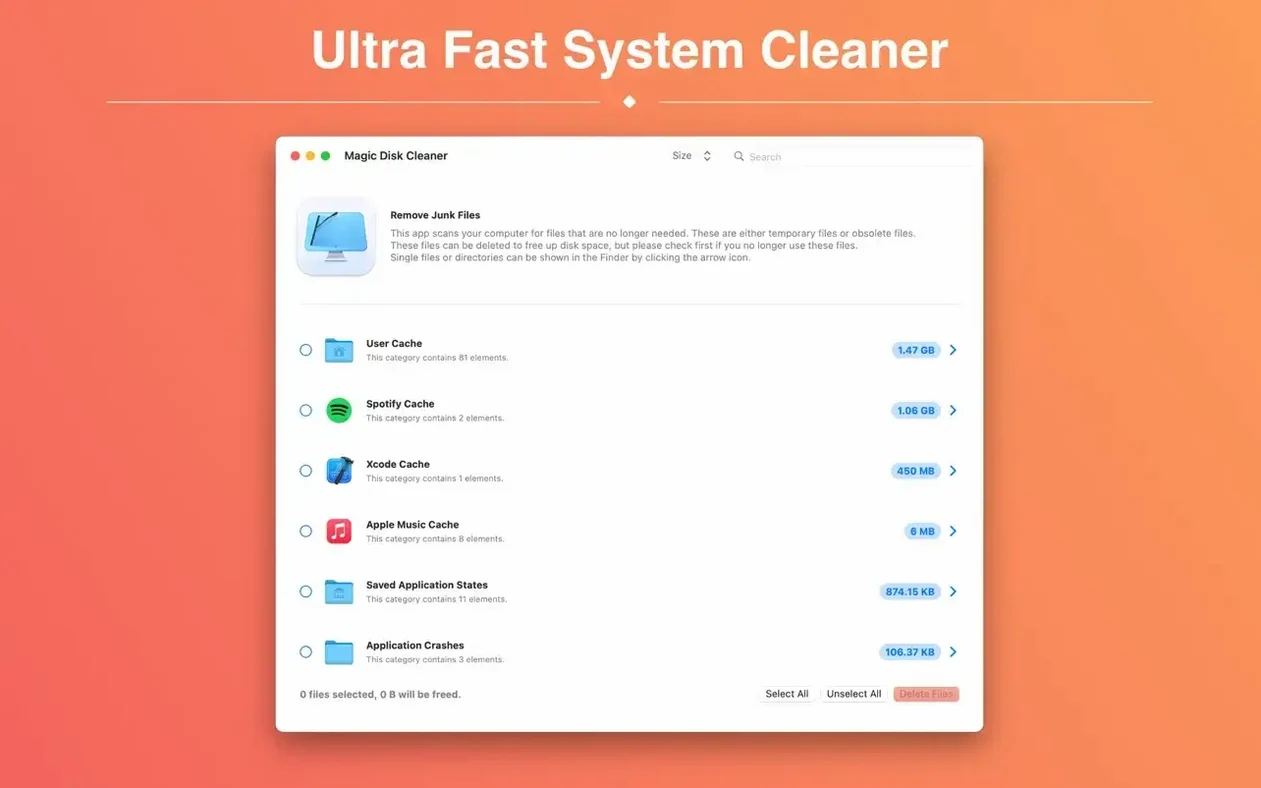
Magic Disk Cleaner is a Mac utility that locates temporary files and removes them directly.
Watches your Mac scan without any setup
Launch the app and it begins searching immediately. You watch it scan your system without any setup.
What happens after the scan?
You see a list of found temporary files. One click deletes them, saving you from hunting through folders yourself.
Fitting magic disk cleaner into your workflow
If you keep a few other tools handy, Magic Disk Cleaner slots in nicely between them. For daily maintenance, I pair it with the built-in Storage Management in System Settings. That tool handles large files and old downloads, while Magic Disk Cleaner deals with the temporary clutter that macOS itself leaves behind — cache files, leftover installers, and other items that can build up over a term of heavy use.
One thing I appreciate is that the app does not need to run in the background or schedule itself. It sits in your Applications folder and only works when you open it. That means no background processes on a school or shared machine, and no surprises for the next person who logs in.
Working with macOS' native clean-up tools
I usually run Magic Disk Cleaner once a month on my own Mac, right after I have done a quick check of Trash and Downloads. The app covers the kind of files that the system's own Empty Trash command does not touch — things like browser caches and application leftovers. It is a good companion to regular macOS maintenance, not a replacement for it.
Test run before you rely on it
Once you have the app in your Applications folder, give it a quick test run before you rely on it. Open it, let it finish the scan, and look through the list it shows. Familiarise yourself with the types of files it finds. That way, when you run it for real, you already know what to expect.
I recommend checking the language setting early on. The app supports several languages, including English and German, so you can pick the one that feels most comfortable. On a school machine, I set it to the language the students use most often.
One more thing: note the date of your first scan. If you ever want to check how much clutter has accumulated, you can compare the new results against that first list. I keep a small text file with the date and the total size shown.
Permissions and misunderstandings about what it deletes
Most issues I have seen come down to two things: permissions and misunderstandings about what the app deletes.
Permission problems
If the scan finishes but the delete button does not seem to work on certain items, it is probably because those files belong to another user account or to the system itself. The app will skip them quietly. That is normal — it is how macOS protects shared and critical files. If you are on a personal Mac and want to clear those items, you can run the app from an administrator account, but I usually leave system files alone.
Worries about what got deleted
Occasionally, a colleague tells me they removed something and later a program behaved oddly. In almost every case, the program simply rebuilt its cache on next launch. That is by design. But to be safe, I always glance through the list before clicking delete. The app does not delete anything without your consent, so you can uncheck any items that look unfamiliar.
Runs out of disk space mid-project on a shared iMac
At our school, the music department uses one iMac for recording and mixing software. After a few weeks, students reported that the audio program took a long time to open and sometimes ran out of disk space mid-project. The Mac's internal drive had about 4 GB free.
I sat down with the machine, opened Magic Disk Cleaner, and let it scan. It found a couple of gigabytes of temporary files — mostly old Logic Pro render files and browser caches from the music teacher's research sessions. One click cleared them. No settings were lost, and no project files were touched.
That is the kind of fix that takes less than a minute once the app is installed, and it does not require any technical knowledge from the person who uses the computer daily.
Yes, the interface is clear and available in English, German, and several other languages. It works on both Intel and Apple Silicon Macs.
- No changes listed for version 5.4.0.
- macOS 15.6 or later
- Intel or Apple Silicon
Questions I keep getting
Does Magic Disk Cleaner start scanning on its own?
Yes, it begins searching for temporary files immediately after you launch the app.
Can I delete files with a single click?
Yes, after the scan finishes, one click is all it takes to remove the found temporary files.
Which macOS versions does it support?
Magic Disk Cleaner requires macOS 15.6 or later and runs on both Intel and Apple Silicon Macs.
How to install
- Mount the disk image and open Gatekeeper friendly – this avoids the first warning.
- Press Enter in Terminal to bypass Gatekeeper when prompted.
- Drag the app to the Applications folder.
- Launch the app once the copy finishes.
Similar apps






Sign in or join the club to leave a comment.
Nobody has commented yet.