- Version
- 3.0.7 [MAS]
- Studio or maker
- CrowdCafé
- Languages
- Russian, English, German, Spanish, Italian, Chinese (Traditional), Chinese (Simplified), Korean, Dutch, Polish, French, Czech, Swedish, Japanese
- Activation
- K'ed by TNT team
- Runs on macOS
- macOS 13 or later
- Chip type
- Apple Silicon, Intel 64-bit
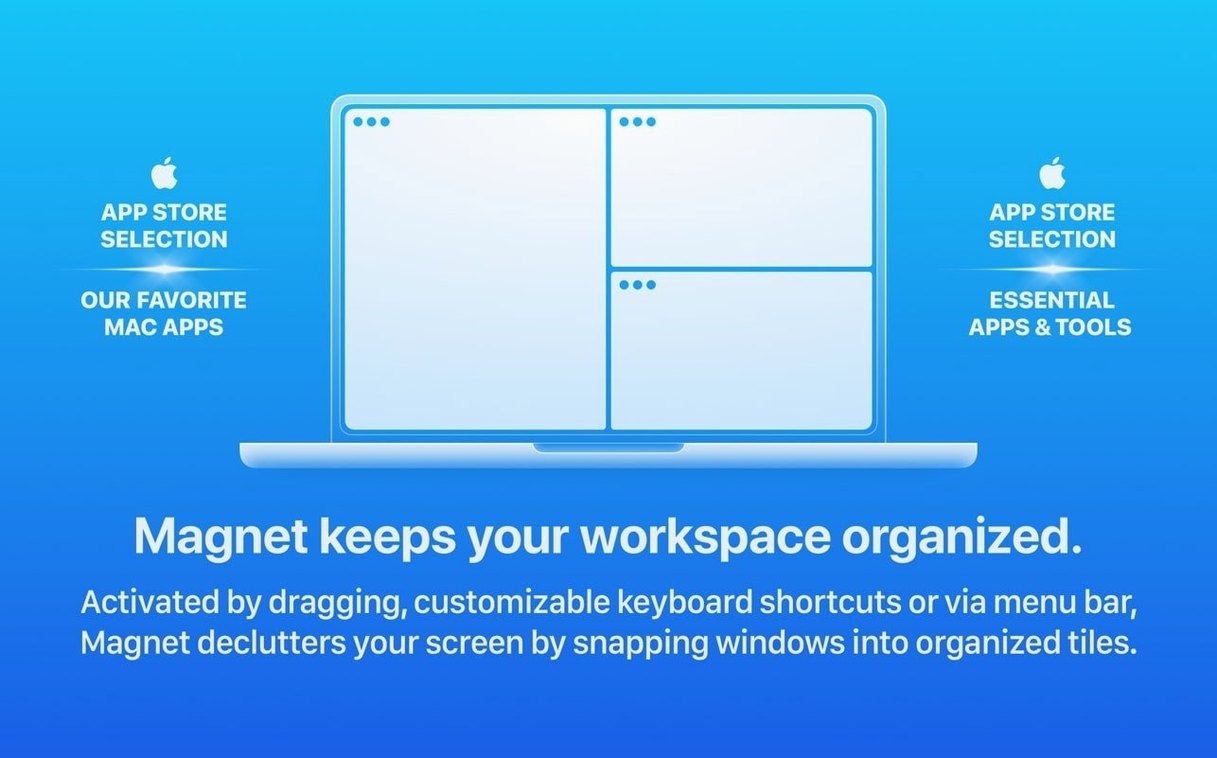
You are working on a research paper with three documents open, a browser for sources, and a terminal for data analysis. Magnet arranges these windows into half-screen, quarter-screen, or custom layouts using keyboard shortcuts or simple dragging. It works on Retina and non-Retina displays and extends macOS window management without replacing it.
Using Magnet to arrange windows
- Open Magnet and choose a layout from the menu or assign a keyboard shortcut. The app supports full-screen, half-screen, quarter-screen, and custom arrangements.
- Drag a window to a screen edge to snap it into place, or use a shortcut to send it to a specific zone. Magnet handles the rest.
- Adjust the layout as you work. You can resize zones or switch between arrangements without losing your window positions.
Magnet is a straightforward tool for anyone who regularly works with multiple windows on a Mac. It is available in fourteen languages including English, German, Spanish, and Japanese.
Runs on Apple Silicon and Intel Macs with macOS 13 or later
Magnet 3.0.7 is a lightweight utility that runs on both Apple Silicon (ARM) and Intel (x86 64-bit) Macs. It requires macOS 13 Ventura or later, so it will work on any supported Mac from 2022 onward.
The app installs as a single entry in your Applications folder and runs from the menu bar. You will see its icon in the top-right corner of your screen. From there, you can configure custom hotkeys, choose your preferred snap behavior, and set up layouts for up to six external displays. Magnet remembers your display arrangement, so if you dock and undock a laptop, it adapts to the available screens.
Because Magnet is a menu bar app, it stays out of your way. It does not add a dock icon or a floating panel. It works on Retina and non-Retina displays without any extra configuration.
How Magnet compares with similar apps
Several window managers for Mac offer similar snapping or tiling. Here is how Magnet fits alongside them.
- Rectangle is open-source and free. It provides keyboard shortcuts and drag-to-snap behavior similar to Magnet. Rectangle offers more customization options for advanced users, including scripting support. Magnet, by contrast, is a simpler out-of-box experience. If you want a focused tool that does not require tweaking beyond setting your preferences, Magnet is the easier choice.
- Moom focuses on saving and recalling window layouts. It can store a set of window positions for different tasks, like a writing layout or a coding layout. Magnet does not save layouts; it lets you arrange windows in the moment. If you frequently switch between a small number of fixed setups, Moom might suit you. If you prefer snapping windows quickly without planning ahead, Magnet works more directly.
- BetterSnapTool offers window snapping with customizable edges and corners. It also includes a window resizing feature and per-application settings. Magnet keeps things simpler: one set of preferences applies globally. BetterSnapTool gives you more control per app, while Magnet treats all windows equally.
None of these apps replace macOS window management entirely. They extend it. Magnet’s strength is that it stays predictable: you snap a window, it goes where you expect, without extra menus or configuration screens.
A scenario: managing research materials
Consider a graduate student in literature who uses a Mac for reading and writing. She has a PDF reader for primary sources, a notes app for annotations, a browser with four tabs for journal articles, and a word processor for her draft.
With Magnet, she drags the PDF to the left half of the screen, the word processor to the right half. She uses a keyboard shortcut to snap the notes app to the top-right quarter and the browser to the bottom-right quarter. When she needs more space for the draft, she drags the divider between windows to resize both sides. She does not think about window management; she thinks about her thesis.
If she connects a second monitor at the library, Magnet detects it and lets her spread windows across both screens. The same keyboard shortcuts work on the external display. She never loses a window off-screen.
Try the default shortcuts from the menu bar icon
After you install Magnet and launch it from the Applications folder, the app adds its menu bar icon. Click it to see the available layouts and shortcuts.
- Try the default shortcuts first. Magnet assigns keyboard shortcuts for common layouts: full-screen, left half, right half, top and bottom quarters. Test each one to see how it feels. You can change any shortcut later from the preferences menu.
- Drag a window to a corner. If you prefer mouse control, grab a window title bar and pull it to the top-left or bottom-right corner of the screen. It snaps into a quarter-sized zone. This works on any monitor.
- Configure shortcuts for external displays. If you use a second screen at a desk, open Magnet’s preferences and assign shortcuts for each display. The app remembers which shortcuts go where, so you can move windows between monitors without dragging.
- Use the menu bar to learn. The Magnet icon shows a dropdown with all layouts and their current shortcuts. Keep it visible for the first week until the shortcuts become automatic.
- Do not assign shortcuts that conflict with other apps. Magnet lets you set any combination of modifier keys and letters. If a shortcut clashes with a common app like Safari or VS Code, change it in Magnet’s preferences. The app will save your changes immediately.
Magnet mac free is not available, but this download is the full release without limitations.
- macOS 13 Ventura or later
- Works on Intel and Apple Silicon
Questions I keep getting
What macOS versions does Magnet support?
Magnet works on macOS 13 (Ventura) and later, on both Retina and non-Retina displays.
How to install
- Mount the disk image and run Open Gatekeeper friendly.
- Press Enter to bypass Gatekeeper in Terminal.
- Drag the app into the Applications folder.
- Launch the app when installation is complete.
Similar apps


Sign in or join the club to leave a comment.
Nobody has commented yet.