- Version
- 5.3.2
- Studio or maker
- David Kocher
- Languages
- Russian, English, German, Arabic, Bulgarian, Hungarian, Greek, Georgian, Danish, Hebrew, Spanish, Italian, Catalan, Chinese (Traditional), Chinese (Simplified), Korean, Latvian, Norwegian, Polish, Portuguese, Romanian, Serbian, Slovak, Slovenian, Thai, Tamil, Turkish, Ukrainian, Finnish, French, Croatian, Czech, Swedish, Estonian, Japanese
- Activation
- Included
- Runs on macOS
- macOS 13 or later
- Chip type
- Apple Silicon, Intel 64-bit
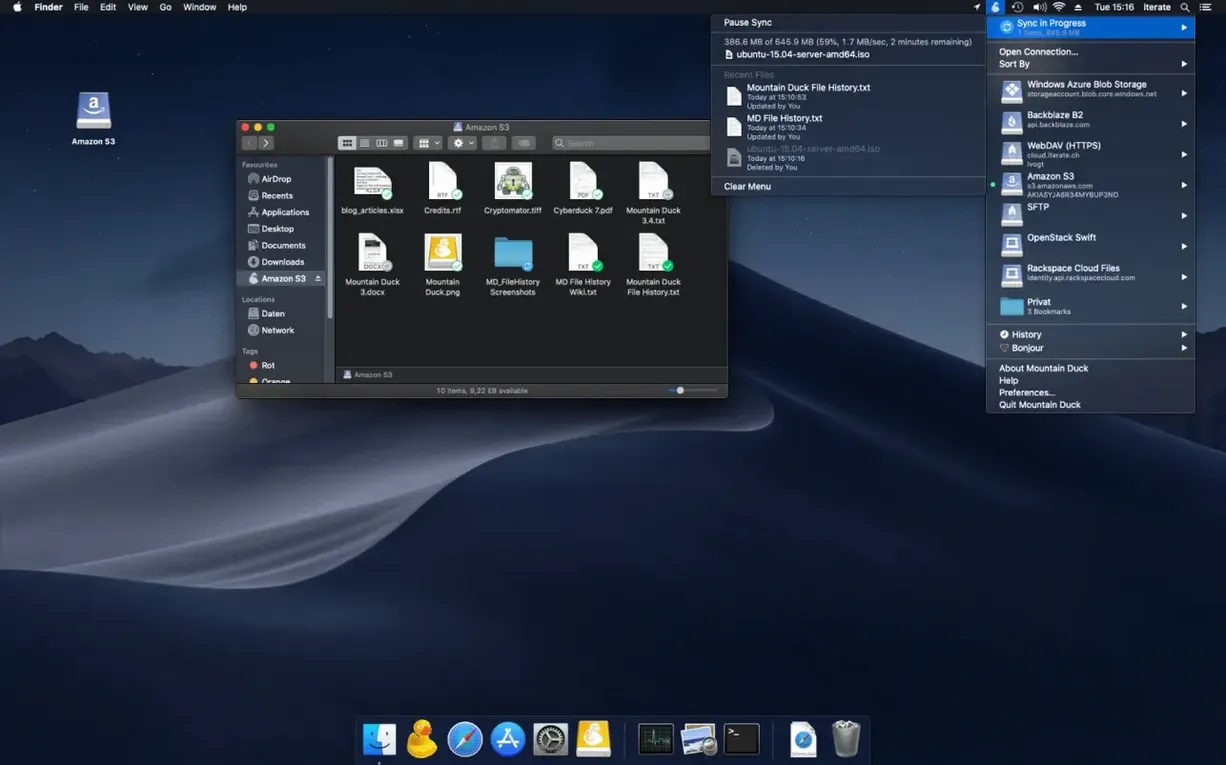
Mountain Duck mounts remote and cloud storage as a disk in Finder, so you can work with files on a server or in the cloud as if they lived on your Mac.
Version 5 introduces Integrated Connect Mode
| Item | Detail |
|---|---|
| Developer | David Kocher |
| Current version | 5.3.2 |
| Category | Utilities |
| macOS | 13 or later |
| Architecture | Apple Silicon, Intel 64-bit |
For an experienced user, the deeper tools matter. Version 5 introduces Integrated Connect Mode, which simplifies linking to servers that need extra setup. Smart Synchronization downloads a file locally the moment you open it, then pushes changes back when you save. You can also mark selected files or folders to stay offline, so they are always available without a connection. Storage-independent versioning in version 5 lets you keep and restore older versions of files across different backends. If you also use Cyberduck, bookmarks are shared between the two apps, which saves time when you switch. Mounted volumes behave like native disks, so any application can open remote files directly, and you can drag and drop between local and remote folders. Mountain Duck also runs on Windows, but on a Mac it feels like part of the system.
Developers and system administrators get the most from it
Mountain Duck suits anyone whose daily work involves files living on a server, a cloud account, or a network share. But some Mac users get noticeably more out of it than others.
- Developers and system administrators. If you edit configuration files, check logs, or move assets between a local machine and a remote server, having that server appear as a Finder volume means you can use your usual code editor or terminal without extra steps. No separate FTP client window, no dragging through a file transfer interface.
- Creative professionals with cloud storage. Photographers and video editors who store projects on Google Drive or Dropbox can open a raw file from the cloud directly into Photoshop or DaVinci Resolve. Smart Synchronization handles the download and upload, so you do not have to think about syncing folders manually.
- Teachers and researchers working across institutions. If your university provides WebDAV or SFTP access to shared project folders, Mountain Duck mounts them like any other drive. Students can open documents from the server without learning a separate file transfer tool.
- Users with multiple cloud accounts. When you use Google Drive for personal files and Azure for work, mounting both in Finder lets you copy between them with simple drag and drop. No switching between browser tabs or sync folders.
Mounts an S3 bucket so she edits without downloading
Lena shoots event photography and stores finished galleries on an Amazon S3 bucket. Before Mountain Duck, she would download the full folder, edit selects in Capture One, then re-upload the edited versions. With Mountain Duck, she mounts the S3 bucket as a disk, opens the folder in Finder, and double-clicks a raw file. The file downloads through Smart Synchronization to a local cache, opens in Capture One, and when she saves her edits, the updated file goes back to S3 in the background. She keeps a few folders marked for offline storage so she can review images on the train. The bucket stays mounted all day, and she never thinks about the sync process.
New users often skip offline markers for frequent files
A few patterns show up regularly when people start using Mountain Duck.
- Not setting offline markers for files they use repeatedly. Without the offline marker, files are cached only when opened. If you regularly work on a spreadsheet stored on a WebDAV server, mark it for offline storage so it is available even when you are not connected.
- Confusing cached files with local originals. Smart Synchronization creates a local copy when you open a remote file. That copy sits in Mountain Duck's cache. If you delete the remote file thinking you have a separate local copy, you may lose work. The cached file is tied to the remote location.
- Assuming all cloud providers work the same way. Each backend has its own behavior with versioning and sync. Mountain Duck supports multiple providers, but the available features depend on the provider, not just on the app. Checking the provider's documentation helps avoid surprises.
- Forgetting that bookmarks are shared with Cyberduck. If you use both apps, a change you make to a bookmark in one app appears in the other. That is useful when you intend it, but can cause confusion if you delete a bookmark in Cyberduck and wonder why it vanished from Mountain Duck.
- macOS 13 or later
- Apple Silicon or Intel 64-bit
How to install
- Open the downloaded disk image. The app is inside, ready to move.
- Drag Mountain Duck into the Applications folder. This keeps it with your other apps.
- Launch it from Launchpad after copying finishes. Launchpad picks up the new app automatically.
Similar apps



Sign in or join the club to leave a comment.
Nobody has commented yet.