
- Version
- 5.3.0 [MAS]
- Studio or maker
- Shrek
- Languages
- English
- Activation
- K'ed by TNT team
- Runs on macOS
- OS X 10.11 or later, macOS 12.3 or later
- Chip type
- Apple Silicon, Intel 64-bit
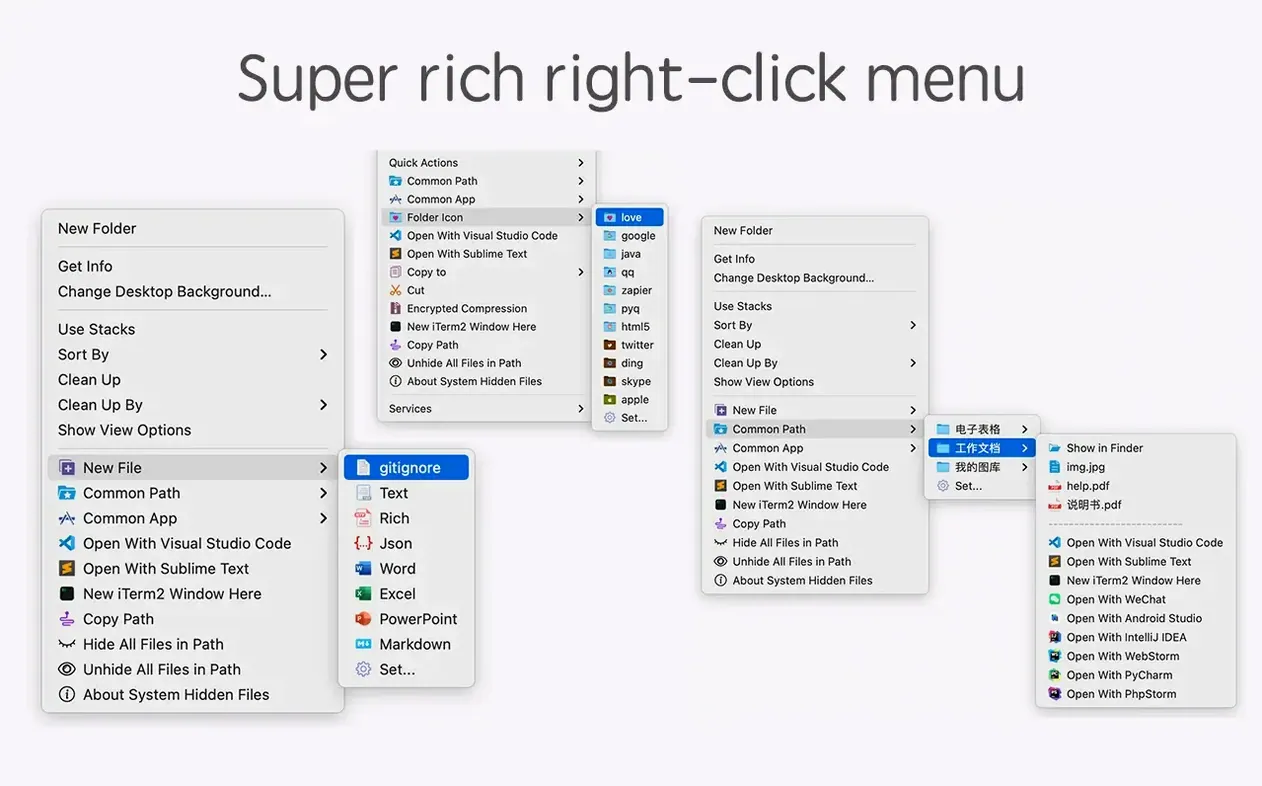
MouseBoost Pro adds over 30 actions to the macOS Finder's right-click menu, and version 5.2.8 now includes a quick preview for folder trees. If you just installed it, here are the first four things worth trying.
Which right-click actions should I try first?
Start with New File. It creates common file types like text, Word, or Excel documents right where you're working, so you don't have to open an app first.
How do I check a file's checksum?
Select any file, right-click, and choose File Info. MouseBoost Pro calculates MD5, SHA1, SHA256, and other hashes instantly—useful before sharing files or verifying downloads.
Can I change a folder's icon without extra software?
Yes. Right-click a folder and pick Change Icon. You can paste an image from the clipboard or choose one from disk, and the folder updates immediately.
What about hiding files I don't want to see?
Use Show/Hide Hidden Files. It toggles the visibility of dotfiles and hidden folders in Finder, which is handy for cleaning up a cluttered home directory or accessing Library files.
Installing it and never opening the preferences
The first one is installing it and never opening the preferences. MouseBoost Pro lets you rearrange your right-click menu and turn off actions you don't need, but the default layout includes everything. If you find the menu too long, open MouseBoost Pro's settings and drag the tools you use every day to the top. Hide the rest.
Another mistake is clicking Permanent Delete without thinking. It does exactly what it says—the file is gone, no Trash, no recovery. Use it only when you are certain. For normal deletions, stick with Finder's own move-to-Trash command.
Beginners also miss that Copy Path copies the full file path to your clipboard, not the file itself. It looks similar to the standard Copy command but behaves differently. If you paste after Copy Path, you get text like /Users/yourname/Documents/report.pdf rather than the file. That is what you want for terminal commands or sharing a location, but not for moving files between folders.
The Encrypted Compression tool is powerful but easy to skip. People see "compress" and think of Finder's built-in Zip, so they ignore it. The difference is that MouseBoost Pro's version asks for a password first. It is useful for sending a folder by email without worrying who opens it.
Finally, users sometimes install MouseBoost Pro alongside similar right-click utilities and wonder why the menu doubles up. It helps to check if another extension or app already adds New File or Copy Path items. You can disable the duplicate in one of the two programs.
A workflow: renaming a batch of screenshots with OCR
Version 5.2.8 adds automatic OCR copy and better batch renaming, so here is how those two features work together.
- Capture the screen using macOS's built-in screenshot tool or another app. Save several images to a folder.
- Select all the screenshots in Finder, right-click, and choose the batch rename tool from MouseBoost Pro. The new insert text at a specific position option lets you add a prefix like "screenshot-" after the third character of each filename, keeping the original numbering intact.
- Use rename-from-list if you already have a text file with the names you want. MouseBoost Pro reads each line and applies them in order. This is handy when the file names need to match a project plan or database.
- Now run OCR on one image by right-clicking and selecting the OCR copy action. The text from the screenshot goes straight to your clipboard, ready to paste into a document or search field. The aspect ratio selection in 5.2.8 helps if you only want to OCR a specific part of the image.
This workflow keeps you inside Finder the whole time. No extra apps, no opening each file to rename or extract text.
How MouseBoost Pro fits with other apps and macOS features
MouseBoost Pro is a companion to the apps you already use, not a replacement for them. The Open in Terminal action works with iTerm2 if you have it installed, switching to the selected directory automatically. The same goes for code editors: VSCode, Sublime Text, and Emacs each get their own right-click entry, so you can jump straight into a folder without dragging it onto a dock icon.
For designers, the folder icon changer pairs well with the Quick Look preview added in 5.2.8. You can browse folder trees, preview their contents, and change an icon without leaving the right-click menu. The scrolling capture improvement also helps when documenting a long webpage or a chat log—Capture the full scroll, then OCR the relevant part if needed.
MacOS's own Services menu and Automator can do some of these tasks, but they require setup. MouseBoost Pro gives them to you ready, and because it lives in the right-click menu, you do not have to remember a keyboard shortcut or open a separate utility. It works as a layer on top of Finder, not a new app to learn.
- Quick preview for folder trees.
- Aspect ratio selection and automatic OCR copy.
- Improved scrolling capture.
- Insert text at a specific position in batch renaming.
- Rename from a list in batch renaming.
- Maximum depth setting for file and directory trees.
- Fixed known issues.
- macOS 10.11 or later
- Apple Silicon or Intel
- English
How to install
- Mount the disk image and run Open Gatekeeper friendly. This prepares the app for launch.
- Press Enter in Terminal to bypass Gatekeeper. This step is needed because the app isn't notarized.
- Drag the app into Applications. This keeps it with your other programs.
- Launch the app when installation is complete. You'll see it in the menu bar.
Similar apps






Sign in or join the club to leave a comment.
Nobody has commented yet.