- Version
- 22.5.0
- Studio or maker
- Movavi
- Languages
- English, German, Spanish, Italian, Chinese (Traditional), Chinese (Simplified), Korean, Dutch, Polish, Portuguese, Turkish, French, Japanese
- Activation
- K'ed by TNT team
- Runs on macOS
- macOS 10.13 or later
- Chip type
- Intel 64-bit
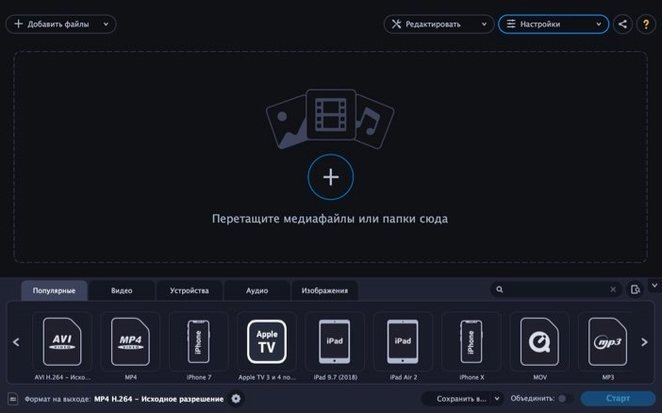
It supports more than a dozen input audio formats, from AAC to WMA, and outputs to seven video formats including MKV and WebM. That breadth is the first thing you notice when you open the format lists.
Convert AVI, MKV, MOV, MP4, and more
- Converting video files between AVI, MKV, MOV, MP4, MPG, WebM, and WMV — handy when a clip won't play on a device or edit in your usual software.
- Extracting the audio track from a video, so you can keep a lecture or interview as an MP3 or FLAC without re-encoding the picture.
- Batch converting every file in a folder, which saves time when you have a whole directory of clips to standardize.
- Switching audio formats among AAC, FLAC, M4A, MP3, OGG, WAV, and WMA, for players or projects with specific needs.
Runs on Intel Macs only (requires Rosetta for Apple Silicon)
- It runs on Intel 64-bit Macs only, so Apple Silicon users need Rosetta or another tool.
- It needs macOS 10.13 or later.
- The interface is available in 13 languages, including English, German, Spanish, French, and Japanese.
Not checking the output format before batch conversion
A few patterns come up often when people start with Movavi Video Converter. The most common is not checking the output format before starting a batch conversion. You select a folder of files, set one format, and the program converts everything in that folder to the same output. If you have both video and audio files in the folder, the result might be a batch of MP4 files when you only wanted the audio files turned into MP3. The fix is to sort files by type before adding them, or run separate batches for video and audio.
Another beginner trap is assuming that "SuperSpeed" mode works for every format combination. The mode is useful when you want a quick conversion and the quality loss is acceptable, but some users leave it on for all conversions and then wonder why the output looks softer than the original. For archival copies or clips you plan to edit later, it is better to turn SuperSpeed off and let the converter process normally.
Beginners also tend to overlook the device profiles. Instead of picking a generic MP4, you can select a preset for Apple, Samsung, Nokia, or Sony devices. The profile sets the resolution and codec that the device expects. Using a generic format sometimes plays back with audio sync issues or no sound at all.
Program can't see a file with an unsupported codec
One frequent problem is that the program does not see a file you want to convert. This usually happens when the file uses a codec that Movavi Video Converter does not support. The format lists cover common container formats, but some files use newer codecs inside those containers. If a file does not show up in the file browser, try converting it to a supported format first with another tool, or re-encode it with the original software that created it.
Another snag is that the conversion finishes, but the output file has no sound. This often happens when the input file uses an audio codec that is not supported for that output format. For example, converting a MOV file with an Opus audio track to MP4 can result in silence because MP4 does not support Opus. The workaround is to change the output audio format to AAC or MP3 before starting the conversion.
Some users report that the conversion takes a very long time, especially with large video files. Movavi Video Converter supports SuperSpeed mode, but the speed also depends on the codec and resolution of the source. If a conversion is slow, check that you are not running other heavy applications at the same time.
Workflow: extracting audio from a video file for a podcast
Here is a typical workflow for taking a video interview and turning the audio into an MP3 file you can listen to on a phone or upload to a podcast platform.
- Open Movavi Video Converter and click the blue "Add Media" button. Select the video file that contains the interview.
- At the bottom of the window, find the "Convert" tab. Click on it, then choose the "Audio" category. From the list, pick "MP3". You can also choose a different bitrate if needed, but the default works for spoken word.
- Look for the "Extract Audio" checkbox. It is usually at the top of the conversion settings panel. Check it to make sure the program only outputs the audio track, not the video.
- Optional: If the interview has long pauses or background noise, click the "Edit" button. Here you can use the noise reduction and volume controls to clean up the audio. You can also trim the start and end to remove silence.
- Click "Convert" and wait for the process to finish. The output will be a single MP3 file with only the audio track, ready for your podcast editor or music player.
This workflow also works for FLAC, WAV, or any other supported audio output format, depending on what your editor or hosting service requires.
A comfortable middle ground between HandBrake and premium apps
Movavi Video Converter sits in a comfortable middle ground. A comparable app is HandBrake, which is free and open-source. HandBrake can convert video to many formats and has strong codec support, but its interface is less forgiving for beginners. It also does not include the audio extraction shortcut or the device profiles that Movavi has. HandBrake focuses on video conversion only; it does not convert images or extract audio as a separate feature.
It offers deep integration with Premiere Pro and After Effects and supports a huge range of codecs. For someone who does not work in the Adobe ecosystem, Movavi is easier to set up and uses less screen space.
A third option is FFmpeg, a command-line tool that is extremely powerful and free. It can do almost any conversion task you can imagine, but it has no graphical interface. You have to type commands or use a front-end app. For someone who prefers to drag and drop and click a few buttons, Movavi Video Converter is a much faster way to get the same result. It is also worth noting that Movavi Video Converter torrent copies have been around for a while, which shows there is steady demand for an easy-to-use video converter that does not require a learning curve.
- macOS 10.13 or later
- Intel 64-bit architecture
Questions I keep getting
Can I convert several files at once?
Yes, the batch conversion feature lets you convert all files in a selected folder at once.
How to install
- Mount the disk image and run Open Gatekeeper friendly.
- Press Enter in Terminal to bypass Gatekeeper.
- Drag the app to the Applications folder.
- Open the app after copying is complete.
Similar apps






Sign in or join the club to leave a comment.
Nobody has commented yet.