
- Version
- 5.3.0
- Studio or maker
- iTubeGo
- Languages
- English
- Activation
- K'ed by TNT team
- Runs on macOS
- macOS 10.12 or later
- Chip type
- Intel 64-bit
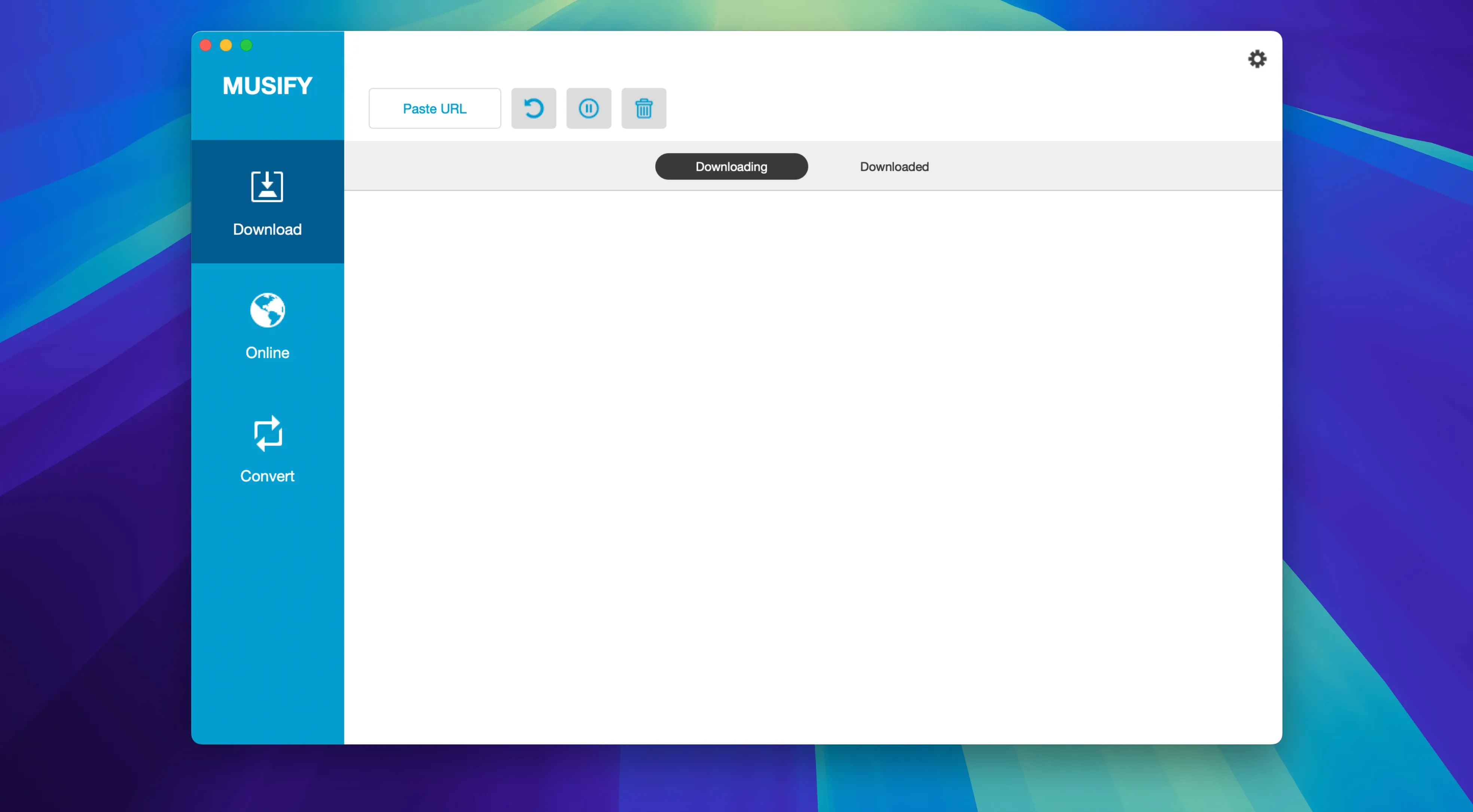
Keeping a music library organized across services is a chore. Musify for Mac handles the download and conversion side of that task, letting you pull entire playlists from YouTube, Spotify, SoundCloud, and Bandcamp, then store them in a format you actually use.
Download complete playlists without grabbing tracks one by one
- Downloading complete playlists from major music services, so you don't have to grab tracks one by one.
- Converting multiple MP3 files at once, saving time when you need a batch in M4A or WAV.
- Preserving metadata like track titles and artists, which keeps your library tidy after conversion.
- Pulling audio from sites including Facebook, Instagram, MixCloud, Freesound, Audioboom, and Veojam, in addition to the bigger names.
Runs on macOS 10.12 and later but not natively on Apple Silicon
- The app is 64-bit Intel, so it runs on macOS 10.12 and later, but not on Apple Silicon natively.
- Installation is straightforward: copy the app to your Applications folder and use it right away.
- You may need to run a Terminal command once to bypass Gatekeeper, since the app isn't signed by Apple.
Set your output folder first to avoid hunting for files later
When you start using Musify 5.3.0, spend a few minutes setting up your output folder. The app will save downloads and conversions wherever you tell it to, and getting that right from the start saves you from hunting through folders later. I point mine to a dedicated Music Downloads folder inside my home directory.
Try a single YouTube to MP3 conversion first. Paste one link, choose MP3 as the output format, and let it finish. Check the metadata in your music player afterward. If the track title and artist look correct, you are ready for bigger jobs. If not, adjust your settings before running a whole playlist.
Test a playlist download from your primary service early on. A short playlist of three or four songs is enough. This confirms that the app handles the service you use most and that your chosen format works for your devices.
What tends to trip people up during the first few uses
A few things tend to trip people up during the first few uses. Here is what I have seen and what works.
Bypass Gatekeeper when the app is not signed by Apple
This happens because the app is not signed by Apple. When you first try to launch it, macOS will refuse. The fix is to mount the disk image, run the Open Gatekeeper friendly tool, and press Enter in Terminal when prompted. After that, drag the app to your Applications folder. It will open normally from then on.
Downloads seem to hang or never finish
If a download from YouTube or another site stalls, check your internet connection first. Sometimes the site itself is slow or the video is too long. Try a shorter video to see if the app is working. If it is, the problem was the specific file. If nothing downloads, restart the app and try again.
Converted files have no metadata
Musify preserves metadata, but only if it can read it from the source. Some videos or audio streams do not include clean track information. When that happens, the converted file will have generic titles. You can fix this after conversion with a metadata editor, or you can rename the files manually. For playlists from Spotify or Bandcamp, the metadata tends to be more complete.
Playlist downloads stop partway through
Large playlists can sometimes stop before they finish. This is usually a network hiccup or a rate limit from the service. The simplest workaround is to restart the download. If it keeps stopping at the same point, break the playlist into smaller chunks and download them one at a time.
- macOS 10.12 or later
- 64-bit Intel processor
Questions I keep getting
Can Musify download an entire playlist at once?
Yes, Musify handles playlist downloads from services like YouTube, Spotify, SoundCloud, and Bandcamp, so you can grab a whole list in one go.
What audio formats can I convert to?
Musify converts audio to MP3, M4A, and WAV, and it can process multiple MP3 files in a batch.
Does Musify work on Apple Silicon Macs?
The app is built for 64-bit Intel only, so it runs on macOS 10.12 and later but not natively on M1 or M2 Macs.
How to install
- Mount the disk image and run Open Gatekeeper friendly.
- Press Enter in Terminal to bypass Gatekeeper.
- Drag the app to the Applications folder.
- Use the app after installation finishes.
Similar apps






Sign in or join the club to leave a comment.
Nobody has commented yet.