
- Version
- 1.14.1
- Studio or maker
- Florian Heidenreich
- Languages
- English, German, Spanish, Italian, Chinese (Simplified), Portuguese, French, Czech, Japanese
- Activation
- K'ed by TNT team
- Runs on macOS
- macOS 10.14 or later
- Chip type
- Intel 64-bit
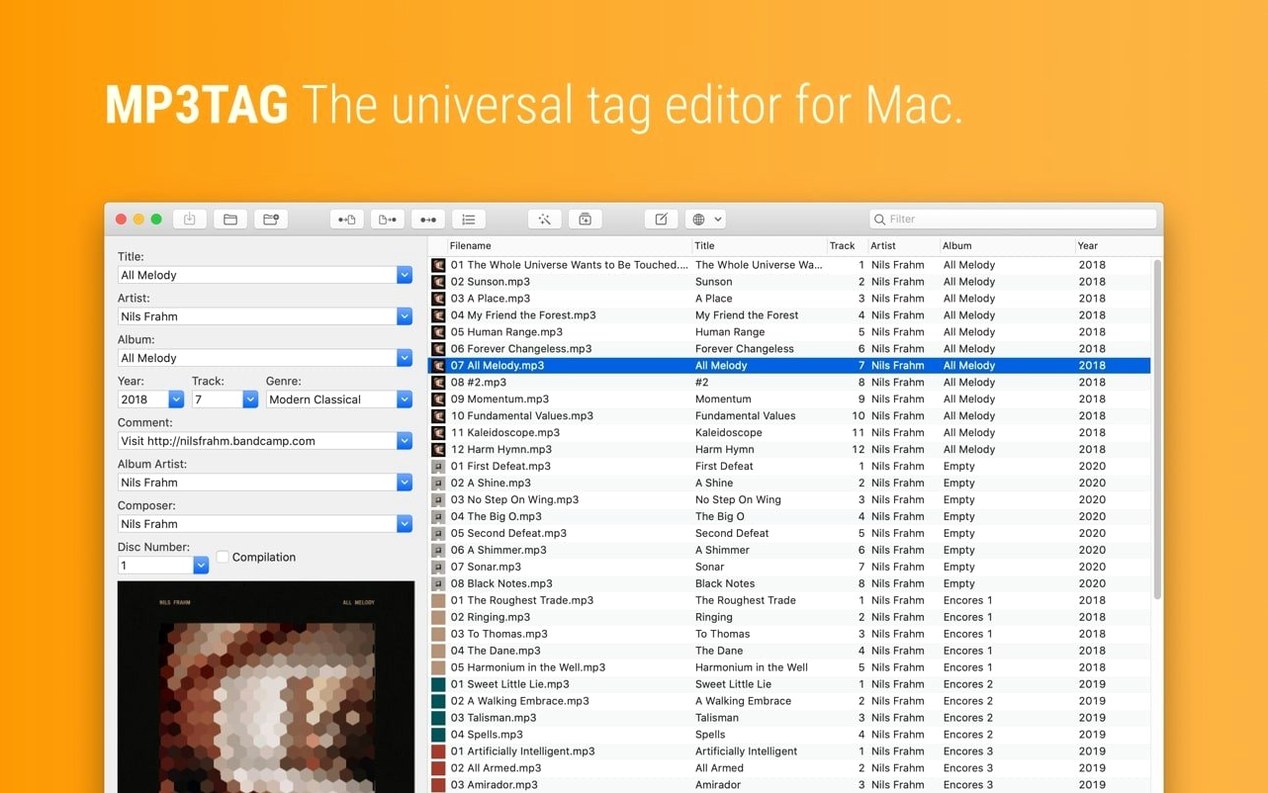
The latest version of Mp3tag for Mac fixes a crash on macOS 27 that could occur when adding action groups, corrects a problem where cover changes in the Tag Panel were discarded if Extended Tags was used first, and ensures unsaved Tag Panel changes are no longer ignored when using Cover Search, Tag Sources, Converters, Auto-Numbering, or Actions. Decimal BPM values also stay intact when writing MP4 tags now.
Before you install, here are the questions people usually ask:
- Can it rename files? Yes, you can rename files based on the tag information.
- Does it find cover art? It can search Discogs and MusicBrainz for tag data and cover art.
- Which formats does it support? MP3, MP4, M4V, FLAC, OGG, OPUS, AIF, DSF, MPC, and WAV.
- Can I adjust cover images? Yes, you can change the embedded cover image size and format.
- Can I automate repetitive tasks? Yes, by grouping repeated tasks into action groups.
The app runs on macOS 10.14 or later, on both Intel and Apple Silicon Macs. It is a Mac version of the well-known Mp3tag for Windows, so the workflow feels familiar if you have used the original.
Dragging a folder of MP3 and FLAC files into the main window
Let me walk you through how I usually tidy up a batch of music files after downloading or ripping. I open Mp3tag first, then drag a folder of MP3 and FLAC files into the main window. The files appear as a list, with columns showing filename, artist, title, album, and other tags.
I select all the files with Command-A, then click the Discogs button in the toolbar. The app prompts me to type an album name or artist. I enter "Miles Davis Kind of Blue" and hit search. Within moments, Mp3tag returns several matching releases. I pick the one that matches my version, and it fills in artist, album, year, genre, and track titles for every selected file. It also pulls cover art and embeds it automatically.
Before saving, I check the Tag Panel on the right side. Here I can tweak individual fields—correct a misspelled track title or add a comment. In this session, I notice the genre field says "Jazz" but I want "Cool Jazz" instead. I change it for all selected files at once using the batch edit feature.
Next, I rename the files using the tag information. I right-click the column header, choose "Rename file," and set a pattern like %artist% - %album% - %track% - %title%. The app previews the new names in a small window, and when I confirm, it renames every file in seconds.
Finally, I run an action group I created earlier called "Clean Up." It replaces underscores with spaces, removes extra periods, and converts all tags to UTF-8. I select the files, choose the action group from the menu, and apply it. Everything saves cleanly.
Requires macOS 10.14 or later and runs natively on Apple Silicon
Mp3tag 1.14.1 requires macOS 10.14 or later, which covers Mojave through the current versions. The app is built for both Intel Macs (64-bit) and Apple Silicon, so it runs natively on M1, M2, and newer chips without any translation layer. No extra setup is needed for Rosetta—it just works.
The download comes as a disk image. After mounting it, you need to bypass Gatekeeper by pressing Enter in Terminal (the app includes a helper command for this). Then drag it to your Applications folder. That is the entire install process: no installer wizard, no extra libraries to download.
The app itself is lightweight. It opens quickly and handles libraries of thousands of files without slowing down. The interface stays responsive even when editing tags for a folder with 500 tracks. You can leave it running in the background while you sort through your collection.
Set your default tag format to UTF-8 and enable auto-save
When you first launch Mp3tag, I recommend opening the Preferences window. Set your default tag format for new files—UTF-8 is the safest choice for compatibility with most music players. Enable the option to automatically save tag changes when you switch files, so you never lose edits after a search or conversion.
Under the Cover Art section, decide on a preferred image size and format. I set mine to JPEG at 600x600 pixels to keep files small but clear. You can also tell Mp3tag to only download cover art from MusicBrainz or Discogs, whichever you trust more.
Finally, create a few action groups for common tasks. For example, I have one that removes leading zeros from track numbers and another that capitalizes artist names properly. Name them clearly so you can find them later.
Crash when adding action groups on macOS 27 is fixed
Version 1.14.1 addressed a few quirks that users like me noticed. The crash when adding action groups on macOS 27 is fixed—if you run the newest macOS, you can now organize your actions without the app closing unexpectedly. That matters if you have many custom groups.
Cover edits in the Tag Panel used to disappear if you touched the Extended Tags field before saving. Now the cover changes stay put, even if you flip between views. Similarly, unsaved Tag Panel changes no longer get ignored when you open Cover Search, Tag Sources, or run Converters. You get a prompt to save first, which avoids losing work.
For DJs and music producers who work with BPM values, the fix for decimal BPM in MP4 tags is welcome. Previously, values like 120.5 were truncated to 120 when saving to MP4 files. Now the precise BPM is preserved, which keeps your beat grids and playlists accurate.
These updates make the app more reliable for day-to-day use, especially if you handle large batches or switch between tag sources often. Nothing flashy, just practical improvements that save time and frustration.
- Fixed a crash on macOS 27 when adding action groups in the Actions Groups window.
- Cover changes in the Tag Panel are now kept even when Extended Tags is used before saving.
- Unsaved Tag Panel changes are no longer ignored when using Cover Search, Tag Sources, Converters, Auto-Numbering, or Actions.
- Decimal BPM values are no longer truncated when writing MP4 tags.
- macOS 10.14 or later
- Intel (64-bit) or Apple Silicon
Questions I keep getting
Is Mp3tag for Mac free?
Mp3tag is free to use. You can download it and start editing tags without paying.
Does Mp3tag work on Apple Silicon Macs?
Yes, it runs natively on Apple Silicon and also on Intel Macs.
Can I use Mp3tag to rename files automatically?
Yes, you can rename files using tag information, which is handy for organizing large music libraries.
How to install
- Mount the disk image and launch Open Gatekeeper friendly.
- Press Enter in Terminal to bypass Gatekeeper.
- Drag the app to the Applications folder.
- The app is ready to use.
Similar apps






Sign in or join the club to leave a comment.
Nobody has commented yet.