- Version
- 1.1.71 [MAS]
- Studio or maker
- 裕涛 兰
- Languages
- Russian, English, German, Arabic, Vietnamese, Indonesian, Spanish, Italian, Chinese (Traditional), Korean, Portuguese, Thai, Turkish, French, Hindi, Japanese
- Activation
- Not required
- Runs on macOS
- macOS 13 or later
- Chip type
- Apple Silicon, Intel 64-bit
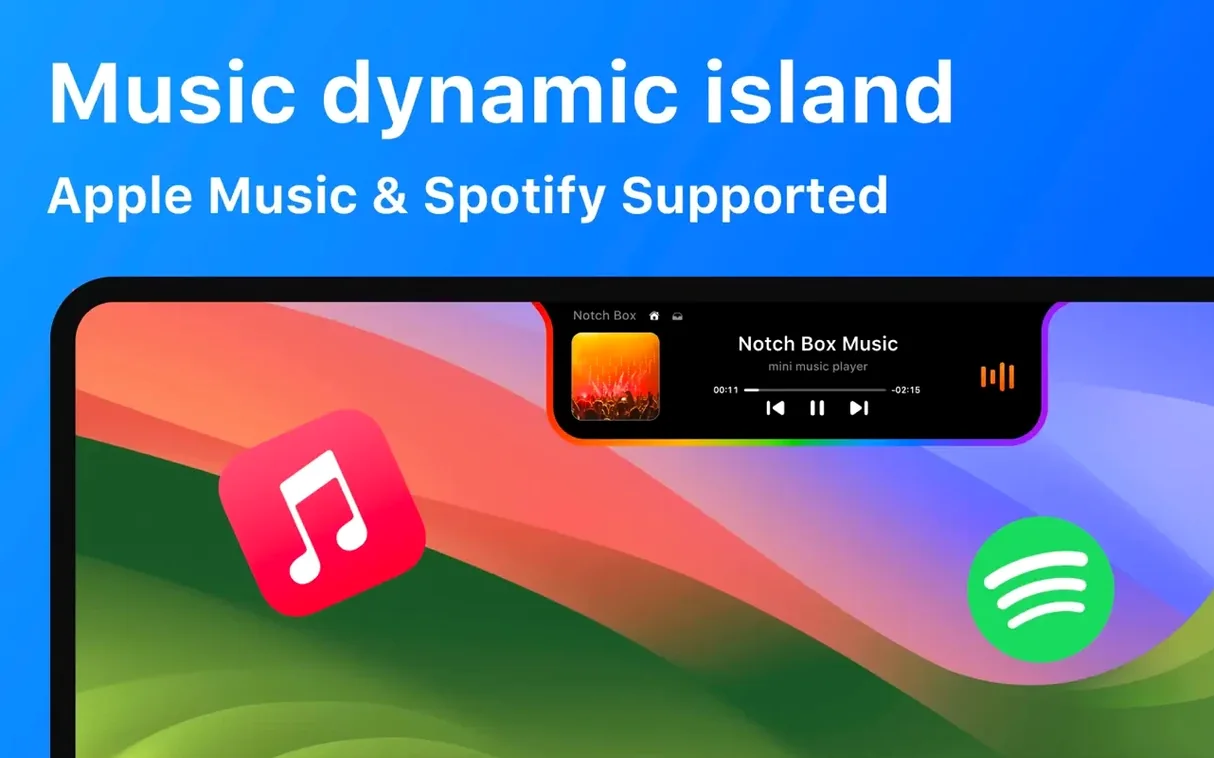
The latest version 1.1.71 keeps the same straightforward setup: drag a file into the notch and it becomes a temporary holding spot, handy for quick moves between folders or apps. Apple Music and Spotify both work with it — you can see what’s playing and skip tracks without leaving your current window. The notch also shows Wi‑Fi speed and signal strength, and there’s a clipboard history you can reach with a click.
For a first try, I’d start by dragging a document into the notch, then playing a song in either music service. The clipboard history is easy to check after you’ve copied a couple of things. The app runs on both Intel and Apple Silicon Macs and needs macOS 13 or later. Interface languages include English, German, Spanish, French, and several others.
Polish that makes a daily difference
The shift to version 1.1.71 is small but noticeable once you settle into a rhythm. The core interactions are unchanged — drag a file to the notch, play music, check Wi‑Fi — but the polish under the hood makes the whole thing feel more deliberate. The clipboard history now remembers copied items across sessions, so a link or a snippet you saved yesterday morning is still there when you need it. The AirDrop file sharing by drag and drop has also been refined: it recognises contact names faster, which matters if you swap files between your own devices often.
The countdown timer has a cleaner interface. You can set it from the notch menu without opening a separate window, and it shows the remaining time right in the notch itself. For classroom use, I set it during the last five minutes of a game session and students can glance at the screen instead of asking me. The date and time display remains simple but now updates immediately when the system clock changes, which helps if you travel between time zones with a laptop.
Wi‑Fi speed and signal strength numbers show up in real time now, not just when you click the notch. If the connection dips, you see it before the video call drops. The camera mirror view has a slight improvement too: it starts faster and keeps the same orientation as your system camera, so there is no flipping delay when you switch between front and back lenses on an external webcam.
Switching the default music service first
When you launch NotchBox for the first time, a few defaults are worth adjusting right away. The music integration shows Apple Music by default, but if you use Spotify more often, you can set it as the preferred service from the notch preferences. That way the player controls and the now-playing line are ready for your usual service without extra clicks.
The clipboard history stores a generous number of entries by default. If you copy sensitive information like passwords or student grades, you might want to clear the history after each session. There is a one‑tap clear option in the clipboard panel — no confirmation dialog, so it is quick to do between classes.
For the calendar view, the app pulls events from the macOS system calendar. If you have multiple calendars (work, personal, school), you can choose which ones appear in the notch. I only show the school calendar to keep the display clean. The setting is under the calendar section of the preferences and applies immediately.
The language can be changed at any time. If English is not your primary language, the interface supports German, Spanish, French, Italian, and several others. Switch to your preferred language before you start exploring the deeper menus — it makes the first day much easier.
Start with one file-drag habit
Start with one habit: drag a file into the notch every time you need to move something between folders. After a day or two it becomes automatic, and you stop reaching for the trackpad to open a second Finder window. The temporary storage holds the file until you drop it elsewhere, so there is no risk of losing it if you drag too many things in a row — just clear one before adding another.
Try the AirDrop sharing by drag and drop on the first day. Drag a photo or a PDF into the notch, then choose a nearby device. It is faster than opening the share sheet and scrolling through contacts. For a classroom setting, I use it to send worksheets to a student’s Mac during group work. The recipient gets a notification as usual, but the source step is one motion instead of three.
The clipboard history becomes more useful after you have copied a few items. Copy a link, then copy a sentence, then a file path. Click the clipboard icon in the notch and all three are there. You can paste any of them without recopying. I use this when gathering resources for a lesson plan — copy from the browser, copy from a PDF, copy from an email, then paste them into a document in any order.
Set the countdown timer once on the first day to see how it behaves when the Mac goes to sleep or the lid closes. Good for timed exercises in the game club.
If you use the camera mirror view, check it in different lighting. The notch area is small, so the mirror is a thumbnail — fine for a quick check before a video call, but not for framing a shot. Keep it on the right side of the notch to avoid covering the clock.
Requires macOS 13 and a simple drag to install
NotchBox requires macOS 13 or later and works on both ARM and Intel 64‑bit Macs. The download is a disk image; you open it, drag the app to the Applications folder, wait for the copy to finish, then open it from Launchpad. No configuration is needed beyond the preferences I mentioned. The app sits in the menu bar area near the notch and does not add a separate dock icon unless you choose to keep one.
The notch itself gains a subtle border when the app is active — not a flashy animation, just a visual cue that the interactive space is ready. The performance impact on the system is minimal because the app mainly responds to drag actions and media playback changes. The Wi‑Fi monitoring runs in the background but polls at a low frequency, so it does not interfere with network speed tests or downloads. The clipboard history stores text only, not images or files, so it stays light on memory.
For the music integration, both Apple Music and Spotify require their own apps to be installed and running. NotchBox does not replace them; it simply shows the currently playing track and provides basic controls. If the music app is closed, the notch shows nothing for that section. The AirDrop sharing works through the system’s own sharing service, so the same privacy settings apply — you can set it to receive from contacts only or from everyone.
The interface languages cover sixteen options including Russian, Arabic, Vietnamese, and Hindi. Changing the language restarts the notch menu immediately without a system restart. The calendar events and upcoming meetings come from the macOS Calendar app, so if you use a third‑party calendar that does not sync with Apple Calendar, those events will not appear.
- macOS 13 or later
- Intel or Apple Silicon Mac
How to install
- Open the downloaded disk image.
- Drag the app into your Applications folder.
- Once copying finishes, open the app from Launchpad.
Similar apps



Sign in or join the club to leave a comment.
Nobody has commented yet.