- Version
- 1.35.4
- Studio or maker
- Fireball
- Languages
- English
- Activation
- Not required
- Runs on macOS
- macOS 10.15 or later
- Chip type
- Apple Silicon, Intel 64-bit
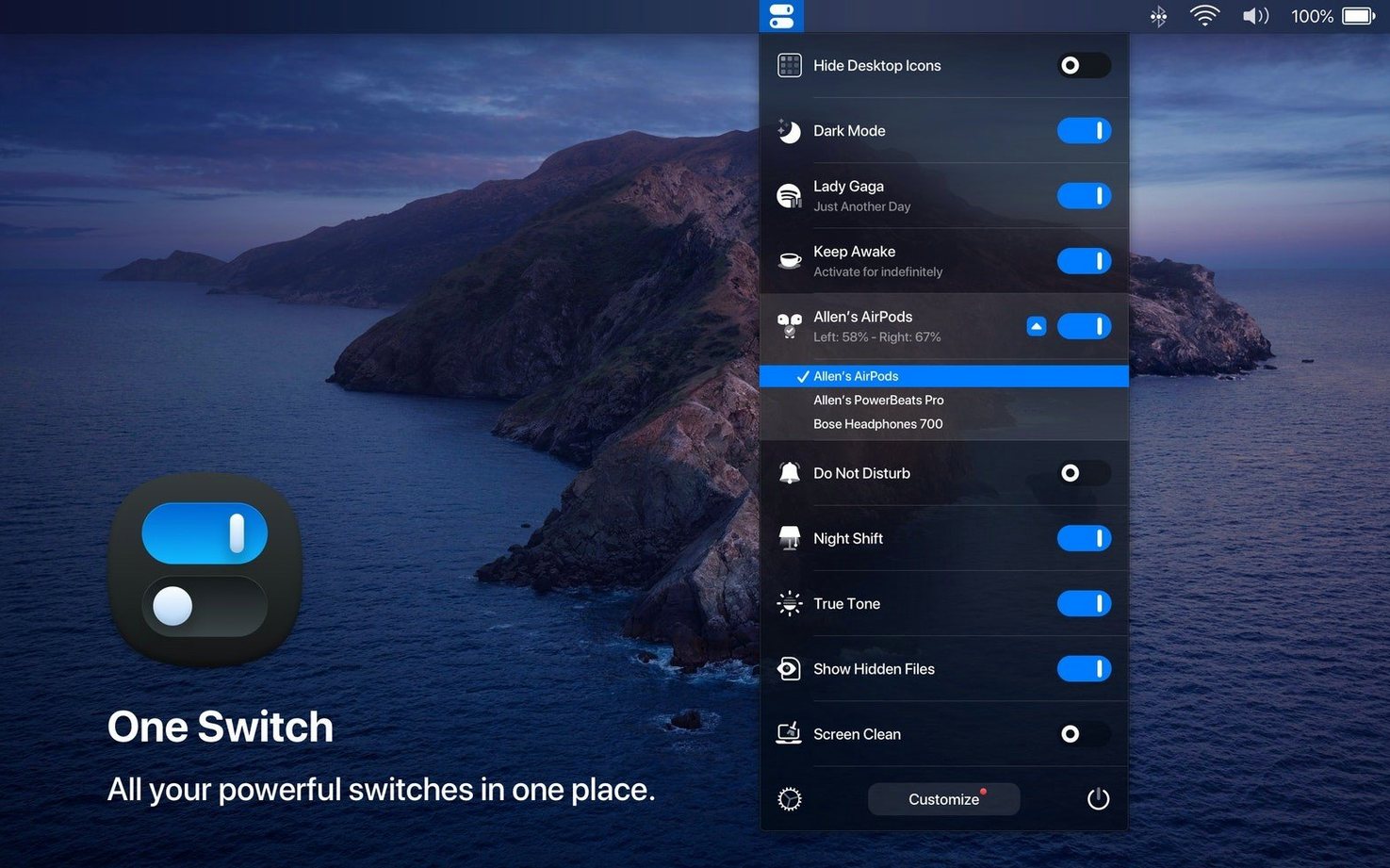
One Switch runs on any Mac with macOS 10.15 or later, whether it uses an Intel processor or Apple Silicon. That covers most machines from 2016 onward, so compatibility is rarely an issue. The app itself is a small menu bar utility that replaces several separate toggles and settings with one clean switch.
What the menu bar switch does
Click the menu bar icon and you get immediate access to switches for Dark Mode, showing or hiding desktop icons, starting the screen saver, sending the Mac to sleep, and connecting AirPods. You can also turn off notifications for a set time. The current version 1.35.4 adds multilingual support, including German, Italian, Japanese, Korean, Portuguese, Russian, and Spanish, so the interface can match your system language.
How it replaces separate apps
Instead of digging into System Settings for appearance changes or keeping a separate app for each toggle, One Switch collects them in one place. The rotary-style selector makes it easy to pick what you need without extra clicks. If you often switch between light and dark appearance or need to hide desktop clutter during presentations, this app saves a few steps each time.
First days with One Switch
After dragging One Switch to your Applications folder and launching it, you will see its icon appear in the menu bar. The first thing to do is decide which switches you actually use. Open the preferences panel from the menu bar icon, and you can disable any of the seven available switches that you do not need. I usually turn off the screen saver toggle because I rarely trigger it manually, and that keeps the rotary selector shorter and quicker to scan.
Try each switch once to get a feel for how they work. The Dark Mode toggle immediately changes your system appearance, and the desktop icons toggle hides everything on the desktop in a second. The Do Not Disturb switch lets you set a timer, so it mutes notifications for an hour or until the next morning. Knowing which ones you will reach for regularly makes the app feel natural within a day or two.
Position the icon where you want it
You can rearrange menu bar icons by holding the Command key and dragging them left or right. I put One Switch near the right end so it stays out of the way but is still one click away. Some colleagues prefer it next to the clock. There is no wrong spot, just what feels convenient for your workflow.
Menu bar icon vanishes after restart
A few things catch people during the first week. The most frequent one is that the menu bar icon disappears after a restart. This happens if One Switch was not added to your login items. Open System Settings, go to General, then Login Items, and add One Switch to the list. That way it launches automatically when you start the Mac.
Another snag is that the AirPods connection switch sometimes does not show your headphones. This usually means the AirPods were not paired with the Mac beforehand. One Switch connects to devices already paired in Bluetooth settings, so check that step first. If the switch still does not appear, restart the app once from the menu bar preferences.
Some users try to use the Do Not Disturb timer while a meeting is running and find that notifications still come through. That is because macOS has separate settings for focus modes. One Switch controls the basic Do Not Disturb setting, not a custom Focus. If you use Focus modes, just turn them on separately and let One Switch handle the simpler mute toggle.
Works alongside other menu bar utilities without conflict
One Switch works alongside other menu bar utilities without conflicts. I use it together with a clipboard manager and a window organizer, and they all stay out of each other's way. The app does not change any system files or install background processes, so it behaves like a standard menu bar extra.
The desktop icons toggle is especially useful when you use the Mac for screen sharing or recording. You can hide icons before a presentation and show them again after, without needing a separate app for that task. The same goes for the screen saver switch: if you have a screen saver you like but rarely wait for it to start, you can trigger it manually whenever you step away.
For users who prefer the menu bar to stay minimal, One Switch can show only the switches you need. That reduces clutter without losing functionality. The app respects macOS system appearance settings, so if you use automatic Dark Mode scheduling, One Switch will still reflect the current state correctly in its menu bar icon.
If you already use a rotary switch style approach in other parts of your workflow, One Switch feels familiar. It does one thing well: centralizing common toggles into a single menu bar point. That makes it a good complement to tools like Alfred or BetterTouchTool, which handle more complex automations. One Switch is the quick, one click mac choice for simple system switches you reach for several times a day.
- Added multilingual support: German, Italian, Japanese, Korean, Portuguese, Russian, and Spanish.
- Version 1.35.4 is the current release.
- macOS 10.15 or later
- Intel 64-bit or Apple Silicon
How to install
- Mount the downloaded disk image.
- Drag the app into the Applications folder alias.
- Launch the app from Launchpad after copying finishes.
Similar apps





Sign in or join the club to leave a comment.
Nobody has commented yet.