
- Version
- 6.6.2
- Studio or maker
- Dmitry Obukhov
- Languages
- Russian, English, German, Hungarian, Greek, Danish, Hebrew, Spanish, Italian, Chinese (Traditional), Chinese (Simplified), Korean, Dutch, Polish, Portuguese, Turkish, Ukrainian, Finnish, French, Czech, Japanese
- Activation
- Included
- Runs on macOS
- macOS 13 or later
- Chip type
- Apple Silicon, Intel 64-bit
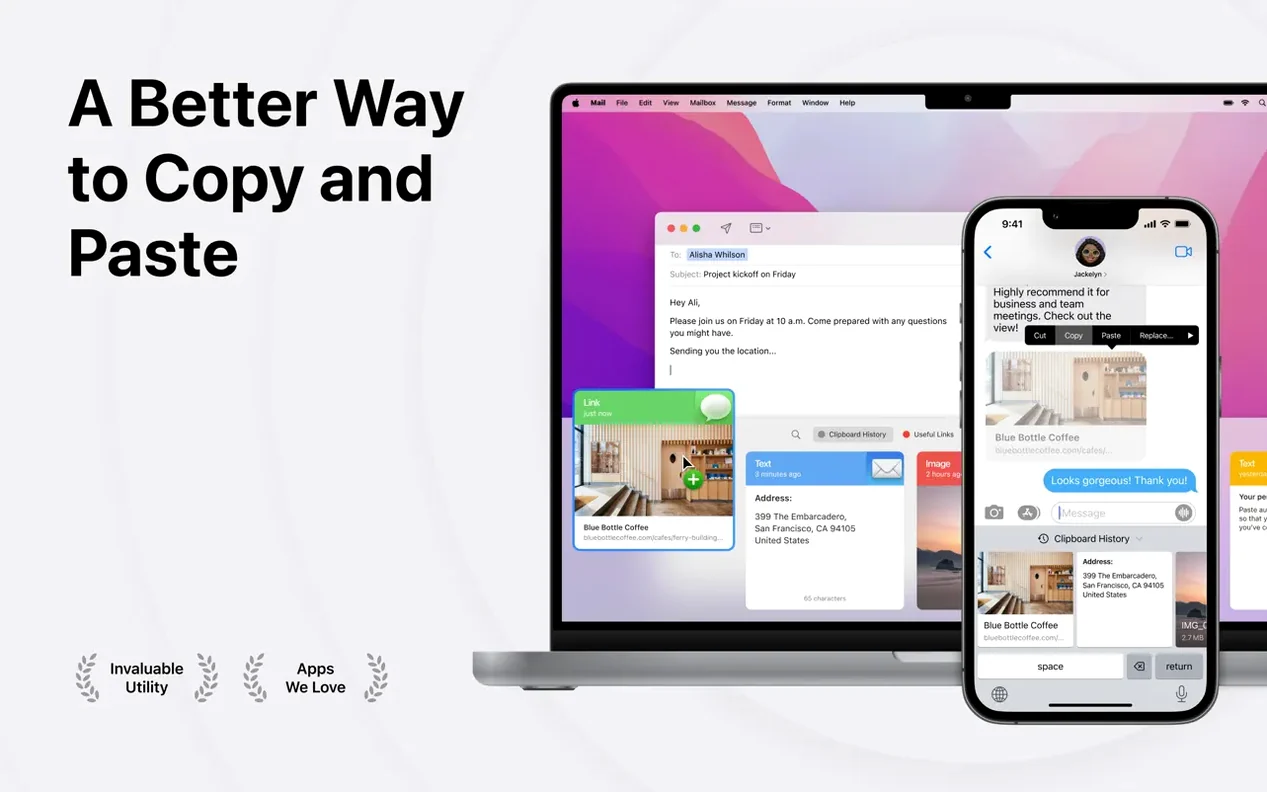
Paste starts with the Pinboard — a place where every copied item lands automatically, ready to be searched or pinned for later. You can pull up a copied image from an hour ago, grab a link from yesterday, or copy several items at once and paste them together. It works with Universal Clipboard, so what you copy on your iPhone is waiting on your Mac.
- Saves text, images, screenshots, and links as you copy them, with no extra steps.
- Smart search finds any copied item, even if you only remember a fragment.
- iCloud sync keeps your clipboard history and pinboards in step across Mac, iPhone, and iPad.
- Copy multiple items at once, then paste them all in one go.
- Create unlimited lists to organize projects, research, or lesson materials.
- Share clipboard history with colleagues or students when collaboration calls for it.
For a teacher who juggles lesson notes, student emails, and the occasional screenshot, Paste sits quietly beside the usual apps — catching what the Mac's single clipboard forgets.
Custom shortcuts that match your muscle memory
Paste works well out of the box, but a few adjustments make it fit your daily habits better. Open Preferences and look for these:
- Custom keyboard shortcuts. If you use Paste often, assign a shortcut that your fingers already know. The default is fine for many, but you can set something that matches your other tools — especially useful when you are switching between marking and lesson planning.
- Plain text pasting. Turn this on if you often copy from web pages or PDFs and want the formatting stripped before you paste. It saves you from cleaning up font sizes and colors afterwards.
- iCloud sync. Enable it if you also have Paste on your phone or tablet. Your clipboard history appears on every device, which means a link copied on your iPad during a staff meeting is waiting on your Mac when you sit down to work.
- List organization. Create a few starter lists — one for current projects, one for shared resources, maybe one for student work samples. Paste supports unlimited lists, so you can group items without scrolling through everything.
A workflow for collecting lesson materials
Here is one way to use Paste when gathering resources for a new topic. The steps are deliberately simple because the app stays out of your way.
- Copy everything you find. While you browse websites, PDFs, or emails, copy any text, image, or link that seems useful. Paste saves each item automatically, so you do not need to stop and organize yet.
- Return to older copies. Later, open Paste and search by a keyword you remember — a student's name, a phrase from the article, or the title of an image. Smart search finds it even if you only recall part of the text.
- Pin the best finds. When you spot something you want to keep long-term, drag it to a pinboard or add it to a named list. This separates the temporary clutter from the items you will reuse next week.
- Copy multiple at once. Select several items from your list and copy them together. Paste them into a document or email in one action, rather than switching back and forth.
- Share when needed. If a colleague is working on the same topic, share the relevant clipboard history or a specific pinboard with them. They receive it directly without extra file attachments.
The whole process takes less time than digging through downloads folders or browser bookmarks, and it keeps everything searchable for later use.
Broader macOS support for older Macs
The current version brings a few practical improvements that affect routine tasks:
- Broader macOS support. Paste now runs on macOS 13 or later, which means it works on older Macs that cannot update beyond Ventura. Earlier versions required macOS 14, so this opens it up to more machines in school labs or home offices.
- Same interface, same workflow. The layout and basic actions have not shifted. If you used an earlier version, you will find the same pinboards, search, and lists in familiar places.
- Updated language options. The interface now includes 21 languages, so students or colleagues who prefer working in Spanish, Polish, Traditional Chinese, or any of the other supported languages can switch without confusion.
Light on resources for Apple Silicon and Intel Macs
Paste is a clipboard manager, not a resource-heavy application. Based on the system requirements and the way the app works, here is what you can count on:
- Compatibility with your Mac. It supports both Apple Silicon and Intel 64-bit machines, so it runs on M-series chips and older Intel models alike. Whether your school issues M2 MacBooks or refurbished Intel iMacs, Paste will start and work the same way.
- macOS version matters. You need macOS 13 (Ventura) or later. If your machine is stuck on an older system, Paste will not install. For most secondary-school setups that are kept reasonably current, this is not an issue.
- Language flexibility. With 21 interface languages available, switching the app to your preferred language is straightforward. This is useful in multilingual classrooms or when setting up a machine for a colleague who reads the interface in German or French.
- macOS 13 or later
- Apple Silicon or Intel 64-bit
- Built-in purchases available
How to install
- Open the downloaded disk image.
- Drag the app to the Applications folder alias.
- After copying finishes, launch the app from Launchpad.
Similar apps




Sign in or join the club to leave a comment.
Nobody has commented yet.