
- Version
- 26.1.10
- Studio or maker
- COCOATECH
- Languages
- Russian, English, German, Danish, Spanish, Italian, Chinese (Traditional), Chinese (Simplified), Korean, Dutch, Norwegian, Polish, Portuguese, Slovak, Finnish, French, Czech, Swedish, Japanese
- Activation
- K'ed by TNT team
- Runs on macOS
- macOS 13 or later
- Chip type
- Apple Silicon, Intel 64-bit
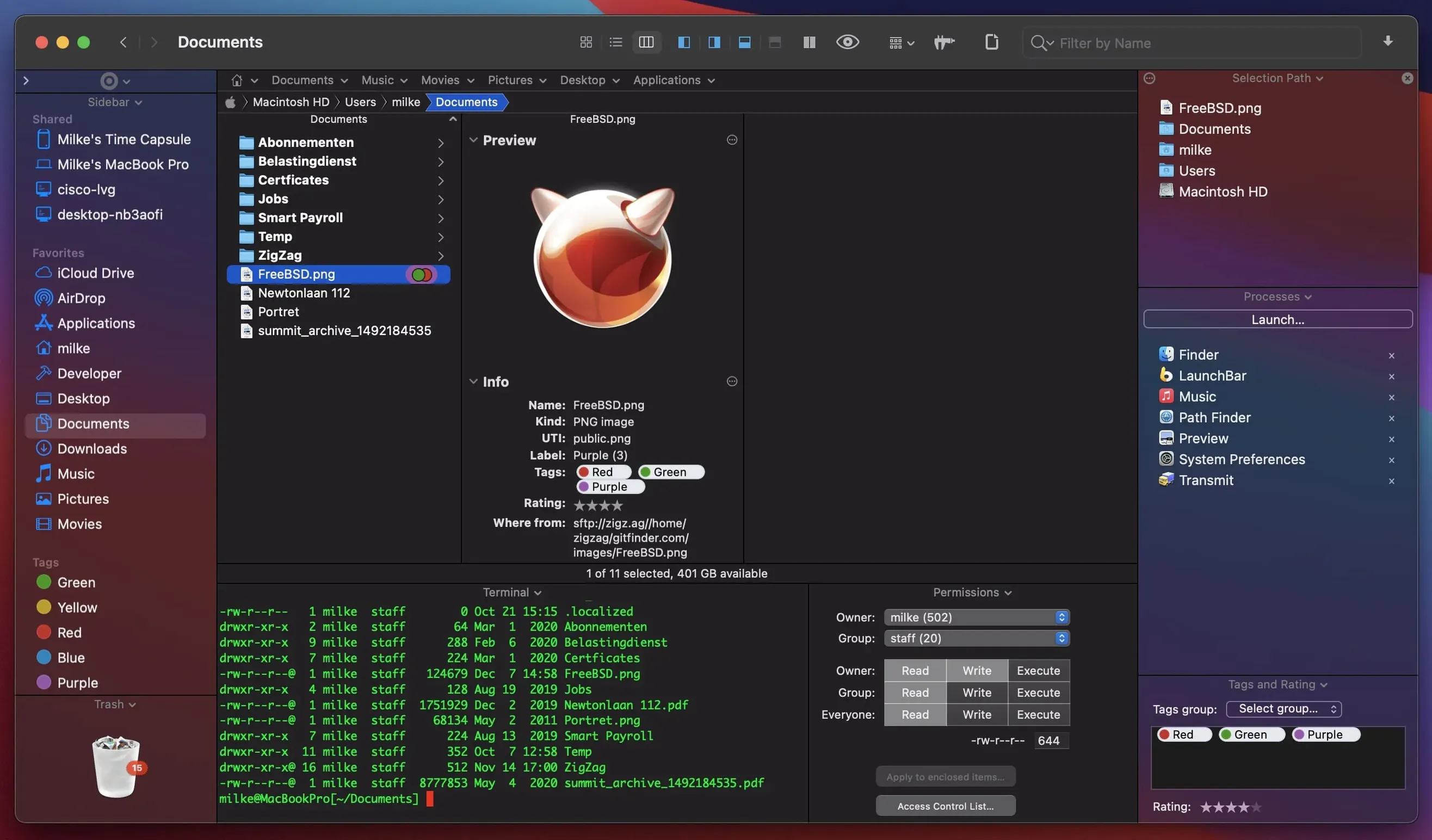
You are copying files between folders, renaming a batch of screenshots, and need to check a file's location in a second window without burying it under the first one. That is when the dual-pane view in Path Finder saves you time. It is a file manager for macOS that adds tabs, keyboard browsing, and a set of built-in modules: a text editor, an image viewer, an app launcher, and an archive tool. You can also install and uninstall applications from inside it, preview documents and media, or use the internal FTP client to pull files from a server.
Search works by keyword, extension, or file type, so you can find that PDF you saved last week without guessing the folder. If you work with disc images, Path Finder can convert CD, DVD, and Blu-ray images. The interface supports nineteen languages, including English, German, Russian, French, Spanish, Chinese, and Japanese.
Path Finder runs on macOS 13 Ventura and later, on both Intel and Apple Silicon Macs. Version 26.1.9 brings fixes for double-click behavior in List View, batch rename beyond 31 files, selection drawing in Icons View, and compatibility with macOS 27 Golden Gate.
While Path Finder is a tool anyone on macOS can appreciate, some users will find it transforms how they work more than others. Teachers who organize curriculum materials by term, subject, and resource type will like being able to keep two subject folders open side by side. Developers who need to move assets between project directories or check config files in a preview panel will appreciate not switching windows. Photographers and video editors who batch-rename files or convert disc images will find the built-in tools save them from launching separate apps. And anyone who manages files on a remote server through the FTP client can keep everything in one place instead of juggling a dedicated FTP application.
Reorganizing a school media folder with dual-pane view
On a Wednesday afternoon, you are reorganizing the school's shared media folder. You open Path Finder and set it to dual-pane view. In the left pane, you navigate to the folder with last year's lesson videos. In the right pane, you open the new year's folder structure. Instead of dragging files one by one, you select a group of videos in the left pane, press a keyboard shortcut to mark them, then move them into the correct subfolder on the right. The preview panel shows you the first few seconds of a video so you confirm you have the right file before moving it.
Later, you need to rename twenty screenshots from "IMG_001" to "Lesson_6_slide_01" and onward. You select them all, open the batch rename tool, set the pattern, and apply it. Path Finder handles the numbering without stopping at 31, which was a limitation in an earlier version. You then search for any loose PDFs by typing ".pdf" into the search bar and sort the results by date to find the ones you created this week. The whole session stays in one window, with tabs for your Downloads folder and a remote server connection open in the background.
Why two-finger click menus look different from Finder's
New users sometimes expect two-finger click menus to look exactly like Finder's. They are similar, but some options are named differently or live under a different submenu. The best approach is to explore the menus when you have a moment, or use the built-in search to find a specific command by typing what you want to do. Another common issue is forgetting which pane is active. In dual-pane view, the active pane has a highlighted border. If something is not responding to keyboard input, click on the pane you want to work in to make it active. Users also occasionally report that previews do not load for certain file types. Check that the file is not corrupted, and that you have the latest version of Path Finder installed, as media codec support can vary between releases. If the FTP client refuses a connection, double-check the server address and port, and ensure your network allows outbound FTP traffic.
Double-clicking in List View and batch rename fixes
The fixes in version 26.1.9 address a few small but noticeable issues. Double-clicking an icon in List View now behaves as you would expect, without opening the wrong file or nothing at all. The batch rename tool no longer stops after 31 files, so you can rename a whole folder of images in one go. Selecting multiple items in List View works reliably again, which helps when you are cleaning out old files. The label and tag color badges display correctly alongside iCloud status icons in Icons, List, and Columns views, so you can see at a glance which files are synced or tagged. Drag-and-drop selection in Icons View draws properly, and the cancel animation slides files back to their original position without glitches. Menu item icons display correctly on macOS 27 Golden Gate, and several smaller UI and compatibility issues have been resolved for that version of the operating system. If you have moved to Golden Gate or plan to, these fixes make Path Finder a more predictable companion for daily file work.
- Fixed double-click behavior when clicking an icon in List View.
- Fixed a batch rename limitation affecting 31 renamed files.
- Fixed multiple-item selection in List View.
- Fixed label/tag color badges and iCloud status/download icons in Icons, List, and Columns views.
- Fixed drag-and-drop selection drawing in Icons View.
- Fixed drag-and-drop cancellation slide-back animation in all view types.
- Fixed menu item icons on macOS 27 Golden Gate.
- Fixed minor UI and compatibility issues on macOS 27 Golden Gate.
- macOS 13 Ventura or later
- Intel or Apple Silicon
Questions I keep getting
Can Path Finder replace the Finder for everyday tasks?
Yes, many users use it as their primary file manager. It includes tabs, dual-pane browsing, file search, FTP, and tools like a text editor and image viewer, so you rarely need to open the Finder.
How to install
- Mount the disk image and run Open Gatekeeper friendly.
- Press Enter in Terminal to bypass Gatekeeper.
- Drag the app to the Applications folder.
- Open the app when installation is complete.
Similar apps






Sign in or join the club to leave a comment.
Nobody has commented yet.