- Version
- 4.0.11
- Studio or maker
- Charlie Monroe Software
- Languages
- Russian, English, German, Arabic, Afrikaans, Belarusian, Spanish, Italian, Chinese (Simplified), Persian, Portuguese, Ukrainian, French, Czech, Swedish
- Activation
- Included
- Runs on macOS
- macOS 26 or later
- Chip type
- Apple Silicon
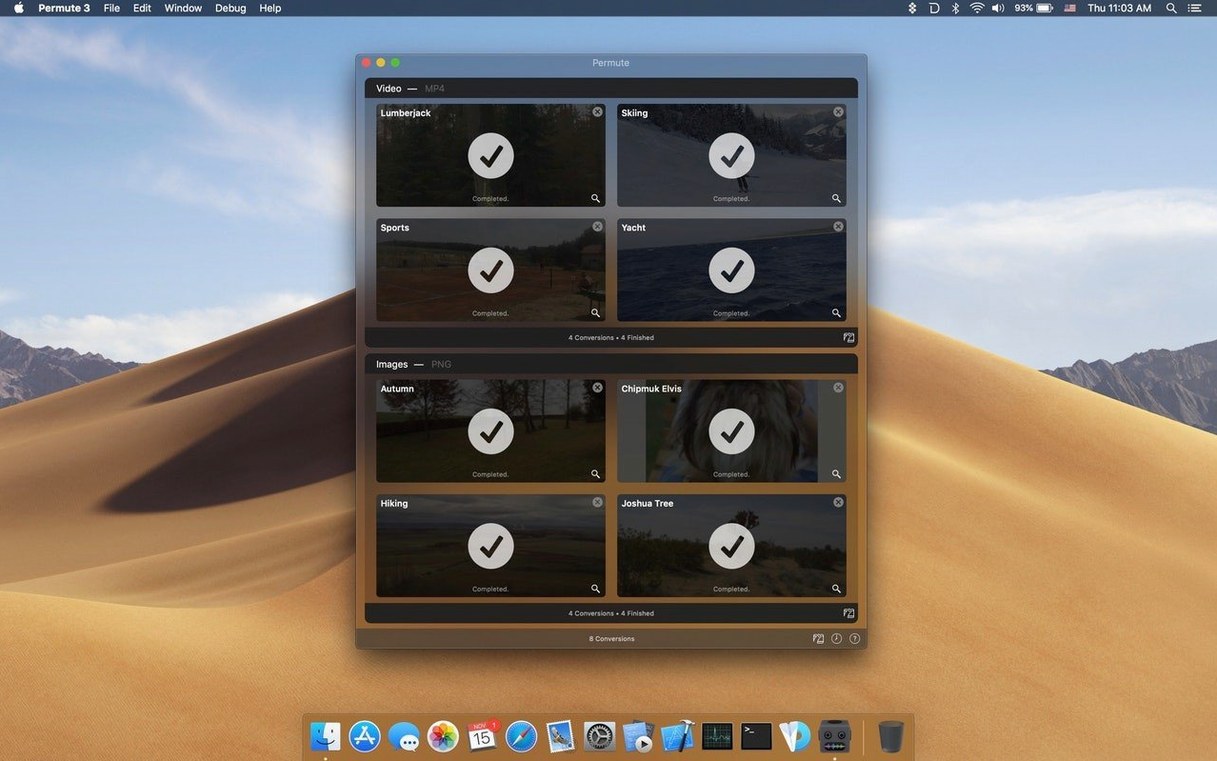
You have a video file that won’t play on your device, or a batch of images that need to be in a different format. Permute is a media converter for macOS that handles video, audio, images, and more — including conversion to ISO format. Built by a single developer, it supports a wide range of file formats and output types, so you can turn a video into an audio file or resize a folder of photos in one go.
Converts video and images for teachers, students, and regular media users
- Teachers and students who need to convert video clips or images for presentations and class projects.
- Anyone who works with media files regularly and wants a straightforward way to change formats without digging through settings.
- Users who need to produce ISO files from folders or other media.
Requires macOS 26 or later and Apple Silicon; developed by one person
- Version 4.0.8 requires macOS 26 or later and only runs on Apple Silicon Macs.
- It is developed by a single person, so updates and support may come at a different pace than larger teams.
Set a default output folder in preferences to save time
When you open Permute for the first time, the default settings will work for basic conversions. But a few small adjustments can save time later. Under the app's preferences, look for the option to set a default output folder. If you convert files regularly, choosing a dedicated folder (like a "Converted" folder on your desktop) keeps things organized and prevents your Downloads folder from filling up.
Another setting to check early is the output quality preset. Permute offers several presets for video and audio — "Normal" works for most purposes, but if you want smaller file sizes for emailing or sharing online, a lower preset reduces bitrate without making you adjust individual parameters. You can also set the app to automatically delete the source file after conversion, which is useful when you are batch-processing a large set of files and do not want to clean up manually.
For subtitles, you can configure Permute to look for and attach subtitle files from a specific folder. If you keep your subtitle files alongside your videos, this setting makes the process more automatic and reduces the number of steps per file.
More beginner-friendly than HandBrake, and also converts images
Several media converters exist for macOS, and each has a different approach. HandBrake is a well-known open-source option that handles video conversion and ripping from DVDs. It is powerful but has a steeper learning curve and does not convert images or audio files to ISO format. HandBrake also does not merge videos or attach subtitles without additional steps. Permute covers more file types and tasks in a single window.
FFmpeg itself is the engine underneath many converters, including Permute. Running FFmpeg from the terminal gives you full control, but it requires command-line knowledge and memorizing flags for each format. Permute wraps that same power into a drag-and-drop interface, making it accessible for people who do not want to write syntax or script their conversions.
MediaHuman Audio Converter focuses strictly on audio files and is simple to use. It does not handle video, images, or ISO creation. Permute replaces the need for multiple single-purpose converters, which is helpful if you work with several media types during a week.
Optimized for Apple Silicon and uses the processor's media engine
Permute 4.0.11 runs only on Apple Silicon Macs (M1 or later) and requires macOS 26 or newer. The developer has optimized it for the ARM architecture, so it uses the processor's media engine during conversion. This means the app itself stays responsive even while encoding large files in the background.
The disk image installs the application to your Applications folder. Once installed, Permute takes up minimal storage space — typical for a converter that relies on the system's own libraries and FFmpeg components. The interface stays compact and does not fill your screen with unnecessary panels. You can add files from Finder or drag them directly into the window, and the conversion queue starts immediately unless you pause it.
Helps teachers prepare phone videos for school projectors
Teachers and lecturers preparing classroom materials will benefit from the format flexibility. A video recorded on a phone might need to be resized or converted to a format that plays reliably on a school projector. Image sequences from a document camera can be batch-converted to a single PDF or slideshow. Permute handles these tasks without requiring extra software.
Students working on multimedia projects also find it useful. Converting audio clips for a podcast or combining short video segments for a presentation happens quickly. The ability to add subtitle tracks is helpful for language projects or accessible video submissions.
Since it is built by a single developer, the app stays focused on core tasks without extra features that clutter the interface.
- macOS 26 or later
- Apple Silicon
How to install
- Mount the downloaded disk image by double-clicking it.
- Drag the Permute app onto the Applications folder alias inside the disk image.
- Once the copy finishes, open Permute from Launchpad.
Similar apps
Sign in or join the club to leave a comment.
Nobody has commented yet.