- Version
- 8.1.3
- Studio or maker
- Ram Patra
- Languages
- Russian, English, German, Spanish, French
- Activation
- Not required
- Runs on macOS
- macOS 13 or later
- Chip type
- Apple Silicon, Intel 64-bit
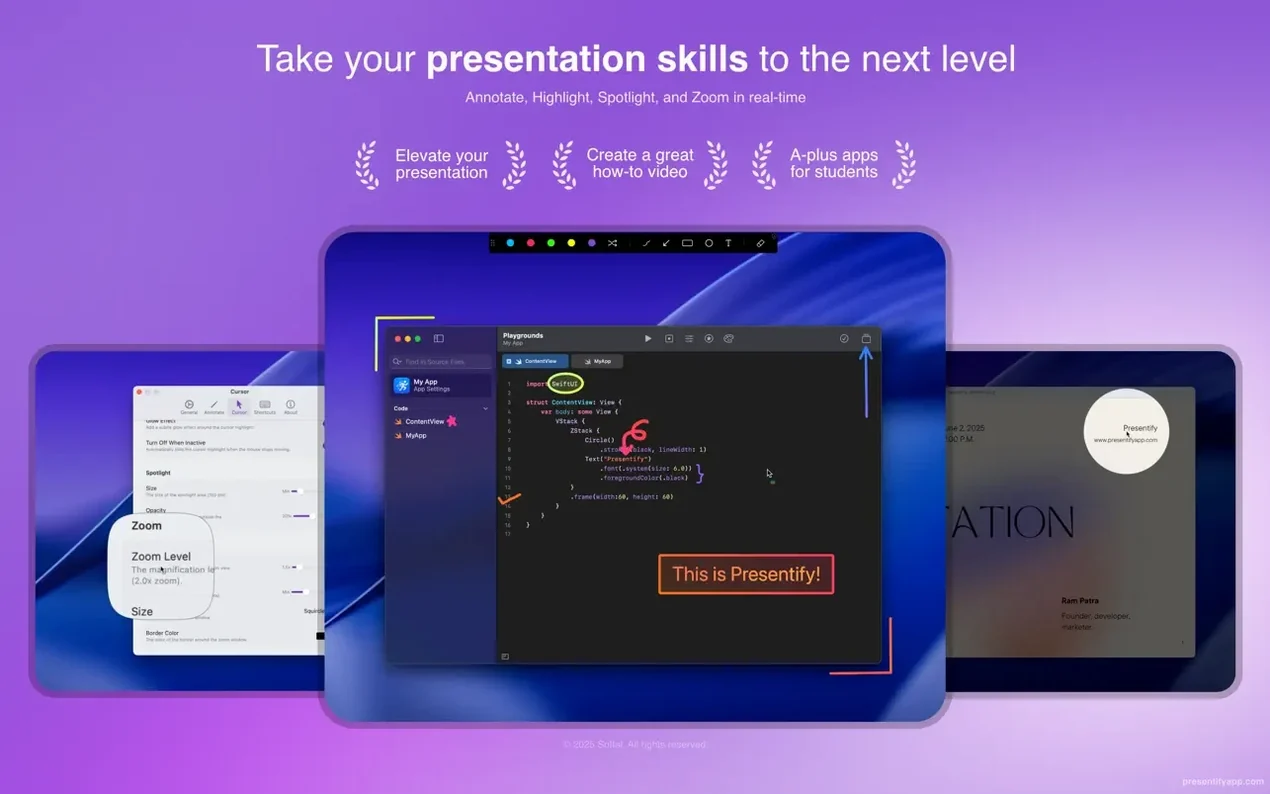
Teachers, presenters, and anyone who records tutorials often need to point at something on the screen while talking. Presentify, a macOS menu bar app, gives you a clean way to do that without switching windows.
What the main features do for you
With Presentify, you can annotate anything visible on your Mac in real time — an image, a video, a PDF, or a snippet of code. Text notes and several drawing shapes cover most needs, and the random gradient colors keep the annotations lively. You can also highlight the cursor so viewers always know where to look, spotlight a specific area, or zoom in for a closer view. Automatic erasing clears your marks when you are done, so the next slide starts clean.
Built for real teaching setups
The app works with graphics tablets from XP-Pen and Wacom, which makes it a solid choice for lessons that feel like writing on a board. It supports both ARM and Intel 64-bit Macs, and the interface is available in English, German, Spanish, French, and Russian. Presentify is a visual layer that sits quietly in the menu bar until you need it.
Annotates in Keynote and full-screen mode without extra clicks
A few details in Presentify save time once you know they are there. The app works with Keynote and in full-screen mode, so you can start annotating during a slide show without extra clicks. When you need to interact with the underlying application — for example, to click a button or scroll a webpage — holding the Fn key in the default mode temporarily hides the annotation layer. It is a small thing, but it means you are not constantly toggling Presentify on and off.
Another useful touch is the ability to highlight text without covering it. Instead of drawing a solid shape that blocks the words, the annotation stays see-through. This matters when you are reading through a paragraph in class or pointing to a specific line in a code file. The same idea carries over to the random gradient colors: they keep the drawing visible but not harsh, which is easier on the eyes during a long session.
Fix the first-launch glitch via Activity Monitor
The first launch has a small quirk. After you drag the app to the Applications folder from the downloaded disk image, opening it from Launchpad or Spotlight may not show anything. The fix is straightforward: quit Presentify in Activity Monitor and then open it again. This clears whatever gets stuck during that initial copy and lets the menu bar icon appear properly. It only needs doing once.
If you use a graphics tablet, Presentify should be ready to accept pen input right after setup. The app is designed for XP-Pen and Wacom tablets, so pressure and position should translate as expected. Should the cursor disappear when you switch to the tablet, check that Fn is not held down accidentally — the default mode expects the modifier to be released for annotation to work.
For video calls in Zoom, Google Meet, or Skype, Presentify adds its layer on top of the shared screen without interfering with the call window. The common mistake is to start Presentify before the call connects; the menu bar icon may not respond until the app is fully loaded. It is better to launch Presentify first, then start the meeting.
Sits in the menu bar, out of the Dock and Command-Tab
Because Presentify is a menu bar app, it does not take up dock space or appear in Command-Tab cycling. This is helpful when you are running Keynote side by side with a research PDF, a code editor, or a browser. The annotation layer floats above everything, so you can presentify mac free materials from different sources without pasting screenshots together.
The app also works with macOS screen recording tools. If you record a segment with QuickTime Player or OBS while Presentify is active, the annotations become part of the video. This is useful for creating tutorial clips where you explain a formula or walk through an interface step by step — your digital ink appears on the recording exactly as it did during the live session.
Auto-erase clears marks after a short pause
Unless you need the full set of drawing tools immediately, check the auto-erase option first. It clears all annotations after a short pause, which keeps each slide or frame tidy. Without it, marks stay on screen until you remove them manually, and that can get messy during a longer lecture.
Next, pick one of the five interface languages — English, German, Spanish, French, or Russian — at startup. The language choice sticks across sessions, so set it once and the menus will stay consistent. For presentify for mac free usage, the English defaults work fine, but the app reads faster in your own language if you teach in a bilingual setting.
If you plan to annotate during a full-screen presentation, verify that Presentify is already running in the menu bar before you start the slideshow. Launching it mid-presentation can be done, but it is one more step you do not need in front of an audience.
- macOS 13 Ventura or later
- Apple Silicon or Intel 64-bit Mac
Questions I keep getting
Can I annotate over any app with Presentify?
Yes, Presentify works as an overlay on top of any screen content, so you can draw over images, videos, PDFs, and code while they are displayed.
Does Presentify work with a graphics tablet?
It supports graphics tablets from XP-Pen and Wacom, which makes it handy for precise drawing during lessons or tutorials.
How to install
- Open the downloaded disk image to mount it.
- Drag Presentify into your Applications folder to copy it there.
- Launch it from Launchpad once the copy finishes.
- On first launch, quit the app in Activity Monitor, then open it again to finish setup.
Similar apps

Sign in or join the club to leave a comment.
Nobody has commented yet.