- Version
- 10.5.2
- Studio or maker
- Telestream
- Languages
- English, German, Spanish, French, Japanese
- Activation
- K'ed by TNT team
- Runs on macOS
- macOS 10.15 or later
- Chip type
- Apple Silicon, Intel 64-bit
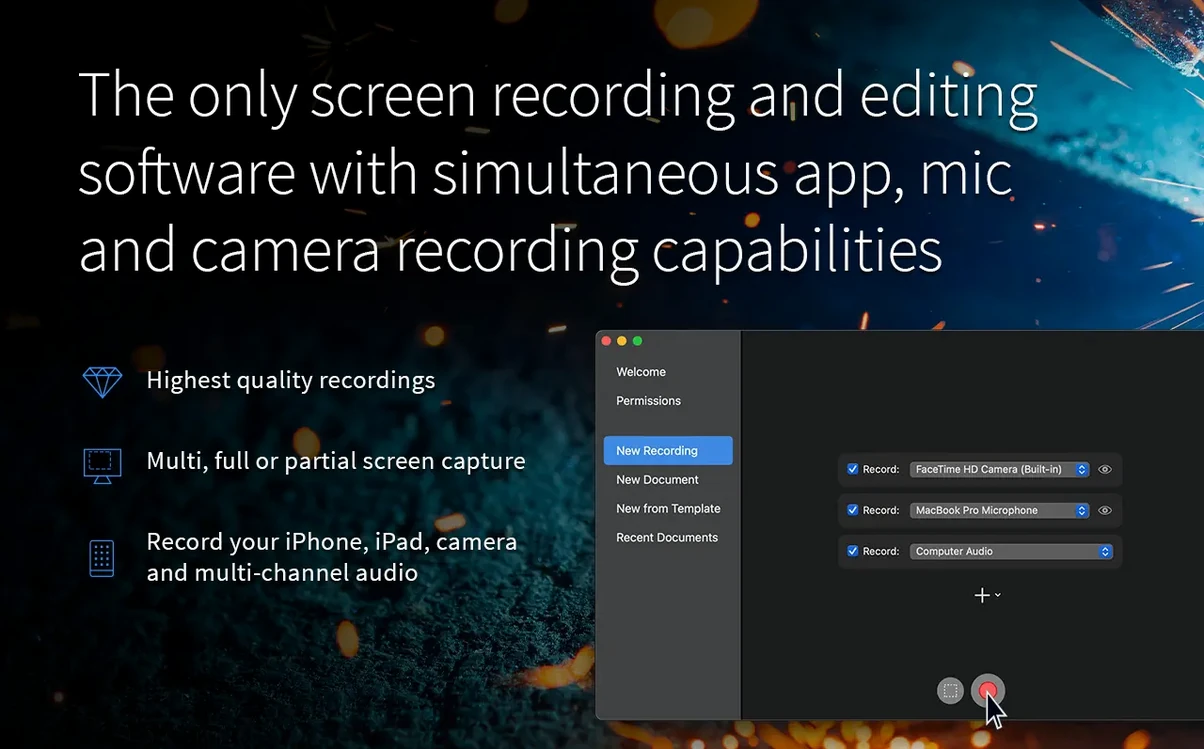
You need to show a colleague how to fix a spreadsheet formula, record a software demo for students, or capture gameplay for a project. ScreenFlow 10.5.2 for Mac handles the recording and the editing in one place.
Capture screen, camera, and iOS in one take
Screen recording — Capture the whole screen, a window, or a selected area. You can record camera video, microphone input, multichannel audio, and computer audio at the same time.
iOS capture — Record an iPad or iPhone screen directly. Useful for app demos or showing a student how to use a mobile tool.
Editing tools — Trim clips, add zoom and pan effects, insert callouts and annotations, or write subtitles. Chroma key lets you replace a green-screen background. Video motion effects adjust speed or add freeze frames.
Export formats — Save as standard video, animated GIF, or APNG. Useful for quick web graphics or sharing steps without a full video player.
System support — Runs on macOS 10.15 or later. Works on Intel Macs and Apple Silicon (M1, M2, M3). Interface available in English, German, Spanish, French, and Japanese.
What trips up new ScreenFlow users
When people start with ScreenFlow, a few things trip them up more often than others. Knowing these ahead of time saves some frustration.
Recording the wrong area
It is easy to set a custom recording area, move a window, and then capture empty space or the wrong part of the screen. Before you start recording, check the red selection border. If you need to adjust, drag the handles or click the screen record button again to reset. For most tutorials, recording the full screen and cropping later in editing is simpler.
Forgetting to enable computer audio
You record a walkthrough of a website, but the video has no system sounds. ScreenFlow captures computer audio separately from microphone input. In the recording panel, make sure the checkbox for computer audio is selected. Without it, any sound from your Mac — notification pings, video playback, app sounds — stays silent.
Not stopping the recording properly
Some users close the recording window or switch apps, thinking the recording stops automatically. It does not. You need to click the stop button in the menu bar or use the keyboard shortcut. If you close the window, ScreenFlow keeps recording until you stop it. Check the menu bar for the recording icon to see if it is still active.
Overloading the timeline
New editors sometimes drop every clip, image, and audio track into a single layer. The timeline gets messy, and moving one element shifts others. ScreenFlow supports multiple tracks. Use separate tracks for the main screen capture, camera video, background music, and voiceover. It makes adjusting timing much easier.
Skipping the media library
Every recording you make appears in the media library automatically. Beginners often record the same thing twice because they cannot find the first take. The library is on the left side of the editor. Drag clips from there onto the timeline instead of re-recording.
Which Macs support ScreenFlow
Over the years, students and colleagues have asked me similar things about ScreenFlow. Here are the answers in plain language.
That covers any Mac from 2016 onward, including Intel models and Apple Silicon machines. If your Mac can run macOS Catalina or newer, ScreenFlow will open.
Can I record just a small part of the screen? Yes. During recording setup, you can drag to select any rectangular area. The cursor will show the dimensions. You can also choose a specific window from the dropdown menu. This is handy when you only need to show a dialogue box or a small panel.
Do I need to buy extra software for editing? No. ScreenFlow includes all the editing tools you need for screen recordings. Trimming, transitions, text overlays, audio adjustments, and chroma key are built in. You do not need a separate video editor.
Can I record a FaceTime call or a Zoom meeting? ScreenFlow captures the screen and audio from those apps just like any other program. For calls, enable computer audio to record the other participants, and your microphone to capture your own voice. Let the participants know you are recording.
Is there a limit on recording length? The length depends on your available storage space. ScreenFlow records until you stop it. A long recording at high quality will create a large file, so make sure you have enough free space on your drive.
Recording a software demo from start to finish
Here is how a session might go from start to finish. This is the workflow I use when preparing a short demo for my math club.
I open ScreenFlow and choose Record new. I select the full screen because I want to show the entire spreadsheet application. I check the audio sources: my microphone is on for narration, and computer audio is off because I do not need system sounds. I click the record button.
I walk through the steps in the spreadsheet: entering data, applying a formula, and formatting the cells. I speak as I go, explaining each action. When I finish, I click the stop button in the menu bar.
ScreenFlow opens the editor automatically. My recording appears in the media library and on the timeline. I play it through once to check the flow. The first few seconds show me clicking around before starting — I trim those off by dragging the playhead and splitting the clip.
I add a text callout that says "This is the formula" and point it at the formula bar. I set the callout to appear for three seconds, then fade out. I zoom in on the cell where the result appears so viewers can see it clearly.
The audio has a long pause where I stopped to think. I split the audio track at that point and delete the silent section. Then I adjust the volume so my voice is consistent throughout.
I add a short title at the beginning: "Math Club — Spreadsheet Basics." I choose a simple font and a dark background. At the end, I add a fade-to-black transition.
When everything looks right, I export as an MP4 file at medium quality. I save it to my desktop and upload it to the school's learning platform. The whole process takes about twenty minutes for a five-minute demo.
Using ScreenFlow 10.5 for a quick animated GIF
Sometimes you need a small looping animation rather than a full video. ScreenFlow can export animated GIFs and APNG files directly. I do this for simple instructions that I embed in a worksheet or a presentation slide.
I record a short clip — just a few seconds of a single action, like clicking a button or dragging a slider. In the editor, I trim the clip to exactly the loop I want. I remove any extra frames at the beginning and end. Then I choose export and select GIF as the format. The result is a lightweight animation that plays without a video player.
- Fixed a crash that could occur with macOS 26.2 or higher.
- Fixed exports with Chroma Key for certain screen recordings.
- Fixed the manage button under licenses going to a non-existent URL.
- macOS 10.15 or later
- Intel 64-bit or Apple Silicon
Questions I keep getting
Can I record my iPhone or iPad with ScreenFlow?
Yes, ScreenFlow supports iOS capture. You can record the screen of an iPad or iPhone while also capturing your Mac screen and audio.
Does ScreenFlow work on Apple Silicon Macs?
Yes, ScreenFlow 10.5.2 supports both Intel 64-bit and Apple Silicon Macs. It requires macOS 10.15 or later.
What export formats does ScreenFlow support?
It can export standard video files, animated GIFs, and APNG files. This makes it useful for creating short animations or web-friendly clips.
How to install
- Mount the disk image and run Open Gatekeeper friendly.
- Press Enter in Terminal to bypass Gatekeeper.
- Drag the app to the Applications folder.
- Open the app to start using it.
Similar apps

Sign in or join the club to leave a comment.
Nobody has commented yet.