
- Version
- 6.2.2
- Studio or maker
- Rick Cranisky
- Languages
- English, German, Spanish, Italian, Portuguese, French
- Activation
- K'ed by TNT team
- Runs on macOS
- macOS 26 or later
- Chip type
- Apple Silicon, Intel 64-bit
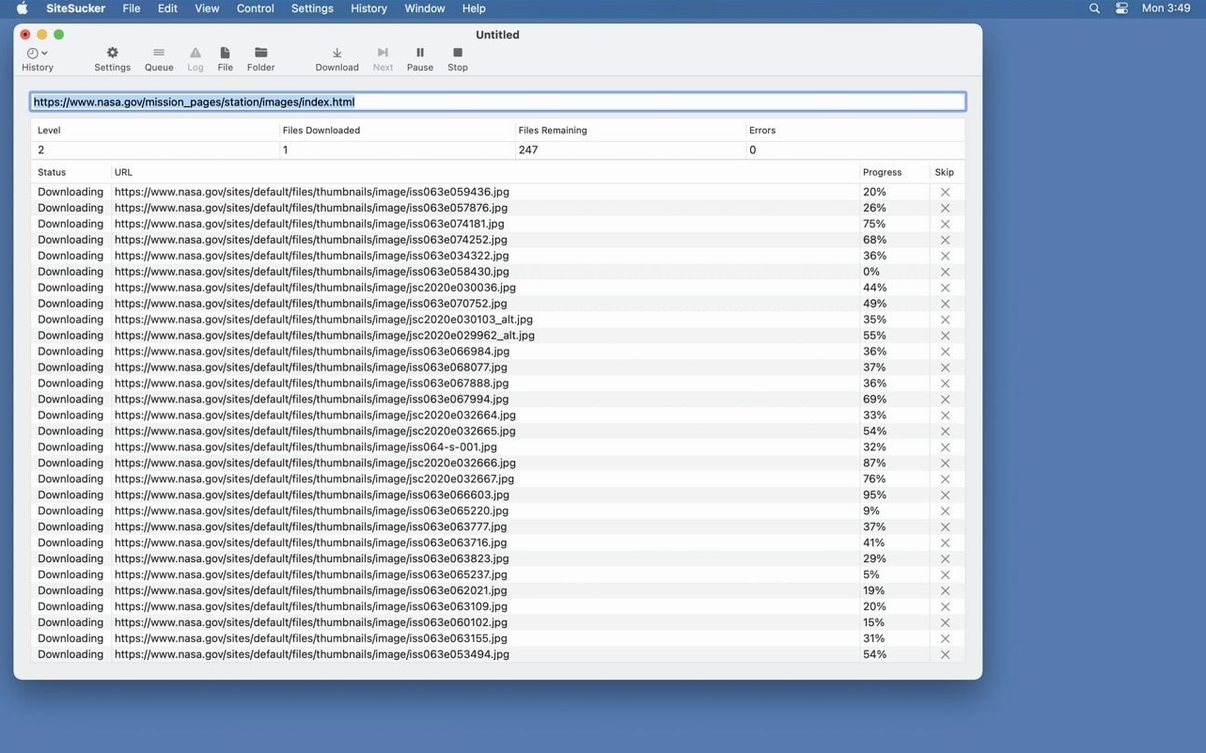
You already know the idea behind a tool like SiteSucker — it downloads web pages and their linked files so you can read them offline. The Pro version adds control over exactly what gets saved and what gets skipped. Here are the questions people ask before they install it.
SiteSucker downloads websites to your local disk: web pages, images, PDF files, stylesheets, and more.
Does it respect robots.txt?
Yes, by default SiteSucker does not download files that are listed in a site's robots.txt file. You can change this in the settings if you need to.
Can I control which file types are downloaded?
In the File Types section you can choose to download all files or only selected types. The Paths section lets you force specific links to be downloaded or skipped, which is useful for large sites.
How SiteSucker Pro fits with other apps and macOS features
SiteSucker Pro works well alongside the tools already on your Mac. When a download finishes, you can open HTML files directly in Safari or any browser you keep around. Saved PDFs open in Preview or PDF Expert, and image files show up in Quick Look with a spacebar tap. The operation log is written as a text file, which macOS opens in Console — that is handy if you want to check why a particular page was skipped or spot a connection error without keeping the app window open.
The app saves the site's folder structure just as it appeared on the server. That means your local copy mirrors the original layout, so relative links inside pages often work without adjustment. You can browse the saved site with Finder columns, search filenames in Spotlight, or drag the whole folder into Obsidian or Notion if you take research notes there.
Teachers and students who need offline access to reference pages
Teachers and students are the group I see most often. If you are preparing a unit on a topic and the reference pages might go offline — or if a student needs to work without an internet connection — downloading the relevant sections with SiteSucker gives you a reliable local copy. I have heard from colleagues who archive documentation for programming libraries, save recipe blogs before a trip, or back up personal project pages before closing an account.
Journalists and researchers also benefit. When you are tracking a story or gathering sources from multiple sites, you want the pages as they looked on the day you visited. SiteSucker Pro captures not only the text but the stylesheets and images that give the page its context. The Pro version's ability to pull embedded videos is a real advantage here — a tutorial or news clip that would otherwise vanish when the site changes stays in your archive folder.
If you manage a small site yourself, the Paths and Limits sections let you make a local backup without hitting every external link. You restrict the download to your own domain, set a reasonable file count, and end up with a snapshot you can restore from later.
A workflow: saving a documentation site for offline reference
Say you are learning a web framework and the official docs are only online. You want the tutorials, the API reference pages, and the example images — but not the forum threads or the external blog links. Here is how you set that up in SiteSucker Pro.
- Enter the starting page. Paste the documentation homepage URL into the address field. That is the only URL you need.
- Set file type filters. Open the File Types section and choose to save only HTML pages, images, PDFs, and CSS files. Uncheck fonts, videos from external sources, and any other types that are not part of the docs.
- Limit the link depth. In the Limits section, set the link depth to 3 or 4. Most documentation sites are shallow — the homepage links to sections, which link to articles, which link to method details. A depth of 3 covers that without wandering into unrelated parts.
- Use Paths to skip external content. In the Paths section, add a rule to skip links that go outside the framework's domain. If the docs live at
docs.example-framework.org, you force that domain and skip everything else. - Start the download. Click the download button. The app begins pulling pages and files, showing progress in the main window. You can leave it running while you do other work — it does not demand attention.
- Check the log. When the download finishes, click Open Log to see what was saved and what was skipped. If a page you wanted is missing, you can adjust the depth or path rules and run the download again on only the missing section.
- Browse offline. Open the saved folder in Finder and double‑click any HTML page. It opens in your browser with local stylesheets and images intact. You can bookmark the local index page or share the folder with a student.
That whole process takes about as long as the download itself — the setup is a couple of minutes. Once you have the settings right for one project, they are easy to reuse for the next one.
- macOS 14.0 or later
- Intel or Apple Silicon Mac
- Interface languages: English, German, Spanish, Italian, Portuguese, French
Questions I keep getting
Is SiteSucker Pro free to use?
This lets you test the app before buying.
What macOS version do I need?
SiteSucker Pro requires macOS 14.0 or later. It runs on both Intel and Apple Silicon Macs.
Does it download entire websites or just pages?
You can download an entire site or only selected content types. The app copies web pages, images, PDF files, stylesheets, and other files to your local disk.
How to install
- Mount the disk image and run the Open Gatekeeper friendly command to allow the app to open.
- Press Enter in the Terminal window to bypass Gatekeeper.
- Drag the app to the Applications folder.
- Launch the app when installation is complete.
Similar apps






Sign in or join the club to leave a comment.
Nobody has commented yet.