- Version
- 6.1.5
- Studio or maker
- Rogue Amoeba Software
- Languages
- English
- Activation
- K'ed by TNT team
- Runs on macOS
- macOS 15 or later
- Chip type
- Apple Silicon, Intel 64-bit
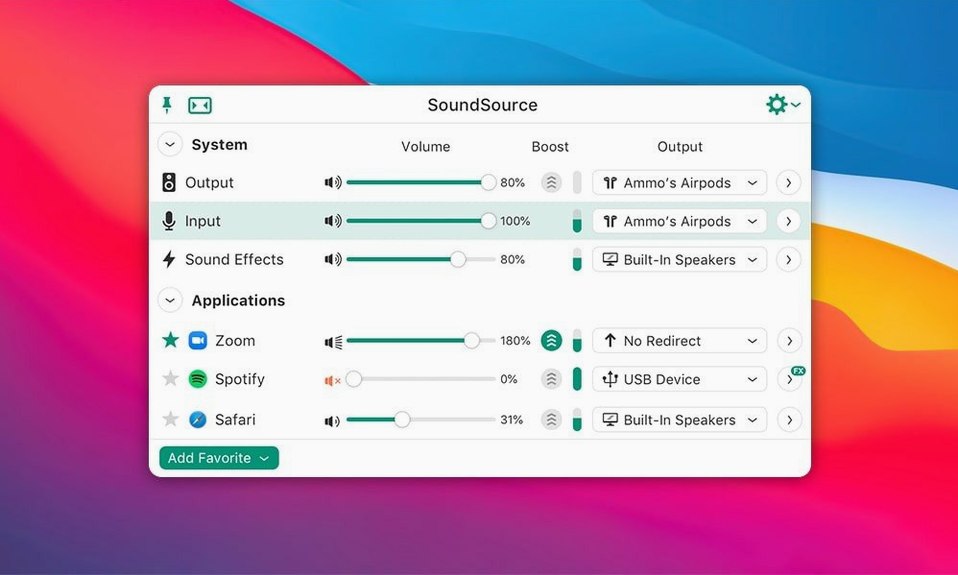
SoundSource does the same for your Mac's audio — input, output, sound effects, and volume — all from that same top-right spot.
What is SoundSource?
— A Mac audio control app from Rogue Amoeba. It lets you switch audio devices for input, output, and sound effects in two clicks, and adjust volume for each device.
Can it change audio devices quickly?
— Yes. Two clicks in the menu bar and you can pick a different microphone, speaker, or headset.
Does it support AirPlay?
— Yes. You can stream audio to AirPlay speakers or devices.
What about Bluetooth?
— Version 6.1.4 fixed a crash and performance issues with Bluetooth devices on macOS 27.
Is it compatible with my Mac?
— It runs on macOS 15 or later, and supports both Intel (64-bit) and Apple Silicon Macs.
Setting up per-app audio for a podcast recording
Let me walk through a common task: recording a podcast where you want your microphone to go only into a recording app, while system sounds and music play through your headphones without being captured.
First, set your input device in SoundSource to the microphone you plan to use. Then, open the output section and choose your headphones. This establishes your basic hardware routing.
Now open your recording app. In SoundSource's per-app section, you should see the app listed once it is playing or recording audio. Click the app entry and set its input to your microphone and its output to your headphones. Do the same for your music player or web browser, but set their output to something different — perhaps your headphones as well if you want to hear them, or mute them if you prefer silence.
The key detail is that the recording app gets the mic input, while other apps do not. SoundSource keeps each app's audio stream separate, so nothing unintended bleeds into your recording.
Apps that only appear after playing or recording audio
An app does not show up in the per-app list.
Some apps do not appear until they are actively playing or recording audio. Launch the app, start playback or recording, then check SoundSource again. If it still does not appear, restart the app while SoundSource is running.
Audio comes out of the wrong device after switching.
If you switch your system output device while apps are already running, those apps may continue using the old device until you restart them or refresh their audio stream in SoundSource. The quick fix is to click the app entry in SoundSource and select the correct output device directly.
Volume changes are not sticking for a specific app.
Check whether that app has its own internal volume control set to a different level. SoundSource adjusts the system-level volume for that app, but the app's own mixer can override it. Lower the app's internal volume first, then use SoundSource to fine-tune.
Bluetooth headphones connect but audio is choppy or crackling.
Version 6.1.4 addressed this specific issue on macOS 27. If you still encounter trouble, try disconnecting and reconnecting the headphones, or switching the Bluetooth audio codec in macOS's sound settings.
How a music teacher switches between mics for recordings
A music teacher I know runs a small home studio for recording student performances. She uses SoundSource to switch between her studio microphone and her built-in Mac mic when she needs to record a quick voiceover. She also has an Output Group set up with her studio monitors and a Bluetooth speaker — she can play backing tracks through both while monitoring her recording with headphones.
Her biggest win is saving complete configurations. She has one snapshot called "Recording mode" that routes audio through her interface and applies a gentle equalizer to her microphone. Another called "Teaching mode" sends system sounds and her voice to a Bluetooth speaker and turns off the recording app entirely. One click and her Mac shifts between setups without opening any system panels.
She also uses per-app processing to apply a low-pass filter to her web browser audio during recordings, so notifications and video ads do not distract her students when she plays back a take.
How SoundSource fits with other apps and macOS features
SoundSource works alongside macOS's built-in Audio MIDI Setup for managing multi-output devices. If you create an aggregate device in Audio MIDI Setup with multiple speakers, SoundSource can then select that aggregate device as your output and control its volume from the menu bar.
For voice calls, you can set a per-app configuration for your video conferencing app so your microphone level stays consistent, while your music player stays silent during meetings. This works independently of the app's own settings.
If you use automation tools like Apple Shortcuts or Keyboard Maestro, you can trigger SoundSource's saved configuration switching through AppleScript. This lets you build workflows where opening a specific app or connecting a certain Bluetooth device automatically loads the right audio setup.
SoundSource also respects macOS's Focus modes. If you set a Focus that silences notifications, SoundSource still works normally — your per-app audio settings remain active, so your podcast or music is not affected by a Focus that mutes your ringer.
— Yes. You can apply system-wide audio effects, like equalization or volume boost, to any app.
- macOS 15 or later
- 64-bit Intel or Apple Silicon Mac
- 64-bit application
Questions I keep getting
Can I use SoundSource to route audio from one app to a different output?
Yes. You can set per-application audio routing, so your music player goes to speakers while your video call stays on headphones.
Does it support macOS 27?
Yes, version 6.1.4 specifically fixed Bluetooth crash and performance issues on macOS 27.
How to install
- Mount the disk image and run Open Gatekeeper friendly. This prepares the app for installation without macOS blocking it.
- Press Enter in the Terminal window to bypass Gatekeeper. This authorizes the app to run on your system.
- Drag the app to the Applications folder. This places it where macOS expects installed apps.
- Launch the app when installation is complete. SoundSource will appear in your menu bar.
Similar apps





Sign in or join the club to leave a comment.
Nobody has commented yet.