- Version
- 4.14.2
- Studio or maker
- Stéphane Madrau
- Languages
- English
- Activation
- Included
- Runs on macOS
- OS X 10.10 or later
- Chip type
- Apple Silicon, Intel 64-bit
SwitchResX runs on any Mac from OS X 10.10 Yosemite onward, both Intel and Apple Silicon models. That covers everything from a 2014 MacBook Air to a 2023 Mac Studio. It works with built-in Retina displays, external plasma panels, HDTVs, third-party monitors, and projectors — any screen macOS can drive.
Add custom resolutions macOS won't give you
- Add custom resolutions that macOS does not offer by default.
- Assign a specific resolution to a monitor that appears with no name in the system.
- Set different resolutions for different apps, so your video editor gets one layout and your design tool gets another.
- Control external displays more precisely, including disabling a display on Apple Silicon Macs while keeping the Dock running.
Sits alongside your Displays panel and extends it
Most Mac users rely on the Displays panel in System Settings. That works fine for standard monitors. SwitchResX sits alongside that panel as a dedicated resolution manager. It does not replace Apple's controls — it extends them. You keep using the built-in settings for everyday tasks and open SwitchResX when you need a non-standard resolution, a precise refresh rate, or per-app layouts. The current 4.14.2 version is a maintenance release that fixes the kind of background issues that matter when you rely on it daily: no more repeated self-saving when no display is attached, a fix for unnamed displays, and cleaner behavior when deleting Display Sets.
What to do in your first few days with SwitchResX
Once the disk image is mounted and the standard installation finishes, you will see SwitchResX in your Applications folder. Here is what to do in the first few days to get comfortable with it.
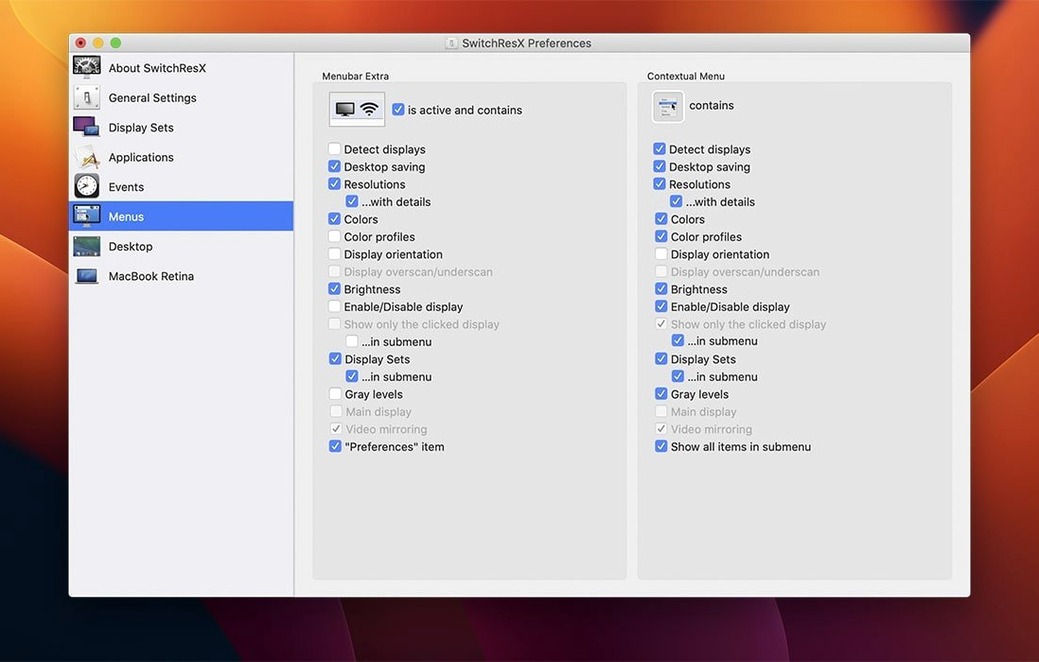
- Open the app and look at the main window. It shows each connected display as a separate panel. Read the labels: they list the current resolution, refresh rate, and color depth. This is a good way to verify all your monitors are detected before making changes.
- Try adding one custom resolution. Pick a monitor you use often — maybe the external display on your desk. Use the resolution creation tool to enter a width and height not listed in macOS by default, such as 1920x1200 or 2560x1080. Apply it and see if the display accepts it. If it does not, SwitchResX lets you remove it just as easily.
- Leave SwitchResX running in the background for a day or two. The app places an icon in the menu bar. Click it to confirm that switching between resolutions stays responsive. This also gives you time to notice whether your external display behaves the way you expect after waking the Mac from sleep.
- If you connect a projector or a television for a presentation, open SwitchResX first and confirm the display name appears in the list. The 4.14.2 fix for unnamed displays means that even monitors macOS cannot identify will still show up and remain adjustable.
Set startup behavior and other basics first
Before diving into per-app profiles or color-plus-resolution combinations, adjust a few basics so the app works the way you need it to.
Head to the preferences section and check the startup behavior. Choose whether SwitchResX starts automatically when you log in. If you change resolutions often, turning this on saves a step. If you only need the app occasionally, leave it off. There is no wrong choice — it depends on your workflow.
Next, look at the Display Sets panel. Grouping monitors that you use together — like a laptop lid closed with an external monitor — lets you switch both at once. Create a set for your home desk and another for the conference room projector. That way you do not have to adjust each display individually each time you move.
Finally, check the per-application assignment feature. You can tell SwitchResX to apply a certain resolution when a specific app opens. For example, set a lower resolution when launching a game that runs better at that setting, or a higher one when opening a photo editor. This works alongside AppleScript integration, so you can automate it further if you are comfortable with scripts.
A workflow example: setting up for a presentation
You are about to present to a group using a projector that only accepts a non-standard resolution. Here is how SwitchResX helps from start to finish.
- Connect the projector to your Mac. Open SwitchResX and confirm it appears in the display list. If macOS does not show a name for it, the 4.14.2 fix ensures you can still select it and change its settings.
- Create a custom resolution that matches the projector's native specification. Enter the exact width, height, and refresh rate. Apply it. The projector should now display at its cleanest quality.
- Save this resolution as part of a Display Set. Name the set something like "Conference room" and include only the projector. If you also mirror to a second monitor, add that one to the same set with the appropriate resolution.
- Open the app you will present from — a browser, a design tool, or a video player. Assign this Display Set to that application. Now every time you open that app with the projector connected, SwitchResX automatically applies the right resolution. No manual switching.
- When the presentation ends, disconnect the projector. SwitchResX returns your internal display to its previous settings. The Display Set remains saved for next time.
- macOS OS X 10.10 or later
- Intel or Apple Silicon processor
Questions I keep getting
Does SwitchResX work on Apple Silicon Macs?
Yes. Version 4.14.2 runs natively on both Intel and Apple Silicon Macs, and it lets you quit the Dock when disabling a display on Apple Silicon hardware.
How to install
1. Mount the downloaded disk image. 2. Run the standard installation procedure. 3. Use the included serials file for activation.Similar apps





Sign in or join the club to leave a comment.
Nobody has commented yet.