
- Version
- 13.9.6 [MAS]
- Studio or maker
- 万林 彭
- Languages
- English, Chinese (Simplified)
- Activation
- K'ed by TNT team
- Runs on macOS
- macOS 11.5 or later
- Chip type
- Apple Silicon, Intel 64-bit
RAR Extractor is a Mac app for extracting and creating compressed archives. The current version keeps the core tools reliable while everything else is about easing daily handling.
Extract archives by dragging to the Dock
You can set RAR Extractor as the default archive app, then open or extract files by dragging them to the Dock icon. The app shows archive contents in a clean file list, so you see what is inside before unpacking.
Create password-protected archives
It creates encrypted ZIP and 7Z archives. You set the password during creation, which is useful for sending sensitive class materials or forms to colleagues.
Handle odd email attachments
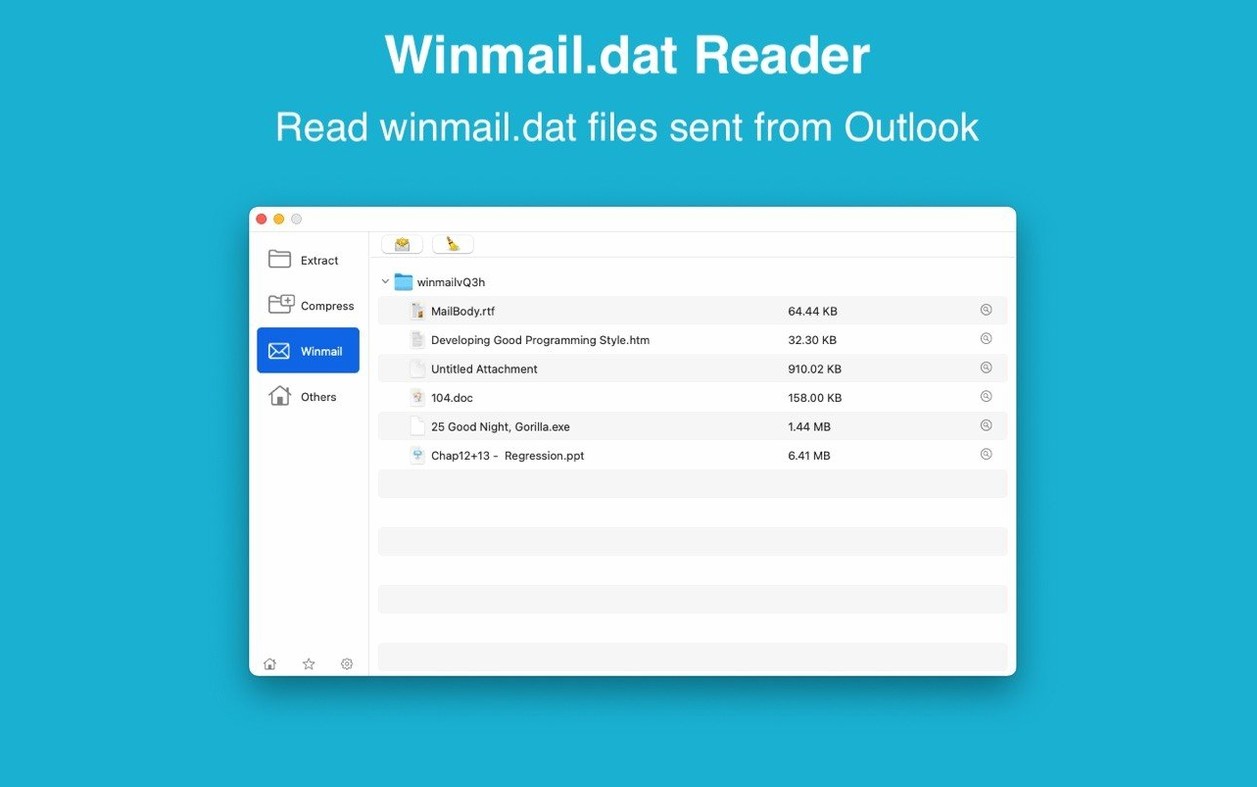
The app includes a preview for winmail.dat files from Microsoft Outlook. This saves you from hunting for separate viewers when parents or the school administration send those attachments.
Requires macOS 11.5 or newer on Apple Silicon or Intel
RAR Extractor runs on any Mac with macOS 11.5 or newer, covering both Apple Silicon and Intel 64-bit machines. The app opens a straightforward window where you see a file list of archive contents. Drag a .rar, .7z, .zip, or any of the many supported formats onto the window or the Dock icon, and the app shows what is inside. You can preview files quickly before deciding to extract. A dual-window display lets you work with two archives at the same time, side by side, which helps when you need to compare contents or move files between them.
Batch unpacking works for multiple archives: select several compressed files, drag them together, and the app processes them in sequence. The interface is available in English and Simplified Chinese, and the layout stays clean without clutter. The app uses AES-256 encryption for ZIP and 7Z archives you create, which meets current standards for protecting files.
The core extraction and creation features are present, but some additional functionality may require these. The related product line includes a first-generation RAR Extractor and a Max edition with a redesigned interface, but this version 13.9.6 is the one described here.
Solves permission errors and corrupted archives
Use a Terminal command to bypass Gatekeeper block
If you installed via the disk image method, the app may not open the first time because macOS Gatekeeper does not recognize the developer. The install steps include a Terminal command to bypass this. Mount the disk image, then open Terminal and press Enter after pasting the command — this tells Gatekeeper to allow the app. After that, drag RAR Extractor to your Applications folder and open it normally.
Archive does not open or shows an error
Some archives are damaged or use uncommon compression methods. RAR Extractor supports a very long list of formats including RAR, ZIP, 7Z, TAR, GZIP, BZIP2, LZIP, ACE, ISO, CAB, ARJ, and many more, but a corrupted file can still fail. Try downloading the archive again. If it is password-protected, make sure you have the correct password — the app can handle encrypted archives, but an incorrect password will stop extraction.
winmail.dat files look like gibberish
When you receive one of these Microsoft Outlook attachments, RAR Extractor includes a dedicated preview for them. Instead of opening a separate tool, just drag the .dat file to the app and view the contents in the file list. If the preview does not show much, extract the file first.
Double-click does not open the archive
If RAR Extractor is not set as the default app for archives, double-clicking a file may open it in another program. You can set the app as the default archive handler in macOS: right-click any archive, choose Get Info, then in the Open with section select RAR Extractor and click Change All. After that, double-clicking works as expected.
Drag archives onto the Dock icon or desktop for instant extraction
RAR Extractor works well with Finder. You can drag any archive from a Finder window directly onto the RAR Extractor Dock icon to open or extract it. Dragging an archive file to the desktop also triggers direct extraction, which saves a step. The dual-window display is useful when you have two Finder folders open and want to move files between archives.
The app integrates with the macOS file system for creating archives. When you create a password-protected ZIP or 7Z archive, the resulting file sits in your chosen folder and behaves like any other compressed file. Other archive tools on the same Mac can open what RAR Extractor creates, provided they support the format and AES-256 encryption.
For email attachments, the app handles winmail.dat files without needing separate viewers. If you use Apple Mail or another email client, save the attachment to a folder first, then drag it to RAR Extractor.
Opens mixed .rar, .zip, and password-protected .7z from the same folder
Let me walk through a common scenario. You have a folder on your desktop called "Project files" containing a mix of .rar and .zip archives from different colleagues. You also have a password-protected .7z archive with meeting notes from last week.
Open RAR Extractor. The main window shows a blank file list. Drag the password-protected .7z archive onto the window. The app asks for the password. Enter it, and the file list populates with the contents — you see the meeting notes as a .docx and a spreadsheet. You can preview the .docx quickly by selecting it in the list. If you only need the spreadsheet, you can extract that single file by selecting it and choosing the extraction option, rather than unpacking the whole archive.
Next, you want to extract all the .rar files from "Project files" at once. Select all of them in Finder and drag them onto the RAR Extractor Dock icon. The app processes them one by one, extracting each into its own folder on your desktop. You do not need to click through each archive manually.
Finally, you want to send a compressed version of your notes to a colleague. Use the app to create a new, password-protected ZIP archive. Drag the notes folder into RAR Extractor, choose the ZIP format, set a password, and save it. The app encrypts the archive with AES-256. Your colleague can open it with any standard ZIP tool if they have the password.
Opens password-protected .rar and winmail.dat attachments from Outlook
A school administrator at a secondary school in Hamburg receives a batch of student records every week. The files come as .rar archives attached to emails, sometimes password-protected, and occasionally as winmail.dat files from the regional education office using Outlook. Before finding RAR Extractor, they kept separate tools for each format and spent time troubleshooting errors.
Now they set RAR Extractor as the default archive app. When they double-click a .rar file, it opens immediately and shows the contents. For winmail.dat attachments, they save the file, drag it to RAR Extractor, and preview the embedded files without extra software. The batch unpacking feature lets them drop a week's worth of archives onto the app and walk away while it processes them all. When they need to send encrypted records back, they create a password-protected 7Z archive using AES-256 encryption. The dual-window display helps when they need to check two archives side by side to confirm file names match.
The administrator also uses the app for creating .rar extractor - unarchiver pro-style workflows: they keep a .rar file extractor for mac handy, and when a colleague sends a .rar extractor for mac format they are unfamiliar with, RAR Extractor handles it. For older formats like 1.6 lite extractor archives or 7z extractor download files, the app covers them too. The built-in preview saves time because they can see whether a file is worth keeping before extracting the whole archive.
The app requires macOS 11.5 or later, which their school-issued iMacs meet. The bilingual interface (English and Simplified Chinese) is useful because the school has exchange students from China, and the administrator can switch the app to Chinese when helping those students with their own archive files.
- macOS 11.5 or later
- Intel or Apple Silicon
Questions I keep getting
Does RAR Extractor support creating archives?
Yes. It creates password-protected ZIP and 7Z archives.
Can I view archive contents without extracting?
Yes. It shows the contents in a file list before you extract anything.
What macOS versions does it run on?
It requires macOS 11.5 or later and works on both Intel and Apple Silicon Macs.
How to install
- Mount the disk image and run Open Gatekeeper friendly.
- Press Enter in Terminal to bypass Gatekeeper.
- Drag the app to the Applications folder.
- Open the app when installation is complete.
Similar apps





Sign in or join the club to leave a comment.
Nobody has commented yet.