- Version
- 11.0.4
- Studio or maker
- Stairways Software Pty Ltd.
- Languages
- English
- Activation
- Included
- Runs on macOS
- macOS 10.13 or later
- Chip type
- Apple Silicon, Intel 64-bit
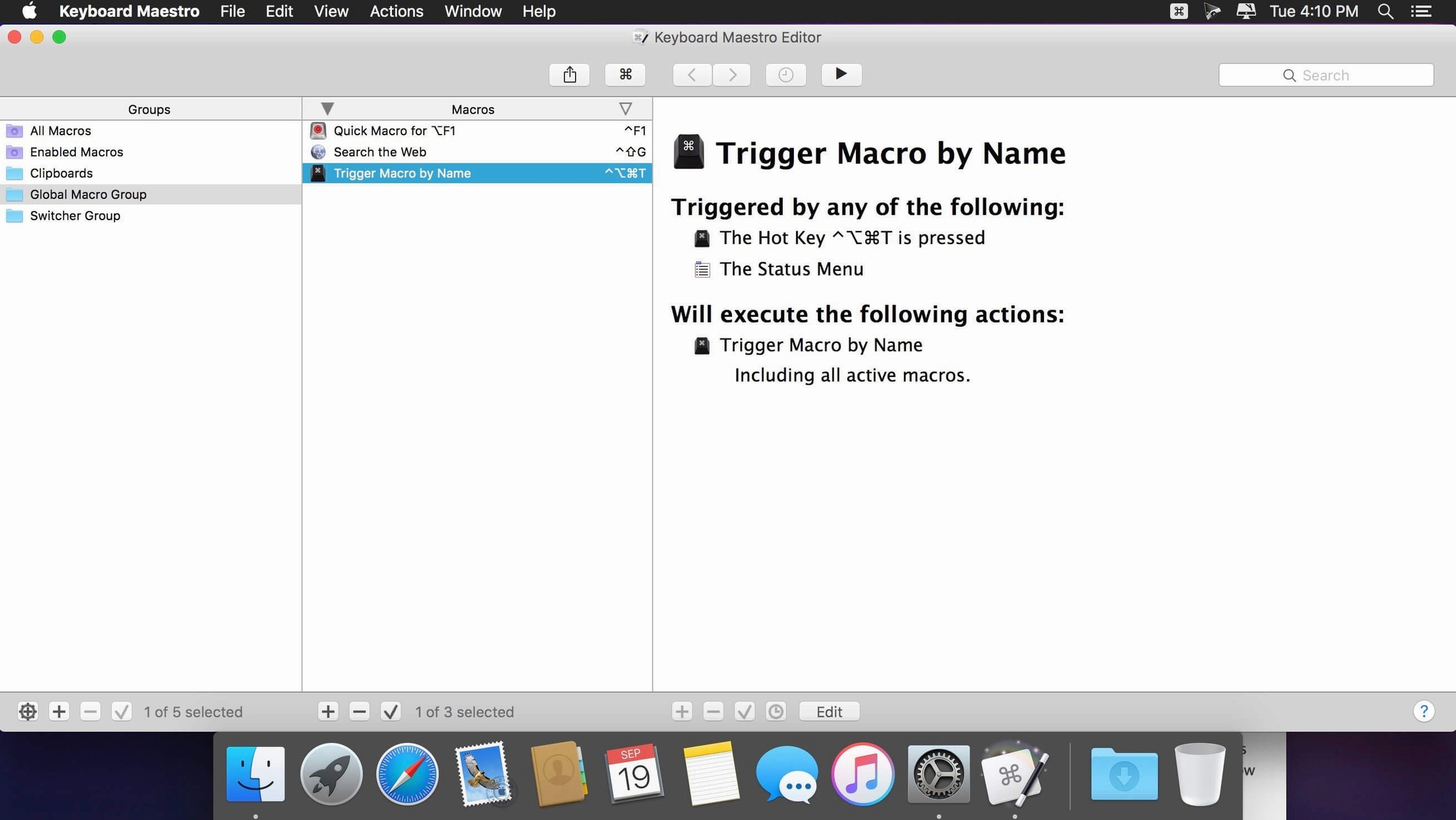
Keyboard Maestro has been around long enough that its action list runs past 300 items. That number alone tells you what kind of tool this is: one that lets you chain together keystrokes, mouse clicks, text expansions, and AppleScripts into macros that run at a key press or on a schedule. For a teacher who also works with Ableton and a MIDI keyboard, it means you can map a macro to tidy up project files, rename multiple tracks, or launch a browser to a reference page — all without leaving the arrangement view.
What it does and who it fits
The app watches for triggers — a hotkey, a typed phrase, a window opening — and then runs a sequence of actions. Those actions can fill in web forms, switch between applications, paste formatted text, or control the clipboard. In version 11.0.4, the Switch/Case action now shows which branch would execute, and the OCR condition can read text straight from the screen using Apple’s built-in text recognition. For classroom use, you could make a macro that opens the day’s lesson plan, resizes the window, and starts a timer. For Ableton with a MIDI keyboard, you can build macros that respond to controller input and automate repetitive mixing steps.
Everyday automation without scripting
You do not need to write code. The macro editor has flow control, conditions, and loops, but you build everything by dragging actions from a list. If you have ever wished a program would just do the boring part for you, Keyboard Maestro is the Swiss Army knife that makes it happen. It runs on both Intel and Apple Silicon Macs, and the current version requires macOS 10.13 or later.
Sends keystrokes to any app without switching windows
Keyboard Maestro lives in the background and talks to nearly everything on your Mac. You can send keystrokes or AppleScript commands to the Finder, Safari, Mail, or any third-party app without switching windows. The clipboard history stores multiple entries, so you can paste yesterday’s copied text or an image you grabbed an hour ago. Web form filling works with the browser’s own fields, and the OCR condition reads text from images on screen — useful for grabbing a caption or a slide label you cannot select with your cursor. The app also respects macOS services and shortcuts, so your existing muscle memory does not break.
For the Ableton with MIDI keyboard setup, you can program a macro that listens for a specific MIDI note or controller change, then runs an action like loading a template set, changing a plugin preset, or pasting a list of note names into the arrangement. It does not replace Ableton’s own MIDI mapping; it adds a layer of logic that Ableton does not have. The schedule trigger means you can run a macro every Monday morning to clean out your downloads folder or back up a set of project files.
More visual than Hammerspoon's Lua scripting
Other automation apps exist, but they take different approaches. Hammerspoon gives you control through Lua scripting — powerful if you write code, less helpful if you prefer a visual editor. You build everything from scratch, which can slow you down when you just want a quick text expander or a window mover. BetterTouchTool focuses on trackpad gestures, window snapping, and app-specific shortcuts. It does automation too, but its action list is smaller and its macro editor is not as deep. Keyboard Maestro sits between them: you get hundreds of prebuilt actions, flow control, and a visual editor, but you also have the option to insert AppleScript or shell scripts when you need something custom.
Another alternative is Automator, which comes with macOS. It is fine for simple workflows like renaming files or resizing images, but it cannot run macros triggered by a hotkey in any app. You have to save workflows as apps or services, which feels limited once you start wanting a single key combination to do ten things across different programs. Keyboard Maestro handles that out of the box, and its debug window (with the new tool tips in version 11.0.4) helps you see exactly what each macro does step by step.
Runs on Intel and Apple Silicon without extra setup
It runs on macOS 10.13 or later, and it works on both Intel and Apple Silicon Macs without extra setup. You mount the disk image, drag the app to your Applications folder, and launch it. There is no installer that adds background processes or asks for permissions you do not need. The first time you run a macro that controls another app, macOS may ask you to grant accessibility access — that is standard for any automation tool. The app itself stays in your menu bar, and the macro editor opens in its own window with a clean list of your groups and macros. You do not need to restart or change system settings to get started.
For the teacher running a game club or a math classroom, the system footprint is light enough to leave running all day. You can set up a macro that opens a browser to the day’s online quiz, resizes it to half the screen, and opens a calculator next to it. The clipboard history alone saves time when you are copying student names from one spreadsheet to another. Keyboard Maestro does not care if you are on a MacBook or an iMac — it works the same way on both.
- Switch/Case actions now show which entries are true or would execute currently.
- Support Apple Text Recognition in OCR Condition.
- Added Tool Tips for Macro Debugger window.
- Fixed an issue with search highlighting triggers.
- macOS 10.13 or later
- Intel or Apple Silicon
Questions I keep getting
Can Keyboard Maestro work with Ableton Live and a MIDI keyboard?
Yes. You can create macros that respond to MIDI controller input or automate tasks in Ableton Live, such as renaming tracks, switching views, or launching clips.
Does Keyboard Maestro require programming skills?
No. The macro editor uses a drag-and-drop interface with hundreds of built-in actions, so you can build automation without writing code.
What is new in version 11.0.4?
This version adds tool tips for the Macro Debugger window, supports Apple Text Recognition in the OCR Condition, and fixes an issue with search highlighting triggers.
How to install
- Mount the downloaded disk image.
- Drag the app into the Applications folder shortcut.
- Launch it from Launchpad after copying finishes.
- Use CORE Keygen for activation.
Similar apps





Sign in or join the club to leave a comment.
Nobody has commented yet.