
- Version
- 2.0.4
- Studio or maker
- Haptyk
- Languages
- English
- Activation
- Not required
- Runs on macOS
- macOS 13 or later
- Chip type
- Apple Silicon, Intel 64-bit
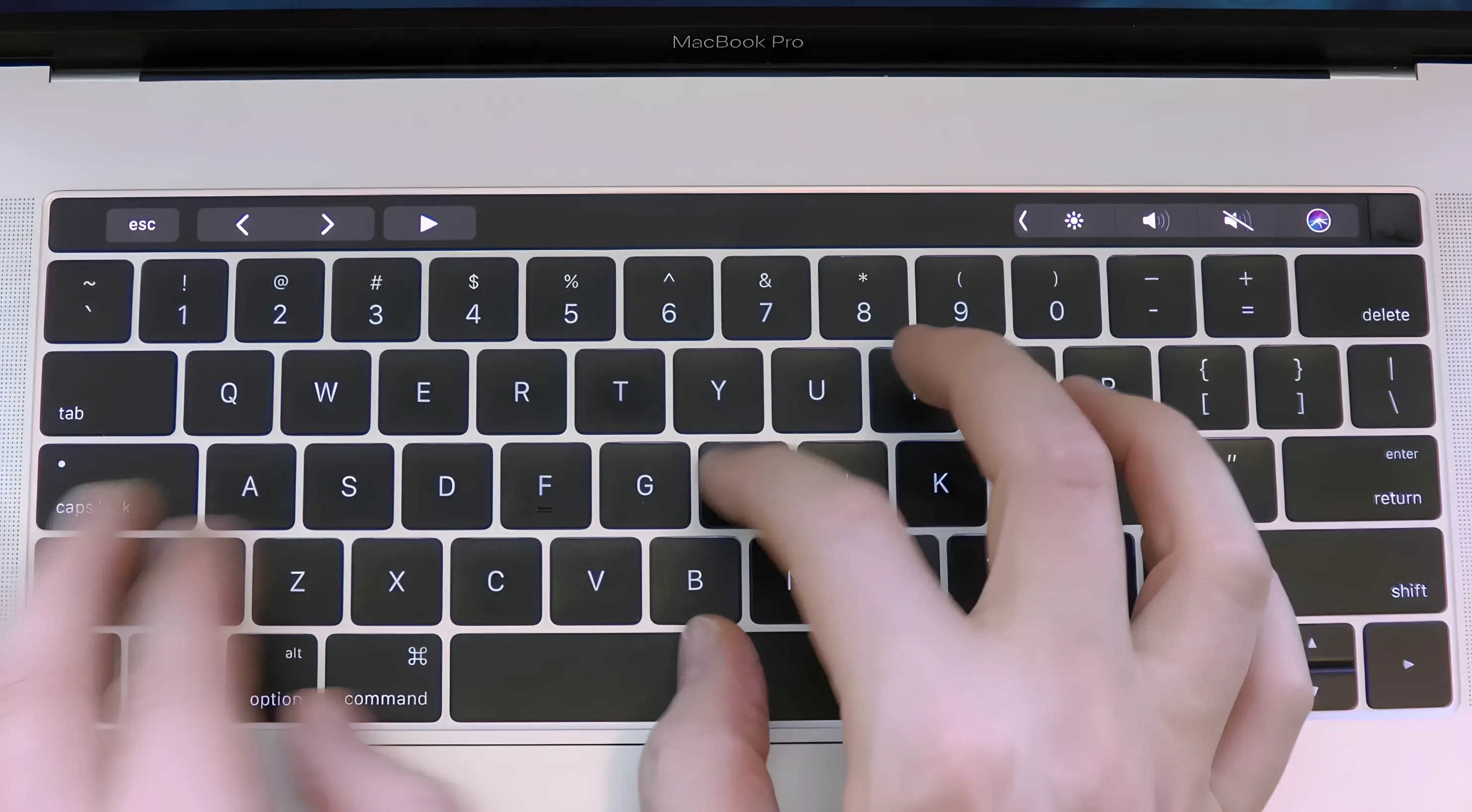
If you already use a utility that remaps keys or adds shortcuts, Haptyk fits into that same corner of your Mac — a small tool that changes how the built-in keyboard feels, not what it does.
Haptyk — a Mac app that plays typing sounds based on how hard you press each key.
Supported hardware — Apple Silicon MacBooks with an M2 Pro or later. That includes the MacBook Pro 13-inch M2 and MacBook Air M2 and later. The M1 MacBook Air and 13-inch M1 MacBook Pro lack the sensor the app relies on, so they won't work.
System requirements — macOS 13 Ventura or newer, with both ARM and x86 64-bit architectures supported.
Interface — English only.
It adds sound to a keyboard you already own, so it sits naturally next to other small utilities you keep around for comfort — like window managers or clipboard tools. Nothing more to buy, no extra hardware to plug in.
How Haptyk compares with similar apps
There are a few other ways to get typing sounds on a Mac, but they work differently. Some keyboard sound apps simply play a single click or pop sound whenever any key is pressed, regardless of force. They treat every keystroke the same. Others require an external USB or Bluetooth keyboard with mechanical switches to make noise. A few macOS utilities let you assign sound files to keypress events, but they usually offer one sound per key and don't change the sound based on how hard you type.
Haptyk is different because it reads the hidden accelerometer inside Apple Silicon MacBooks. That sensor detects the small vibration created by each keystroke, and the app translates that into a sound that varies with force. A light tap sounds quieter than a firm press. No other free Mac app I have seen uses the built-in accelerometer this way. Some paid typing sound tools exist for different platforms, but they rely on screen-based keyboards or external hardware rather than the MacBook's own sensors.
Another common approach is using audio feedback from dictation or accessibility tools, but those respond to voice or on-screen actions, not to physical keypress force. Haptyk stays focused on one thing: matching the mechanical feel of typing to an audible response.
Needs Apple Silicon M2 Pro or later and macOS 13
Haptyk needs a MacBook with Apple Silicon — specifically M2 Pro or later — and macOS 13 Ventura or newer. It works on both ARM and x86 64-bit systems, though x86 models with Apple Silicon are not a typical combination. The app itself is a small disk image file. You open it, drag the application into the Applications folder alias, and once the copy finishes, you launch it from Launchpad. There is no activation step.
Because it relies on the accelerometer, the experience depends on your specific model. MacBook Pro 14-inch and 16-inch models with M1 Pro, M1 Max, and later chips are supported. MacBook Air models from M2 onward are also supported. The M1 MacBook Air and the 13-inch M1 MacBook Pro do not include the sensor that Haptyk uses, so those machines will not produce any sound with the app. If you are on one of those older M1 models, you will see the app launch but get no audio feedback from keypresses.
The sound intensity changes naturally with typing force, so you might notice a wider range of feedback when you vary your typing pressure. That is the main feature — it is not a set of pre-recorded click samples, but a live response to how your fingers hit the keys.
Installation concerns about system requirements
Will this affect my typing speed or accuracy?
Haptyk does not alter how the keyboard works. It adds sound only, so your keystrokes register exactly as they normally would. The sound can make you more aware of how hard you press, but it does not slow anything down or change the key registration.
Only works with built-in MacBook keyboard, not external
The app is designed specifically for the built-in MacBook keyboard. It reads the accelerometer inside the laptop — that sensor is not present in external keyboards. If you plug in a mechanical keyboard, Haptyk will not produce sound from it.
Limited to M2 Pro or later MacBook models with accelerometer
No. Only Apple Silicon MacBooks with M2 Pro or later that include the accelerometer sensor. Older M1 models without the sensor are not supported.
Is there a way to turn it off quickly?
The app can be quit normally from the system tray or by using Command+Q if it is the active window. There is no toggle key mentioned in the app's documentation, but quitting and relaunching is straightforward.
Will the app run in the background all the time?
It runs as a background process while active, but you control when it starts. You launch it from Launchpad only when you want the sound feedback. When you quit, it stops using system resources entirely.
- macOS 13 Ventura or newer
- Apple Silicon MacBook with M2 Pro or later
- Both ARM and x86 64-bit architectures
- Interface language: English
Questions I keep getting
Does Haptyk work on an M1 MacBook?
No.
How to install
- Open the downloaded disk image.
- Drag the app to the Applications folder alias — this keeps it accessible from Launchpad and Spotlight.
- After copying finishes, launch it from Launchpad.
Similar apps




Sign in or join the club to leave a comment.
Nobody has commented yet.